
Sync Health
Sync Health shows how fresh each kind of Amazon data is in Crateworth: orders, finances, stock, advertising and inbound shipments. Use it when a figure looks out of date, or to follow your first import. It doesn’t change any of your data.
Open Sync Health
Section titled “Open Sync Health”Sync Health is at the bottom of the sidebar, above Help and your name. The coloured dot beside it sums up every source on the page:
- Green: every connected source is current.
- Amber: at least one source is stale or a real-time connection needs attention.
- Red: at least one source failed, or Crateworth couldn’t check.
- Grey: nothing is connected yet, or the check is still running.
When the sidebar is collapsed, hover over the Sync Health icon to read the status in words, for example Needs attention or Sync failed. The dot checks again every five minutes, and whenever you come back to the browser tab.
Sync Health is part of Sales & analytics. Team members without access to Sales & analytics don’t see the link or its dot.
What’s on the Sync Health page
Section titled “What’s on the Sync Health page”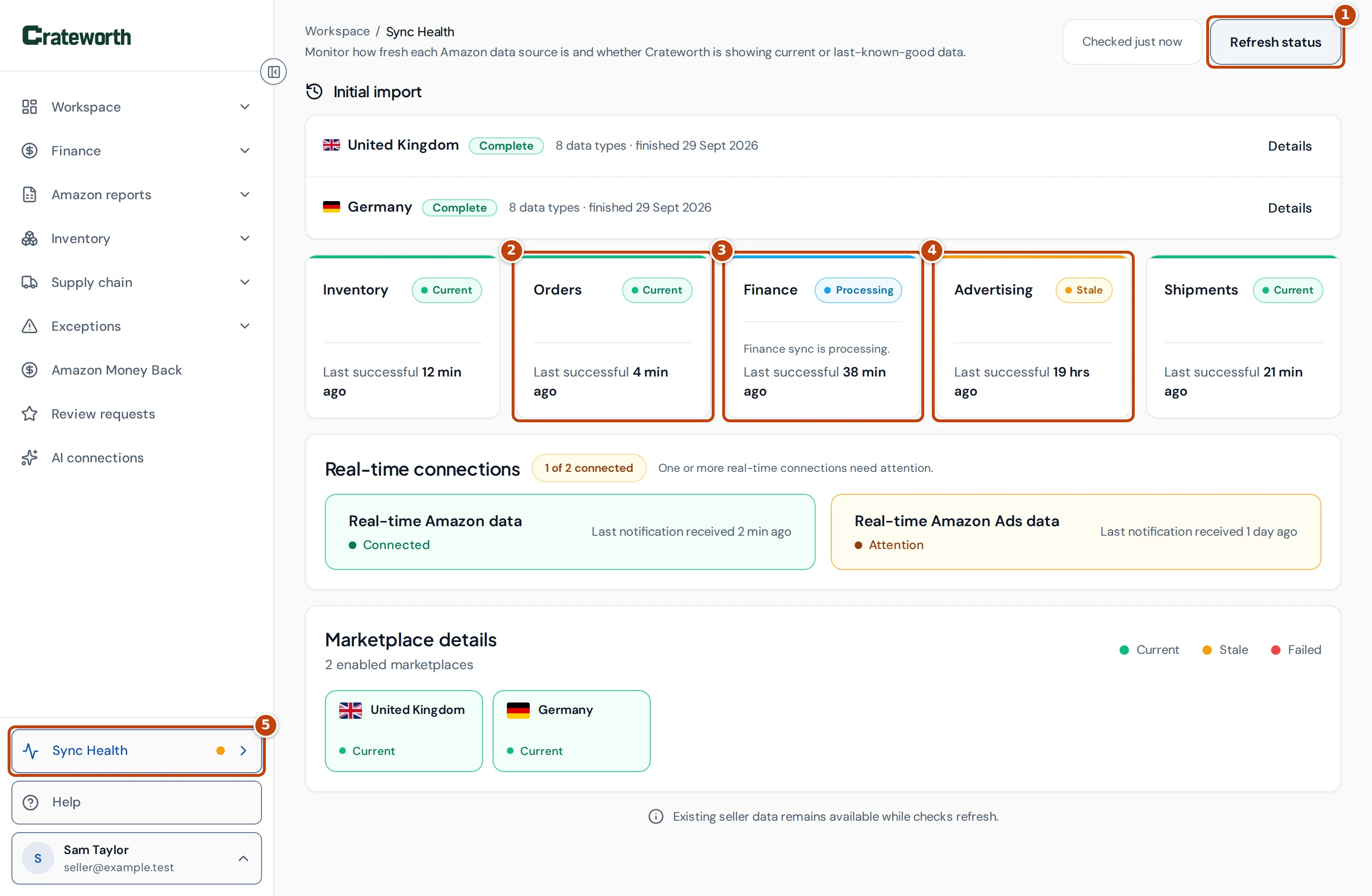
From top to bottom, the page shows:
- Initial import, while your first import runs and for a week after it finishes. See Follow your first import.
- One card for each kind of Amazon data marker 2marker 3marker 4: Inventory, Orders, Finance, Advertising and Shipments. Each card has a status and Last successful, the time that data last updated without an error.
- Real-time connections: whether Amazon is sending updates to Crateworth as they happen.
- Marketplace details: stock freshness for each marketplace you sync.
The sidebar link marker 5 takes you to the page from anywhere in Crateworth.
The page checks again every 60 seconds; the box beside Refresh status marker 1 says when it last checked, for example “Checked just now”. Refresh status checks straight away. It re-reads the status only: it doesn’t ask Amazon for new data. Anyone who can open the page can use it.
What Current, Stale, Processing and Failed mean
Section titled “What Current, Stale, Processing and Failed mean”Each card on Sync Health shows one status:
- Current: the data updated within its normal schedule.
- Processing: an update is running now. Finance shows this while a finance import runs, and Advertising while Amazon prepares advertising reports. It’s shown instead of Current or Stale, but never instead of Failed.
- Stale: the last successful update is older than expected, or there hasn’t been a successful update yet. The figures from that source are the last ones Crateworth received, so recent changes may be missing.
- Failed: the most recent attempt failed after the last success. Crateworth keeps showing the most recent data it received successfully; nothing is deleted.
- Not configured: the source isn’t connected. For Advertising, that means Amazon Ads isn’t connected. For the others, it means no marketplace is turned on for syncing.
Last successful reads, for example, “4 min ago” or “19 hrs ago”, or “No successful sync yet” before the first successful update.
How fresh each kind of data should be
Section titled “How fresh each kind of data should be”Each kind of Amazon data arrives on its own schedule, so each card turns Stale after a different time:
| Card | What it covers | Shows Stale when |
|---|---|---|
| Inventory | Your FBA stock in each marketplace | At least one marketplace has had no successful stock update in the last 9 hours. The card shows the worst status of your marketplaces, and Last successful the most recent update of any of them. |
| Orders | Your Amazon orders | No successful order update in the last 36 hours. The card shows Failed when the latest order report for any marketplace you sync failed after that marketplace’s last successful update. |
| Finance | Fees, refunds, reimbursements and other financial events that Amazon posts | New financial events have waited more than 3 hours to be imported, or the regular full check, about once a day, is overdue. |
| Advertising | Amazon Ads spend from your advertising profiles | Yesterday’s advertising report hasn’t arrived for every profile. Crateworth asks Amazon for these reports twice a day and allows about two hours for Amazon to prepare them. |
| Shipments | Your FBA inbound shipments | No successful update in the last 3 hours. Shipments update every hour. |
The Finance card also has a line of text that explains its status, for example “No new Finance events are pending.”, “New Finance events are queued within the normal sync window.” or “The scheduled Finance reconciliation is overdue.”
While the Advertising card shows Processing, its line of text says how many reports Amazon is still preparing, for example “Amazon is preparing 2 advertising reports.”
Real-time connections
Section titled “Real-time connections”
As well as importing on a schedule, Crateworth receives notifications from Amazon when things change, such as orders and stock. Real-time connections shows whether those notifications are set up and arriving:
- marker 1 The summary says how many of the two connections are connected.
- marker 2 Real-time Amazon data covers notifications about your seller account.
- marker 3 Real-time Amazon Ads data covers notifications from Amazon Ads.
Each connection shows Connected, Attention when part of it isn’t working, or Not configured when it isn’t set up, with the time of the last notification received. A connection on Attention turns the sidebar dot amber. The scheduled imports on the cards above keep running whatever these show.
Stock freshness by marketplace
Section titled “Stock freshness by marketplace”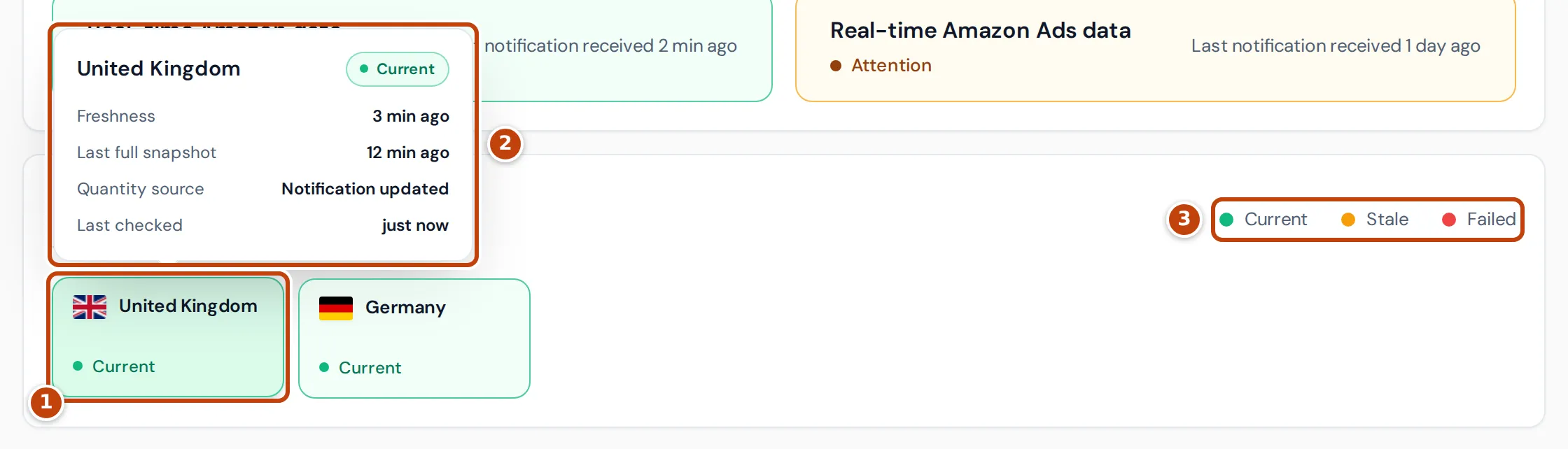
Marketplace details lists every marketplace you sync, with the status of its stock data marker 1. The legend marker 3 explains the colours: Current, Stale and Failed. A marketplace is listed only while syncing is turned on for it.
Hover over a marketplace, or move to it with the Tab key, to see its details marker 2:
- Freshness: when Crateworth last received stock for the marketplace, from either a full snapshot or a notification.
- Last full snapshot: when Crateworth last read the marketplace’s whole FBA stock from Amazon.
- Quantity source: API snapshot when the stock figures come from the last full snapshot, Notification updated when a notification from Amazon has changed them since, or Awaiting snapshot before Crateworth has received any stock for the marketplace.
- Last checked: when the page last checked the status.
If no marketplace is turned on, the section says “No enabled Amazon marketplaces yet”.
Follow your first import
Section titled “Follow your first import”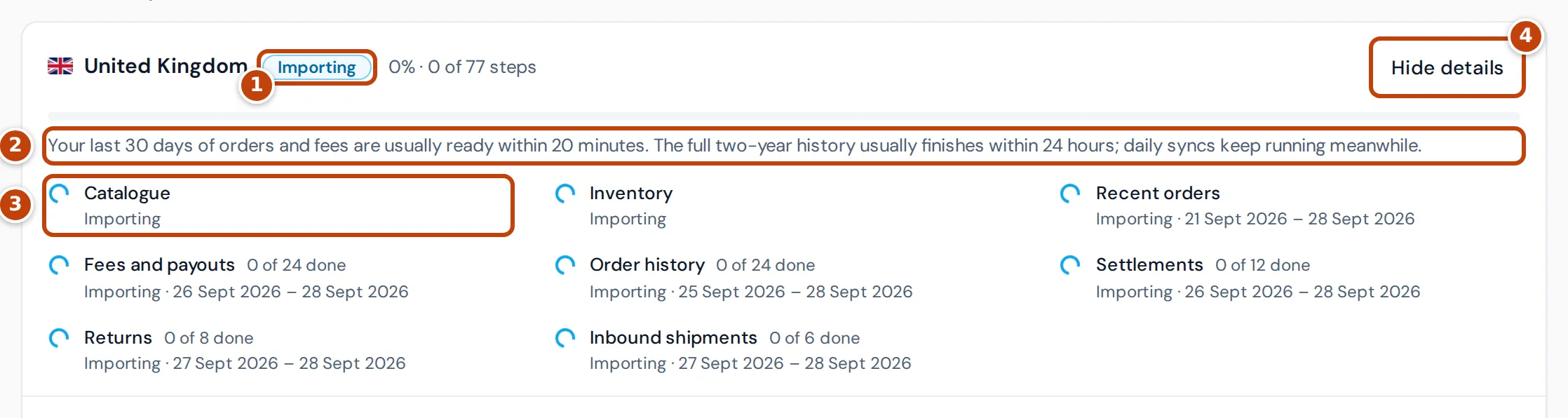
When you connect Amazon, Crateworth imports your history for each marketplace. The Initial import panel at the top of Sync Health shows how far each marketplace has got, while it runs and for a week after it finishes. It updates by itself every 30 seconds while an import runs.
Each marketplace has a status marker 1:
- Queued: the import starts within a minute.
- Importing: the import is running, with the percentage and number of steps done.
- Complete: everything was imported.
- Complete with gaps: the import finished, but some steps failed. See Fix gaps in your first import.
- Stopped: Amazon disconnected: the Amazon connection was removed while importing. Reconnect Amazon for that region to finish it.
- Failed: the import stopped with an error.
While a marketplace imports, the message under its progress bar marker 2 says how long it usually takes: your last 30 days of orders and fees within 20 minutes, and the full two-year history within 24 hours. It changes once the last 30 days are imported, and again once your Dashboard figures for them are ready. Your daily syncs keep running meanwhile.
The list of data types marker 3 shows each part of the import, such as Order history or Fees and payouts, with its state and the dates imported so far:
- Importing: being imported now.
- Waiting for Amazon: Crateworth has asked Amazon for a report and is waiting for it.
- Waiting: not started yet.
- Not available: Amazon doesn’t provide this data for the marketplace.
- Failed, or a number of failed steps such as “2 failed”: some or all of it couldn’t be imported. A data type with failed steps has a warning sign, and its count, such as “10 of 12 done”, leaves the failed steps out.
- A green tick: done.
Select Hide details or Details marker 4 to fold the list away or open it. Imports that are running or have failures open by default.
For what the first import brings in, see Connect Amazon and import your data.
Fix gaps in your first import
Section titled “Fix gaps in your first import”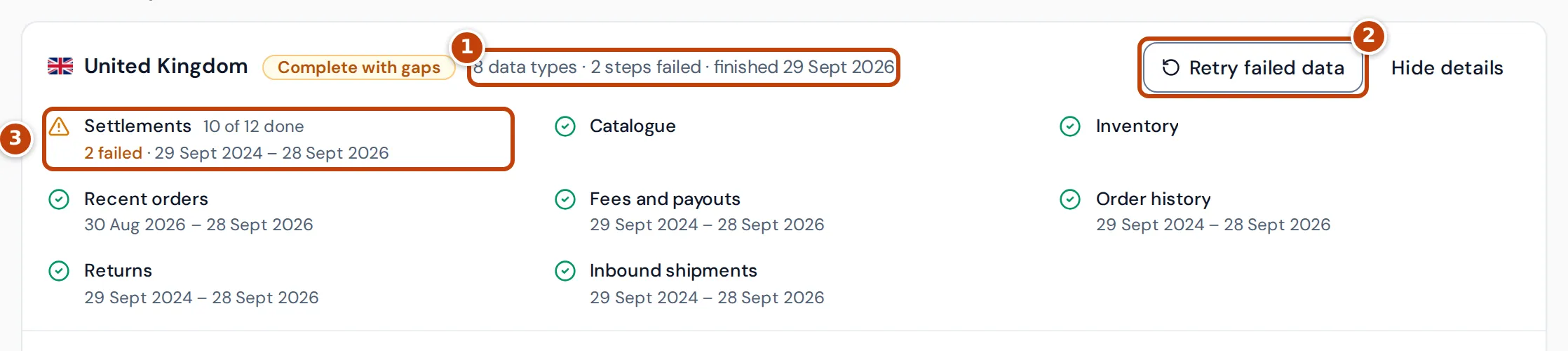
When a marketplace’s first import finishes with failed steps, as Complete with gaps or Failed, its summary marker 1 says how many steps failed. Data types with failures are listed first marker 3.
To fetch the missing data again:
- On the Sync Health page, find the marketplace in Initial import.
- Select Retry failed data marker 2. Crateworth fetches the failed steps again and says “Failed onboarding data will be fetched again”. If nothing is left to retry, it says “Nothing to retry”.
Retry failed data shows only to people who can edit Settings & integrations for the business. Team members with view-only access don’t see it.
Why is a source stale or failing?
Section titled “Why is a source stale or failing?”Start with the card’s status and Last successful on the Sync Health page, then check these in order.
Is Amazon still connected?
Section titled “Is Amazon still connected?”If Amazon’s authorisation lapses, Crateworth can’t fetch new data and the cards turn Stale or Failed. Open the account menu (your name at the bottom of the sidebar), select Settings, then Amazon accounts. A region showing Reconnect needed needs reconnecting with Connect Amazon. Only owners and admins can connect Amazon. See Settings.
Is advertising connected and up to date?
Section titled “Is advertising connected and up to date?”Advertising comes from a separate Amazon Ads connection. Not configured on the Advertising card means Amazon Ads isn’t connected; connect it in Settings, under Amazon accounts, in the Amazon Ads panel. Amazon asks for that authorisation to be renewed every year, with Reconnect Amazon Ads.
Advertising turns Stale when Amazon’s report for the previous day is late. Crateworth requests advertising reports twice a day and allows about two hours for Amazon to prepare them, so a late report usually catches up at the next request.
Is the marketplace turned on?
Section titled “Is the marketplace turned on?”Crateworth syncs only the marketplaces you turned on. A marketplace that’s off isn’t listed in Marketplace details, and its data doesn’t update. Turn it on in Settings, under Amazon accounts, with Sync this marketplace.
Is it still the first import?
Section titled “Is it still the first import?”Until a source’s first successful update, its card shows Stale and Last successful says “No successful sync yet”. During your first import this is expected. Follow progress in Initial import.
Is it Amazon?
Section titled “Is it Amazon?”Amazon sometimes takes longer than usual to prepare reports or answer requests. A Stale card usually goes back to Current at its next scheduled update without you doing anything. Failed means the last attempt failed; Crateworth tries again at the next scheduled update and keeps showing the most recent data it has meanwhile.
If Sync Health can’t load
Section titled “If Sync Health can’t load”If the status can’t be checked, the page says “Sync status is temporarily unavailable.” Your data isn’t affected. Select Try again to check again. If the page couldn’t check at all since you opened it, the cards show Unavailable. When the sidebar’s own check fails, its dot turns red.