
Listings
The Listings page keeps an up-to-date copy of every Amazon listing in your connected marketplaces. Use it to find listings with missing content or Amazon issues, preview them, and edit and publish their content and A+ Content. To open it, in the sidebar, under Inventory, select Listings.
What’s on the Listings page
Section titled “What’s on the Listings page”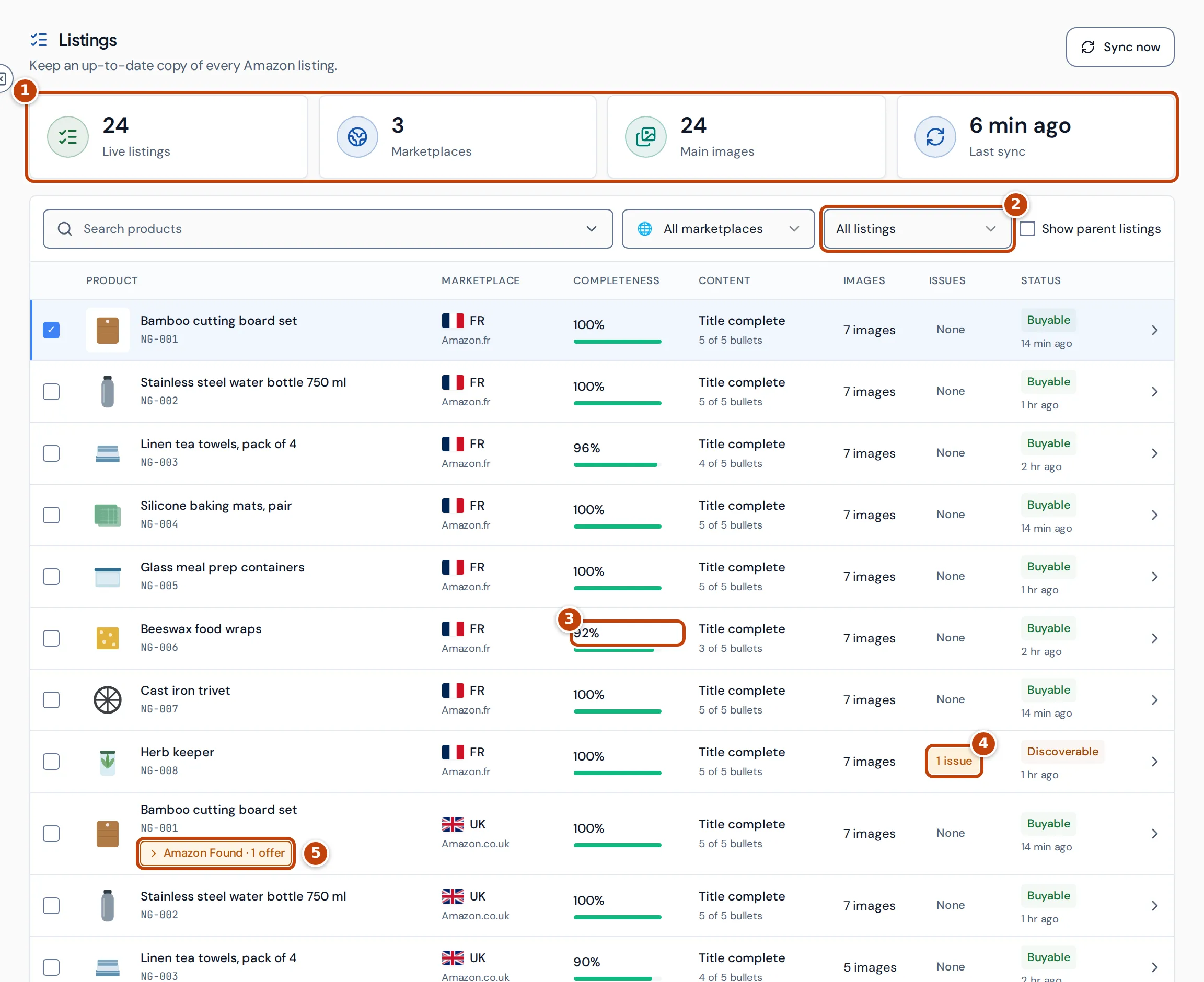
The tiles at the top marker 1 are:
- Live listings: listings Amazon reports as buyable, across all your marketplaces. They don’t change with the filters.
- Marketplaces: how many marketplaces have listings.
- Main images: how many listings have a main image.
- Last sync: when Crateworth last copied your listings from Amazon.
Under the tiles, Search products finds one or more products, the marketplace menu chooses a marketplace, and the listing filter marker 2 chooses which listings to show:
- All listings: every current listing.
- Needs attention: listings with an Amazon issue or incomplete content.
- Amazon issues: listings Amazon reports problems for.
- Amazon-created: offers Amazon created, such as Amazon Found, Grade and Resell and Virtual multipack listings.
- Removed listings: listings Amazon no longer returns. Crateworth keeps them for your order history and accounts.
Tick Show parent listings to include variation parents, which can’t be bought.
The columns in the listings table
Section titled “The columns in the listings table”| Column | What it shows |
|---|---|
| Product | The listing’s main image, title and SKU. |
| Marketplace | The marketplace and its Amazon site. |
| Completeness marker 3 | How complete the listing’s content is, from 0 to 100%. |
| Content | Whether the listing has a title, and how many of 5 bullet points it has. |
| Images | How many images the listing has. |
| Issues marker 4 | How many issues Amazon reports. |
| Status | The listing’s status and when Crateworth last checked it. Buyable (green) listings can be bought; Discoverable (amber) listings show in search but can’t be bought; Removed (grey) listings are ones Amazon no longer returns, and any other status is also grey. |
When Amazon has created offers for the same product, such as Amazon Found recovery offers, a chip under the listing counts them marker 5. Select it to show them. Their content comes from the main listing, so they show Shared catalog and Inherited from ASIN.
Select a row to see its details in the side panel: Listing snapshot, Content coverage and Sync status. Open preview, View preview or the arrow at the end of the row opens the listing preview.
How the completeness score is worked out
Section titled “How the completeness score is worked out”Completeness is the average of five scores:
- Title: 100% if the listing has a title.
- Bullets: 20% for each bullet point, up to 5.
- Description: 100% if the listing has a description.
- Backend keywords: 100% if at least one is set.
- Images: one-seventh for each image, up to 7.
So a listing with 3 bullet points and everything else complete scores 92%.
Refresh listings from Amazon
Section titled “Refresh listings from Amazon”Crateworth copies your listings from Amazon every 15 minutes, and once a week checks every listing in full. Amazon also tells Crateworth when a listing’s status or issues change, and that listing is refreshed straight away.
To refresh now, select Sync now at the top of the Listings page. It finishes when every marketplace has been checked.
Preview a listing
Section titled “Preview a listing”The listing preview shows a listing laid out as on Amazon, with checks around it.
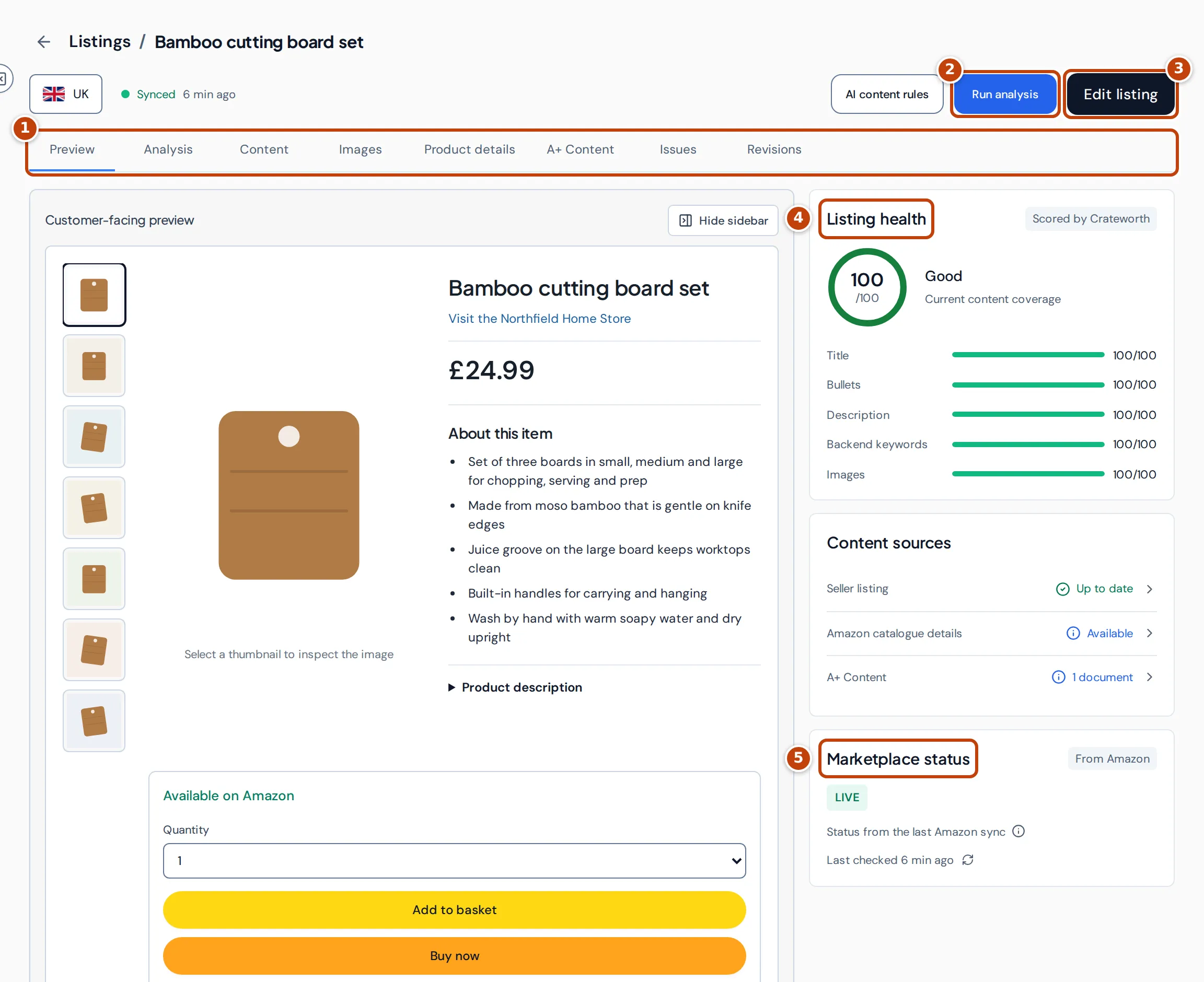
The tabs marker 1 are:
- Preview: images, title, price, bullet points and description as customers see them, and the listing’s A+ Content. View on Amazon opens the live product page.
- Analysis: the AI listing review (see below).
- Content: title, backend keywords, bullet points and description.
- Images: the listing’s and Amazon’s catalogue images.
- Product details: attributes such as weight, materials and compliance.
- A+ Content: the product’s A+ document.
- Issues: issues Amazon reports for this SKU, with what to do.
- Revisions: earlier versions, saved whenever the content changed on Amazon.
In the sidebar, Listing health marker 4 shows the completeness score, and Marketplace status marker 5 shows whether the listing is live and how many issues it has.
When the seller listing has no bullet points or description, the preview shows Amazon’s catalogue content instead.
Run an AI review of a listing
Section titled “Run an AI review of a listing”On the listing preview, select Run analysis marker 2 to have AI review the listing’s copy, images and A+ Content. The result opens on the Analysis tab:
- A Listing quality score out of 100, split into Copy & completeness, Images & accessibility, Consistency, Compliance and A+ Content.
- An Executive summary, Strengths and Findings, most serious first. Each finding has a recommendation and, where it helps, suggested copy.
Findings marked Automated check come from fixed rules; those marked AI review come from the AI.
Each new analysis uses 1 AI credit. If the listing hasn’t changed since the last analysis, the earlier result is reused at no cost.
To tell the AI what to avoid, such as claims or audiences, select AI content rules, enter the rules and select Save rules.
Edit a listing and send it to Amazon
Section titled “Edit a listing and send it to Amazon”You can change the title, bullet points, description, backend keywords, images and product details. Price, offer, identifier and variation fields can’t be changed here.
- On the listing preview, select Edit listing marker 3. Crateworth loads the listing’s current values from Amazon.
- Change the fields on the Content, Images or Product details tabs. Images must be JPEG or PNG, up to 10 MiB each.
- Select Save draft. The draft is saved for your whole team. Nothing is sent to Amazon yet.
- Select Review and publish. Untick any section you don’t want to send.
- Select Validate with Amazon. Amazon checks the changes without applying them.
- Tick I reviewed these changes and want to send them to Amazon for this SKU and marketplace., then select Send to Amazon. Do this within 15 minutes of validating, or validate again.
The status at the top of the page then shows Amazon processing, and Published to Amazon once Amazon shows the new values. One update can change up to 50 fields.
Only owners and admins can edit and publish listings, unless an admin has given a team member permission to publish.
For FBA products, Amazon’s own warehouse measurements set your fees, so changing weight or dimensions here doesn’t change them.
If Amazon changed the listing since your draft
Section titled “If Amazon changed the listing since your draft”Amazon changed fields in this draft lists each field with Amazon’s current value and yours. For each one, select Use Amazon value or Keep my draft, then validate again.
Update statuses
Section titled “Update statuses”- Amazon processing: Amazon accepted the update and is applying it.
- Published to Amazon: Amazon now shows your values. The product page customers see can take a little longer.
- Update failed: Amazon reported a problem with the update. Select View issues to see it.
- Not confirmed: Amazon hadn’t shown the update after 72 hours, so it may not have been applied. Check the listing on Amazon.
- Could not confirm: Crateworth couldn’t check the update with Amazon. Refresh the listing to see whether it was applied.
While an update is pending, Crateworth checks it every 15 seconds while the page is open, and every 15 minutes otherwise. Check Amazon checks now.
Edit A+ Content
Section titled “Edit A+ Content”To edit a listing’s A+ Content, open the listing preview’s A+ Content tab and select Edit A+. If the product has none, select Create A+ Content.
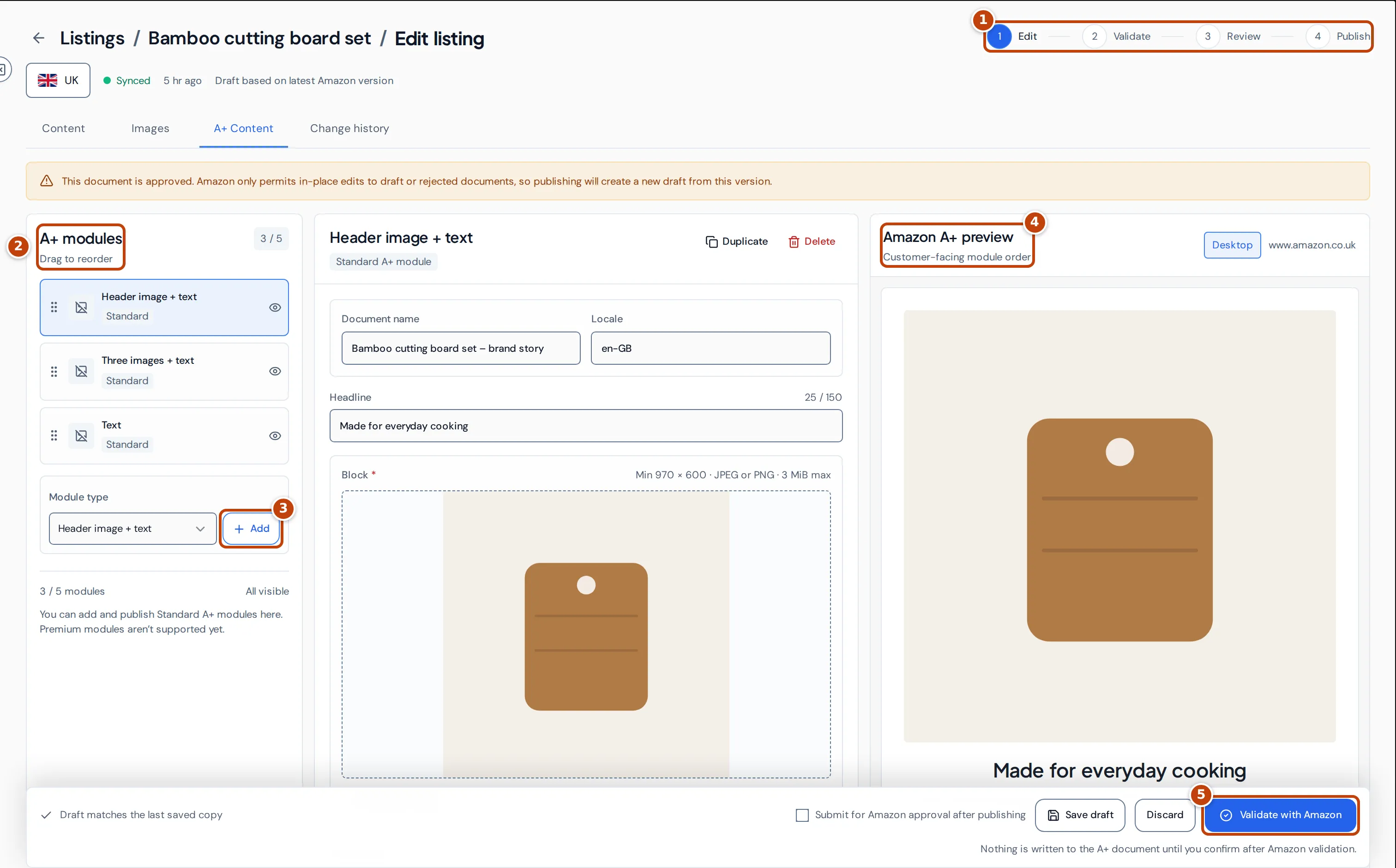
The editor follows four steps marker 1: edit, validate, review and publish.
- Edit the Document name and Locale.
- In A+ modules marker 2, select a module to edit its text and images. Drag modules to reorder them. To add one, choose a Module type and select Add marker 3. Standard A+ allows up to 5 modules.
- Upload images to each image field. A+ images must be JPEG or PNG, up to 3 MiB, and at least the size shown above the field. Images go straight to Amazon’s A+ media library.
- Check Assigned ASINs. Publishing replaces the whole list of ASINs the document is assigned to, and each one must be one of your listings in this marketplace.
- Check the result in the Amazon A+ preview marker 4.
- Optional: tick Submit for Amazon approval after publishing.
- Select Validate with Amazon marker 5.
- Tick Confirm this complete A+ publication, then select Publish for approval, or Publish Amazon draft if you didn’t tick the approval box.
Publish Amazon draft saves the document to Amazon as a draft that doesn’t go live. Publish for approval sends it for Amazon’s review, and Crateworth checks until Amazon approves or rejects it. If Amazon rejects it, read the moderation feedback in Seller Central; your draft is kept.
Amazon only lets you change draft or rejected documents. If the document is already approved or under review, publishing creates a new draft document from it.
Save draft keeps your A+ edits in this browser only. They aren’t shared with your team or other computers. Discard goes back to Amazon’s latest version.
Premium A+ documents can be viewed but not edited or published from Crateworth.
Why a listing looks wrong or incomplete
Section titled “Why a listing looks wrong or incomplete”Completeness is below 100% but the listing looks fine on Amazon
Section titled “Completeness is below 100% but the listing looks fine on Amazon”The score needs a title, 5 bullet points, a description, at least one backend keyword and 7 images. Backend keywords aren’t visible on Amazon’s product page.
A listing is missing from the table
Section titled “A listing is missing from the table”It may be a removed listing (choose Removed listings), a variation parent (tick Show parent listings), or in another marketplace than the one selected.
The status says “Check status” instead of “Synced”
Section titled “The status says “Check status” instead of “Synced””Amazon doesn’t report the listing as buyable or discoverable, or no longer returns it. Look at the Issues tab.
“Amazon hasn’t sent a price for this listing yet.”
Section titled ““Amazon hasn’t sent a price for this listing yet.””Amazon didn’t return a price for the listing’s offer.
A+ Content shows “DRAFT PREVIEW”
Section titled “A+ Content shows “DRAFT PREVIEW””The A+ document isn’t published for this ASIN on Amazon. The preview shows the draft instead.
“No A+ Content found”
Section titled ““No A+ Content found””Amazon hasn’t returned an A+ document assigned to this ASIN in this marketplace.
“Only seller-account owners and admins can edit and publish.”
Section titled ““Only seller-account owners and admins can edit and publish.””Your account doesn’t have permission to publish listings. Ask an owner or admin.
Related pages
Section titled “Related pages”- Inventory overview: stock for each product.
- Product settings: costs, VAT and shipping settings for each product.
- Keywords: track where your products rank in Amazon search.