
Reports
The Reports page downloads your data as a complete Excel or CSV file: daily and monthly figures, product figures, orders, stock, product costs and refunds. You can download a report once or schedule it to run every day, week or month. To open the page, in the sidebar, under Finance, select Reports.
For your accountant there’s also the QuickBooks journal export, which turns your Amazon activity into a journal to import into QuickBooks. You open it from the P&L page; see Export a QuickBooks journal.
What’s on the Reports page
Section titled “What’s on the Reports page”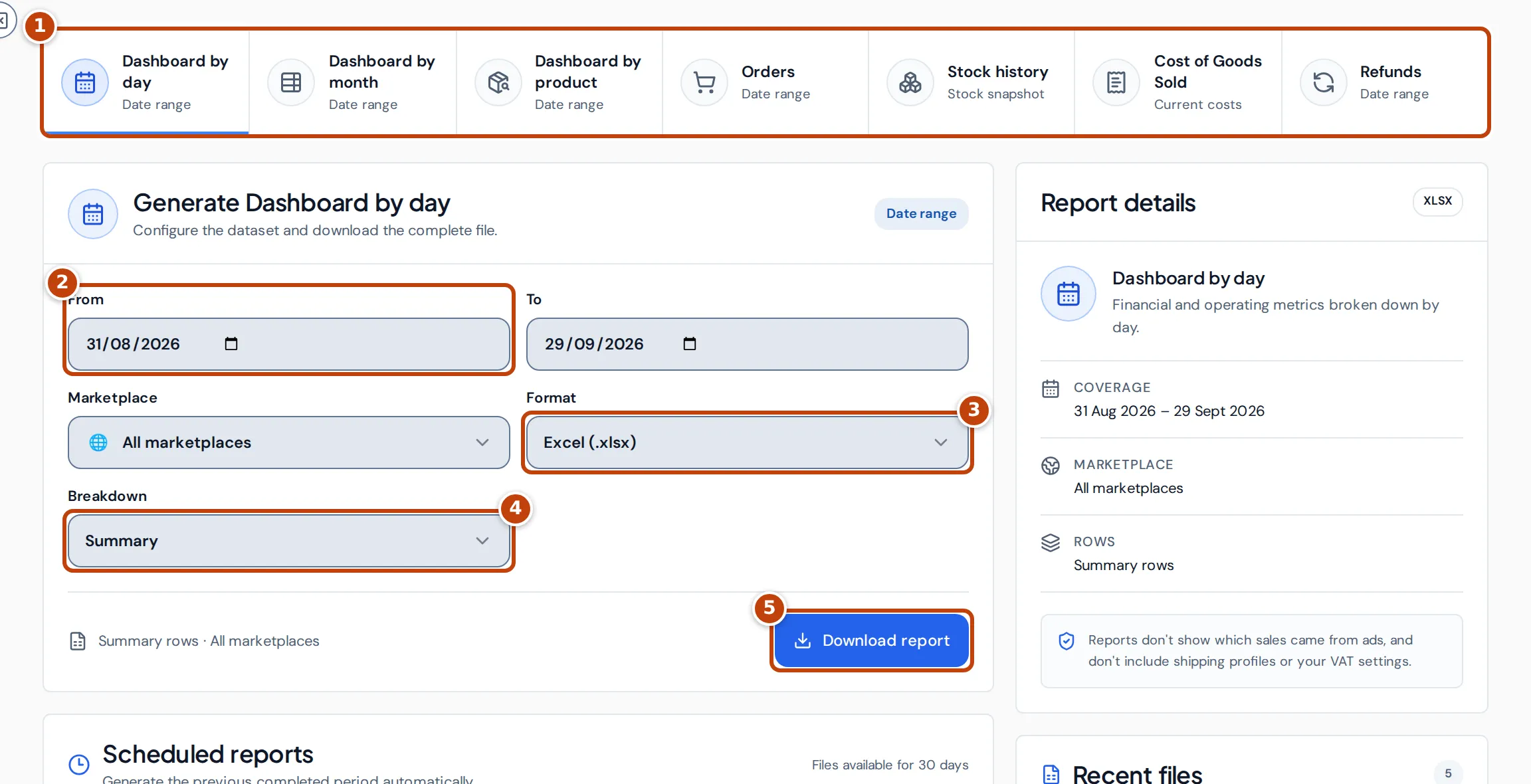
Choose a report from the row of report types marker 1. The panel below it sets up that report, and Report details on the right says what the file will cover. Lower down are Scheduled reports and Recent files.
The reports you can download
Section titled “The reports you can download”| Report | What it contains | Dates |
|---|---|---|
| Dashboard by day | Financial and operating metrics, one row per day. | A date range |
| Dashboard by month | The same metrics, one row per calendar month. | A date range |
| Dashboard by product | Daily financial and operating metrics for each marketplace and product. | A date range |
| Orders | Orders and return activity, with products, promotions, fees and flags. | A date range |
| Stock history | FBA and warehouse stock on one day. | A snapshot date |
| Cost of Goods Sold | Each product’s current cost and how it’s reported. | The costs that apply today |
| Refunds | Refunded products with the Amazon orders they came from. | A date range |
You see only the reports your team access lets you export. A report needs permission to export data and access to every area of the app its figures come from.
Download a report
Section titled “Download a report”- On the Reports page, select the report in the row of report types.
- Choose its dates: marker 2 From and To for a date range (the last 30 days to start with), or a Snapshot date for Stock history. Cost of Goods Sold uses the costs that apply today, so it has no dates.
- Optional: choose a Marketplace. All marketplaces includes every connected marketplace.
- Choose the marker 3 Format: Excel (.xlsx) or CSV (.csv).
- For Dashboard by day and Dashboard by month, choose the marker 4 Breakdown: Summary for one figure per metric, or Detailed to split the figures into their components.
- Select marker 5 Download report. The file downloads when it’s ready.
Schedule a report
Section titled “Schedule a report”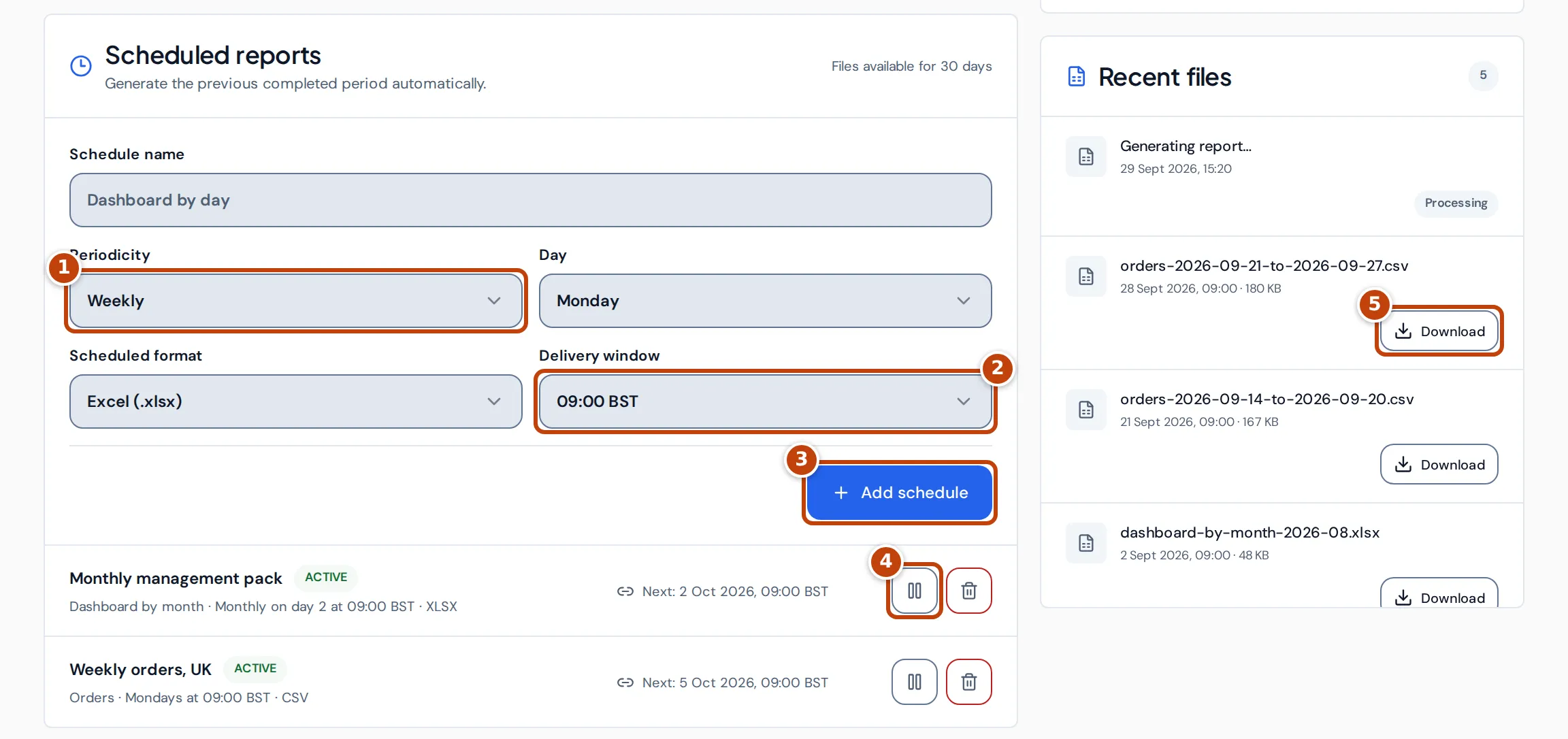
A scheduled report runs by itself and covers the last completed period: a daily schedule covers yesterday, a weekly one the seven days up to yesterday, and a monthly one the previous calendar month. Stock history is taken as at yesterday, and Cost of Goods Sold uses the costs that apply on the day it runs. A schedule uses the report, marketplace and breakdown chosen in the panel above it.
- Set up the report in the panel at the top, as for a download.
- Under Scheduled reports, optional: enter a Schedule name. If you leave it blank, the schedule takes the report’s name.
- Choose the marker 1 Periodicity: Daily, Weekly or Monthly. For a weekly report choose the Day; for a monthly one, the Day of month (1 to 28).
- Check the Scheduled format, and choose the marker 2 Delivery window: 08:00 or 20:00 UTC, shown in your device’s time zone (for example 09:00 BST and 21:00 BST in a UK summer). Schedules run at the same UTC time all year, so in your local time they move by an hour when the clocks change.
- Select marker 3 Add schedule.
Each schedule shows its report, timing, format and next run, in your device’s time zone. marker 4 The pause button stops a schedule and the play button resumes it; the bin deletes it.
Finished files appear under Recent files, where marker 5 Download saves them. A file still being made shows Processing, and one that couldn’t be made shows Failed. Files are kept for 30 days. If the figures for the period are still being prepared when a schedule runs, it waits and tries again.
Export a QuickBooks journal
Section titled “Export a QuickBooks journal”The QuickBooks journal export creates a CSV of your Amazon activity for a period, as a general journal you can import into QuickBooks, and an Excel workbook for your accountant. It covers all your marketplaces, in your reference currency. It doesn’t file VAT or Corporation Tax returns.
To open it, on the P&L page select QuickBooks export. It takes you through three steps: Prepare, Review and Import.
Prepare a QuickBooks export
Section titled “Prepare a QuickBooks export”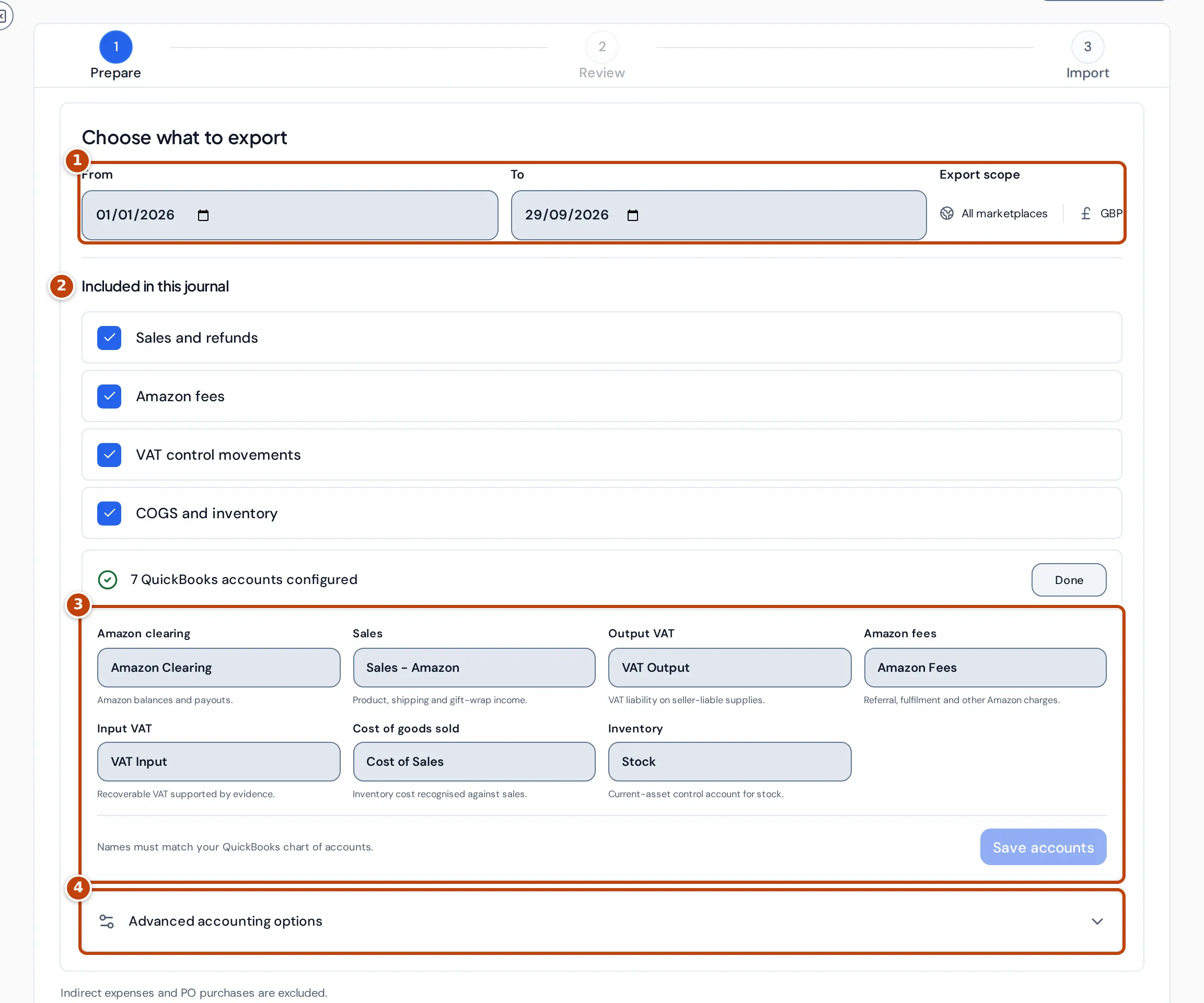
- Choose the period with marker 1 From and To. The end date can’t be in the future.
- Check what’s marker 2 Included in this journal: Sales and refunds, Amazon fees, VAT control movements, and COGS and inventory.
- The first time, select Edit next to the accounts and enter marker 3 the name of the QuickBooks account for each of the seven roles: Amazon clearing, Sales, Output VAT, Amazon fees, Input VAT, Cost of goods sold and Inventory. The names must match your QuickBooks chart of accounts exactly, and each role needs a different account. Select Save accounts. Crateworth remembers them, and the card then says 7 QuickBooks accounts configured.
- Optional: open marker 4 Advanced accounting options to add more to the journal (see Include expenses or purchase orders in the journal).
- Select Review export.
Review a QuickBooks export
Section titled “Review a QuickBooks export”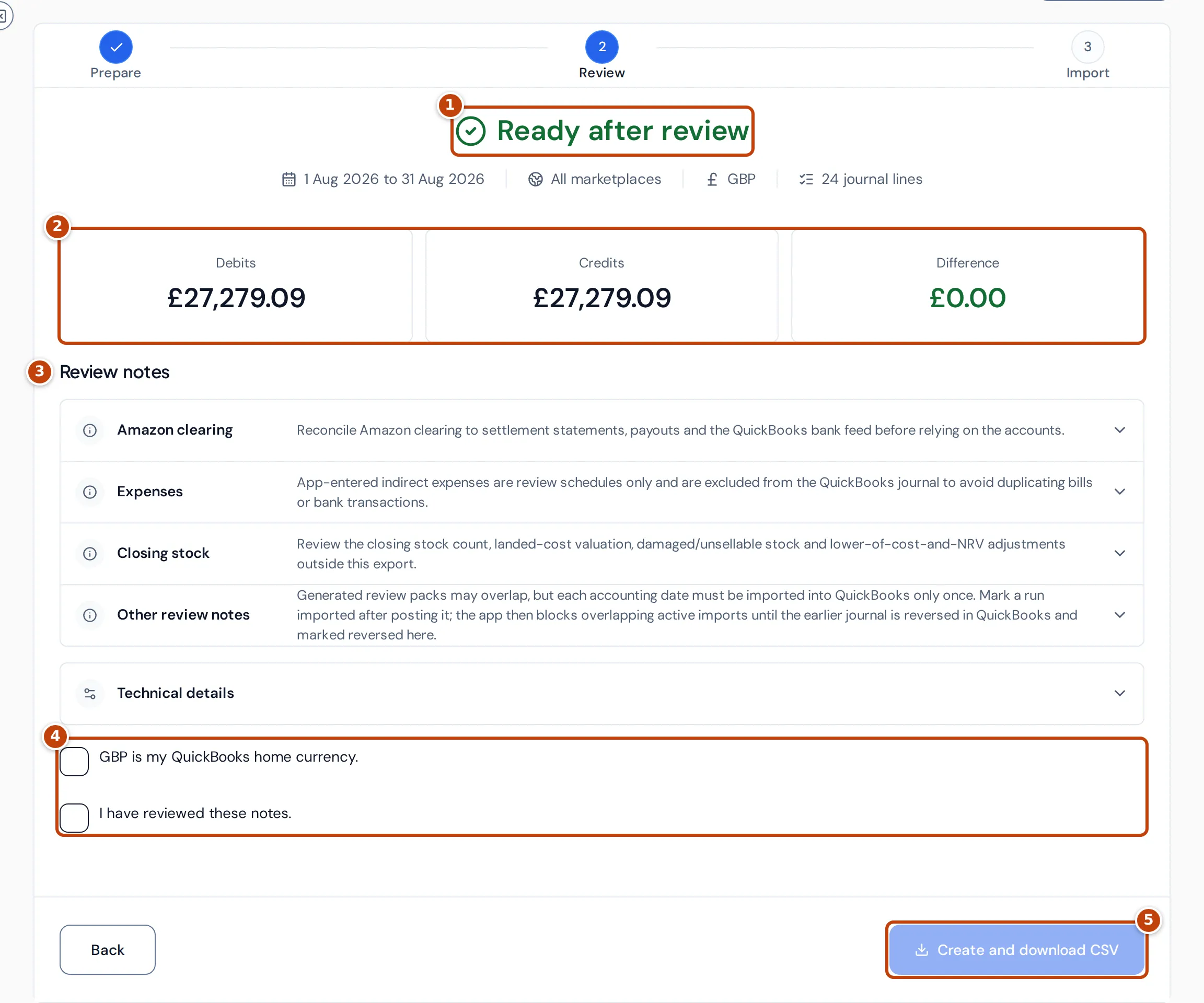
Crateworth checks your data for the period and builds the journal.
- marker 1 The heading says Ready after review, or how many issues you need to fix first.
- marker 2 Debits, Credits and Difference total the journal. A balanced journal has a difference of zero.
- Fix before continuing lists problems that stop the export, each with a link to the page where you can fix it.
- marker 3 Review notes are points to check, grouped by area, such as reconciling Amazon clearing with your payouts and bank feed, or reviewing the value of your closing stock.
To create the file:
- Tick marker 4 the confirmations: that your reference currency is your QuickBooks home currency (for example GBP is my QuickBooks home currency.) and, if there are review notes, I have reviewed these notes.
- Select marker 5 Create and download CSV. The CSV downloads and the Import step opens.
If the data for the period changes after you review it, Crateworth asks you to review the export again. If nothing has changed since an earlier export of the same period, it reuses that file.
Import the journal into QuickBooks
Section titled “Import the journal into QuickBooks”The Import step says Your QuickBooks CSV is ready and has two downloads: Download QuickBooks CSV, the journal to import, and Download accountant workbook.
- In QuickBooks, turn off account numbers.
- Go to Settings > Import data > Journal Entries.
- Upload the CSV and map its six columns.
- Start the import. Open Intuit import guide links to Intuit’s own instructions.
- Back in Crateworth, under After QuickBooks finishes, select Mark as imported.
Marking an export as imported stops you importing the same dates twice: Crateworth won’t create another full journal for dates that overlap an imported one. To correct a period you’ve already imported, reverse that journal in QuickBooks, select Mark journal reversed on the earlier export, and then export the period again.
Previous exports lists your earlier exports with their status (Imported, Reversed or Not imported) and what they include, for example Amazon only. Use CSV or Workbook to download them again.
Include expenses or purchase orders in the journal
Section titled “Include expenses or purchase orders in the journal”By default the journal covers only your Amazon activity. Under Advanced accounting options on the Prepare step you can add:
- Include indirect expenses in the QuickBooks journal: adds your expenses, using an Indirect expense account and an Expense clearing account. Advertising expenses stay out. Code the matching bank payments in QuickBooks to the clearing account, so each expense isn’t recorded twice. You’ll be asked to confirm the expenses aren’t already in QuickBooks. The export can’t include expenses while any non-advertising expense in the period is not yet approved, is amortised, has no category or one that isn’t an operating category, was booked by an expense rule, uses import VAT, reverse charge or a mixed VAT rate, expects VAT recovery that hasn’t been confirmed, or recovers VAT without supporting evidence Crateworth has accepted. The Review step lists each of these under Fix before continuing.
- Include PO inventory purchases and confirmed payments: adds stock bought on your purchase orders and the payments you’ve confirmed against them, using a Payment account and a PO clearing account. All the payments must have come from that one account, and you mustn’t import the same bank payments into QuickBooks again.
Why the QuickBooks export can’t be created
Section titled “Why the QuickBooks export can’t be created”The Review step lists anything that stops the export under Fix before continuing. Common reasons:
- Some of Amazon’s fees in the period are still estimates. Wait until Amazon has posted the actual fees, then review the export again. The most recent days are the ones most likely to be estimated.
- Your figures for the period are still being prepared. Try again shortly.
- An account name is missing, starts with =, +, - or @, or is used for more than one role. Edit the accounts on the Prepare step.
- The period overlaps an export you’ve marked as imported. Reverse that journal in QuickBooks and select Mark journal reversed on it first.