
Payouts
The Payouts page lists the payout groups Amazon pays you from, with each group’s amount, status, bank transfer and settlement window. Open a group to see the sales, refunds and fees that make up the payout and whether they add up to what Amazon paid. To open the page, in the sidebar, under Finance, select Payouts.
Amazon collects your sales and charges into a payout group (a settlement) for each settlement window, usually about two weeks. While the window is running the group is open. When it closes, Amazon transfers the balance to your bank account.
What’s on the Payouts page
Section titled “What’s on the Payouts page”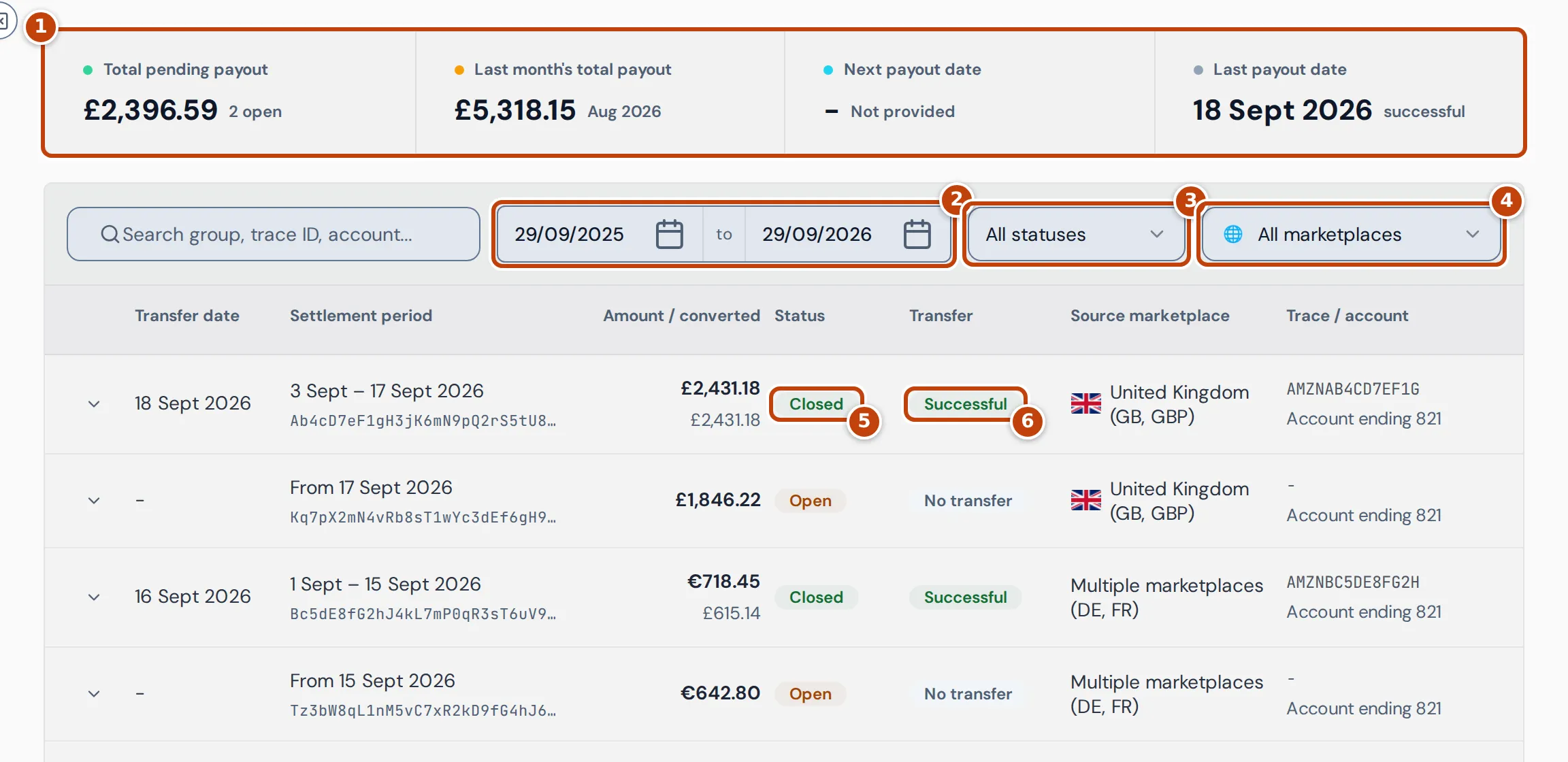
The page has the summary cards marker 1 at the top, then the filters and the list of payout groups.
- marker 2 The date range picks the groups shown. By default it covers the last 12 months up to today. A group is dated by its transfer date, or by its window when Amazon hasn’t transferred it yet.
- marker 3 All statuses shows only Open or only Closed groups.
- marker 4 All marketplaces shows only the groups with sales from one marketplace.
- Search group, trace ID, account… finds a group by its ID, its bank trace ID, the last digits of the bank account, its marketplace or its status.
- Clear puts the filters back to their defaults.
In the list, each payout group shows:
| Column | What it is |
|---|---|
| Transfer date | When Amazon sent the money to your bank. Blank until Amazon reports a transfer. |
| Settlement period | The start and end of the settlement window, or just its start date while the group is open. Underneath, in smaller text, is Amazon’s ID for the group, which you can use to find the same payout in Seller Central. |
| Amount / converted | The group’s total in the currency of the marketplace it belongs to. Underneath, in smaller text, is the total Amazon reports after converting it into the currency it paid out in, once Amazon has converted it. |
| Status | marker 5 Open while Amazon is still adding transactions, Closed once the window has ended. |
| Transfer | marker 6 The bank transfer’s status as Amazon reports it. Green means it succeeded, red that it failed or was cancelled. No transfer means Amazon hasn’t started one. |
| Source marketplace | The marketplace whose orders are in the group, or “Multiple marketplaces” with their country codes when one group pays out several, for example Germany and France in euros. |
| Trace / account | The bank trace ID for the transfer and the last digits of the account it went to. |
Drag a column heading to change the column order. The page remembers it.
What the summary cards mean
Section titled “What the summary cards mean”- Total pending payout: the total of the open groups, converted into your reference currency at the date each group started. The number next to it is how many groups are open. It follows the date range and marketplace filters, but not the status filter. If an exchange rate is missing it shows Unavailable, and an info note says how many groups couldn’t be converted.
- Last month’s total payout: the total of the closed groups whose transfer succeeded during the previous calendar month, in your reference currency. It follows the marketplace filter but not the date range.
- Next payout date: the earliest future transfer date Amazon has given for an open group. Amazon often gives no date until the transfer starts, and then the card shows Not provided.
- Last payout date: the most recent successful transfer.
You set your reference currency in Settings.
See what makes up a payout
Section titled “See what makes up a payout”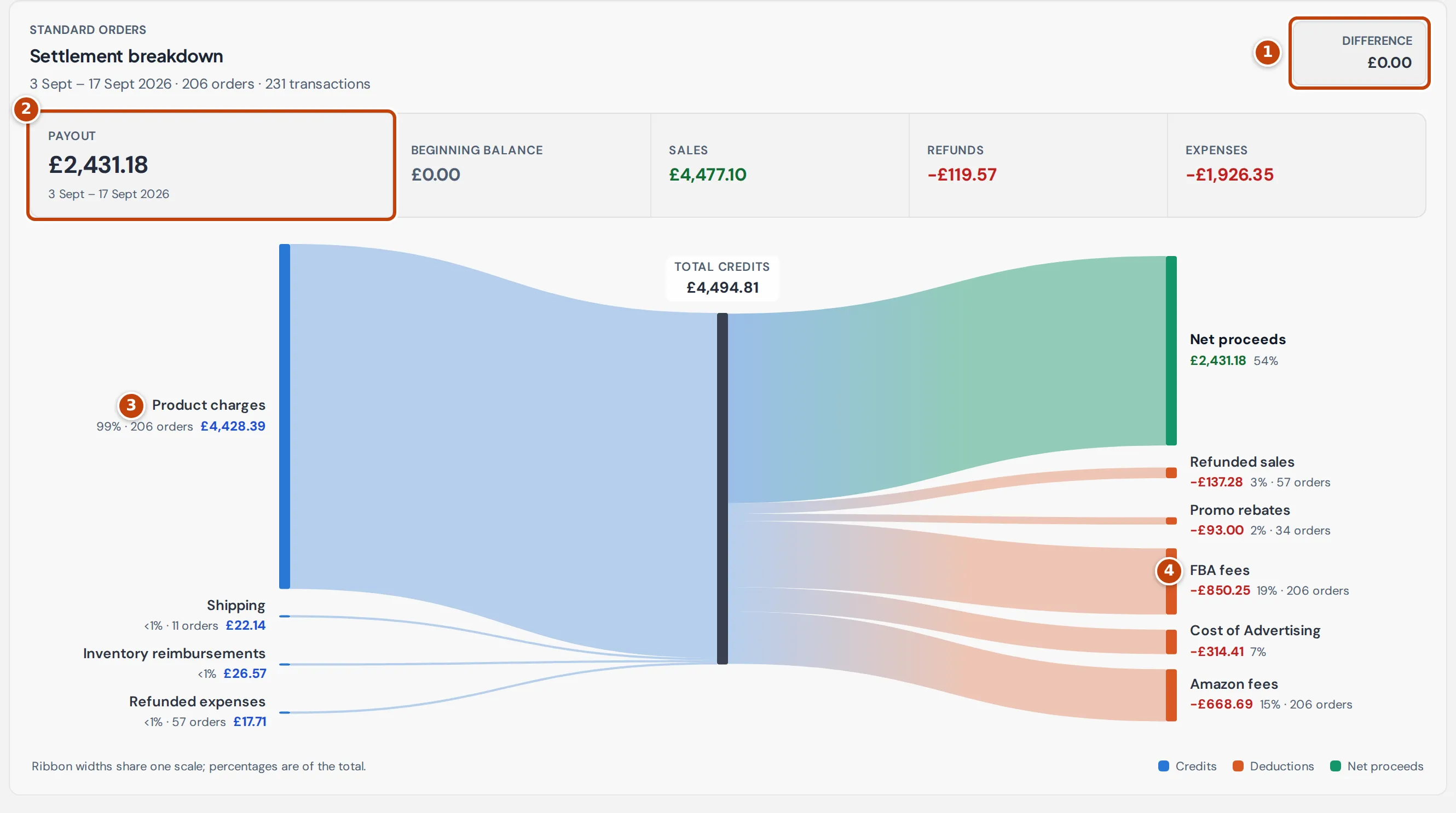
Select the arrow at the start of a row to open its Settlement breakdown. It shows the window and how many orders and transactions are in the group, then:
- marker 1 Difference: the payout less everything Crateworth found in the group (the beginning balance plus every transaction in the payout’s currency). A difference of £0.00 means Amazon’s transactions add up exactly to the payout.
- marker 2 Payout: what Amazon is paying for the group, followed by Beginning balance (any balance Amazon carried in from the previous group), Sales (the money credited to you other than refunds, such as product charges, tax, shipping and reimbursements), Refunds (refunded sales, less any fees Amazon refunded with them) and Expenses (everything else Amazon deducted, such as its fees, advertising, promotions and reserves).
The diagram draws the same money as a flow. Credits, such as marker 3 product charges, shipping and reimbursements, come in on the left. On the right are the deductions, such as marker 4 FBA fees, Amazon fees, advertising, promotions and refunds, and what’s left as Net proceeds. When Difference is £0.00, Net proceeds equals the payout. Each line shows its amount, its share of the total and how many orders it covers. Hover over a line to highlight its band.
If the group contains transactions in more than one currency, the ones that aren’t in the payout’s currency are listed under Other currencies instead of in the diagram, because amounts in different currencies can’t share one scale.
If Amazon’s total for a transaction doesn’t equal the sum of its parts, Crateworth shows the gap as its own line, Transaction total reconciliation, so the breakdown still adds up to what Amazon reported. The line is counted in Refunds when it’s a credit and in Expenses when it’s a deduction.
Where the payout figures come from
Section titled “Where the payout figures come from”Crateworth reads your payout groups and the transactions in them from Amazon’s financial data for each connected marketplace. The amounts, statuses, transfer dates, trace IDs and account digits are Amazon’s own. Crateworth adds only the conversion of the summary cards into your reference currency and the breakdown of each group into sales, refunds and fees.
Why a payout doesn’t match your profit
Section titled “Why a payout doesn’t match your profit”A payout is a cash figure for Amazon’s settlement window. Profit on the Dashboard and the P&L is counted by when orders were placed or shipped, and takes off your cost of goods and other expenses, which Amazon never sees. Amazon can also hold back a reserve, or carry a balance into the next group. So the payout for a fortnight rarely equals that fortnight’s net proceeds or profit. For more reasons figures differ from Amazon, see Why figures differ from Seller Central.
Why a payout shows a difference or “Not comparable”
Section titled “Why a payout shows a difference or “Not comparable””Difference shows Not comparable, with a note, when the payout includes a marketplace you haven’t turned on in Crateworth. Crateworth doesn’t import that marketplace’s transactions, so it can’t add them up against the payout. Turn on Sync this marketplace for it in Settings if you want its payouts to reconcile.
A difference other than zero means the transactions Crateworth has for the group don’t add up to the payout yet. While a group is open Amazon is still adding transactions, so check again after it closes.
Why the list is empty
Section titled “Why the list is empty”No payout groups in this period means there are no groups in the date range. Widen the dates, or check Sync Health at the bottom of the sidebar to see when Amazon’s financial data was last imported. No matching payout groups means the search or filters hide every group: select Clear filters.