
Alerts
The Alerts page collects the things in your Amazon business that need a decision: a restock that’s due, a listing Amazon has stopped selling, a price that changed. Each alert stays open until you resolve it or Crateworth sees that the problem has gone away. To open the page, in the sidebar, under Exceptions, select Alerts.
What’s on the Alerts page
Section titled “What’s on the Alerts page”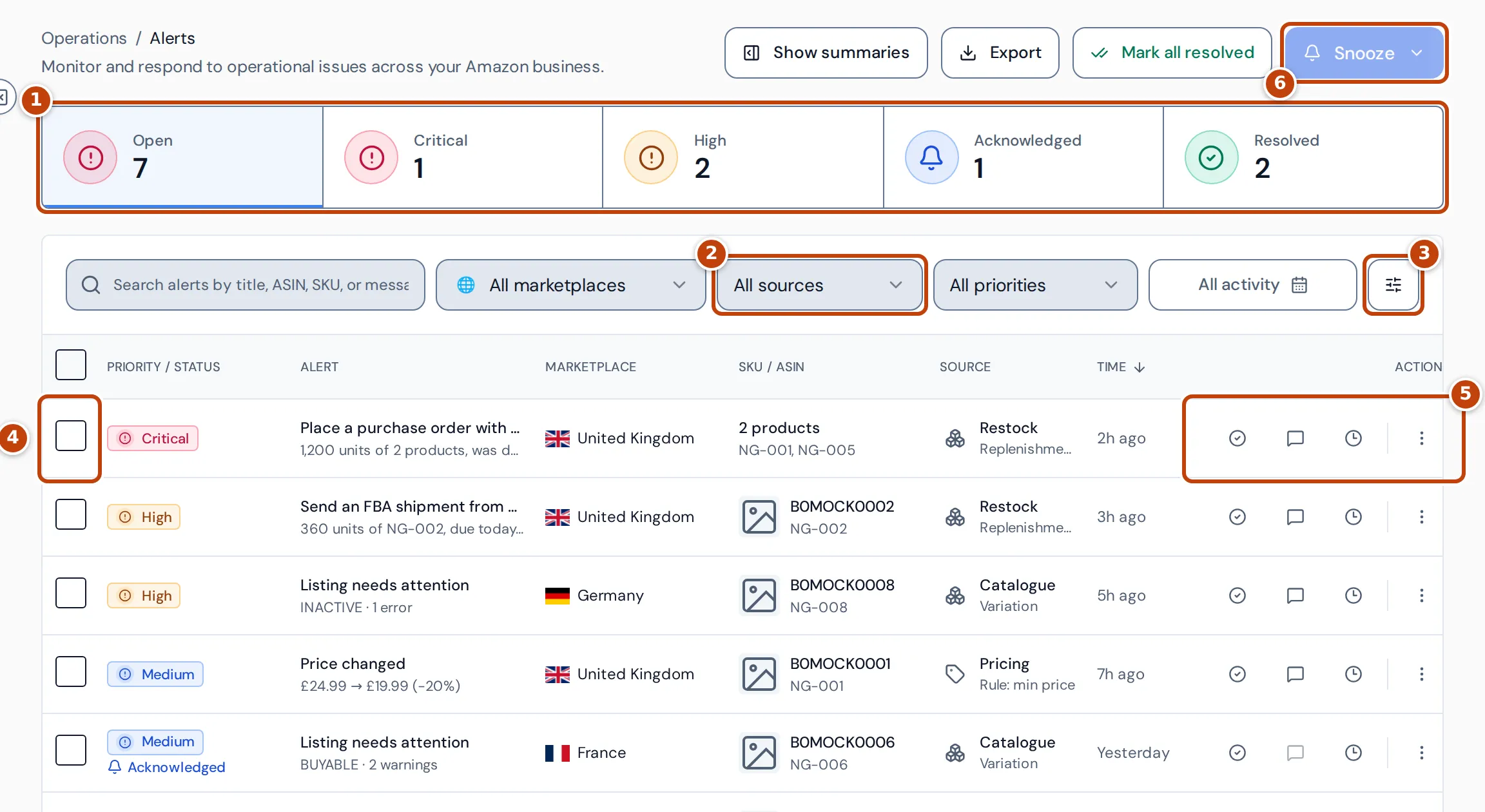
- marker 1 The summary cards count your alerts: Open, Critical, High, Acknowledged and Resolved. Select a card to show only those alerts.
- marker 2 All sources and the other filters narrow the list by marketplace, source (Price notifications, Listing notifications or Restock planning), priority and date. The date filter goes by when each alert was last seen.
- marker 3 More filters adds a status filter and a grouping (by priority, type or marketplace).
- marker 4 Tick alerts to snooze several at once.
- marker 5 Each open alert has buttons to resolve, acknowledge or snooze it, and a menu with more actions.
- marker 6 Snooze snoozes the ticked alerts.
Each row shows the alert’s priority, with its status beneath it when it isn’t simply open (Acknowledged, Snoozed, Resolved or Auto resolved), what happened, the marketplace, the product’s ASIN and SKU, where the alert came from and how long ago Crateworth last saw it. An alert about several products, such as a restock task or an inbound shipment, shows how many products it covers, with their SKUs, instead of one ASIN and SKU. One that isn’t about a product, such as a marketplace import starting, shows Not product-specific. Hover over a cut-off title to read it in full. Open by source and Open by marketplace, on the right, show where your open alerts come from. Hide summaries gives the list the full width of the page.
The page refreshes itself every minute while it’s open.
What raises an alert
Section titled “What raises an alert”Crateworth raises four kinds of alert.
| Alert | Source | What raises it | Priority |
|---|---|---|---|
| Restock due (for example “Place a purchase order with…” or “Send an FBA shipment from…”) | Restock | Your latest replenishment plan says to order or ship stock within the next 7 days. One alert covers one task, such as one purchase order to a supplier, however many products it includes. | Critical for an emergency order, high when the task is due today or overdue, otherwise medium |
| Listing needs attention, or Listing deleted | Catalog | Amazon tells Crateworth that one of your listings is no longer buyable, or reports errors or warnings on it. | Critical when the listing was deleted, high when it isn’t buyable, medium for errors or warnings on a buyable listing |
| Price changed | Pricing | Amazon reports a new price for your own offer on a listing. | Medium for a change of 20% or more, or of 10 or more in the listing’s currency; low otherwise |
| Marketplace import started | Marketplaces | Your first order arrived in a marketplace you hadn’t chosen to import, so Crateworth turned on syncing for it and started importing its last two years. | Info |
The alert’s text says what to do next. A restock alert lists the units, the date the task is due and when the stock is expected to be available. A price alert shows the old and new price and the change in percent. A listing alert shows the status Amazon reported and the number of errors and warnings.
Alerts Crateworth doesn’t raise
Section titled “Alerts Crateworth doesn’t raise”When a listing’s price in one currency follows the price of the same SKU in another currency, because Amazon converted it at a new exchange rate, Crateworth doesn’t raise a price alert. A change within half a percent of the exchange-rate movement counts as a conversion.
To stop restock alerts, open the account menu (your name at the bottom of the sidebar), select Settings, then General, turn off Reorder alerts and select Save general settings. Open restock alerts resolve the next time your replenishment plan runs.
Resolve, acknowledge or snooze an alert
Section titled “Resolve, acknowledge or snooze an alert”The buttons at the end of each open alert’s row (marker 5 in the screenshot at the top of this page) do the following:
- Resolve marks the alert as dealt with. It moves to Resolved.
- Acknowledge shows you’ve seen the alert and are working on it. It stays in Open, marked Acknowledged.
- The clock button snoozes the alert for 1 hour, 24 hours or 7 days. A snoozed alert leaves Open until the time is up, then comes back. If you’d acknowledged it before, it comes back acknowledged.
The menu at the end of the row has Comments, View product (for a restock alert, this opens the replenishment plan), Copy ASIN and Copy SKU.
To snooze several alerts at once:
- Tick each alert, or tick the box in the column heading to select every alert in the list.
- Select Snooze marker 6 at the top of the page.
- Choose how long to snooze them for.
To resolve every open alert that matches your filters, select Mark all resolved, check the number of alerts in the dialog, then select Resolve all.
Alerts that resolve or come back by themselves
Section titled “Alerts that resolve or come back by themselves”Crateworth resolves an alert on its own when the problem it reported has gone:
- A restock alert resolves when the latest replenishment plan no longer has the task due.
- A listing alert resolves when Amazon reports a listing that wasn’t buyable as buyable again, with no errors or warnings. An alert about errors or warnings on a listing that stayed buyable doesn’t resolve by itself: resolve it once you’ve dealt with it.
These show as Auto resolved in the status filter under More filters, and count towards Resolved.
When Crateworth sees the same problem again, such as a new notification from Amazon or a new replenishment plan that still has the task due, the alert updates and becomes open again, even if you’d resolved or acknowledged it. It keeps its comments. Restock alerts are checked each time the plan runs, so resolving or acknowledging one that’s still due lasts only until the next plan. An alert you snoozed stays snoozed until its snooze ends.
Add notes to an alert
Section titled “Add notes to an alert”Use comments to record what you found or what you’re doing about an alert, for example a case you opened with Amazon.
- In the alert’s row, open the menu at the end and select Comments.
- Type your note under Add a comment.
- Select Add comment, or press Ctrl+Enter (⌘+Enter on a Mac).
Comments can be up to 2,000 characters. The menu shows how many comments an alert has.
Download your alerts
Section titled “Download your alerts”Select Export to download the alerts that match your current filters as a CSV file. It includes each alert’s status, priority, title and message, marketplace, ASIN and SKU, when it was first and last seen, acknowledged, snoozed until and resolved, any resolution note, and its comment count and latest comment.
Get alerts by email
Section titled “Get alerts by email”Crateworth emails new alerts to each member of your team who has access to the business and hasn’t unsubscribed. The business’s settings decide which alerts are emailed and when. To change them, open the account menu, select Settings, then Notifications:
- Email delivery turns alert and digest emails on or off for the business.
- Low-stock alerts, Profit-margin alerts and Account-health alerts choose which alerts are emailed. Restock alerts follow Low-stock alerts, price alerts follow Profit-margin alerts, and listing and other alerts follow Account-health alerts.
- Delivery cadence sets the digest: Daily digest, Weekly digest (Mondays), Every alert straight away, or Urgent alerts only for no digest.
- Delivery time and Delivery timezone set when the digest goes out.
Critical and high alerts are emailed within about 10 minutes of appearing; alerts that appear together arrive in one email. The rest arrive in the digest at the delivery time. Each alert is emailed at most once straight away and once in a digest, and only while it’s still open. Select Save notifications to keep your changes.
Each person can also choose for themselves under Your alert emails: Urgent alerts straight away, the rest in the digest, or Everything in the digest. Your choice saves as soon as you pick it. Unsubscribe stops this business’s notification emails for you only, and Send test email checks that they reach you.
Related pages
Section titled “Related pages”- Replenishment planning builds the plan that restock alerts come from.
- Listings shows each listing’s status on Amazon.
- Settings covers the rest of your business and notification settings.