
Purchase orders
Purchase orders is where you record what you buy from your suppliers: the products, quantities and unit costs, the payment terms, and the freight and other costs on top. A purchase order (PO) is the start of your supply chain in Crateworth. Placing it starts production on the Supply pipeline, and the costs on it become the cost of the stock it delivers. To open it, in the sidebar, under Supply chain, select Purchase orders.
What’s on the Purchase orders page
Section titled “What’s on the Purchase orders page”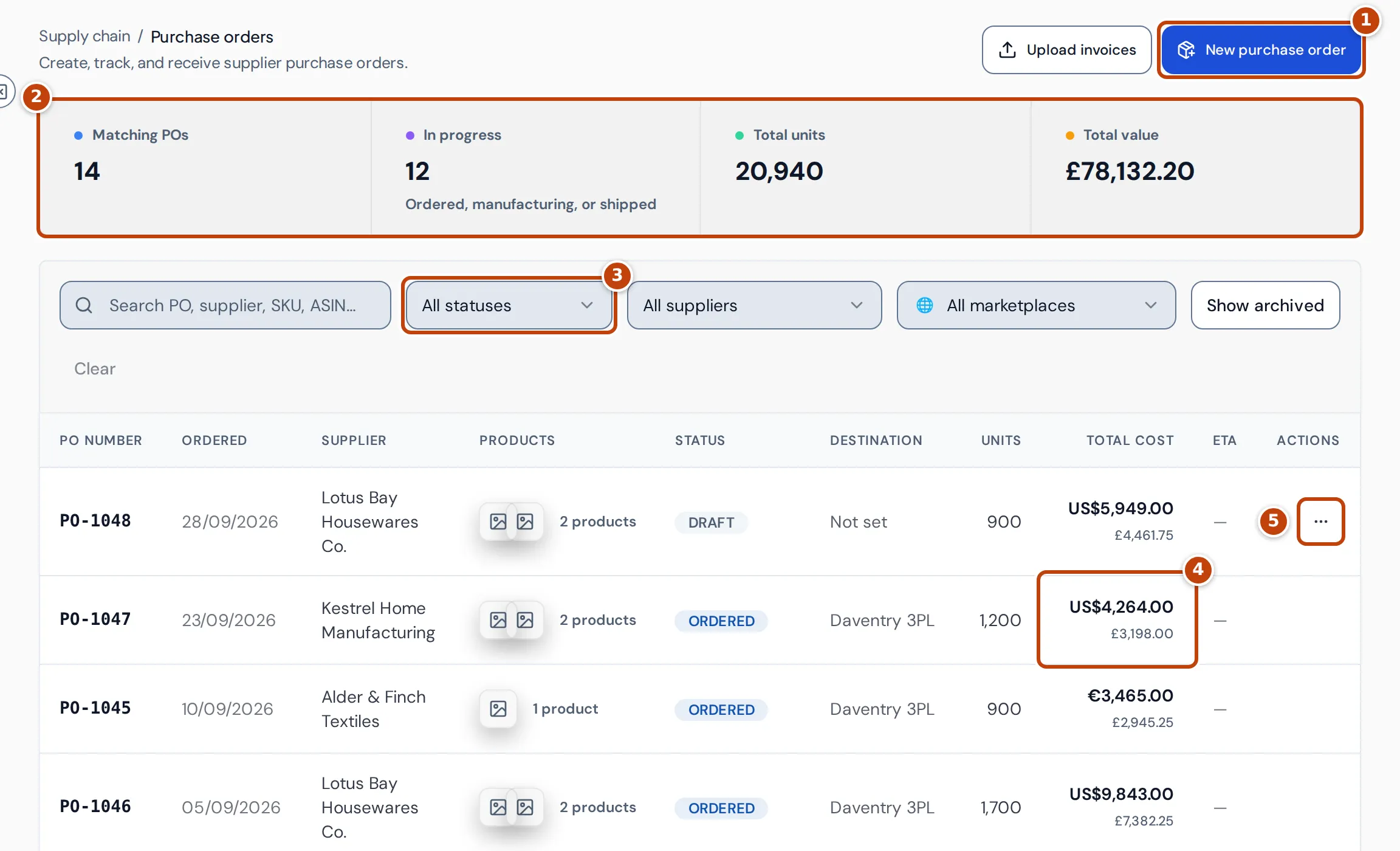
- marker 1 New purchase order opens a four-step form to create a PO. Upload invoices, next to it, creates draft POs from supplier invoices instead.
- marker 2 The summary cards count the POs that match your filters. In progress counts POs that are ordered, manufacturing or shipped. Total value adds up the POs’ totals, products plus costs, in your reference currency. It leaves out POs with a missing exchange rate or costs that need review, and says how many.
- marker 3 Filter the list by status, supplier or marketplace, or search by PO number, supplier, marketplace, SKU, ASIN or product name. Show archived adds archived POs to the list.
- marker 4 Total cost is the product cost plus freight and other costs, in the PO’s currency. When that isn’t your reference currency, the value in your reference currency is shown underneath.
- marker 5 Draft POs have an actions button with Delete PO.
Select a row to open the PO’s details page. Destination shows Amazon FBA, the warehouse name, or Not set when you chose to decide later.
Create a purchase order
Section titled “Create a purchase order”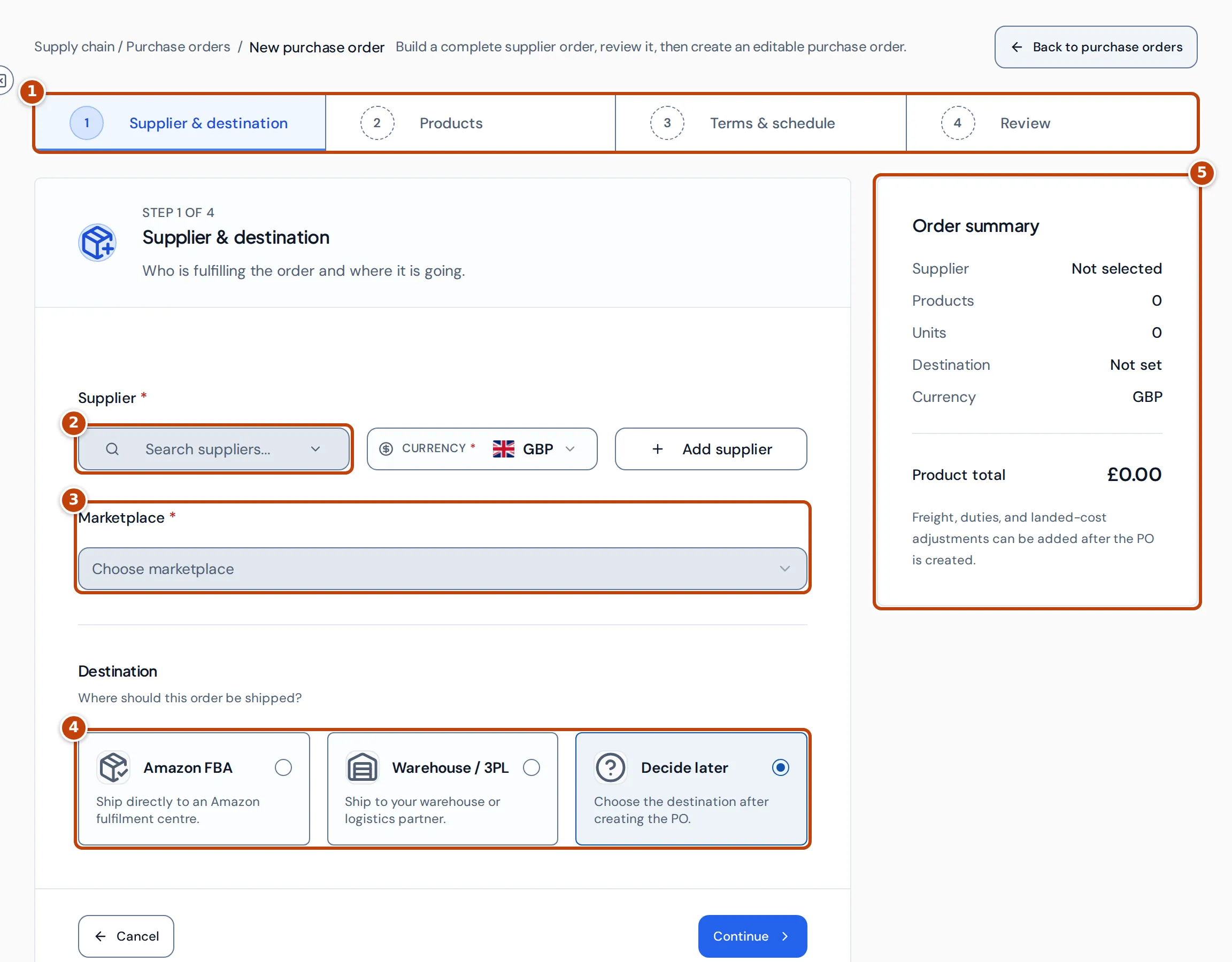
- On the Purchase orders page, select New purchase order. The form has four steps marker 1.
- Under Supplier, search for and select the supplier marker 2, or select Add supplier to create one. Choosing a supplier sets the Currency to the supplier’s currency and copies the supplier’s default payment terms into the order’s payment notes. You can change the currency.
- Choose the Marketplace marker 3. It decides where the order’s stock and costs are counted.
- Choose where the order goes marker 4: Amazon FBA, Warehouse / 3PL (then choose the Receiving warehouse) or Decide later. Select Continue.
- Under Products, search for and tick the products to order. For each line, enter the Quantity and the unit cost, for example Unit cost (USD). The unit cost starts from the product’s saved cost. HS code and Line note are optional. Select Continue.
- Under Terms & schedule, choose an Incoterm and a Payment plan: Full upfront, Deposit + balance or Credit terms. Set the dates in the payment schedule. For Deposit + balance, enter the deposit percentage and choose when the balance is due: Before shipment, On a specific date or After receipt. Select Continue.
- Check the Review step and select Create purchase order. The PO opens as a Draft.
The Order summary marker 5 shows the supplier, units, destination, currency and product total as you go. Freight, duties and other costs are added on the PO’s page after it’s created.
Only products you can restock from a supplier appear in the product search. Variation parents, virtual multipacks, Grade and Resell and Amazon Found listings are left out.
Create draft POs from supplier invoices
Section titled “Create draft POs from supplier invoices”On the Purchase orders page, select Upload invoices and drop up to 20 PDF, PNG or JPEG files. Crateworth reads each document and creates a draft PO from it, with shipping added as a cost. Drafts whose product matches need checking are marked Created — review matches. Documents it can’t read reliably are marked Needs review, and you can still select Create draft anyway. An Amazon Global Logistics debit note doesn’t create a PO: attach it to the PO it belongs to instead. Upload invoices shows only for team members who can edit accounting.
The purchase order’s details page
Section titled “The purchase order’s details page”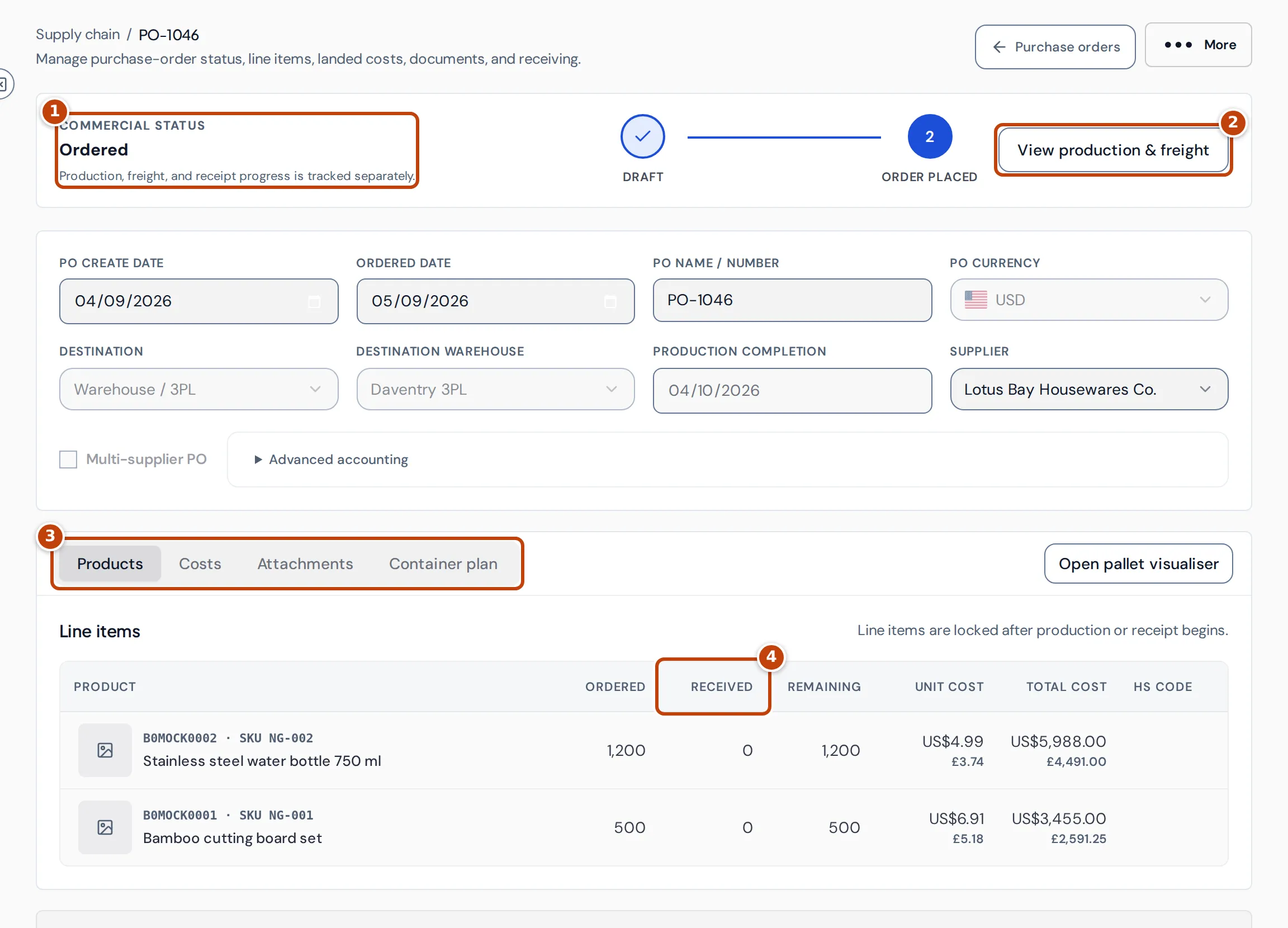
The top of the PO’s page shows its status marker 1, for example Draft or Ordered, next to a two-step bar: Draft, then Order placed. The fields below it, such as Ordered date, PO currency, Destination and Supplier, save as soon as you change them.
The tabs marker 3 hold the PO’s detail:
- Products: the line items. Once the order is placed, Received marker 4 and Remaining show how many units have arrived from the supply pipeline.
- Costs: freight, customs, duties and other costs on the PO.
- Attachments: invoices and other documents. Upload & scan document reads a supplier, freight or customs document and adds its lines or charges to the PO. An Amazon Global Logistics debit note is attached as evidence only: untick its charges, then allocate the AGL charge on the Supply pipeline, because Amazon already charges that money as fees.
- Container plan: a planning estimate of how the PO’s cartons fit into a container. It uses each product’s carton details and is saved only in your browser.
Below the tabs, Supply lifecycle shows units in production, in transit, received and remaining, and Order overview shows the units, product cost, transport, other costs and total.
Manufacturing, freight and receiving aren’t recorded on the PO’s page. Select View production & freight marker 2 to see this PO’s work on the Supply pipeline.
Place the order and start production
Section titled “Place the order and start production”A draft PO can be edited freely. When the order is confirmed with the supplier:
- On the PO’s page, select Place order & start production. The PO needs at least one product.
- Check the Order date, and choose the Production destination: Warehouse / 3PL or Amazon FBA. For a warehouse, choose the Destination warehouse.
- Optional: set the Expected production completion date.
- Select Place order & start production.
The PO’s status changes to Ordered and Crateworth creates a production batch for each supplier on the order, which appears on the Supply pipeline. After that the line items, currency, destination and production completion date are locked. The order dates, PO number, supplier, payment terms, costs and comments stay editable until stock is received.
Add freight, duties and other costs
Section titled “Add freight, duties and other costs”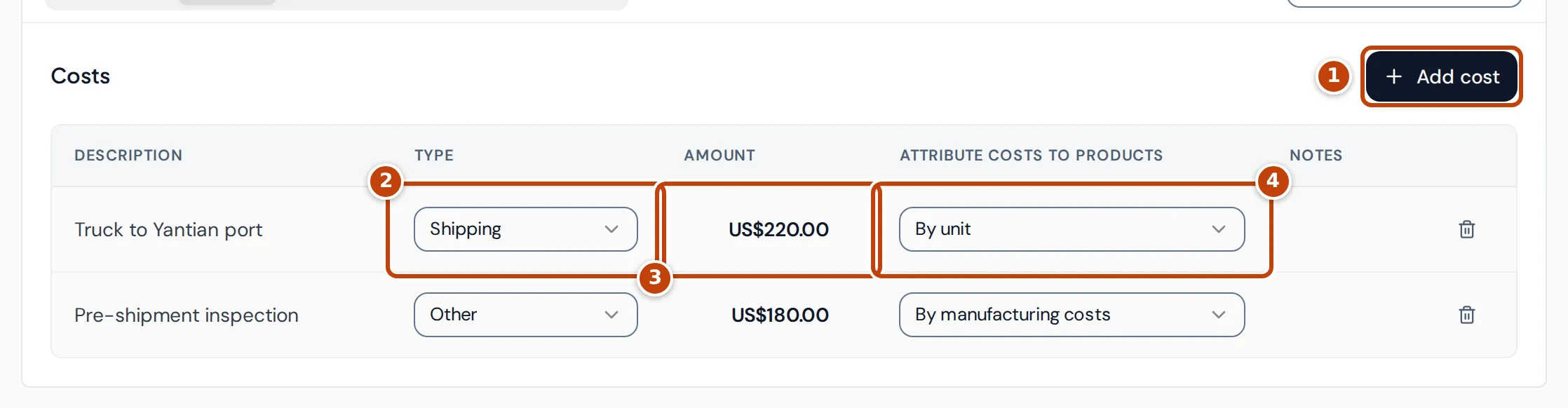
- On the PO’s page, open the Costs tab and select Add cost marker 1.
- Enter a Description, choose a Type marker 2 (Shipping, Freight, Customs, Duties or Other) and enter the Amount marker 3. Costs are always in the PO’s currency.
- Choose how to spread the cost over the products in Attribute costs to products marker 4:
- By manufacturing costs: in proportion to each line’s product cost. This is the default.
- By product: an equal share for each product line.
- By unit: an equal share for each unit.
- Select Add.
To change a cost, select its amount, or change its type or attribution in place. A cost that has a confirmed bank payment can’t be repriced or removed. Once the PO’s stock has been received, its costs are locked and Add cost is no longer offered. Shipping and freight show as Transport in Order overview; customs, duties and other costs show as Other costs.
Costs on the PO are added to the cost of its units when the stock is received, so they flow into your cost of goods. Freight booked for a particular shipment can also be added on the shipment’s page on the Supply pipeline.
Payment terms and supplier payments
Section titled “Payment terms and supplier payments”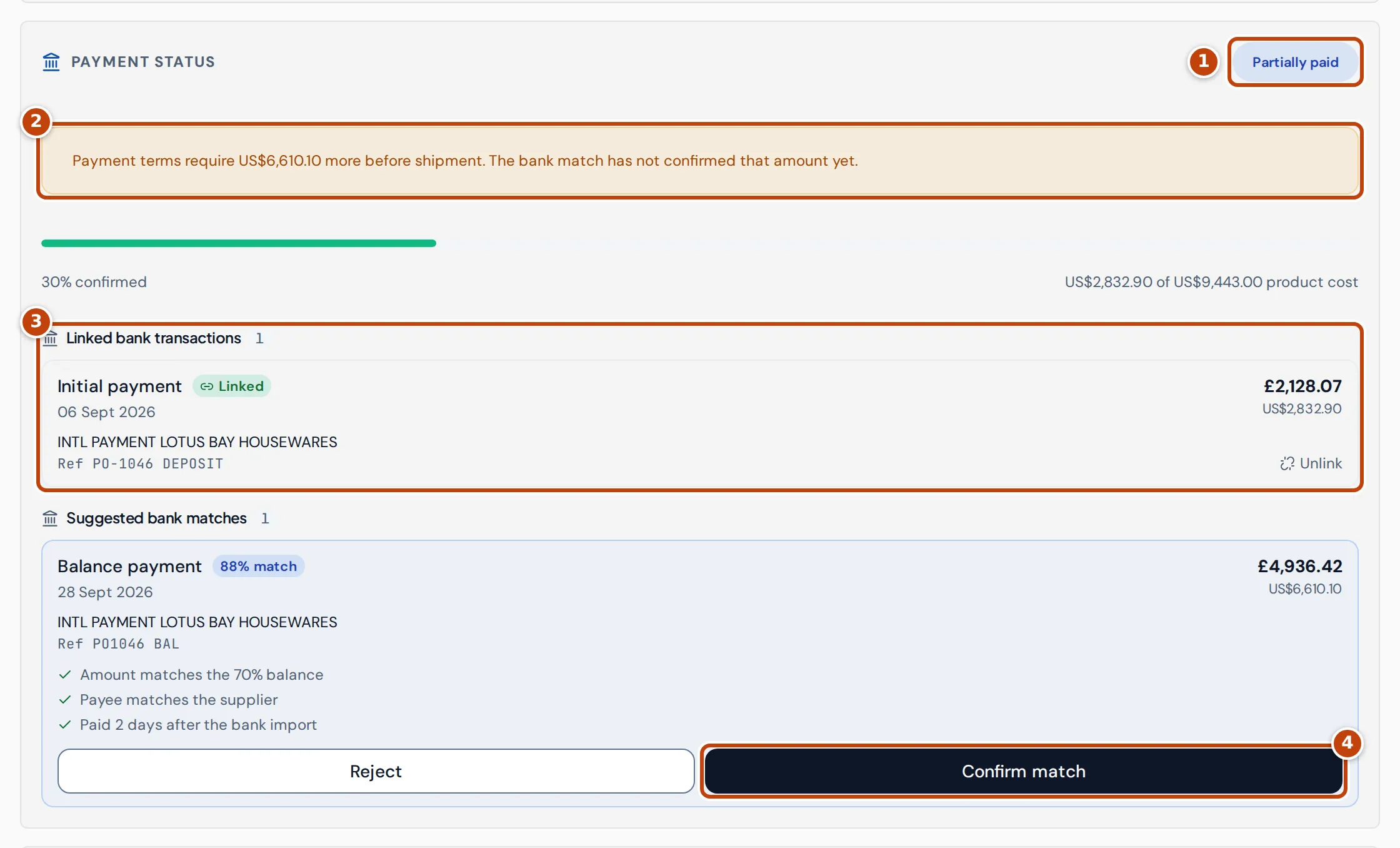
Set or change the payment plan under Terms & payment on the PO’s page: Incoterm, Payment plan, the due dates and a Supplier payment note.
You don’t type payments in. They come from the bank transactions you import, which Crateworth matches to your POs. The Payment status card shows:
- marker 1 The status: No payment due, Unpaid, Partially paid or Paid in full. It compares confirmed payments with the PO’s product cost, without freight and other costs.
- marker 2 A warning when the terms need payment before shipment and the confirmed payments don’t cover it yet.
- marker 3 Linked bank transactions: payments you’ve confirmed. Unlink removes a match.
- marker 4 Suggested bank matches: likely payments with the reasons for the match. Select Confirm match or Reject. Confirming bank matches needs edit access to accounting.
Only confirmed matches count as paid. Once the PO’s stock has been received, it’s valued using the confirmed payments, each converted at the exchange rate of its bank booking date. Any part not yet paid uses the estimated rate. Cost of goods is recalculated when you confirm a match.
Cancel, void, delete or archive a PO
Section titled “Cancel, void, delete or archive a PO”Open More at the top of the PO’s page:
- Delete unused draft: removes a draft that has no attachments, payments, production, stock or recorded changes linked to it. A draft created with Upload invoices keeps its invoice as an attachment, so it can be voided but not deleted. The PO number isn’t reused.
- Cancel unshipped remainder: cancels the units that haven’t shipped yet. Production, freight and stock that already exist stay linked. You must give a reason.
- Void entire chain: a correction that reverses the PO’s production, freight, received stock and cost layers. You give a reason and type the PO number to confirm.
- Archive PO: hides a cancelled, voided or closed PO from the list. Select Show archived on the list to see it, and Unarchive PO to bring it back.
Why does a PO look wrong?
Section titled “Why does a PO look wrong?”- A PO shows “FX rate missing” instead of a reference-currency value: there’s no exchange rate yet for one of the PO’s payment or cost dates. Total value leaves the PO out and says how many POs it left out. A supplier payment due in the future isn’t a cause: it’s valued at today’s rate, and the PO’s Detailed order information marks its FX date “(latest rate, estimate)”.
- A PO shows “Transport costs need review” or “Costs need review”: the PO’s freight records don’t add up, for example a charge in a different currency from the PO, or a freight payment that no longer matches its bank transaction. Hover over the warning on the PO’s page for the reason.
- The line items say they’re locked after production or receipt begins: the order has been placed, or stock has been received. To correct the order, use Cancel unshipped remainder or Void entire chain under More.
- The destination is Not set: the PO was created with Decide later. Choose a destination before placing the order.
- The supplier shows “Multiple”: the PO has a different supplier on each line.
- A product is missing from the product search: it isn’t a product you can restock from a supplier, such as a variation parent or a Grade and Resell listing.
- There’s no New purchase order button: your team access lets you view purchasing but not edit it.
Related pages
Section titled “Related pages”- Supply pipeline follows the PO’s production and freight and receives the stock.
- Suppliers holds the supplier details a new PO starts from.
- Supplier quality shows the refund rate of the stock each PO delivered.
- Replenishment planning suggests what to order.