
Review requests
Review requests sends Amazon’s “Request a Review” for your orders automatically, the same request as the button on an order in Seller Central. Amazon writes and translates the message and sends it to the buyer, asking for a product review and seller feedback. You set up campaigns that say which orders to ask about and when; Crateworth checks each order with Amazon and sends the request when Amazon allows it.
To open the page, in the sidebar, select Review requests.
What’s on the Review requests page
Section titled “What’s on the Review requests page”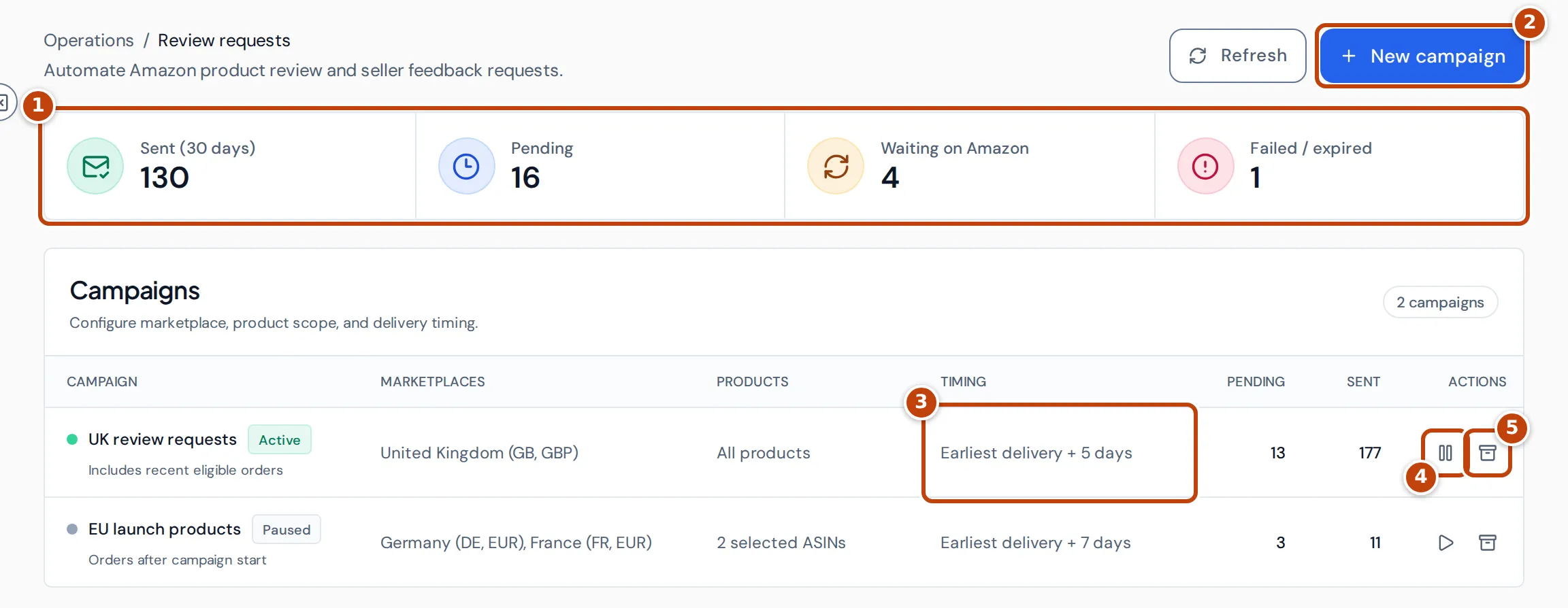
- marker 1 The summary cards count requests: Sent (30 days), Pending (every request still waiting to be sent, including those waiting on Amazon), Waiting on Amazon and Failed / expired. Select a card to show only those requests in Request activity.
- marker 2 New campaign sets up a campaign.
- marker 3 Timing shows how many days after the earliest delivery date a campaign sends, for example Earliest delivery + 5 days.
- marker 4 The pause button stops a campaign sending; the play button resumes it.
- marker 5 The archive button ends a campaign.
Campaigns lists your campaigns with their marketplaces, products, timing and the number of requests pending and sent. Request activity, further down, lists every order a campaign has picked up and what happened to it.
To create, pause or archive campaigns, your team access needs to let you edit Sales & analytics. With view access only, you can see the page but not change campaigns.
Set up a campaign
Section titled “Set up a campaign”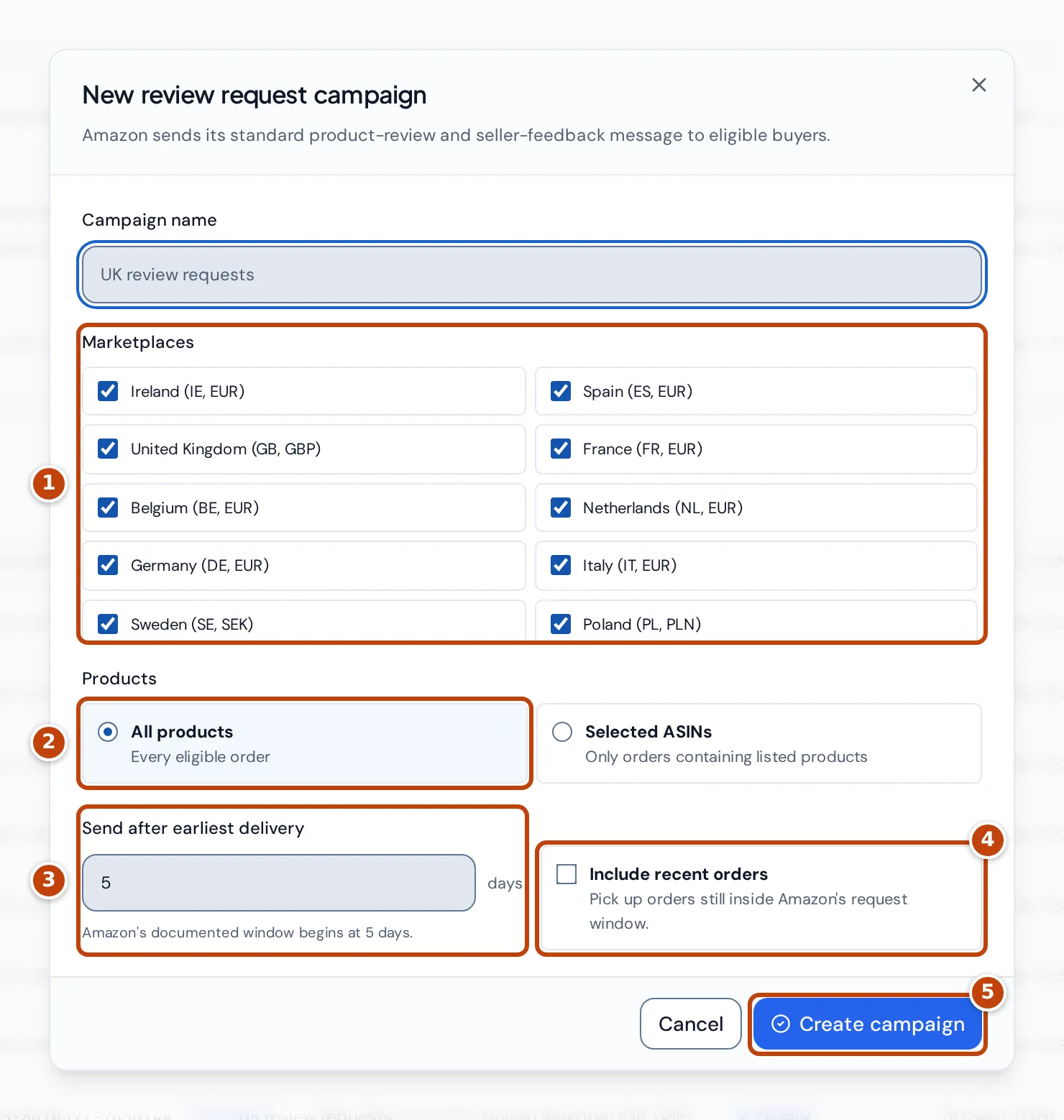
- Select New campaign.
- Enter a Campaign name, for example “UK review requests”.
- Under Marketplaces marker 1, tick the marketplaces the campaign covers. All your connected marketplaces are ticked to start with.
- Under Products marker 2, choose All products for every eligible order, or Selected ASINs and pick the products. A selected-products campaign only asks about orders that contain one of them.
- In Send after earliest delivery marker 3, enter how many days after the order’s earliest delivery date to send the request: 5 to 29 days. Amazon’s request window begins 5 days after delivery.
- Optional: tick Include recent orders marker 4 to include orders placed before the campaign started that are still inside Amazon’s request window. Otherwise the campaign only picks up orders placed from now on.
- Select Create campaign marker 5.
Each Amazon order gets one request at most. If an order matches more than one campaign, the oldest campaign takes it.
When a request is sent
Section titled “When a request is sent”Crateworth picks up orders that Amazon reports as shipped and that have a delivery window. For each one it schedules the request for the campaign’s number of days after the earliest delivery date. Crateworth treats Amazon’s request window as closing 30 days after the order’s latest delivery date, and stops trying then.
When the scheduled time comes, Crateworth first asks Amazon whether the order can receive a request. If Amazon says yes, Crateworth sends it straight away. If Amazon says no, the request waits and Crateworth asks again later, about once a day, until the window closes.
A paused campaign sends nothing and picks up no new orders: its requests wait until you resume it, as long as they’re still inside the request window.
Request statuses
Section titled “Request statuses”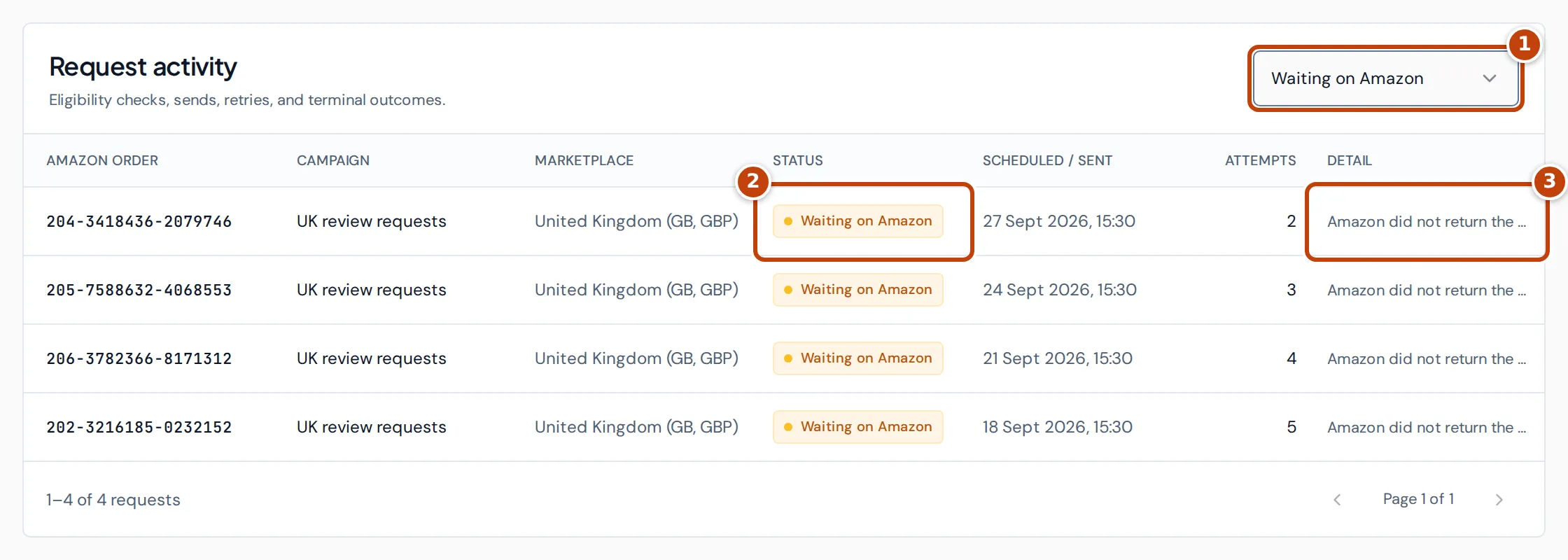
Choose a status in Request activity marker 1 to list only those requests. marker 2 shows each request’s status, and marker 3 Detail shows Amazon’s request ID for a sent request, or the reason for anything else. Hover over the detail to read all of it.
| Status | What it means |
|---|---|
| Pending | Scheduled. The send date hasn’t come yet, or the campaign is paused. |
| Processing | Crateworth is checking with Amazon or sending now. |
| Sent | Amazon accepted the request. Scheduled / sent shows when it went. |
| Waiting on Amazon | Amazon doesn’t allow a request for this order yet. Crateworth checks again later. |
| Retrying | Something went wrong while sending, such as Amazon being briefly unavailable. Crateworth tries again. |
| Already requested | Amazon refused the request because one was already sent for this order. |
| Expired | Amazon’s request window closed before Amazon allowed a request. |
| Failed | Amazon refused the request, or the campaign was archived before it was sent. |
Attempts counts how many times Crateworth has checked the order with Amazon.
Pause, resume or archive a campaign
Section titled “Pause, resume or archive a campaign”- To stop a campaign for now, select its pause button (marker 4 in the screenshot at the top of this page). Select the play button to resume it.
- To end a campaign, select its archive button (marker 5) and confirm. Archiving can’t be undone: requests that haven’t been sent yet are marked Failed and won’t be sent.
Why hasn’t a request been sent?
Section titled “Why hasn’t a request been sent?”- The send date hasn’t come. A request goes out the campaign’s number of days after the earliest delivery date. Check Scheduled / sent.
- Amazon doesn’t allow it yet. The request shows Waiting on Amazon. Amazon decides which orders can receive a request; Crateworth asks again until the window closes.
- The campaign is paused. Resume it.
- The order isn’t covered. The order must be shipped, in one of the campaign’s marketplaces, and for a selected-products campaign contain one of its products. Orders placed before the campaign started are only included when you ticked Include recent orders.
- It was already requested. Crateworth sends at most one request per order, and Amazon refuses a second one.
- The order has no delivery dates. A request is scheduled from the order’s delivery window, and Crateworth asks Amazon for a missing window only for orders placed in the last 60 days.
- Your Crateworth subscription or trial has ended. Crateworth doesn’t check or send requests until it’s active again.
Related pages
Section titled “Related pages”- Alerts lists problems with your listings and stock.
- Customer value shows how often your buyers come back.