
Amazon Money Back
Amazon Money Back finds units and fees that Amazon may owe you for: stock lost or damaged in its warehouses, units missing from shipments you sent in, refunds where the customer never returned the item, removals that went wrong, reimbursements that were too low and fulfilment fees charged above Amazon’s own preview. For each one it estimates what you could claim, tracks the deadline, and gives you a message to send to Amazon Seller Support.
Crateworth doesn’t file claims for you. You open the case in Seller Central and record it here, and Crateworth matches Amazon’s reimbursement to it when it’s paid.
To open the page, in the sidebar, select Amazon Money Back.
What’s on the Amazon Money Back page
Section titled “What’s on the Amazon Money Back page”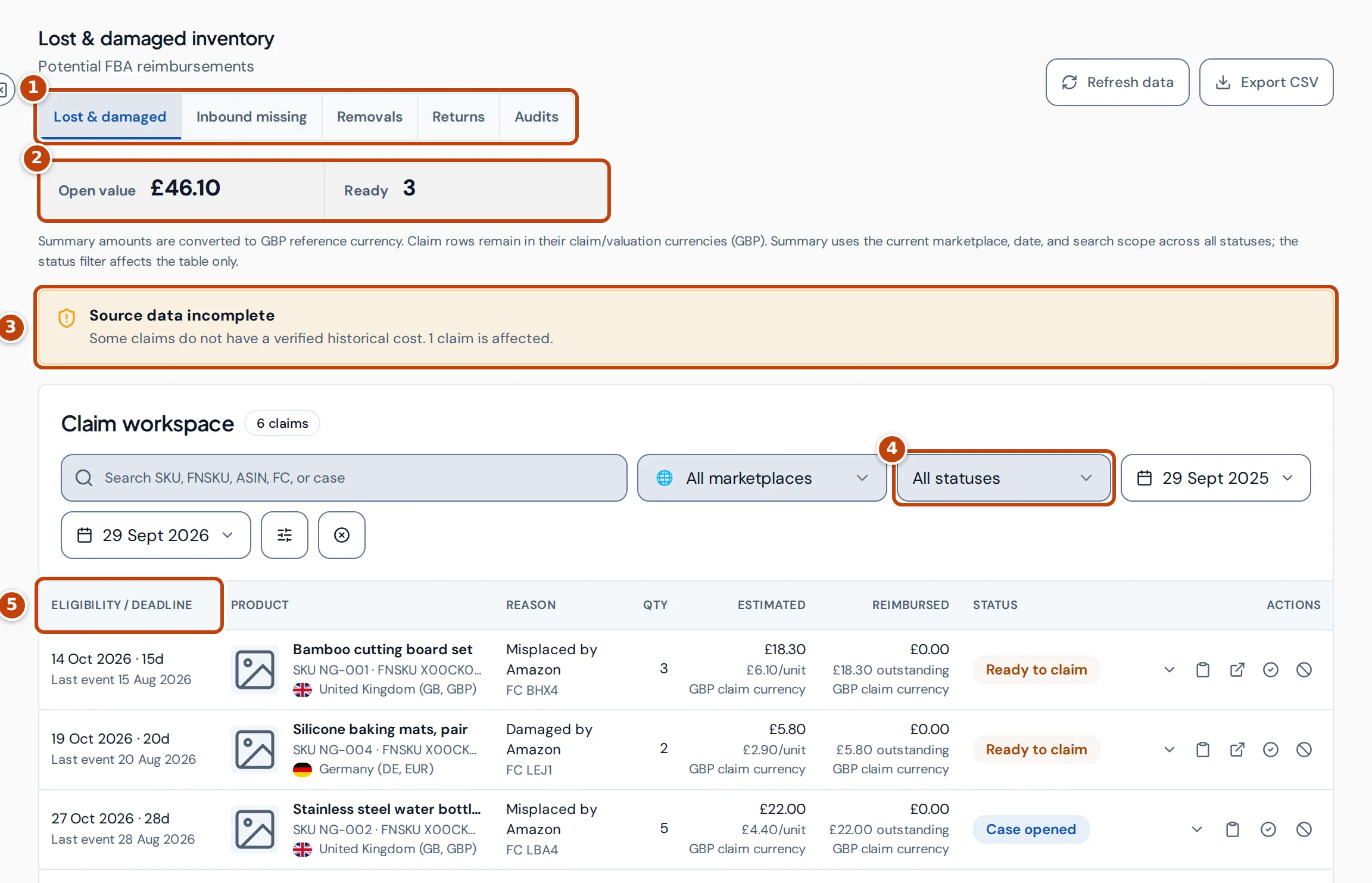
- marker 1 The tabs choose the kind of claim: Lost & damaged, Inbound missing, Removals (Lost, Damaged and Grading), Returns and Audits (Reimbursement gap and FBA fee discrepancies).
- marker 2 Open value is the amount still outstanding on claims that are ready to file or have a case open, converted into your reference currency. On the audits it’s called Open gap or Open overcharge. Ready counts claims with a ready status, including ones still waiting for a cost or a check. On Inbound missing the count is called Eligible. These figures cover all statuses in the marketplace, dates and search you’ve chosen; the status filter changes only the table.
- marker 3 A notice appears when something affects the figures, for example when some claims have no product cost. Refresh required means Amazon data changed since the claims were last worked out: select Refresh data before you act on a claim.
- marker 4 The filters narrow the claims by marketplace, status and dates. The dates go by each claim’s last event and start one year back.
- marker 5 Eligibility / Deadline shows when you can file and how many days are left. The table is sorted by deadline, soonest first.
Each claim row shows the product, Amazon’s reason, the quantity, the estimated amount and unit value, what Amazon has reimbursed so far and what’s outstanding, and the claim’s status. Amounts in a row stay in the claim’s own currency. Export CSV downloads the claims in the current view.
Claim statuses
Section titled “Claim statuses”| Status | What it means |
|---|---|
| Monitoring | Not claimable yet. Amazon’s waiting period hasn’t passed, or (for removals) you haven’t recorded the evidence. |
| Ready to claim | You can file it with Amazon. |
| Ready · Cost needed | Ready, but the product has no cost for the date of the loss, so there’s no amount to claim. Add the product’s cost, then refresh. |
| Ready · Review needed | Ready, but a check needs doing first, such as confirming eligibility in Amazon’s Reconcile tab. Record the check to unblock filing. |
| Case opened | You opened a case with Amazon and recorded its case ID. It stays open after the deadline, because you filed in time. |
| Reimbursed | Amazon has paid for the claim in full. |
| Returned | The units were found, returned or no longer count as lost, so there’s nothing to claim. |
| Expired | The deadline passed before a case was opened. |
| Ignored | You decided not to claim it. |
| Rejected | Amazon turned the claim down. |
A claim where Amazon paid less than the estimate stays open for the rest.
How claim amounts are estimated
Section titled “How claim amounts are estimated”Every claim is the quantity Amazon owes you for, multiplied by a value per unit. The value per unit depends on the kind of claim:
- Lost, damaged or missing inbound stock: your product’s cost for the date of the loss, from your cost history, or failing that the product’s own cost. If neither gives a cost, Crateworth uses the cost of your stock, oldest stock first, where your purchase history allows. For missing inbound units, a loss cost already worked out for the shipment comes first. For losses from 31 March 2025 Crateworth values these claims at your cost rather than the selling price, following Amazon’s reimbursement policy from that date.
- Removal stock: your product’s cost for the date of the removal request.
- Customer returns: the amount the refund took from your balance for each unit, or the customer’s refund if that isn’t available. For a replacement, the original order’s net payout per unit, or failing that the product’s cost.
- Reimbursement gaps: your historical cost per unit, or the net order value for a refund-related reimbursement, less what Amazon paid.
- FBA fee discrepancies: the per-unit fee you were charged above Amazon’s Fee Preview, times the units charged.
When a product has no cost, the row shows Cost missing and says it’s not a zero-value claim. Filing is blocked until you add the cost on Costs & COGS and the claims are refreshed. Open a claim’s details to see how it was valued, including where the unit value came from.
Lost & damaged
Section titled “Lost & damaged”Lost & damaged lists units Amazon’s inventory ledger records as lost or damaged in its warehouses, from the last 180 days, that it hasn’t found again or reimbursed. The Reason column shows Amazon’s ledger reason in words, such as Misplaced by Amazon or Damaged by Amazon, with the fulfilment centre under it. Hover over the reason to see Amazon’s reason code.
A lost or damaged claim is ready at once, and Crateworth tracks a 60-day deadline from the date of the ledger event. When Amazon later finds the units, the claim shows Returned.
Inbound missing
Section titled “Inbound missing”Inbound missing lists units missing from FBA inbound shipments that Amazon has closed: units you sent less units Amazon received. Only shipments delivered in the last 12 months are checked.
The claim window starts on the shipment’s delivery date: its actual arrival, or failing that its first receipt, the end of its delivery window, when receiving started or when it closed. Crateworth tracks a deadline 9 months after that date. Open a claim’s details to see the shipment, its Sent, Amazon received, Damaged and Missing units, and the dates, with links to the Shipment workspace and to the shipment in Seller Central.
Every inbound claim asks you to confirm eligibility in Amazon’s Reconcile tab first, and one dated only by its closure date also asks you to check the delivery date. Select Record evidence review in the claim’s details once you’ve checked.
Inbound missing claims are filed from the buttons in the claim’s row: Open support template, Record opened case, Record verified reimbursement and Ignore claim. Recording a rejection and reopening a claim aren’t available for inbound claims.
Removals: Lost, Damaged and Grading
Section titled “Removals: Lost, Damaged and Grading”Every shipped removal order line from the last 180 days appears under Removals in all three categories, as Monitoring. Crateworth can’t see what arrived back with you, so a removal claim becomes ready only once you record what you found:
| Category | What you record | Deadline |
|---|---|---|
| Lost | The quantity missing, and a tracking ID or a supporting reference | 135 days from the removal request; claimable from 15 days after it |
| Damaged | The quantity damaged, the delivered or received date, and the received condition or a supporting reference | 120 days from the delivery date you record |
| Grading | The quantity graded wrongly, the removal date, the inspection date, and the expected and received condition | 120 days from the removal date you record |
To record it, open the claim’s details and select Review evidence, fill in the fields and select Save evidence review. The claim’s quantity and amount then follow the quantity you recorded. If the quantities you record as lost, damaged and graded wrongly add up to more than the line shipped, all of that line’s claims stay Monitoring until you correct them. If Amazon cancels the removal, its claims show Returned.
Customer returns
Section titled “Customer returns”Returns lists FBA orders from the last 120 days that Amazon refunded but where the customer hasn’t returned the item to an Amazon warehouse, and replacements Amazon sent where the original wasn’t returned. A claim shows Monitoring for 45 days after the refund, to give the customer time to send the item back, then becomes ready. Crateworth tracks a deadline 105 days after the refund. For a replacement, both periods count from the date the replacement shipped. If the item comes back, the claim shows Returned.
Every customer return claim asks you to confirm it’s eligible before filing.
Audits: Reimbursement gap and FBA fee discrepancies
Section titled “Audits: Reimbursement gap and FBA fee discrepancies”Reimbursement gap checks reimbursements Amazon approved in the last 120 days, including later reversals of them. It flags those that paid less than your cost for the units still unresolved, after any units Amazon gave back as stock. Crateworth tracks a deadline 90 days after Amazon’s first approval. A gap stays Monitoring when the product has no cost or the amounts can’t be converted between currencies, and shows Expired once its deadline passes.
FBA fee discrepancies compares the FBA fulfilment fee Amazon charged per unit in the last 90 days with its current Fee Preview for the product. Fees charged more than a week after Amazon last reported the preview don’t count, because an old preview can’t show later changes such as a seasonal peak fee. It flags a product when the charge is at least 0.05 per unit above the preview and the overcharge is at least 1.00 in total, in the listing’s currency. A product stays Monitoring until the Fee Preview has shown the same fee at least twice. The deadline is 90 days after the first FBA fee Crateworth checked for the product in that period, so older fees drop out as they pass their own deadline. This finds charges above the preview; it doesn’t check that the preview itself uses the right size or weight.
File a claim with Amazon
Section titled “File a claim with Amazon”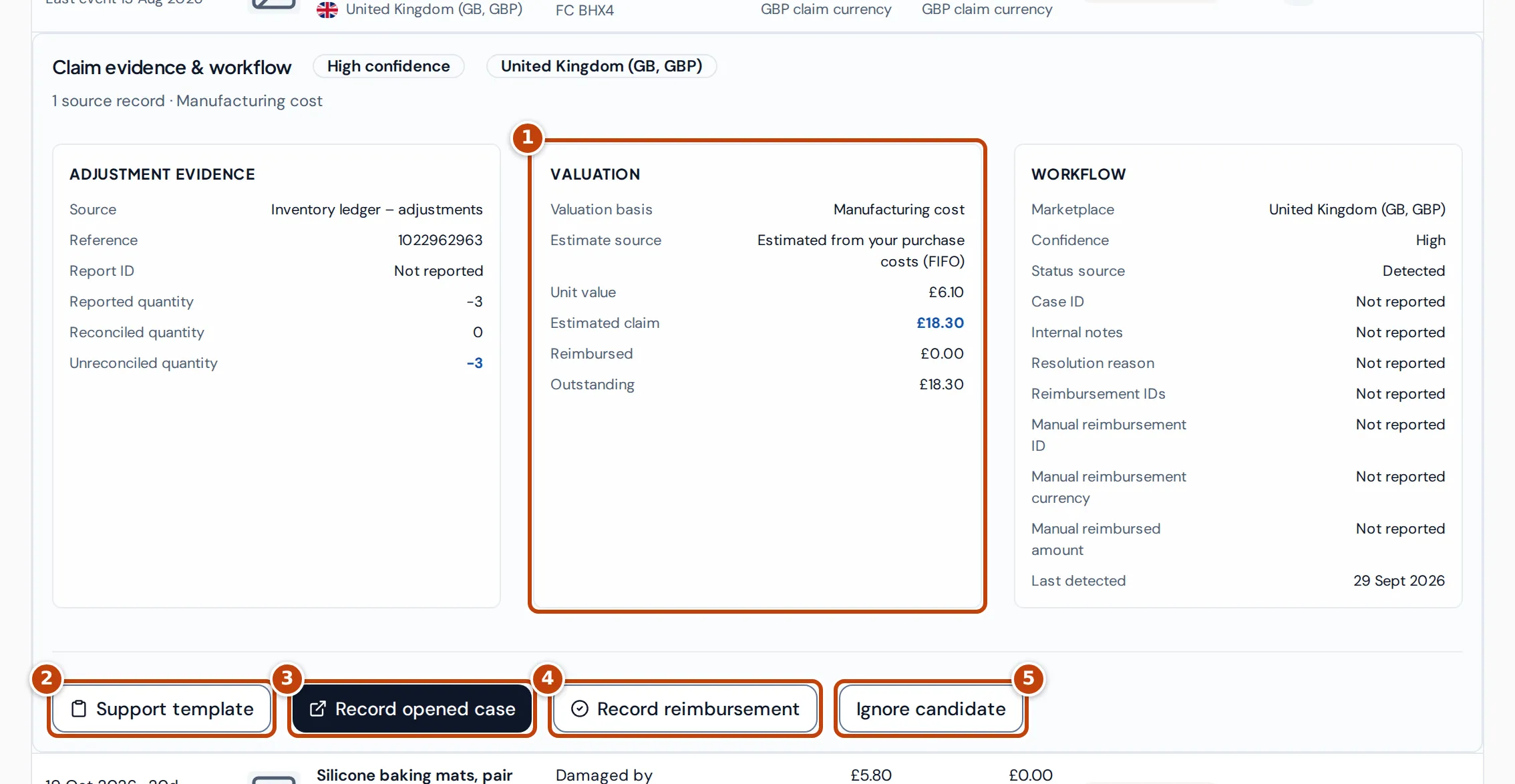
Select the down arrow, the first of the buttons in a claim’s row, to open its details. marker 1 Valuation shows how the amount was worked out (other kinds of claim show this in a card with a different name, such as Gap valuation). The buttons below act on the claim. Inbound missing claims work differently: see Inbound missing.
- Check the claim’s evidence. If it shows Ready · Review needed, do the check it lists, then select Record review and record what you checked.
- Select Support template marker 2. Crateworth writes a message for Seller Support with the claim’s details. The adjustment reason is in words with Amazon’s reason code after it, for example “Misplaced by Amazon (code M)”, because Seller Support uses the code.
- In the template, select Seller Support to open Seller Central’s support page for the claim’s marketplace, and Copy to copy the message. Paste it into a new case.
- Back in Crateworth, select Record opened case marker 3, enter the Amazon case ID, and select Mark case opened. The claim shows Case opened.
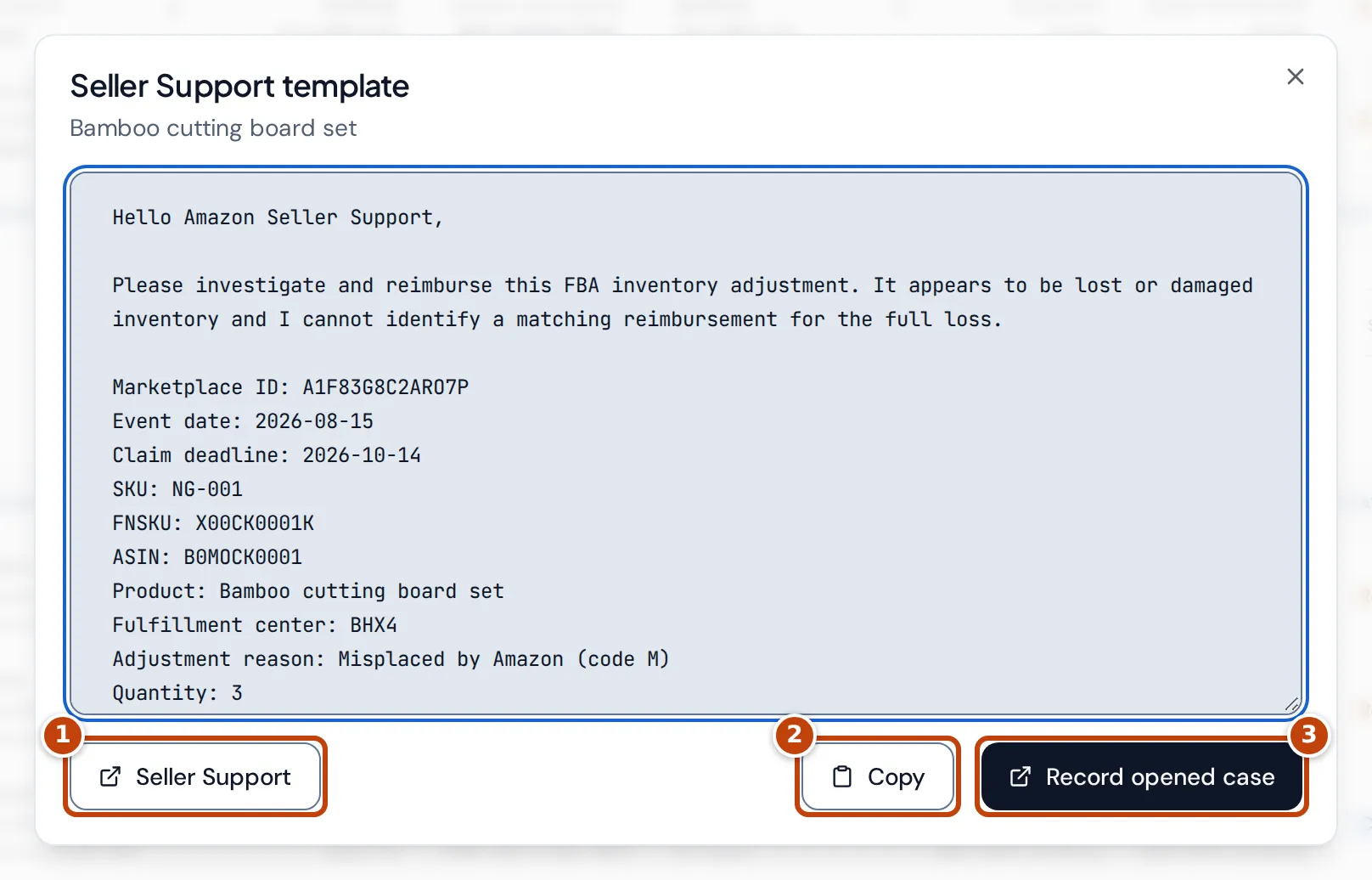
You can also record the case straight from the template with Record opened case.
Record what Amazon decides
Section titled “Record what Amazon decides”Crateworth matches reimbursements in Amazon’s reimbursements report to your claims, so most payments appear without you doing anything. A claim shows Reimbursed once the matched payments cover all of its units or its estimated amount.
To record a payment yourself, select Record reimbursement (marker 4 in the claim details), enter the New reimbursed amount in the claim’s currency and the Amazon reimbursement ID, then select Record reimbursement. A partial payment leaves the claim open for the rest.
If Amazon turns the claim down, select Record rejection (shown once the claim has a case opened), enter the Amazon rejection reason and select Mark rejected.
If you decide not to claim, select Ignore candidate marker 5, enter the Reason not claimable and select Ignore claim. To bring back a claim you ignored, rejected or marked reimbursed yourself, select Reopen claim and add a note.
Why can’t I file a claim?
Section titled “Why can’t I file a claim?”The filing buttons are greyed out for one of these reasons. Hover over a button in the claim’s row to see which; in the claim’s details, a notice above the buttons explains it:
- The product has no cost. Add it on Costs & COGS, then select Refresh data.
- A check is needed. Record the review the claim asks for.
- The data changed or a refresh failed. Select Refresh data and wait for it to finish.
- Amazon report history is still importing for the marketplace. Claims there can be filed once it’s complete.
A claim showing Monitoring has no filing buttons yet. For a removal, that means you haven’t recorded what arrived back with you: see Removals: Lost, Damaged and Grading.
Related pages
Section titled “Related pages”- FBA inbound shows your shipments to Amazon and what was received.
- Removals and Returns show the Amazon reports behind removal and return claims.
- Alerts lists other problems that need a decision.