
Warehouse stock
The Warehouse stock page tracks stock you hold outside Amazon: at a 3PL, in your own warehouse, or at a supplier. Stock is kept in lots, each with its quantity and its landed cost per unit, so you can see what’s on the shelf and what it’s worth. To open it, in the sidebar, under Inventory, select Warehouse stock.
The page has two tabs: Stock, for what each warehouse holds, and Locations, where you set up your warehouses.
What’s on the Stock tab
Section titled “What’s on the Stock tab”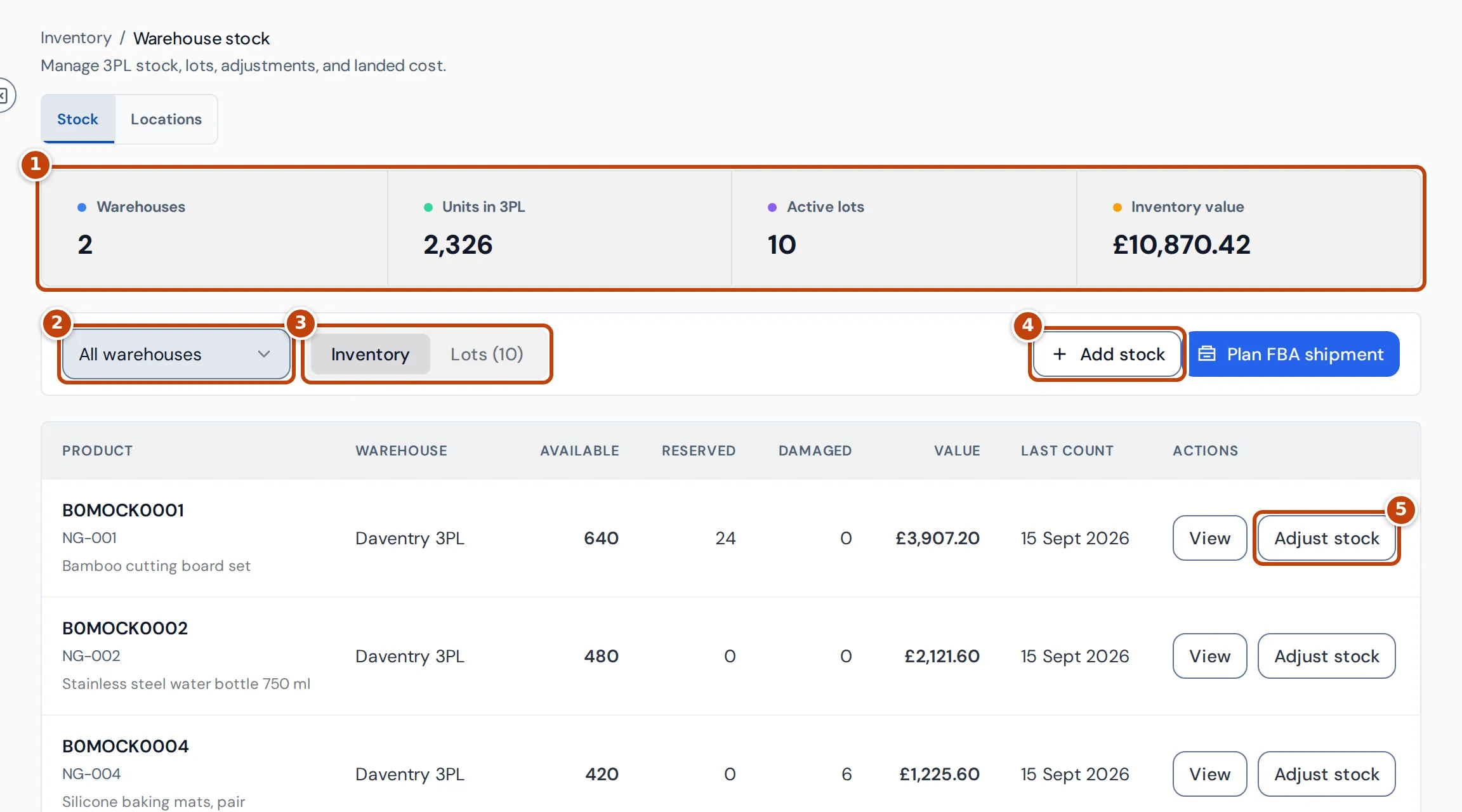
The summary figures marker 1 are:
- Warehouses: how many active warehouses you have.
- Units in 3PL: units available in your warehouses.
- Active lots: lots with the status Active.
- Inventory value: the remaining units of every lot with stock, at each lot’s unit cost plus landing cost. Lots in more than one currency show Mixed currencies.
Below them:
- marker 2 The warehouse filter shows All warehouses or one warehouse.
- marker 3 Inventory lists stock by product and warehouse. Lots lists every lot.
- marker 4 Add stock records stock received outside a purchase order.
- Plan FBA shipment opens the FBA shipment planner for the selected warehouse.
The Inventory list
Section titled “The Inventory list”| Column | What it shows |
|---|---|
| Available | Units you can send or sell. |
| Reserved | Units set aside at the warehouse. |
| Damaged | Damaged units. |
| Value | The remaining units of the product’s active lots in that warehouse, at unit cost plus landing cost, converted to your reference currency. |
| Last count | When the stock was last counted. |
View shows the product’s lots in that warehouse, and Adjust stock marker 5 changes its quantities.
Lots and landed cost
Section titled “Lots and landed cost”A lot is one batch of a product received into a warehouse, such as one purchase order’s delivery, with its quantities, supplier, unit cost and landing cost per unit (such as freight and duty).
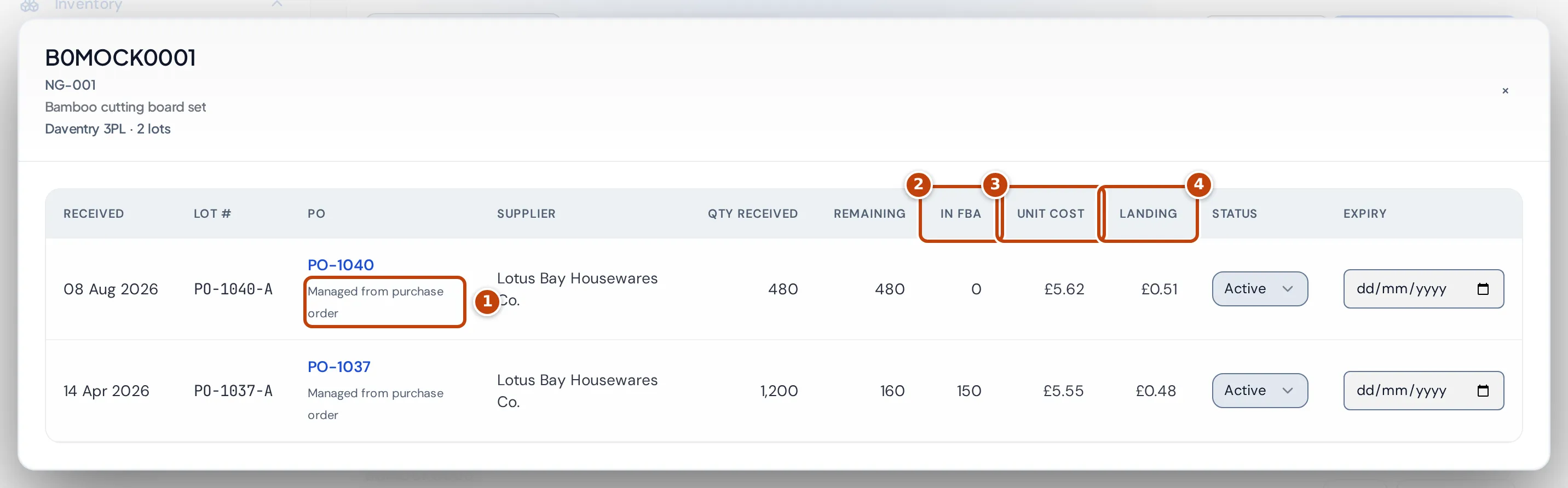
The product’s lots window shows, for each lot, when it was received, the purchase order, the supplier, Qty received, Remaining, In FBA marker 2 (units from this lot now at Amazon), Unit cost marker 3, Landing marker 4, status and expiry date.
A lot received from a purchase order shows Managed from purchase order marker 1; change its supplier and costs on the purchase order. For a lot you added yourself, you can change the supplier, costs, status and expiry date in the table, and each change saves straight away.
On the Lots tab, Unit cost is the unit cost plus landing cost. Choose Open, Closed or All to filter the lots. Closed lots are depleted, written off or archived.
Lot statuses are Active, Depleted, Expired, Written off and Archived.
Add stock that didn’t come from a purchase order
Section titled “Add stock that didn’t come from a purchase order”Use a purchase order for planned replenishment, and Add stock for exceptions such as opening balances, returns, transfers, samples and stock found when reconciling with your 3PL. Add stock is unavailable until you’ve added a warehouse.
- Select Add stock. Add warehouse stock opens.
- Choose the Warehouse and enter the ASIN, and optionally the SKU.
- Choose a Reason: Opening balance, 3PL reconciliation, Customer return, Warehouse transfer, Replacement or sample or Other exception. Optional: enter a Reference and Notes.
- Optional: enter a Lot number (one is created if you leave it empty), the Supplier, and the Purchase order the stock came from. For an opening balance, the purchase order number lets Crateworth find that order’s existing cost.
- Enter the Quantity received, Currency, unit cost and landing cost. The unit cost must be more than zero.
- Enter the Received date, and optionally the Expiry date and Manufacture date.
- Select Add stock. Crateworth creates the lot and adds the units to the warehouse.
For an Opening balance or 3PL reconciliation, Crateworth then asks you to review the lot’s cost basis: which purchase order’s existing cost the stock should carry.
Adjust or write off stock
Section titled “Adjust or write off stock”To correct a count:
- On the Inventory list, select Adjust stock on the product’s row.
- Enter the new amount on each row. The Difference column shows the change.
- Enter a Reason, such as a cycle count, damage or a correction.
- Select Save adjustment. Rows backed by a lot update the lot as well.
To write off damaged, lost or expired stock from one lot:
- On the Lots tab, select Actions on the lot, then Write off.
- Enter the quantity and the reason.
- Select Confirm write-off.
A write-off only removes stock still in the warehouse, not units in transit or at Amazon. When a lot’s warehouse stock is fully written off, its status becomes Written off.
To tidy up a lot with nothing left, select Actions, then Archive. Archived lots are hidden from the Open view; choose Closed or All to see them again.
Set up your warehouses
Section titled “Set up your warehouses”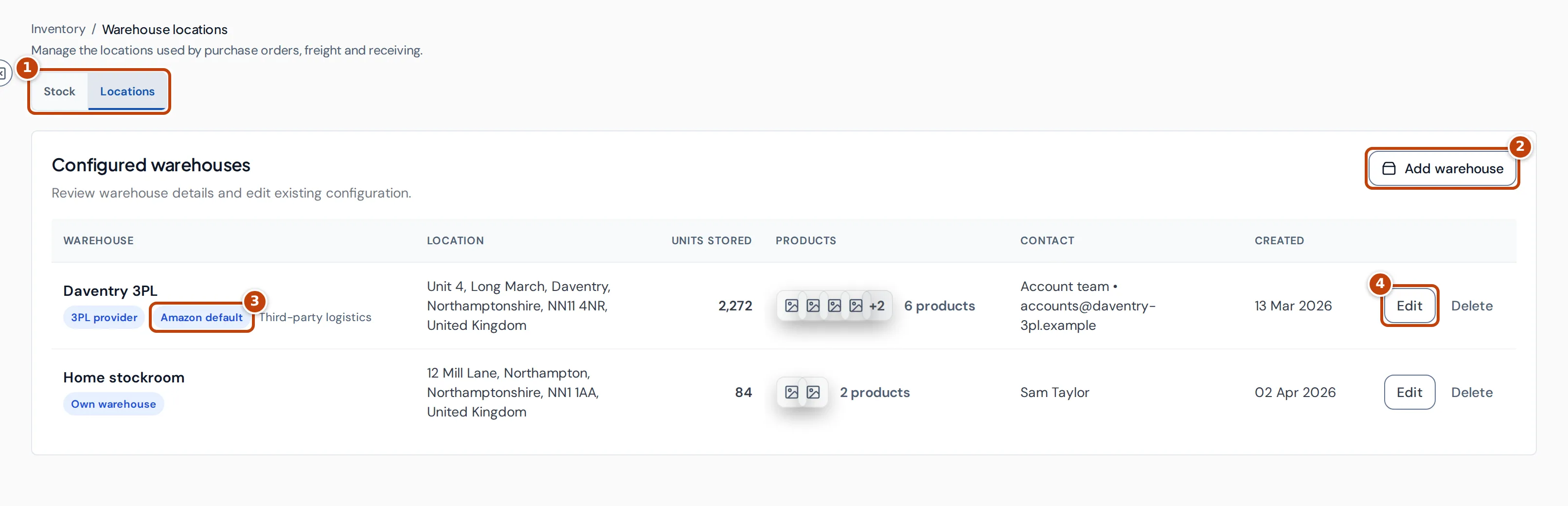
Select the Locations tab marker 1 to see your Configured warehouses: each warehouse’s type, address, units stored, products and contact.
To add a warehouse:
- Select Add warehouse marker 2.
- Enter a Name and choose a Type: 3PL provider, Own warehouse, Supplier or Manufacturer. Optional: enter the Provider.
- Optional: tick Default for Amazon shipments to preselect this warehouse when you send stock to Amazon. If you have only one active warehouse, it’s selected automatically.
- Enter the address under Location and a contact under Contact.
- Select Add warehouse.
The default warehouse shows Amazon default marker 3. To change a warehouse, select Edit marker 4; to remove one, select Delete.
Banners you may see
Section titled “Banners you may see”Check possible 3PL stock
Section titled “Check possible 3PL stock”Your cost records show more unsold units than Crateworth can find in the latest Amazon, warehouse and transit stock, so the difference may be at your 3PL. Select the review button to go through each product and record where the stock is.
Historical 3PL stock is ready to reconcile
Section titled “Historical 3PL stock is ready to reconcile”Some warehouse lots fully match an earlier purchase order. Select Review next match to check each match before it becomes the stock’s cost.
Historical stock needs cost links
Section titled “Historical stock needs cost links”Some warehouse lots aren’t fully linked to the purchase costs they came from. Recording stock alone doesn’t give it a cost. Select Review cost links to link them.
Stock suggestions are unavailable for these products
Section titled “Stock suggestions are unavailable for these products”Crateworth can’t suggest where stock is for the products listed, for example because Amazon’s stock data is missing. Updating stock suggestions means the figures are being recalculated after a recent change; the page checks again by itself.
Related pages
Section titled “Related pages”- Costs & COGS: how stock costs become cost of goods.
- Purchase orders: planned stock and its receipts.
- FBA shipment planner: send warehouse stock to Amazon.
- Inventory overview: warehouse stock next to Amazon stock.