
Create an account and sign in
You create a Crateworth account with your name, email address and a password. Every sign-in with a password then has a second step: a six-digit code that Crateworth emails you, or a code from an authenticator app if you’ve set one up. The first code you enter also confirms your email address, so there is no separate confirmation link to click.
A new account starts with a 30-day free trial. You don’t need a card to start.
Create an account
Section titled “Create an account”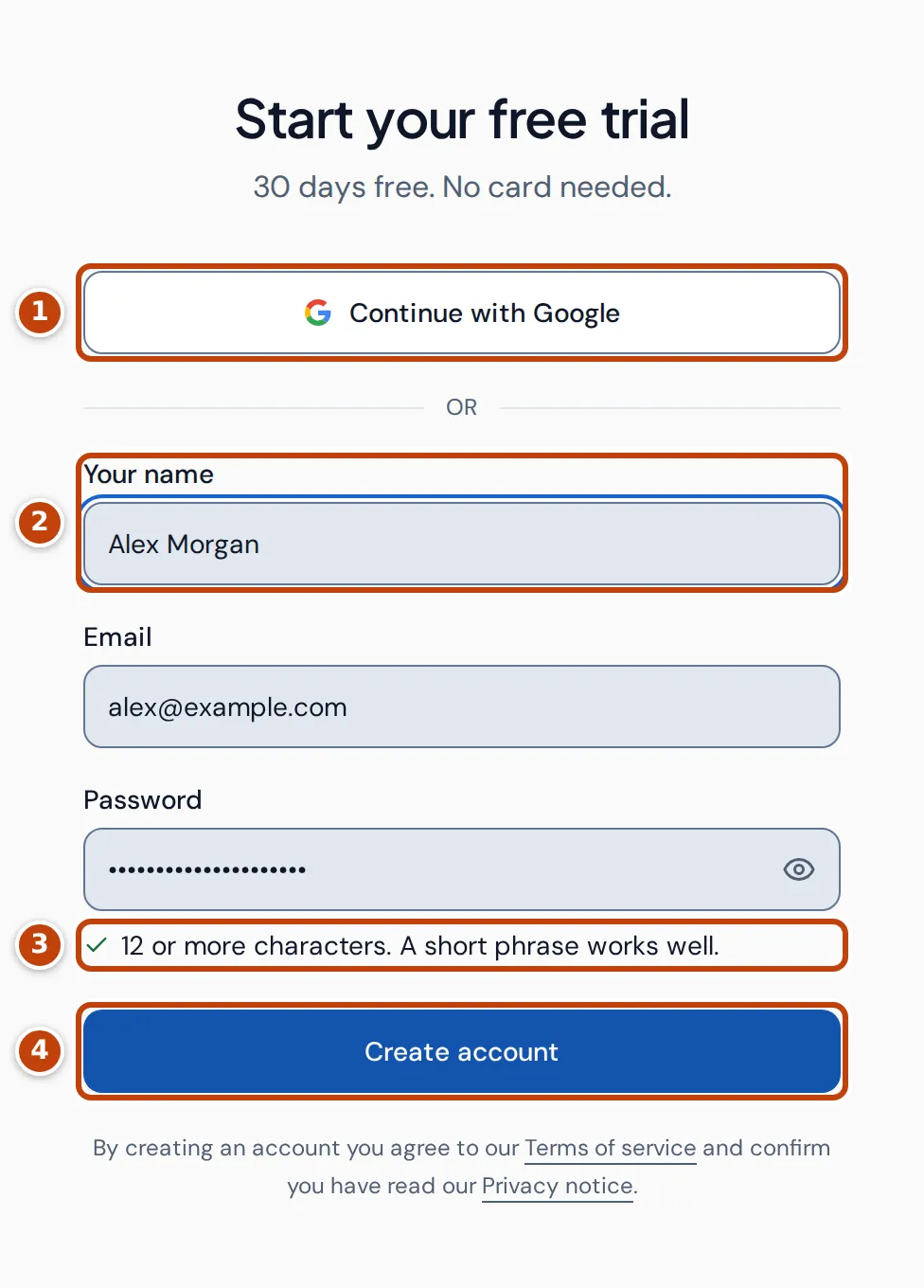
To create an account, open the sign-up page (Create an account on the sign-in page leads there):
- Enter Your name marker 2, then your Email and a Password. The password needs 12 or more characters marker 3; a short phrase works well. There are no rules about numbers or symbols.
- Select Create account marker 4. Crateworth signs you straight in and emails you a six-digit code.
- Enter the code to confirm your email address. See Confirm your email address.
To sign up with your Google login instead of a password, select Continue with Google marker 1. See Sign in with Google.
If you mistype a common email domain, the form suggests a correction under the Email field (“Did you mean…”). Select the suggestion to use it.
Confirm your email address
Section titled “Confirm your email address”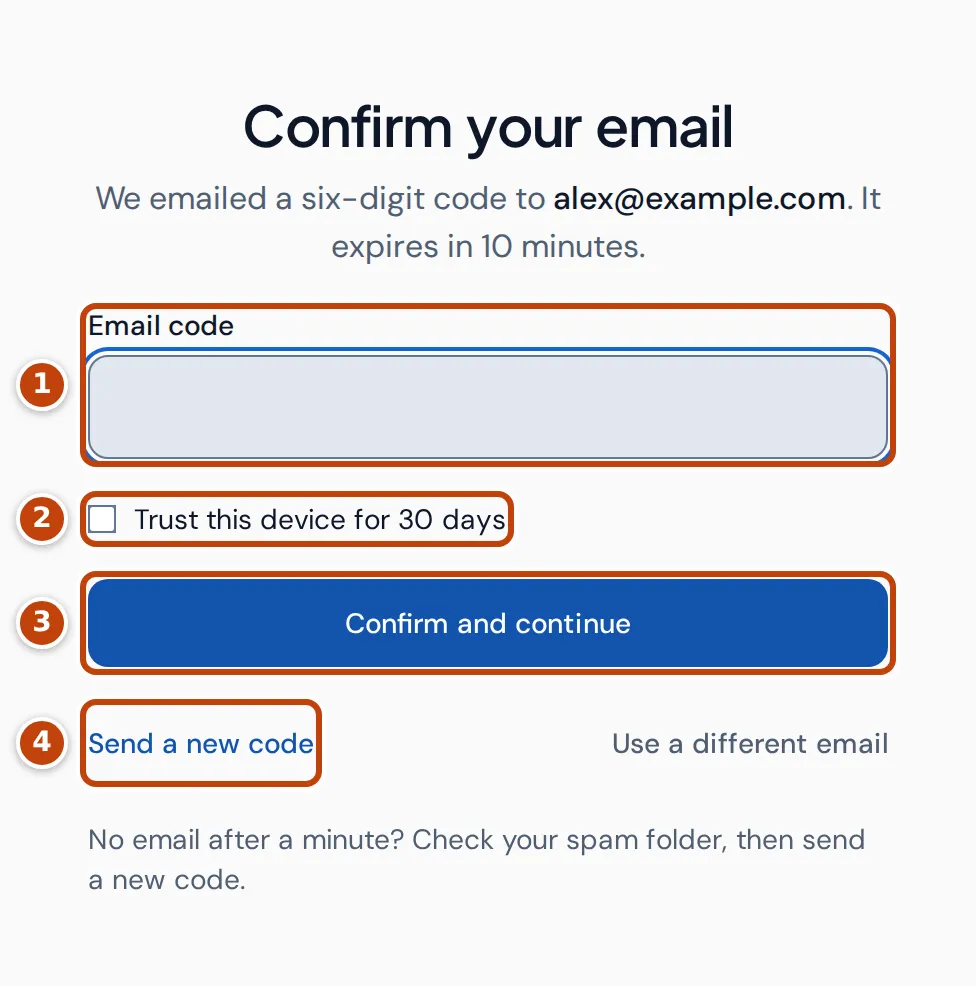
After you select Create account, the Confirm your email step shows the address the code went to. Check it’s right.
- Open the email from Crateworth. Its subject starts with the six-digit code.
- Enter the code in Email code marker 1. The code expires in 10 minutes.
- Optional: tick Trust this device for 30 days marker 2 so this browser isn’t asked for an emailed code again for 30 days.
- Select Confirm and continue marker 3. Your address is now confirmed and you’re signed in.
If the address is wrong, select Use a different email, correct it in the form and select Create account again. If the code hasn’t arrived after a minute, check your spam folder, then select Send a new code marker 4. It becomes available 30 seconds after a code is sent, and counts down until then.
Next, Crateworth opens setup, where you connect your Amazon seller account: see Connect Amazon and import your data. If you opened a team invitation link before creating the account, Crateworth takes you back to the invitation instead: see Accept an invitation.
Sign in
Section titled “Sign in”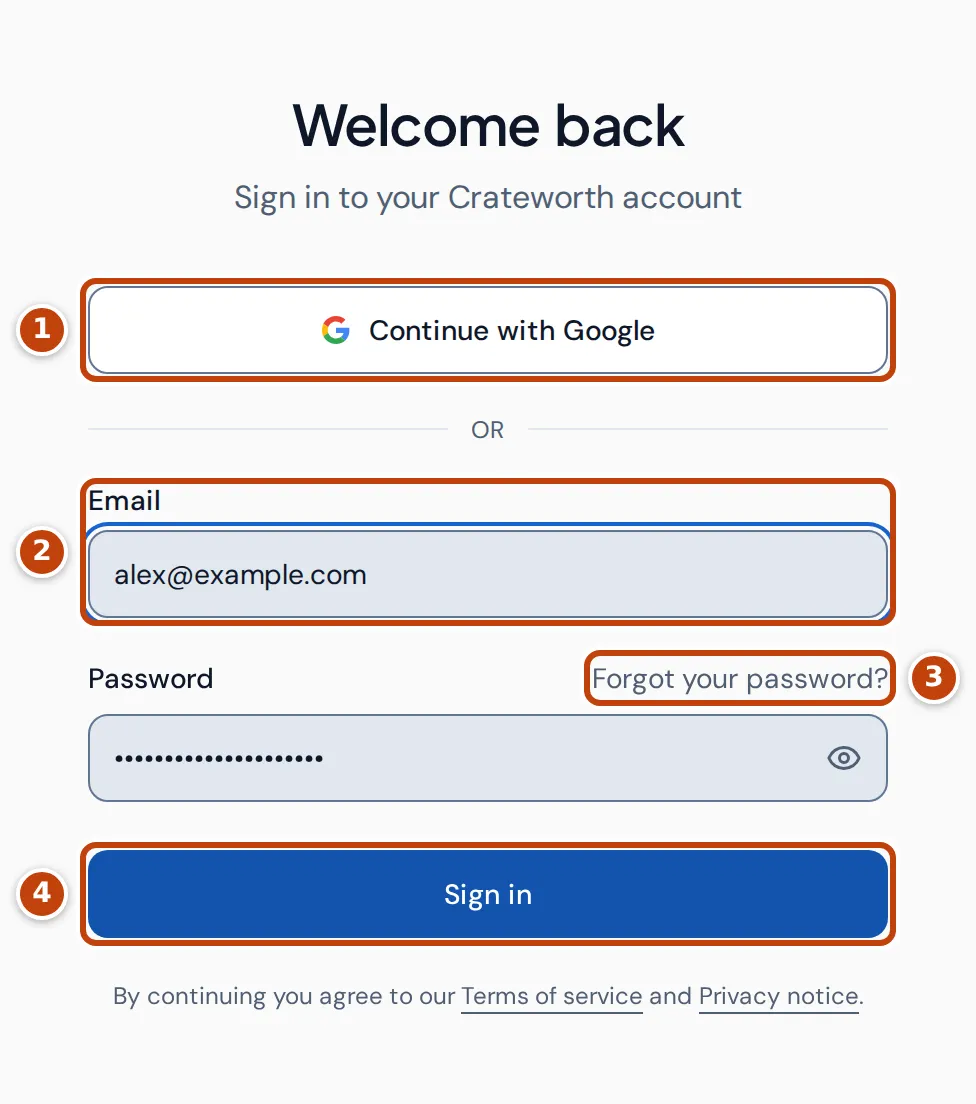
- On the sign-in page, enter your Email marker 2 and Password.
- Select Sign in marker 4.
- Enter the second code: the one Crateworth emails you, or the one from your authenticator app if you’ve set one up. See Enter your emailed sign-in code or Sign in with an authenticator app.
Crateworth then opens your dashboard, or setup if your business hasn’t finished it.
If you’ve forgotten your password, select Forgot your password? marker 3. If you signed up with Google, select Continue with Google marker 1 instead of entering a password.
When you sign in to connect an AI tool to Crateworth, the page says so under Welcome back, and you go back to that tool’s connection afterwards. See AI connections.
Enter your emailed sign-in code
Section titled “Enter your emailed sign-in code”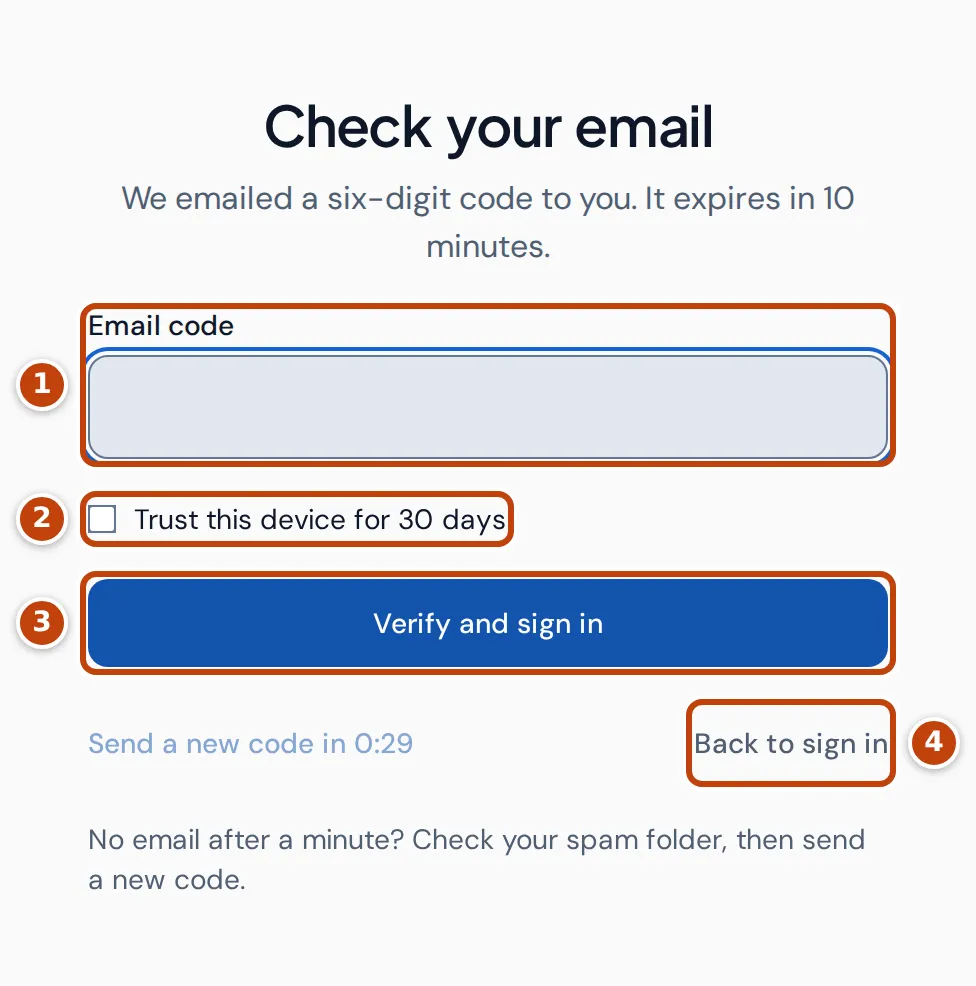
Unless you use an authenticator app, every sign-in with a password asks for a six-digit code that Crateworth emails to your sign-in address. The Check your email step opens after you select Sign in, and the code is sent straight away.
- Enter the code from the email in Email code marker 1. The code expires in 10 minutes.
- Optional: tick Trust this device for 30 days marker 2. Signing in from this browser then asks only for your password, until 30 days pass without a sign-in there.
- Select Verify and sign in marker 3.
Back to sign in marker 4 returns to the email and password form.
The sign-in email says to change your password if you didn’t just try to sign in. If you get a code you didn’t ask for, someone else may know your password: reset it.
Sign in with an authenticator app
Section titled “Sign in with an authenticator app”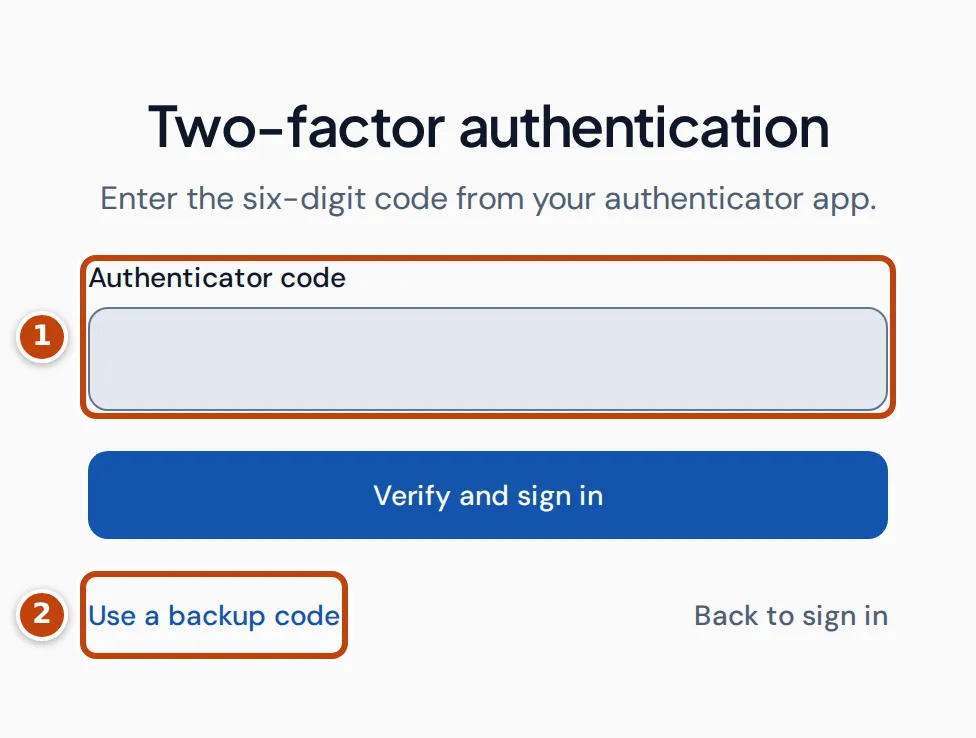
Once you’ve set up an authenticator app, sign-in asks for its code instead of emailing you one. Crateworth no longer sends you sign-in codes by email, and Trust this device for 30 days isn’t offered: every sign-in asks for the app’s code.
- After you select Sign in, the Two-factor authentication step opens.
- Enter the six-digit code your app shows in Authenticator code marker 1.
- Select Verify and sign in.
If you don’t have your phone, select Use a backup code marker 2 and enter one of the backup codes you saved when you set up the app. Each backup code works once. Use authenticator app switches back.
To set up an authenticator app, or to get new backup codes, see Turn on an authenticator app.
Sign in with Google
Section titled “Sign in with Google”Continue with Google is above the form on both the sign-in and sign-up pages. Select it and choose your Google login. Google confirms your email address, so Crateworth doesn’t email you a code. If your login has an authenticator app, Crateworth still asks for its code after Google.
Crateworth takes your name and email address from Google, not your profile picture.
If your Google login is new to Crateworth, Crateworth creates an account for it and opens setup, whichever of the two pages you started from.
If you already have a Crateworth login with the same email address, Google sign-in joins it only once that login has confirmed its address. If it hasn’t, the sign-in page shows “Sign in with your password first”: sign in with your email and password, enter the code Crateworth emails you, and Google sign-in works after that.
When your account requires an authenticator app
Section titled “When your account requires an authenticator app”The owner of a Crateworth account can require everyone on the team to use an authenticator app. If you haven’t set one up yet, you can still sign in with an emailed code, but Crateworth then opens Settings, which says “Your seller account requires an authenticator app”. Until you set one up, only the account pages open: Settings, Businesses, Team and Billing.
Set up the app as described in Turn on an authenticator app. The rest of Crateworth opens once it’s on, and from then on sign-in asks for the app’s code. Owners turn the requirement on and off on the Team page.
Reset a forgotten password
Section titled “Reset a forgotten password”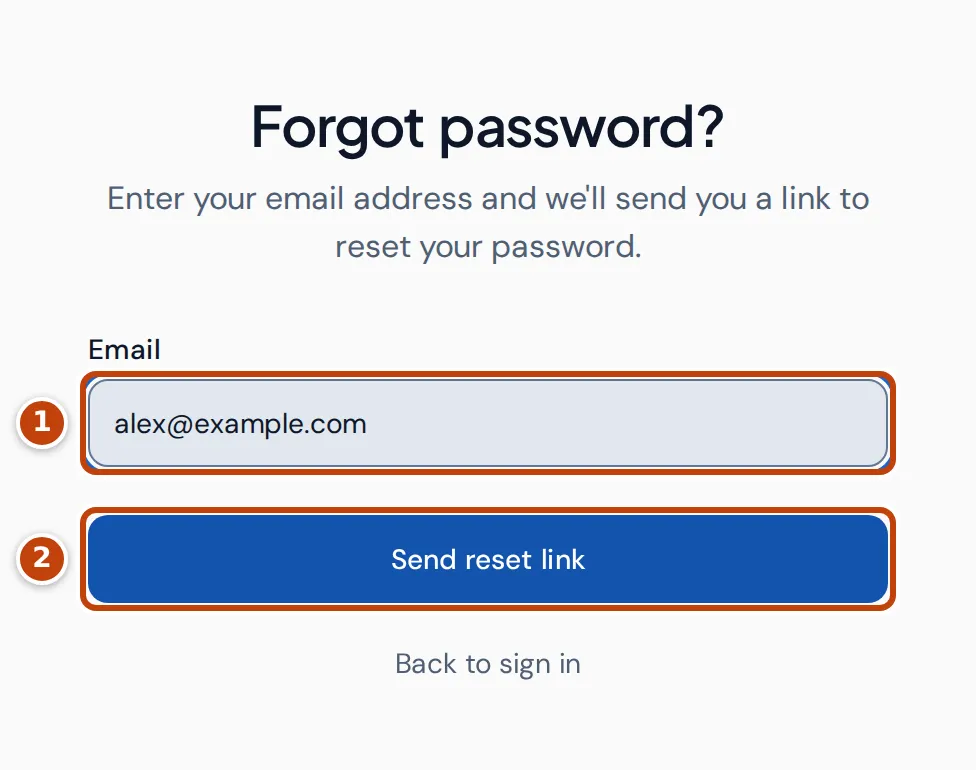
- On the sign-in page, select Forgot your password?.
- Enter the email address you sign in with in Email marker 1.
- Select Send reset link marker 2. The page then says to check your email.
- Open the email titled “Reset your Crateworth password” and select its “Reset your password” button. The link works for one hour.
- Choose a new password. See Choose a new password.
Crateworth gives the same answer whether or not an account uses that address, so the page can’t tell you if you typed it wrong. If no email arrives, check your spam folder and the address you entered, then select try again.
Back to sign in returns to the sign-in page.
If you’re already signed in and want to change your password, use Settings instead: see Change your name or password.
Choose a new password
Section titled “Choose a new password”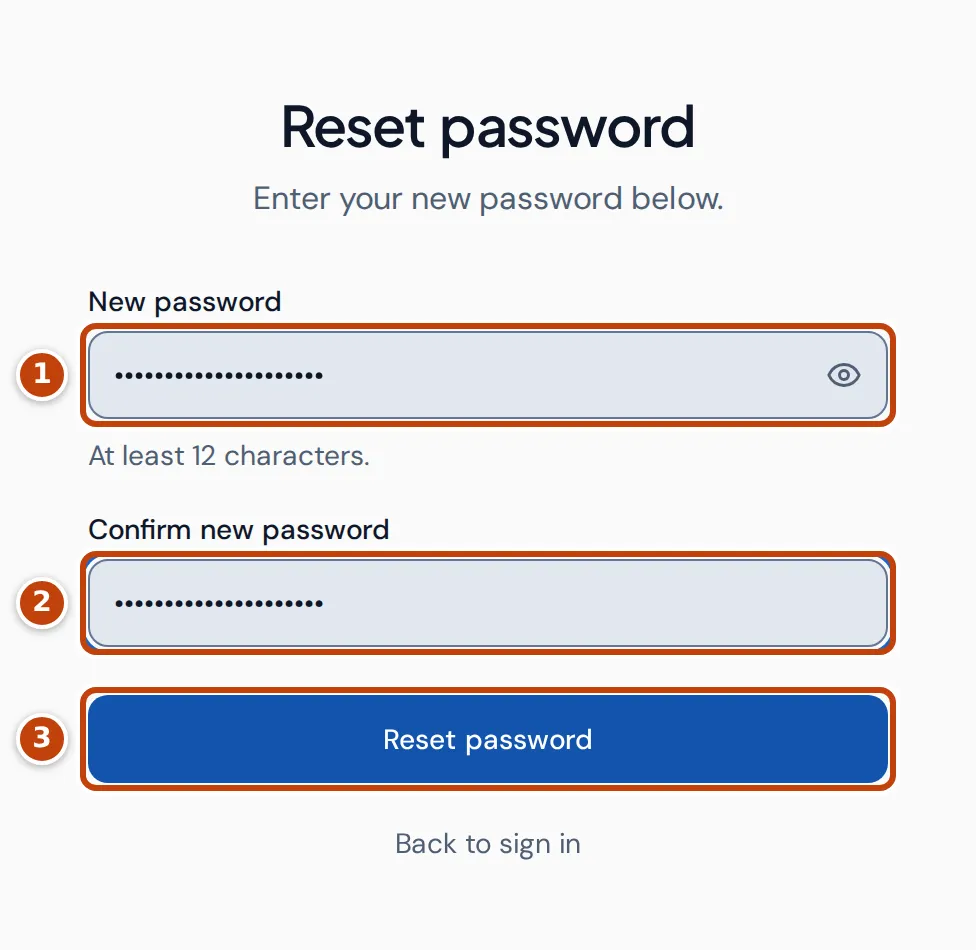
The link in the reset email opens the Reset password page.
- Enter your new password in New password marker 1. It needs at least 12 characters.
- Enter it again in Confirm new password marker 2. To check what you typed, select the eye button in the New password field: it shows both passwords.
- Select Reset password marker 3. The page shows “Password updated”.
- Select Go to sign in and sign in with your new password.
Resetting your password signs you out of Crateworth on every device and disconnects every AI tool you connected. Any other reset links you requested stop working.
Old email confirmation links
Section titled “Old email confirmation links”Crateworth no longer emails a link to confirm your address: the code you enter at sign-up does that. An older confirmation link still opens the Verify your email page until it expires, one hour after it was sent. If the page says “Email verified”, select Go to sign in. If it says the link has expired or is invalid, select Go to sign in anyway: signing in emails you a code, and entering it confirms your address.
If you can’t sign in
Section titled “If you can’t sign in”The code email hasn’t arrived
Section titled “The code email hasn’t arrived”Wait a minute and check your spam folder. Then select Send a new code, which becomes available 30 seconds after the last code was sent. Crateworth sends at most five codes to your login in 15 minutes, counting the code each sign-in sends. After that the page shows “Too many codes requested”: wait 15 minutes, then send a new code.
“This code can no longer be used”
Section titled ““This code can no longer be used””The emailed code has expired (codes last 10 minutes), or it has been entered wrongly five times. Select Send a new code and enter the new one.
If you use an authenticator app, this message means five wrong codes were entered in this sign-in. Select Back to sign in and sign in again.
“Too many attempts”
Section titled ““Too many attempts””After too many wrong codes, Crateworth stops accepting codes for your login for up to 15 minutes: 10 wrong emailed codes within 15 minutes, or 10 wrong authenticator or backup codes in a row. Wait 15 minutes and try again. If you’ve lost your authenticator app, select Use a backup code once the wait is over.
“This sign-in has expired”
Section titled ““This sign-in has expired””More than 10 minutes passed between signing in and entering the code. Select Back to sign in and sign in again.
“Invalid email or password”
Section titled ““Invalid email or password””Check the email address and password. If you can’t remember the password, select Forgot your password?. If you signed up with Google, use Continue with Google: a Google-only login has no password.
“This email already has an account”
Section titled ““This email already has an account””You tried to create an account with an address that already has a login. Select Sign in at the top of the page, or reset the password if you’ve forgotten it.
“This reset link has expired”
Section titled ““This reset link has expired””Reset links last one hour and work once. Once you reset your password, any other reset links you requested stop working too. Select Request new link and use the newest email.
Related pages
Section titled “Related pages”- Connect Amazon and import your data: the next step after you create your account.
- Settings: change your name or password, turn on an authenticator app, or delete your login.
- Team: join someone’s account from an invitation.