
Returns
The Returns page lists every refund Amazon posted for your orders, shows what happened to the returned item, and works out what each return cost you. To open it, in the sidebar, under Amazon reports, select Returns.
Each row is one refunded order item. Crateworth starts from the refund Amazon posted in your payments data, then looks for the matching row in Amazon’s FBA customer returns report to find out why the customer returned the item and whether it can be sold again.
The summary figures and filters
Section titled “The summary figures and filters”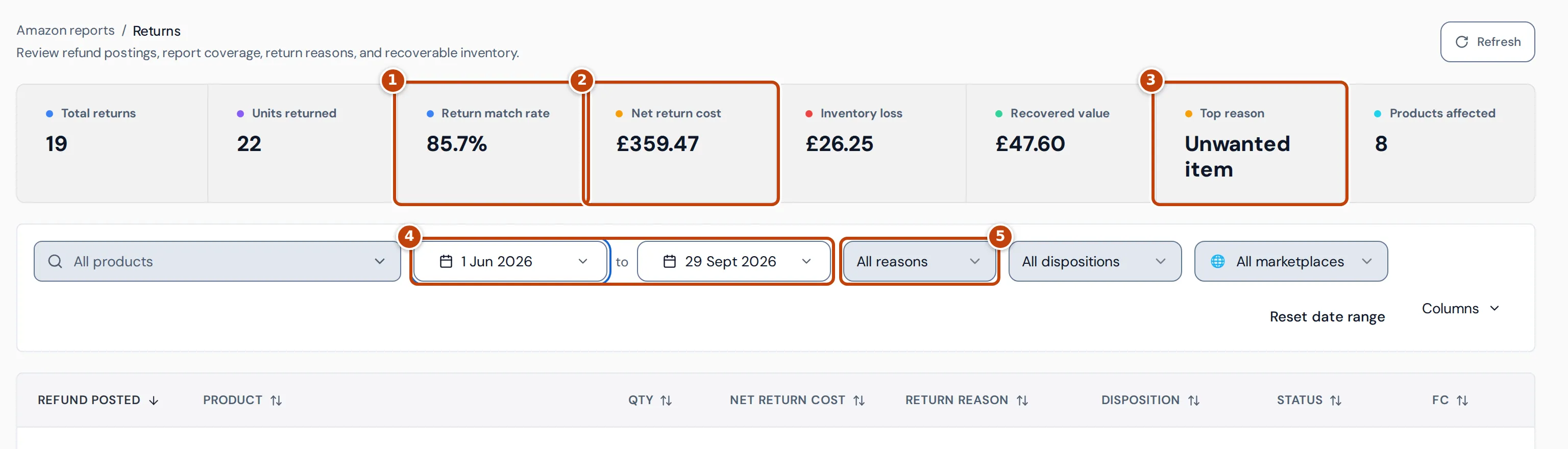
The figures cover every refund that matches the filters, not only the page of rows you’re looking at:
| Figure | What it is |
|---|---|
| Total returns | The number of refunds. |
| Units returned | The units in those refunds. |
| Return match rate marker 1 | Of the refunds Amazon has had time to report a return for, the share matched to a row in Amazon’s return report. Hover over it to see the counts. |
| Net return cost marker 2 | What the returns cost you in total. See What a return costs you. |
| Inventory loss | The cost of returned units that came back unsellable. |
| Recovered value | The cost of returned units that went back into sellable stock. |
| Top reason marker 3 | The return reason with the most units, such as Unwanted item. |
| Products affected | The number of products with refunds, up to 20. |
Money is shown in your reference currency, converted at the rate on the day Amazon posted the refund.
The filters narrow the figures and the table together:
- All products chooses one or more products.
- marker 4 The date range filters by the date Amazon posted the refund. It starts at the last 30 days.
- marker 5 All reasons and All dispositions choose one return reason or disposition. They list the values in the current results.
- All marketplaces chooses one marketplace.
To go back to the defaults, select Reset filters, Clear filters or Reset date range, whichever the page shows. Columns chooses which table columns show and in what order; Reset columns puts them back.
Read a return
Section titled “Read a return”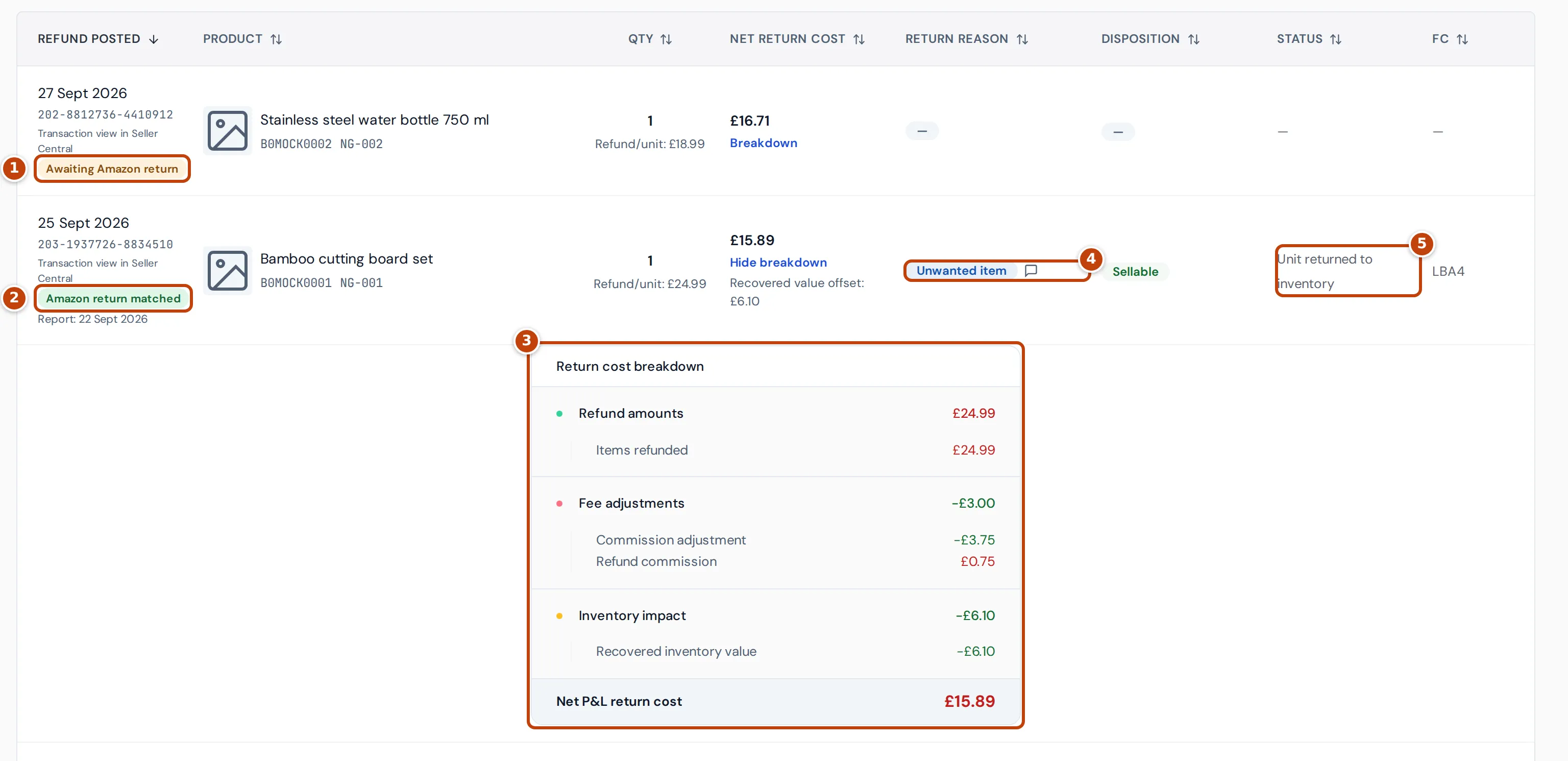
Each row shows, from left to right:
- Refund posted: the date Amazon posted the refund, the order ID (a link to the order in Seller Central), a link to the payment in Seller Central, and a label that says whether Amazon’s return report has a matching row (marker 1, marker 2). The date after “Report:” is the return date in Amazon’s return report.
- Product and Qty, with the refund per unit.
- Net return cost, with Breakdown to open the calculation marker 3.
- Return reason marker 4: the reason the customer gave Amazon, such as Unwanted item or Defective. Hover over the reason to see Amazon’s code for it, such as UNWANTED_ITEM, and over the speech-bubble icon to read the customer’s comment.
- Disposition: the condition Amazon recorded, such as Sellable, Defective or Customer damaged. Hover over it to see Amazon’s code.
- Status marker 5: Amazon’s status for the returned unit. Returned as unsellable inventory means Amazon put the unit back into stock as unsellable.
- FC: the Amazon fulfilment centre that received the return.
Select a column heading to sort by it. The table shows 50 rows per page; change that at the bottom of the table.
The match label
Section titled “The match label”| Label | Meaning |
|---|---|
| Amazon return matched | Amazon’s return report has a row for the same order and product. |
| Awaiting Amazon return | The refund is less than 35 days old and Amazon hasn’t reported the return yet. |
| Amazon return not found | 35 days have passed and Amazon’s return report still has no matching row. |
| No physical return expected | The refund doesn’t suggest the customer sends an item back to Amazon. |
| Outside return report coverage | The refund is older than the return report data Crateworth has from Amazon. |
| Return data needs matching | Amazon reported a return for this order, but the product or quantity doesn’t match safely. |
| Multiple Amazon returns found | More than one Amazon return could belong to this refund, so none was chosen. |
Reason, disposition, status and fulfilment centre come from Amazon’s return report, so a refund without a match shows — in those columns.
What a return costs you
Section titled “What a return costs you”Select Breakdown under a row’s Net return cost to see the Return cost breakdown. Amounts that cost you money show in red, and amounts in your favour in green.
- Refund amounts: what the customer got back, such as Items refunded and any shipping or gift wrap refunded.
- Fee adjustments: Amazon’s fee changes on the refund. Amazon gives back most of the referral fee (Commission adjustment) and keeps a Refund commission. Return shipping, restocking and other return fees appear here too.
- Inventory impact: what happened to the unit’s cost. Inventory loss is the cost of units that came back unsellable. Recovered inventory value is the cost of units that went back into sellable stock, which takes it off the return’s cost.
- Net P&L return cost: the total.
The unit cost is the product’s cost of goods for that order item. Crateworth uses the returned item’s condition only when the return matches Amazon’s report on the same order and SKU. A row marked Estimated COGS used an estimated cost, and Missing COGS means the product has no cost to value the returned unit; add it on the Costs & COGS page.
If you’re registered for VAT in the marketplace on the refund date, the VAT you no longer owe on the refunded sale reduces the cost, shown as Less: output VAT reversed. When you can reclaim the VAT on Amazon’s fees, that VAT is taken out too. The breakdown then also shows Cash return impact, the cost before these VAT lines.
Three settings change how returns are costed. Open the account menu (your name at the bottom of the sidebar), select Settings, and find them under Profit and inventory logic:
- Pending returns are unsellable counts a returned unit as unsellable while Crateworth has no condition for it from a same-order, same-SKU match in Amazon’s return report.
- Respect returned-item condition: when this is off and Amazon charged a restocking fee, the unit isn’t counted as an inventory loss.
- Hide shipping chargeback and gift wrap leaves those lines out of the breakdown.
Find the returns for one product or reason
Section titled “Find the returns for one product or reason”- Choose the product from All products.
- Optional: widen the date range with the start date.
- Optional: choose a reason from All reasons.
Under the table, Return reasons breakdown shows the six reasons with the most units, with the units and number of returns for each.
Why a figure is N/A or missing
Section titled “Why a figure is N/A or missing”Return match rate shows N/A
Section titled “Return match rate shows N/A”Return match rate only counts refunds posted more than 35 days ago, because Amazon can take that long to report a return. With the default last 30 days, no refund is old enough, so it shows N/A. Move the start date back more than 35 days to see a rate.
Top reason shows N/A
Section titled “Top reason shows N/A”Top reason shows N/A when the refunds with the most units have no reason yet, usually because they’re still awaiting Amazon’s return report.
“Return report unavailable”
Section titled ““Return report unavailable””The warning means Crateworth hasn’t read Amazon’s return report successfully for every marketplace in the last 72 hours. The refunds are still listed, but labels such as Awaiting Amazon return may change after the next successful read.
“No returns in this date range”
Section titled ““No returns in this date range””Amazon posted no refunds in the dates you chose. Widen the date range.
“No returns match these filters”
Section titled ““No returns match these filters””No refund matches the product, reason, disposition or marketplace you chose in these dates. Select Clear filters or Reset filters, or widen the date range.
Related pages
Section titled “Related pages”- Removals lists removal orders and Amazon reimbursements, including returns Amazon reimbursed you for.
- Costs & COGS is where you add the product costs used for inventory loss and recovered value.
- Profit and loss shows refunds in your accounts.