
Businesses
In Crateworth, a business is one Amazon seller account, with its own data and settings. Your Crateworth account can hold more than one business. They share the account’s team, plan and billing. The Businesses page lists them. To open it, open the account menu (your name at the bottom of the sidebar) and select Businesses.
What’s on the Businesses page
Section titled “What’s on the Businesses page”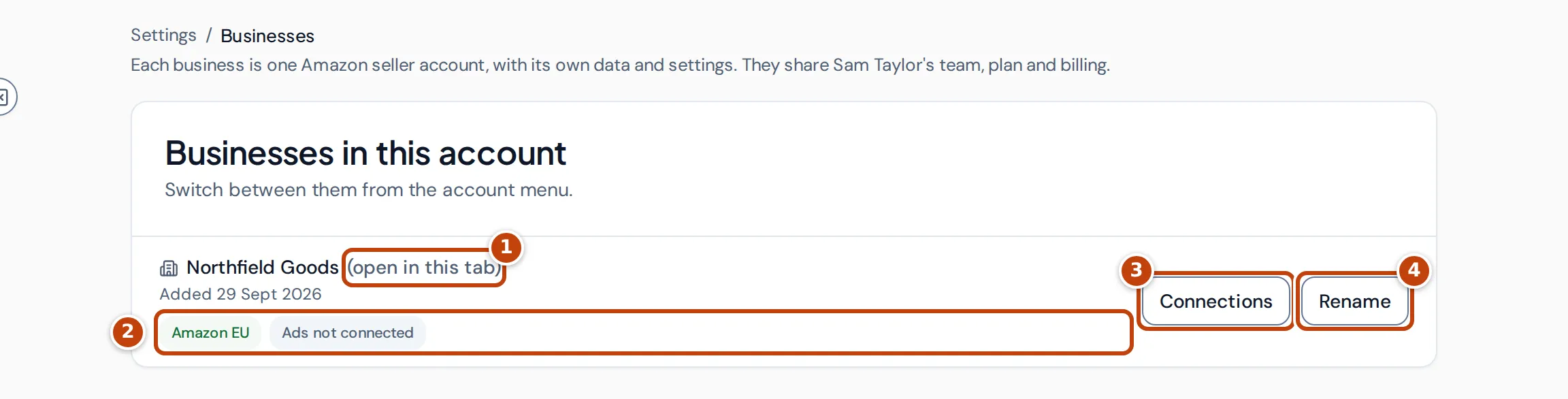
Each business has a row with its name and the date it was added.
- marker 1 (open in this tab) marks the business you’re working in. Each browser tab works in one business, so two tabs can show two different businesses.
- marker 2 The badges show the business’s connections: one per connected Amazon region (Amazon NA, Amazon EU or Amazon FE), or Amazon not connected. A region whose authorisation has lapsed shows “reconnect”. The last badge shows Amazon Ads: Ads connected, Ads needs attention or Ads not connected.
- marker 3 Connections opens that business’s Amazon connection settings, switching to the business first if it isn’t the one open. See Manage your Amazon connection.
- marker 4 Rename changes the business’s name. Only owners and admins see it.
Closed businesses are listed below the open ones, with the date they closed and the date they’ll be deleted.
Switch to another business
Section titled “Switch to another business”When you can open more than one business, the account menu lists them, grouped by account if you belong to more than one.
- Open the account menu (your name at the bottom of the sidebar).
- Select the business. A tick marks the one open now.
The page reloads into the business you chose, on its dashboard. Only this browser tab switches.
The account menu has no business list when you can open only one business.
Rename a business
Section titled “Rename a business”- On the Businesses page, select Rename on the business’s row.
- Enter the new name.
- Select Save.
Everyone in the account sees the new name. Only owners and admins can rename businesses.
Add a business for another seller account
Section titled “Add a business for another seller account”Each Amazon seller account needs its own business. If your account can have more than one business, owners and admins see an Add a business card on the Businesses page.
- Enter a Business name.
- Select Add business. Crateworth opens the new business on its Amazon connection settings.
- Connect Amazon for the new seller account. See Connect or reconnect an Amazon region.
The new business shares the account’s plan, and the number of businesses you can have depends on the plan. If the account already has as many businesses as its plan allows, upgrade the plan on the Billing page or close a business first.
Members don’t automatically see a new business. Share it with them on the Team page.
Close a business
Section titled “Close a business”Closing is available to owners and admins when the account can have more than one business. Closing a business:
- stops Amazon syncing straight away and removes Crateworth’s access to that seller account;
- takes the business out of the switcher and frees its place under your plan’s business limit;
- keeps its data for 30 days, during which you can reopen it. After that it’s deleted permanently.
Download anything you need first, and remove Crateworth from the app list in Seller Central.
- On the Businesses page, select Close on the business’s row.
- Type the business’s name to confirm.
- Select Close business.
For security, you must have signed in within the last 15 minutes. If you closed the business you had open, Crateworth opens another one.
Reopen a closed business
Section titled “Reopen a closed business”Within 30 days of closing, owners and admins can select Reopen on the closed business’s row. Then reconnect Amazon in the business’s settings to resume syncing. Crateworth recovers the gap automatically. Reopening counts towards your plan’s business limit again.
Why do I see “No businesses shared with you yet”?
Section titled “Why do I see “No businesses shared with you yet”?”You’re a member of an account, but no owner or admin has shared a business with you. Ask one of them to give you access on their Team page, then select Check again.
If you’re an owner or admin and every business in the account is closed, the page instead offers Manage businesses, to reopen or add one, and Manage billing.