
Supply pipeline
The Supply pipeline follows your stock from the moment you place a purchase order until it arrives: units in production at the supplier, freight shipments on their way, and what has been received. It also lists the problems that need you, such as late production or an unpaid balance. To open it, in the sidebar, under Supply chain, select Supply pipeline. The button View production & freight on a purchase order opens the same page, showing only that order’s work.
What’s on the Supply pipeline
Section titled “What’s on the Supply pipeline”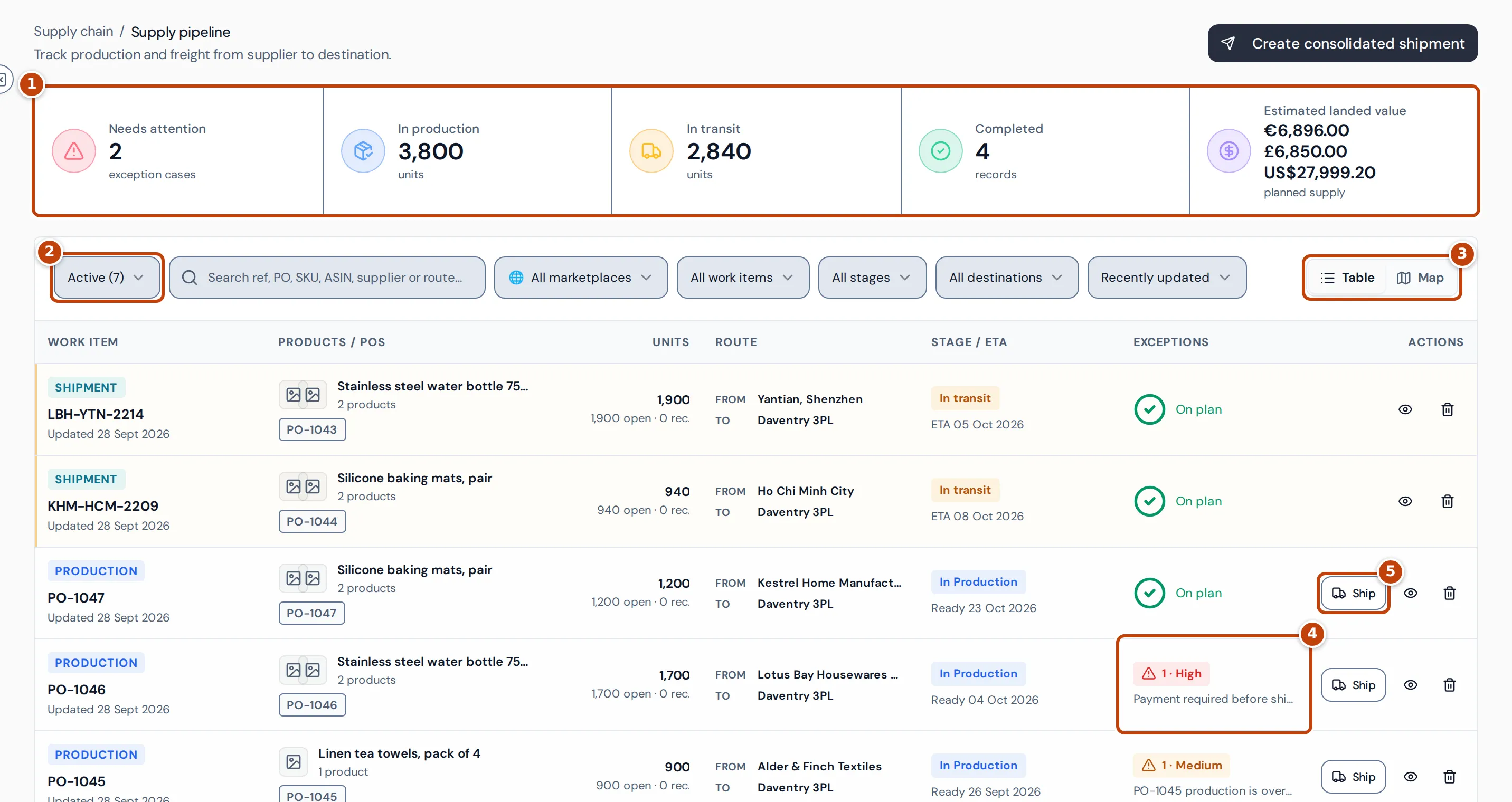
The pipeline has two kinds of work item:
- Production: a batch of units being made by the supplier. Placing a purchase order creates one.
- Shipment: freight carrying units out of production to your warehouse or to Amazon.
The summary cards marker 1 count:
- Needs attention: open exception cases.
- In production and In transit: units at each stage.
- Completed: production that’s finished and shipments that have been received.
- Estimated landed value: the planned units of all the production batches in view, including completed ones, at their estimated unit and landing cost, in each order’s currency, with one line for each currency. Cancelled units are left out.
Select a card to filter the table to that stage. The view menu marker 2 switches between Active, Needs attention, Completed and AGL allocations. Next to it you can search by reference, PO, SKU, ASIN, supplier or route, and filter by marketplace, work item type, stage and destination. Table and Map marker 3 switch between the list and a map of where each item is.
In the table, Units shows the planned units and how many are still open or received. Stage / ETA shows the stage and, for shipments, the expected arrival. A shipment to Amazon shows Receiving at Amazon once Amazon has checked it in, and Delivered when Amazon closes it. Exceptions marker 4 shows the number and severity of open problems, or On plan when there are none. Production with units still at the supplier has a Ship button marker 5.
Deal with work that needs attention
Section titled “Deal with work that needs attention”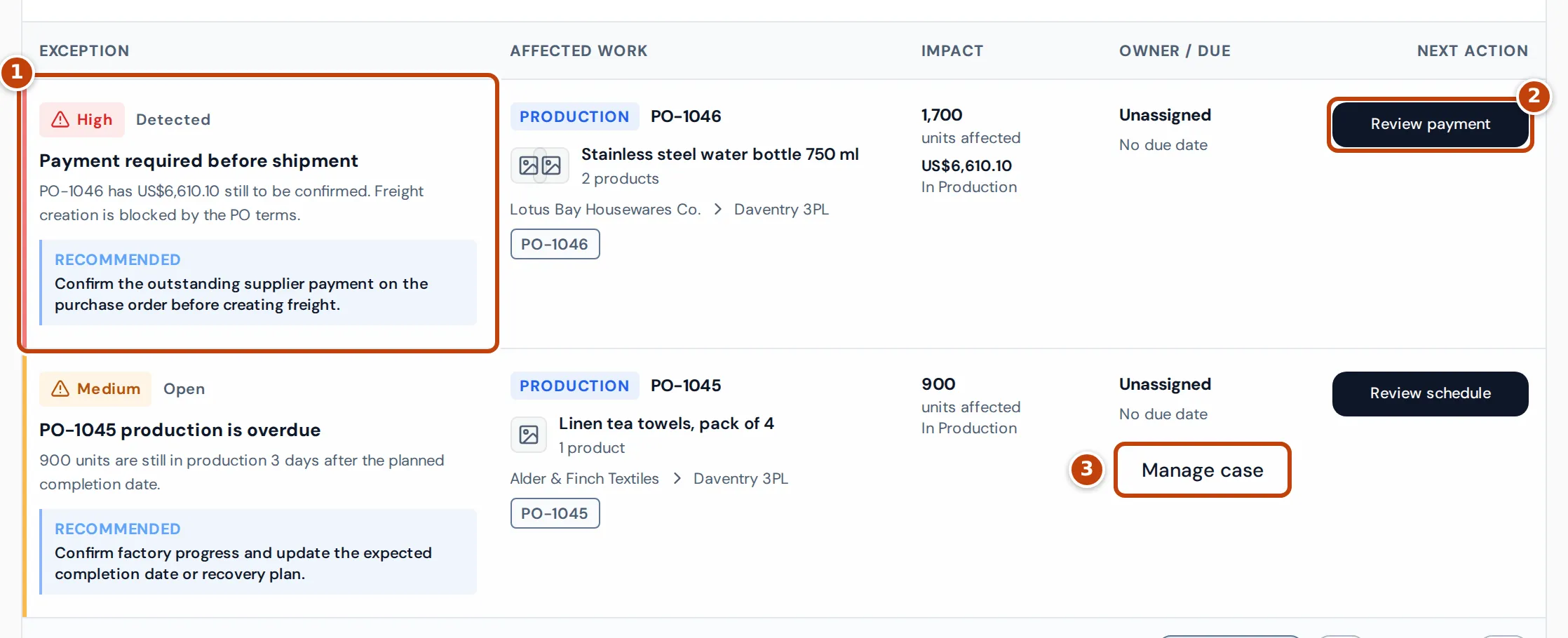
Crateworth checks the pipeline every time you open it and raises a case for each problem it finds, for example:
- production past its expected completion date, or with no completion date;
- a balance that must be paid before shipment and isn’t confirmed yet;
- a shipment past its ETA, with no ETA, or whose tracking hasn’t updated for three days;
- a shipment with no destination, or going to Amazon without a linked FBA inbound shipment;
- received units that were damaged, missing or quarantined.
To work through them:
- On the Supply pipeline, select the Needs attention card. The most severe cases come first.
- Read the case marker 1: its severity, what’s wrong and the recommended action.
- Select the action button marker 2, for example Review payment or Add ETA. It takes you to the place to fix it.
- Optional: on a saved case, select Manage case marker 3 to set an owner, a due date and notes, or to mark the case resolved or dismissed with a resolution. Cases marked Detected are worked out each time and have no Manage case.
Cases close by themselves when the problem is fixed. A case you dismiss doesn’t come back.
Ship units from production
Section titled “Ship units from production”When the supplier has finished a batch:
- On the production row, select Ship. To put several orders from the same supplier in one shipment, choose one marketplace and select Create consolidated shipment instead.
- Enter how many units of each line to ship, or select Ship all available in this group. Select Continue to route.
- Enter the Origin and choose the Destination type. For a warehouse, choose the Receiving warehouse. For Amazon, choose the Amazon inbound shipment the freight is delivering.
- Enter the shipment details: Transport mode, Carrier, Forwarder, Container number, Planned ETA and so on. For sea freight you can choose the Port of loading and Port of discharge.
- Select Review shipment, check it, then select Create shipment. The new shipment’s page opens.
If a purchase order’s terms require payment before shipment and it isn’t confirmed, the review step warns you. You can tick the acknowledgement to go ahead, unless Strict shipment payment checks is turned on in Settings, which blocks the shipment until the payment is confirmed.
The shipment page
Section titled “The shipment page”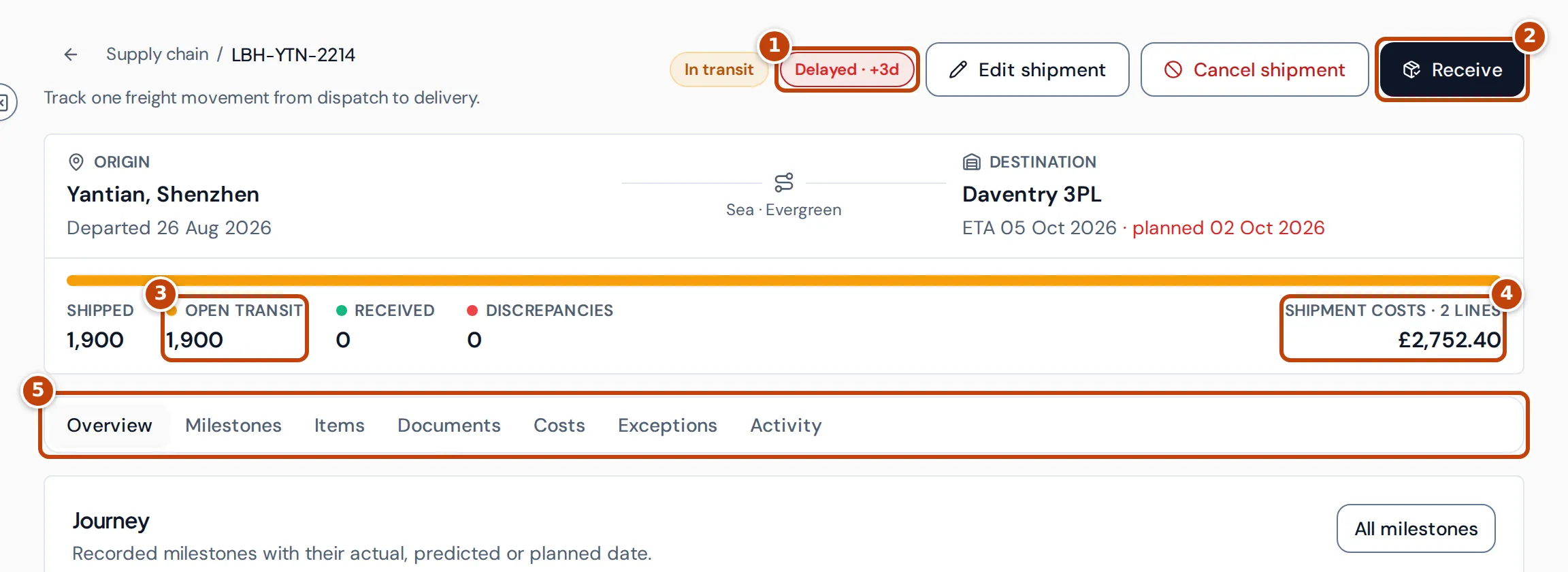
On the Supply pipeline, select a shipment to open its page. The header shows its status, and a Delayed label marker 1 when the latest predicted ETA is later than the planned one. Below the route, the counts show units Shipped, still in Open transit marker 3, Received and Discrepancies, and the total of the shipment’s costs marker 4.
The tabs marker 5:
- Overview: the journey, carrier and booking details, and Three-way reconciliation, which checks the order against the shipment, the receipt, the invoice evidence and the payments.
- Milestones: planned, predicted and actual dates. Select Add milestone to record more.
- Items: units per product and their landed cost.
- Documents: the commercial invoice, packing list, bill of lading and other documents linked to the shipment.
- Costs: freight, duty and other costs of this shipment.
- Exceptions and Activity: the shipment’s open cases and its history and notes.
Select Edit shipment to change the route, references, tracking details, ETAs or ownership until the shipment is received. For sea freight with a container number, the Overview can show the live route when container tracking is available for your account. Without a container, Find ship in Edit shipment lets you pick the vessel to follow.
Receive a shipment into your warehouse
Section titled “Receive a shipment into your warehouse”- On the shipment’s page, select Receive marker 2.
- Choose what happens to units that haven’t arrived:
- Receive all: every unit is resolved now.
- Partial — keep open: post this receipt and leave the rest in transit.
- Close short: record the units that didn’t arrive as missing and close the shipment.
- Choose the Receiving warehouse and Received date, and enter the received, damaged, missing and quarantined units per product, with a reason for discrepancies.
- Select Review receipt, then Post receipt.
Received units become stock in the warehouse, valued at their unit cost plus landing cost, including this shipment’s costs. Quarantined units are kept apart and aren’t sellable.
Freight sent straight to Amazon has no Receive button. Link it to its Amazon inbound shipment, then select Reconcile Amazon receipt: Crateworth takes the received quantities from Amazon. Its progress also shows on FBA inbound.
Add freight and duty to a shipment
Section titled “Add freight and duty to a shipment”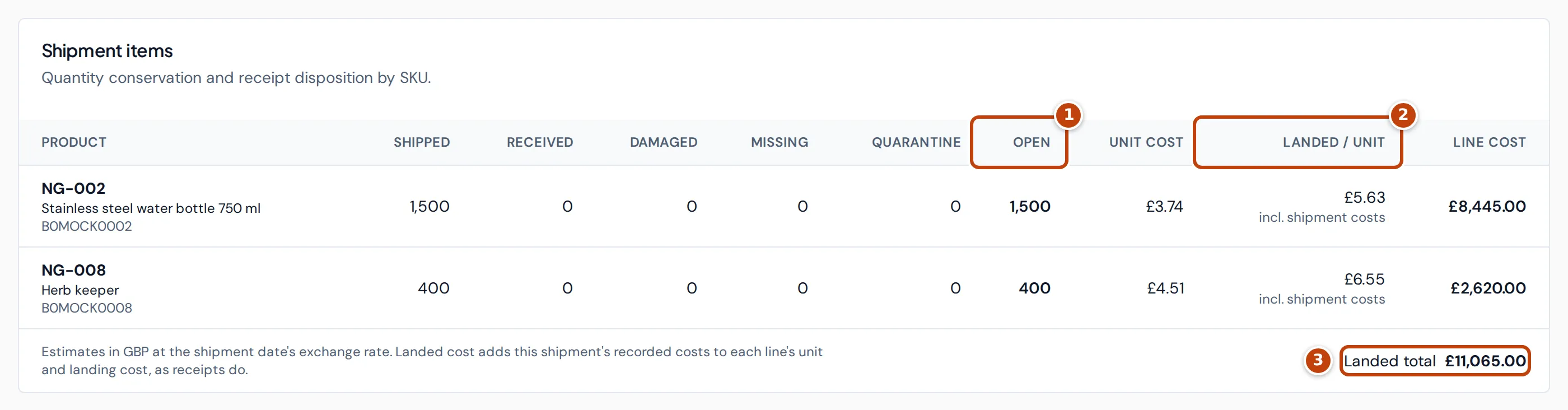
- On the shipment’s page, open Costs and select Add cost.
- Choose the Cost type (Freight, Duty, Customs, Insurance, Handling or Other), and enter a Description, the Amount and its Currency.
- Choose the Allocation method: By unit, By product value or Equal by SKU. The preview shows how much each product gets.
- Optional: add the Invoice reference and link the invoice as evidence.
- Select Add and allocate.
The Items tab then shows the units still Open marker 1 and each product’s Landed / unit marker 2: its unit cost, plus its landing cost, plus its share of the shipment’s costs, converted to your reference currency at the shipment date’s exchange rate. Landed total marker 3 adds up the lines. These are estimates. When the shipment is received, the same costs go into the received stock’s cost, and the cost per unit can differ slightly once the exchange rates of your actual payments apply.
Allocate Amazon Global Logistics charges
Section titled “Allocate Amazon Global Logistics charges”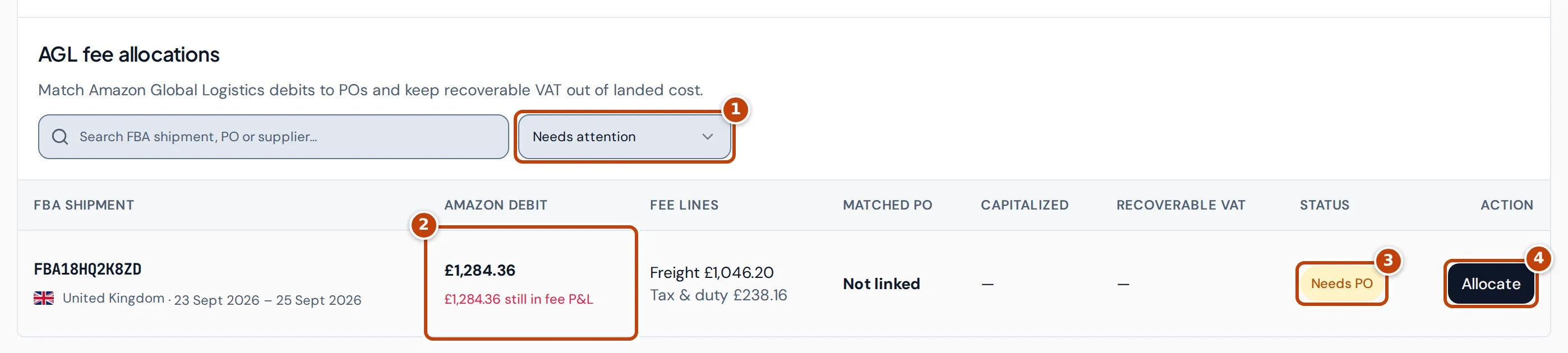
If you ship with Amazon Global Logistics (AGL), Amazon charges freight, duty and import VAT as fees. Until you allocate them, these debits count as Amazon fees in your P&L. Allocating one adds its freight, duty and non-recoverable VAT to the purchase order as costs, which become part of the stock’s cost, and keeps recoverable VAT out of it.
- On the Supply pipeline, choose AGL allocations in the view menu. The queue marker 1 starts on Needs attention: charges that need a PO, need reviewing or are waiting for VAT evidence.
- On a charge marked Needs PO marker 3, check its Amazon debit marker 2 and select Allocate marker 4.
- Under Purchase order, choose the PO whose units the shipment carried. Once Amazon’s shipment contents are in Crateworth, the PO must hold at least one product from the shipment. Optional: choose the pipeline shipment.
- Split the debit into Freight & clearance, Customs duty, Recoverable import VAT, Recoverable VAT on fees and Non-recoverable VAT, until it says “Allocation matches the Amazon debit”.
- Choose how to spread the cost over the PO’s products in Allocate PO cost by.
- Set the Evidence status and the Evidence type of the VAT evidence, for example C79 import VAT certificate or Postponed VAT statement.
- Select Allocate.
Freight, clearance, duty and non-recoverable VAT are added to the PO as costs, converted to the PO’s currency at the fee’s posting date. The recoverable VAT is recorded separately as VAT you can reclaim, supported by the evidence you record. A PO that has already been received into a warehouse is locked and can’t take new AGL costs.
The allocation is the only place an AGL charge becomes stock cost. The AGL debit note itself is evidence: you can attach it to the PO, but its freight, customs and duty lines can’t be added as PO costs, because Amazon already charges the same money through these fees. Its “Destination-Duty fees” line is the duty and import VAT you split here.
To reverse an allocation, select Review on it, then Undo allocation and give a reason. The debit goes back into the fee P&L and the costs come off the PO.
Why does something look wrong?
Section titled “Why does something look wrong?”- The Exceptions column says “Status unavailable”: the check for problems didn’t finish. Select Retry exception status. Until it succeeds, the page doesn’t mark anything as On plan.
- Create consolidated shipment is greyed out: there are no units in production to ship, or the page is still loading. To combine orders, choose one marketplace first.
- There’s no Receive button: the shipment goes to Amazon, came from Amazon’s inbound data, is already received or cancelled, or has nothing in transit.
- A shipment can’t be cancelled or removed: some of its units are already received, or it comes from Amazon’s inbound data.
- Landed / unit or Landed total is missing: a product has no unit cost estimate, or an exchange rate isn’t available yet. Team members who can’t see profit don’t see these figures.
- An AGL charge shows Review variance: Amazon’s fees for the shipment no longer match the allocation, for example after more charges or a reversal, or the PO cost the allocation created has been removed. Review the allocation and update it.
- Allocate says the purchase order holds none of the shipment’s products: choose the PO whose stock travelled in that FBA shipment.
- Allocate says the AGL debit note is already recorded as landed cost: its lines were added as PO costs before. On the PO named in the message, remove those freight, customs and duty costs (the document stays attached), then allocate.
- An AGL shipment says its purchase order is unlinked: Crateworth couldn’t find exactly one open PO line with the same SKU or ASIN. Open the shipment’s Items tab and select Link on the line.
- The map is empty for some items: they have no origin, port or destination on record yet.
Related pages
Section titled “Related pages”- Purchase orders, where production starts.
- FBA inbound for shipments into Amazon.
- Supplier quality for refund rates by purchase order and production batch.