
Connect Amazon and import your data
After you create your account, Crateworth opens a short setup with six steps: Connect Amazon, Choose marketplaces, Your business, Tax home, VAT registrations and Import and finish. Start by connecting Amazon and choosing your marketplaces. The other four steps then open, and you can do them in any order. The import of your Amazon history starts when you choose your marketplaces, so you can finish the rest of setup while it runs.
Finish later takes you to the dashboard and Crateworth stops opening setup for you. Anything you skip can be done later on the pages listed under Change your choices later.
Before you start
Section titled “Before you start”- Only an owner or admin of a business can connect Amazon. Team members with view-only access go straight to the dashboard instead of setup.
- Have your Seller Central sign-in ready for each region you sell in. Amazon asks you to sign in and approve Crateworth once per region.
- Approve the request in the same browser you started it from, within 10 minutes. After that the request expires and you start that region again.
Step 1: Connect your Amazon seller account
Section titled “Step 1: Connect your Amazon seller account”Crateworth reads your orders, fees, stock and payouts from Amazon. Amazon groups its marketplaces into three regions, and each region is connected separately:
- Europe, Middle East, Africa and India
- The Americas
- Asia-Pacific
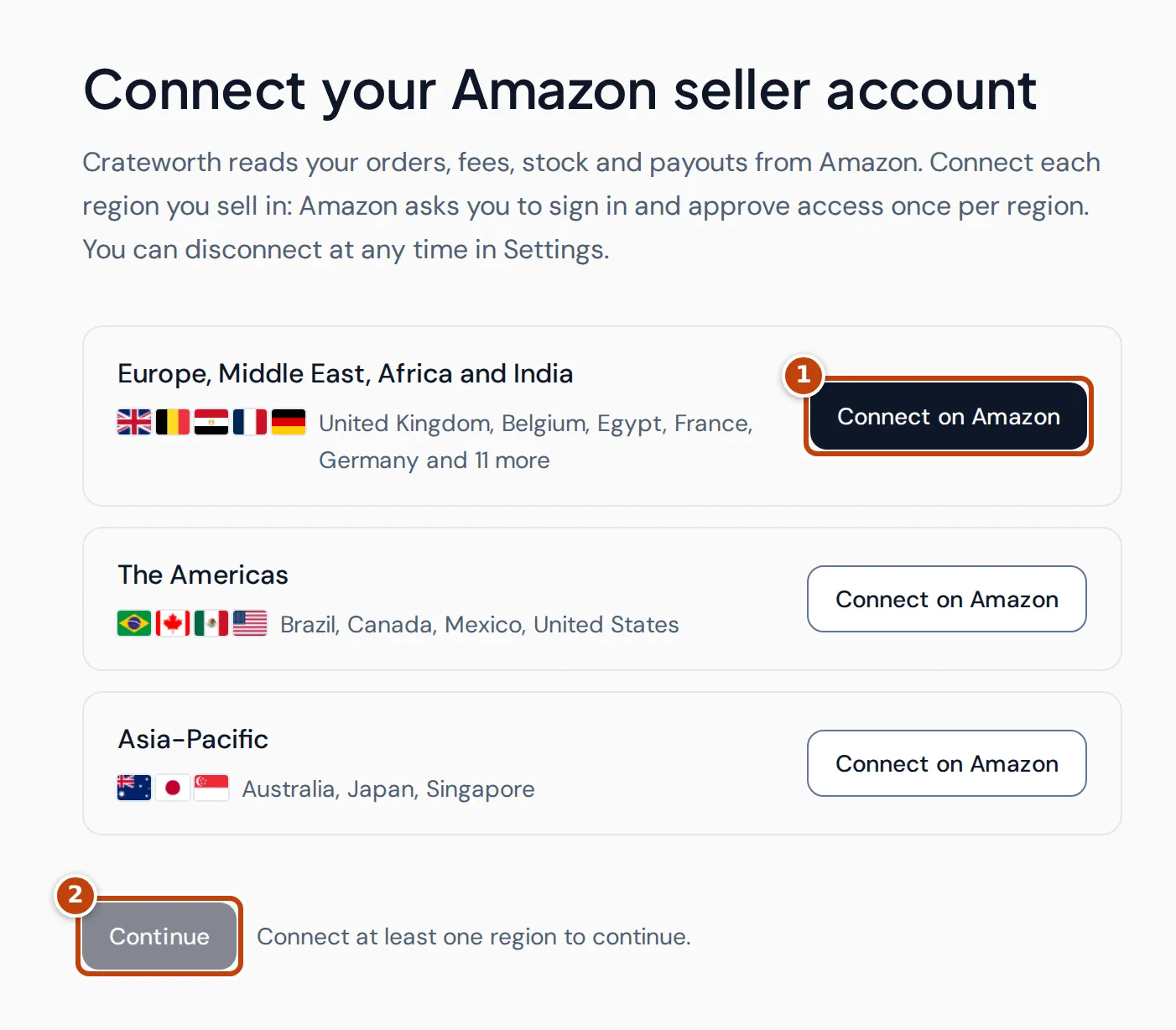
To connect a region:
- Select Connect on Amazon marker 1 on the region’s card. Seller Central opens and asks you to sign in and approve access for Crateworth.
- Approve the request. Amazon sends you back to setup, where the region shows Connected and lists the marketplaces your account sells in.
- Optional: repeat for any other region you sell in.
- Select Continue marker 2. It stays unavailable until at least one region is connected.
Step 2: Choose the marketplaces to import
Section titled “Step 2: Choose the marketplaces to import”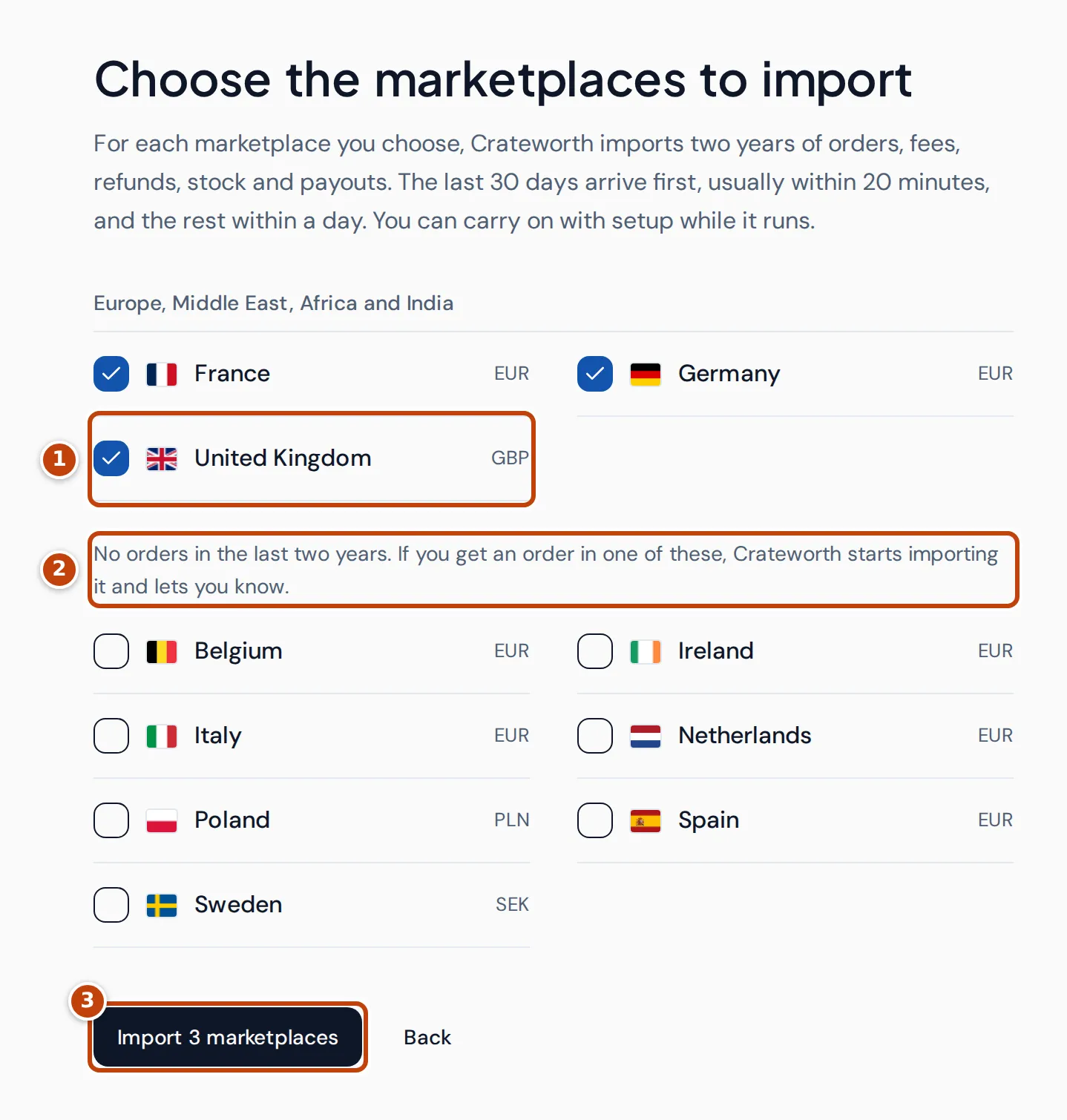
Crateworth checks where your account has had orders in the last two years and ticks those marketplaces for you marker 1. Marketplaces with no orders in that time are listed separately, unticked marker 2. If one of them gets an order later, Crateworth starts importing it and tells you.
- Tick each marketplace you want Crateworth to import, and untick any you don’t.
- Select the import button marker 3, for example Import 3 marketplaces. The count matches the marketplaces you ticked.
The import of each ticked marketplace starts straight away. A marketplace you untick stays off, even if it has sales, until you turn on Sync this marketplace for it in Settings.
Step 3: Name your business and set its currency
Section titled “Step 3: Name your business and set its currency”- Enter a Business name. Only you and your team see it.
- Choose a Reporting currency. Crateworth converts every marketplace’s sales into this one currency. It suggests one from your marketplaces and lists your marketplaces’ currencies first. Most sellers use the currency they’re paid out in.
- Check the Timezone. It sets which dates Today, Yesterday and the other dashboard periods cover.
- Select Save and continue.
Step 4: Tell Crateworth where your business is based for tax
Section titled “Step 4: Tell Crateworth where your business is based for tax”Your tax home is usually the country where your company is registered, or where you live if you trade as a sole trader. It decides who accounts for VAT on some sales: you or Amazon. If you connected the Europe region, Crateworth first checks the address Amazon holds for your business.
- If Amazon has an address, confirm it, or select No, it’s based somewhere else and choose the right country.
- If Amazon has no address, choose a Country your business is based in.
Then select the confirm button, which names the country you chose. If you’re not sure yet, select Skip for now. Until you set a tax home, VAT and profit figures stay incomplete.
Step 5: Add your VAT registrations
Section titled “Step 5: Add your VAT registrations”Crateworth uses your VAT registrations to work out the VAT in your sales and fees, and to prepare figures for your returns. Answer Are you registered for VAT?:
- Yes, in one or more countries: add each country where you hold a VAT number. For each one, choose the Country, set Registered since and Returns filed, and choose an Accounting scheme. The VAT number is optional. Select Add registration, then Add another country for the next one. You need at least one registration to continue.
- No, I’m not registered anywhere: Crateworth treats your sales as not registered for VAT.
- I’ll add this later: Crateworth treats your sales as not registered for VAT until you add registrations on the VAT page.
If your tax home is in the EU and you report distance sales through the One Stop Shop, add the registration for your tax-home country, tick I report EU distance sales through the One Stop Shop (OSS) and enter the date in Joined OSS on. The option appears only on the registration for an EU country that you set as your tax home in step 4.
Step 6: Import and finish
Section titled “Step 6: Import and finish”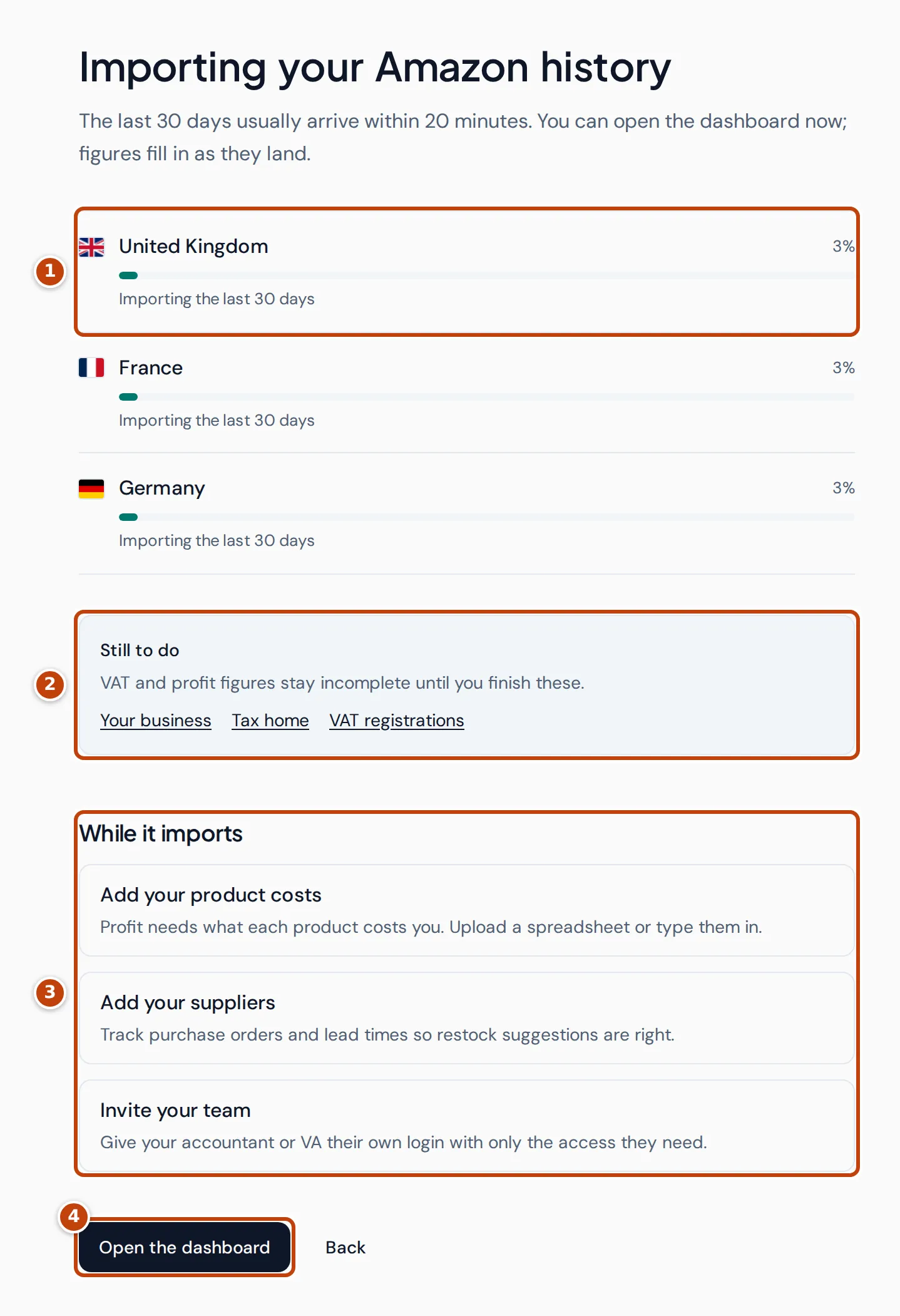
The last step shows a progress bar for each marketplace marker 1. Under Still to do marker 2 it lists any setup steps you skipped, because VAT and profit figures stay incomplete until you finish them.
While the import runs you can open the next jobs directly from While it imports marker 3: Add your product costs, Add your suppliers or Invite your team. Or select Open the dashboard marker 4. Either way, setup is complete.
What the first import brings in
Section titled “What the first import brings in”For each marketplace you ticked, Crateworth imports two years of orders, fees, inbound shipments and receipts, and advertising spend. Some Amazon reports cover less:
- Shipped customer orders: about the last 18 months, the most Amazon’s report provides.
- Returns: the last 120 days.
- Transfers between fulfilment centres: the last 60 days.
Your catalogue, current stock and inventory health come in as they are today.
How long the first import takes
Section titled “How long the first import takes”Your last 30 days come first, usually within 20 minutes. Older history follows, usually within a day. Timings depend on how quickly Amazon answers, so a large account can take longer.
You can use Crateworth while the import runs. The dashboard opens with your recent figures and fills in as more data lands. While the import runs, a banner across the top of each page links to View import progress. The Sync Health page, at the bottom of the sidebar, has an Initial import panel that shows how far each marketplace has got.
If something goes wrong
Section titled “If something goes wrong”Amazon didn’t connect, or the request expired
Section titled “Amazon didn’t connect, or the request expired”Start again from the Connect Amazon step in the same browser, and approve the request within 10 minutes.
“This seller account is already in use”
Section titled ““This seller account is already in use””That Amazon seller account is already connected in Crateworth. Each business connects its own seller account.
- If it’s connected to another business in your account, connect a different seller account to this business.
- If it’s connected to a different Crateworth account, sign in to that account instead, or ask its owner to disconnect Amazon first.
If instead the message says a marketplace “is connected to another seller account”, sign in on Amazon with the seller account this business already uses.
No marketplaces are listed
Section titled “No marketplaces are listed”Amazon didn’t list any marketplaces for this seller account in the region you connected. Go back and connect the region you sell in.
“Some older months couldn’t be imported”
Section titled ““Some older months couldn’t be imported””On the Import and finish step, select Try those months again.
Change your choices later
Section titled “Change your choices later”- Reporting currency and timezone: open the account menu (your name at the bottom of the sidebar), select Settings, then General. Settings calls the reporting currency the Reference currency.
- Marketplaces and Amazon regions: in Settings, under Amazon accounts, use Connect Amazon to add a region and Sync this marketplace to turn a marketplace on or off.
- VAT registrations: in the sidebar, under Finance, select VAT, then Add profile.
- Your team: open the account menu and select Team.
Next, read the Dashboard guide to see what your first figures mean.