
Replenishment planning
Replenishment planning works out what to buy from your suppliers and what to move into Amazon, and when, so your FBA stock covers forecast demand. It turns your sales history, stock, inbound shipments, supplier terms and shipping routes into a plan of recommended purchase orders and shipments for you to review and approve. To open it, in the sidebar, under Supply chain, select Replenishment planning.
Set up replenishment planning
Section titled “Set up replenishment planning”The first time someone who can edit inventory opens Replenishment planning, a setup opens instead of the page. It starts with Set up replenishment planning: select Start setup to begin, or Set up later to close it. Setup uses your existing Amazon and inventory data, saves as you go, and sends nothing to Amazon.
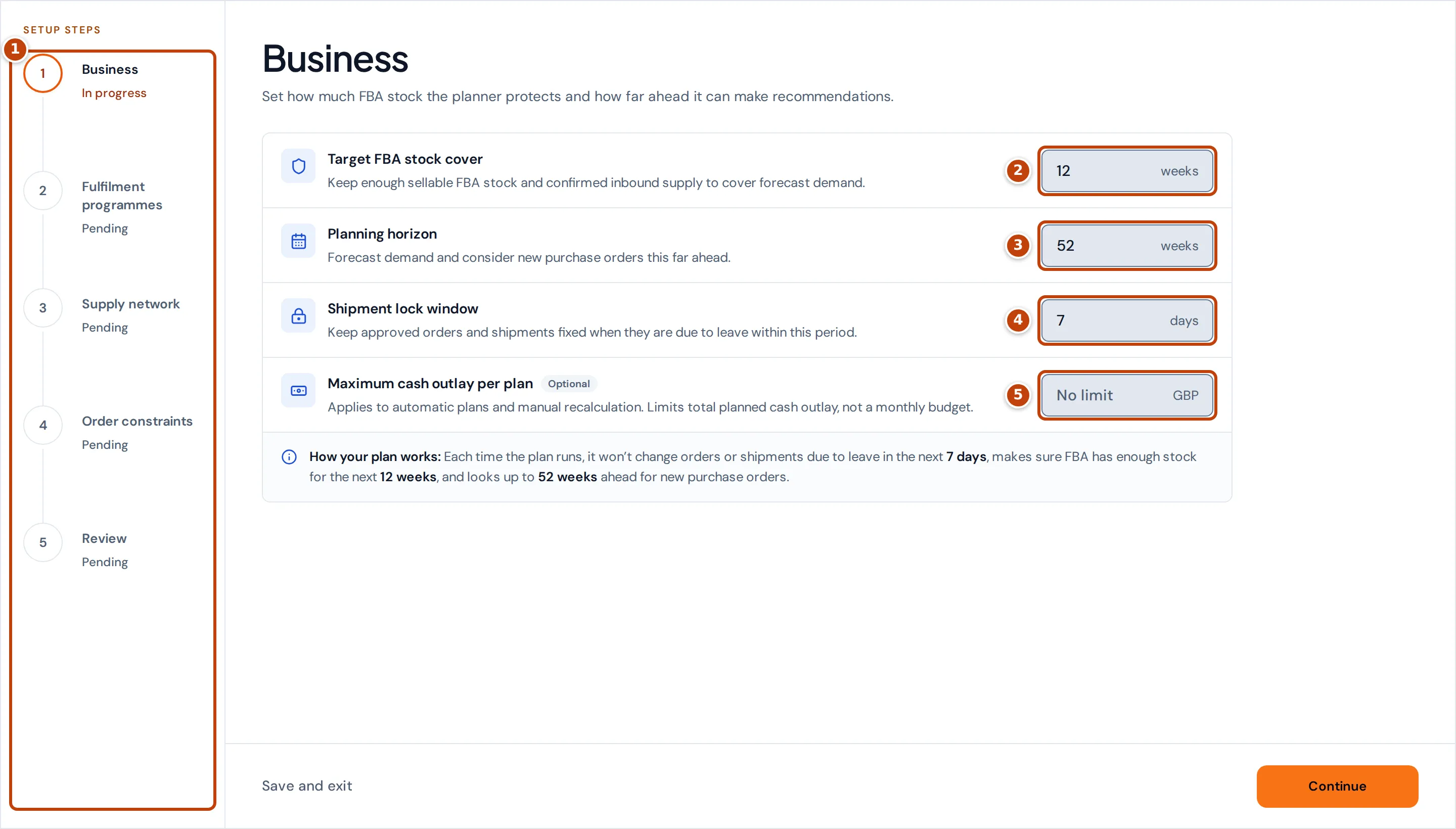
Setup has five steps marker 1:
- Business sets how much stock the planner protects and how far ahead it looks:
- marker 2 Target FBA stock cover (1 to 26 weeks): the planner keeps enough sellable FBA stock and confirmed inbound supply to cover this many weeks of forecast demand.
- marker 3 Planning horizon (13 to 52 weeks): how far ahead it forecasts demand and considers new purchase orders. It must be at least as long as the stock cover.
- marker 4 Shipment lock window (0 to 180 days): approved orders and shipments due to leave within this period stay fixed.
- marker 5 Maximum cash outlay per plan (optional): a limit on each plan’s total planned spend, not a monthly budget. Leave it blank for no limit.
- Fulfilment programmes records how Amazon holds and moves your stock between marketplaces, such as Pan-European FBA or remote fulfilment. Saving this step changes nothing in Amazon.
- Supply network connects your suppliers, warehouses and Amazon locations with shipment routes. Each route has a shipment method, a typical and a conservative transit time, and a freight rate. Each supplier has a manufacturing lead time.
- Order constraints sets, for each product, its supplier, its MOQ (minimum order quantity, in units) and its Case pack (units per carton). Case packs found on your Amazon inbound shipments are filled in for you. Turn off a product’s switch to exclude it from planning.
- Review lists anything still missing. Select Fix this item to go to it. When everything is ready, select Start automatic planning.
To leave setup before it’s finished, select Save and exit on the Business step or Finish later on the other steps. Your progress is saved. Skip for now, on Order constraints, goes straight to Review.
To change these settings later, select Planning settings (the gear button beside Run new plan now). Setup opens at the Business step. When you’ve made your changes, go on to the Review step and select Start automatic planning, or select Close editor to leave without saving.
What’s on the Replenishment planning page
Section titled “What’s on the Replenishment planning page”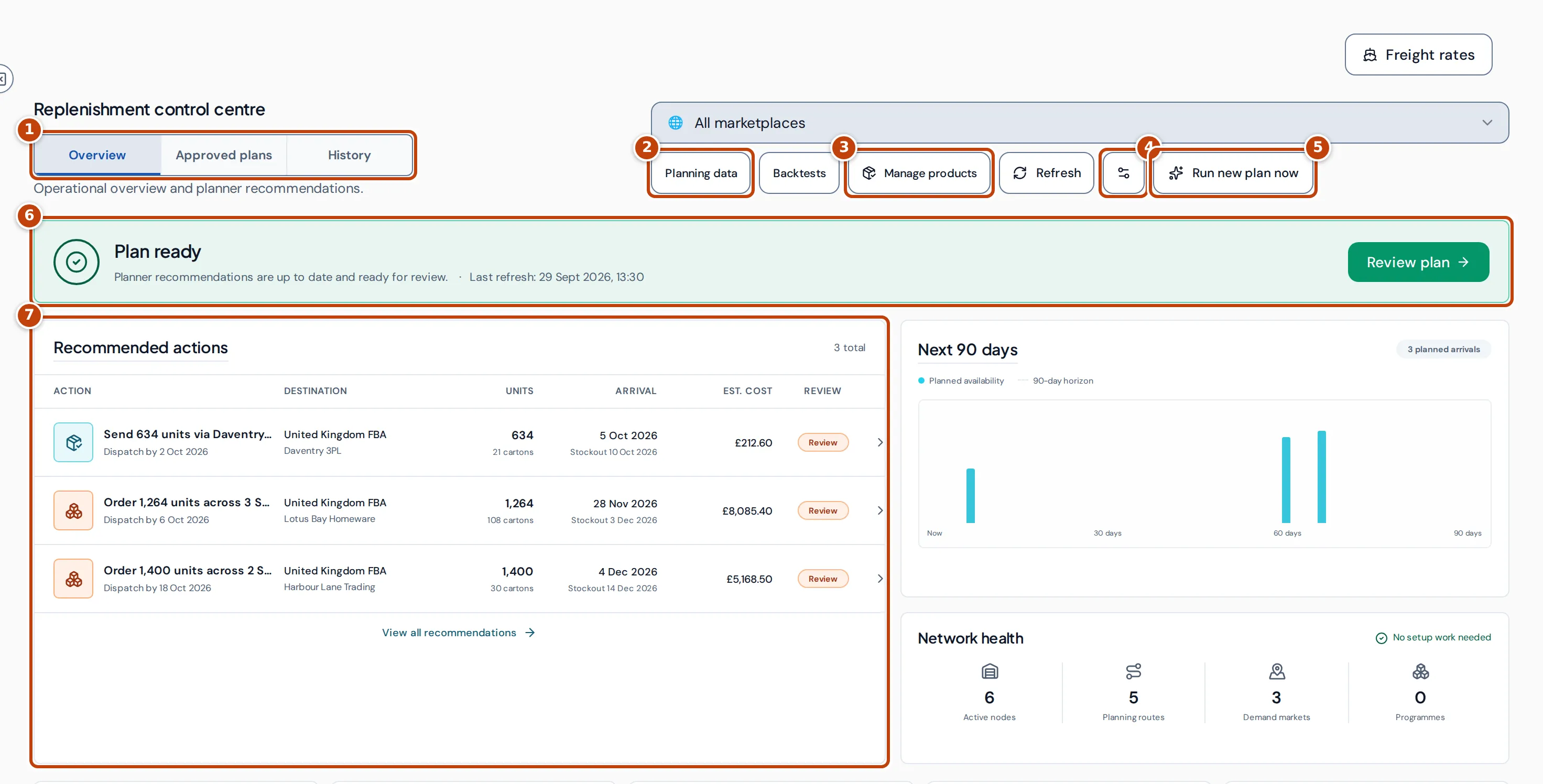
The page opens on the Replenishment control centre:
- marker 1 The tabs: Overview, Approved plans and History.
- marker 2 Planning data lists the checks on the data the planner uses. A count on the button shows how many items block planning.
- marker 3 Manage products chooses which products are planned.
- marker 4 Planning settings reopens setup.
- marker 5 Run new plan now starts a new plan straight away. Refresh reloads the page.
- marker 6 The status banner says whether the plan is current, such as Plan ready, and when it was last refreshed. Review plan opens the full plan.
- marker 7 Recommended actions shows the four most urgent actions, earliest dispatch first.
Use All marketplaces at the top to plan for one marketplace only. Freight rates, beside Manage products, opens the freight prices the planner can use; see Freight rates.
Recommended actions
Section titled “Recommended actions”Each row is a purchase order to place or a shipment to send. Dispatch by under the title is the latest safe dispatch date: the last day you can send it and still avoid a stockout. Units shows the quantity and the cartons it fills. Arrival is when the stock should be available, with the forecast stockout date if you don’t act. Est. cost is the modelled cost of the action. The Review column shows Urgent for an emergency action, Review for an action that needs your approval, and Planned otherwise. Select a row, or View all recommendations, to open the plan.
Next 90 days, Network health and regions
Section titled “Next 90 days, Network health and regions”Next 90 days charts when planned stock becomes available over the next 90 days, with a bar for each of up to eight actions and a height for its units. Network health counts your Active nodes (suppliers and stock locations), Planning routes, Demand markets and Programmes. The regional cards below show, for each region, how many marketplaces have demand and how many supply paths reach them.
How recommendations are worked out
Section titled “How recommendations are worked out”The planner forecasts each product’s daily demand from its sales history, then simulates stock day by day with and without each action.
- Demand: the planner needs a complete, up-to-date 90-day sales history or Amazon demand report for each listing. Days when you were out of stock at FBA aren’t treated as zero demand. Use Demand adjustments (see Choose which products are planned) for promotions or unusual periods.
- Stock: it starts from sellable FBA stock and adds confirmed inbound shipments on their arrival dates. Stock Amazon is still processing helps size purchases, but doesn’t count towards forecast sales until Amazon releases it. Customer reservations aren’t counted.
- Quantities: orders are at least the product’s MOQ and are rounded up to whole cases.
- Timing: Stockout without action is the first day the product runs short if this action is left out. Latest safe dispatch is that date less the route’s conservative transit time.
Once setup is finished and automatic planning is on, plans update automatically. Crateworth starts a new plan when planning data or settings change, and runs one every day at 02:00 in the planning timezone, which is set from your browser’s time zone when setup is saved. Run new plan now starts one straight away.
Saved plans don’t change. When planning data changes after a plan was made, the banner says the recommendations are out of date and the plan can’t be approved until a new one is made.
Review and approve a plan
Section titled “Review and approve a plan”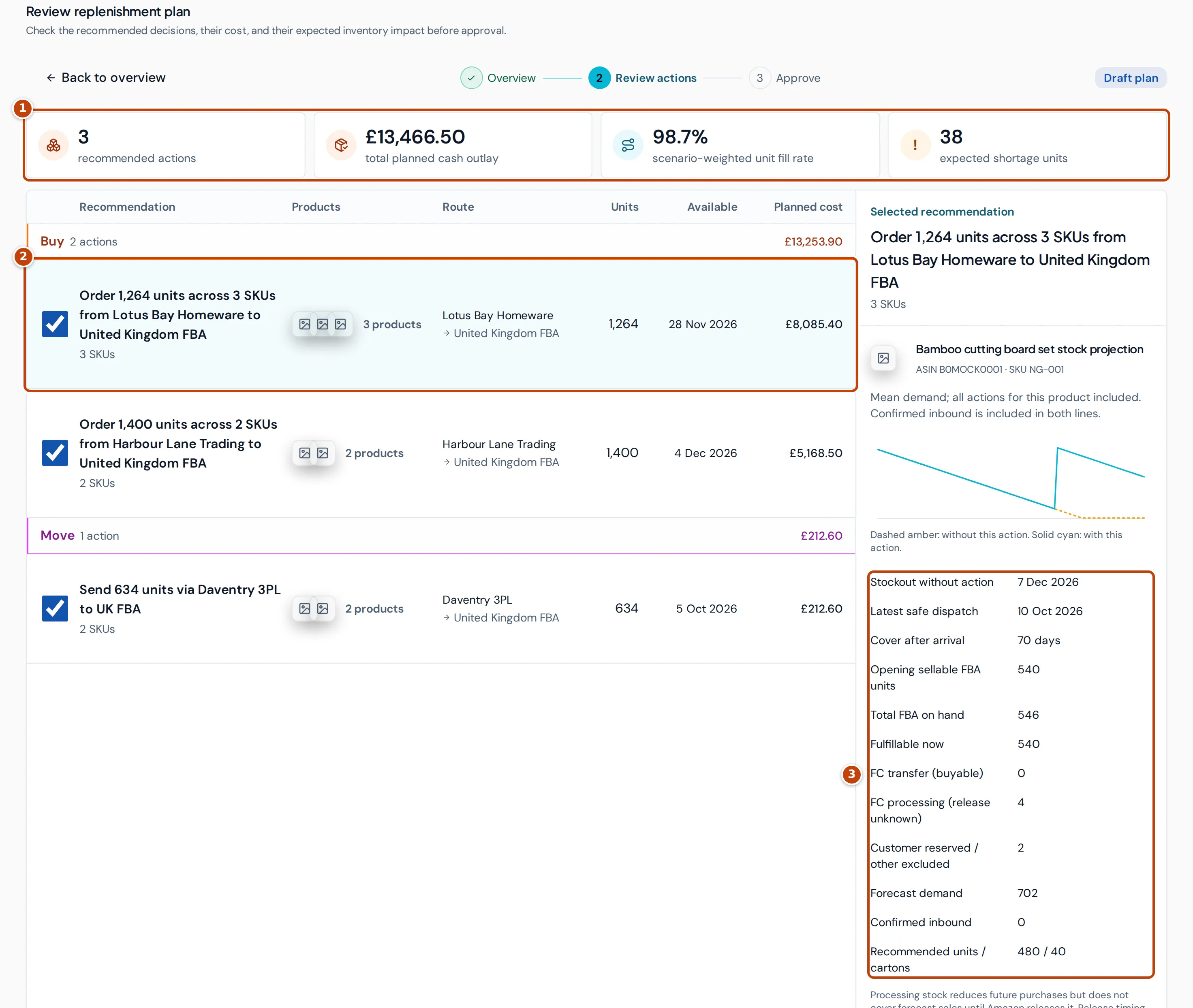
Select Review plan to open Review replenishment plan. marker 1 The totals at the top are:
- recommended actions: how many actions the plan contains;
- total planned cash outlay: the total the plan spends, not your peak funding need;
- scenario-weighted unit fill rate: the share of forecast demand the plan is expected to serve;
- expected shortage units: forecast units you’re still expected to be unable to sell. Its icon is a check only when the plan expects no shortage, and an exclamation mark when it does.
The actions are grouped under Buy (purchase orders), Move (shipments and transfers) and Hold. marker 2 Select an action to see its detail on the right. For each product it draws a stock projection, with a dashed amber line without the action and a solid line with it, and lists marker 3 the figures behind it, including Stockout without action, Latest safe dispatch, Cover after arrival (days of stock left when it arrives), Forecast demand and Recommended units / cartons. Why this action explains the choice.
To act on the plan:
- Select Approve whole plan at the bottom. Approval covers every action in the plan.
- Optional: enter an Approval note. Then select Approve alternative. Approving records your decision. It doesn’t create or send any order.
- Untick any actions you don’t want to record yet, then select the save button, for example Save 3 planned actions.
- Check the list and select the create button, for example Create 3 operational drafts.
Saving records the selected actions as drafts in Crateworth: a draft purchase order for each purchase, and draft shipments for the freight. Nothing is sent to a supplier, a carrier or Amazon. Select Save review for later to leave without approving.
Approved plans and History
Section titled “Approved plans and History”The Approved plans tab shows the approved plan’s actions in three columns: Planned (approved), Saved to plan (saved as drafts) and Closed (completed or removed). Beside them, Planning risks lists the plan’s main risks, and Plan impact shows the expected Unit fill rate and Shortage units. Until a plan is approved, the tab shows No approved plan yet.
The History tab lists earlier plans, newest first. Select View saved plan to open one. Saved plans are read-only.
Choose which products are planned
Section titled “Choose which products are planned”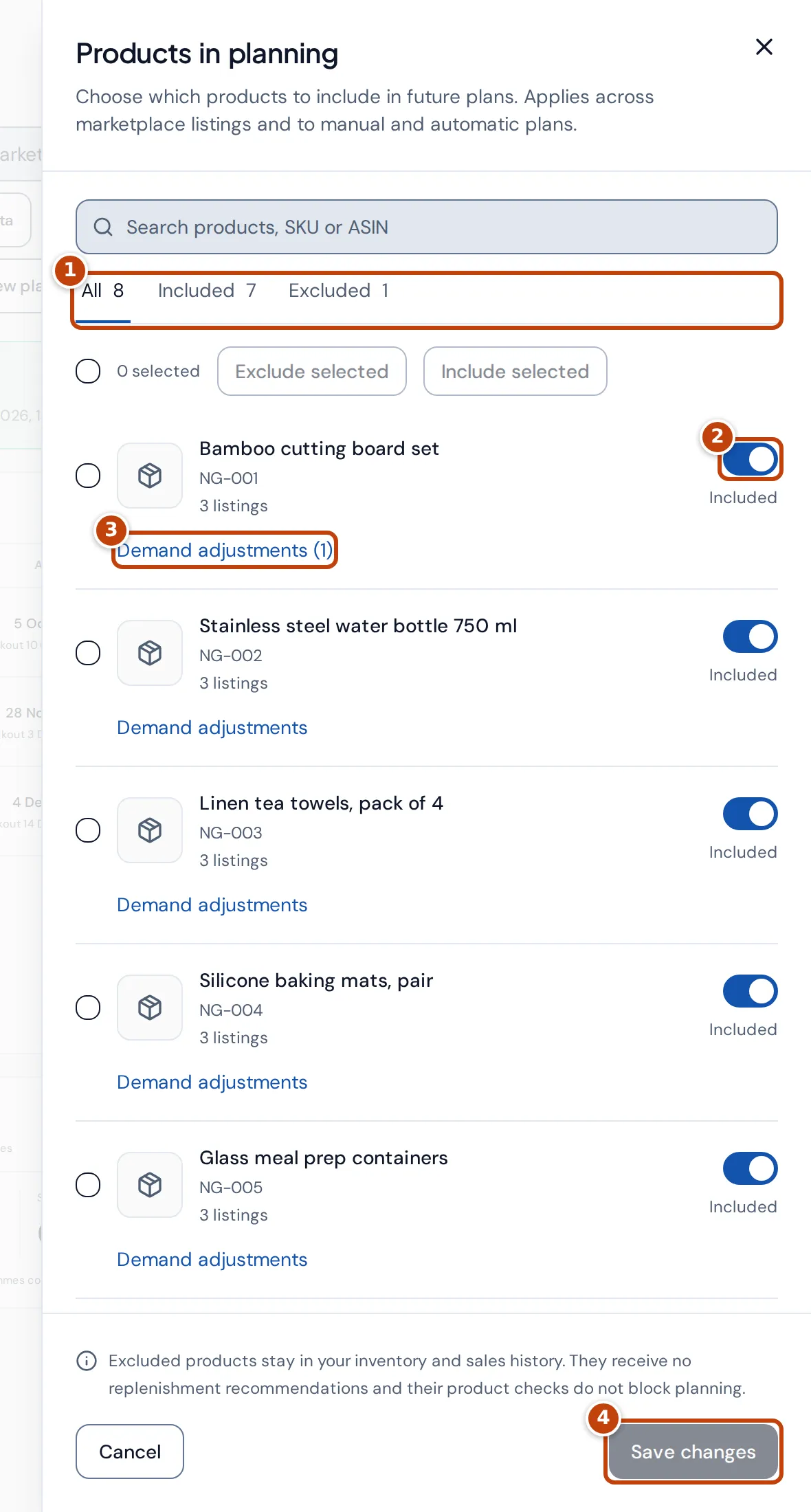
Select Manage products to open Products in planning:
- Optional: use marker 1 All, Included or Excluded to filter the list.
- Turn a product’s switch marker 2 on to include it or off to exclude it. Excluded products stay in your inventory and sales history, but get no recommendations, and their data checks don’t block planning.
- Optional: select marker 3 Demand adjustments to tell the planner about a date range, then select Add demand adjustment and choose a Type:
- Promotion, season or growth multiplier scales forecast demand for the dates by a Multiplier between 0 and 20.
- Availability-constrained history marks past days when sales were held back.
- Exclude historical period leaves past days out of the forecast.
- Select marker 4 Save changes. The plan updates for the new selection.
Planning data checks
Section titled “Planning data checks”Select Planning data to see what the planner is missing. The cards count items that are Ready, Needs attention, Blocked and Out of date. Data checks lists each issue, what it affects and what it means for planning, with a button or link to fix it, such as Review products, Review suppliers or Review FBA inbound. When nothing is wrong, it shows Planning data is ready.
Common checks include missing or estimated packing data, supplier terms, lead times and shipping rates, product costs that can’t be converted to your currency, incomplete or out-of-date sales data, and inbound shipments with no arrival date.
Restock alerts
Section titled “Restock alerts”Crateworth raises a restock alert when the latest plan says to place an order or send a shipment within 7 days. There is one alert for each kind of action from one place to another in one marketplace, however many products it covers. Actions you’ve already saved as drafts don’t raise alerts. An emergency action is critical, and one due today or overdue is high priority.
Restock alerts appear on the Alerts page as Restock due, under the Restock planning source, and in Priority actions on the Operations page. When a later plan no longer needs the action, its alert resolves by itself.
To turn restock alerts on or off:
- Open the account menu (your name at the bottom of the sidebar) and select Settings.
- In General, under Display & operations, turn Reorder alerts on or off.
- Select Save general settings.
Changing this setting needs edit access to business settings.
Restock alerts are emailed with your Low-stock alerts notifications.
Why there are no recommendations
Section titled “Why there are no recommendations”The status banner says why:
- Automatic planning is on: recommendations appear when the latest planning data is ready.
- Waiting for planning data: Crateworth is still processing your inventory data. Running the planner again won’t help. Check Sync Health.
- Planning data needs attention: some data checks block planning. Select Review planning data.
- Recommendations are out of date: planning data changed after the plan was made. Wait for the automatic update or select Run new plan now.
- No executable plan: the planner couldn’t find a plan that meets your constraints. The reasons are listed underneath.
- Automatic planning is paused: select Run new plan now, or open Planning settings, go to the Review step and select Start automatic planning to turn it back on.
If you can only view inventory and setup isn’t finished, the page says Planning is not set up for this business yet. Someone who can edit inventory needs to finish setup.