
Ask the help assistant
The help assistant answers questions about using Crateworth while you work, so you don’t have to leave the page you’re on. It answers from this help centre and links to the sections it used.
Ask a question
Section titled “Ask a question”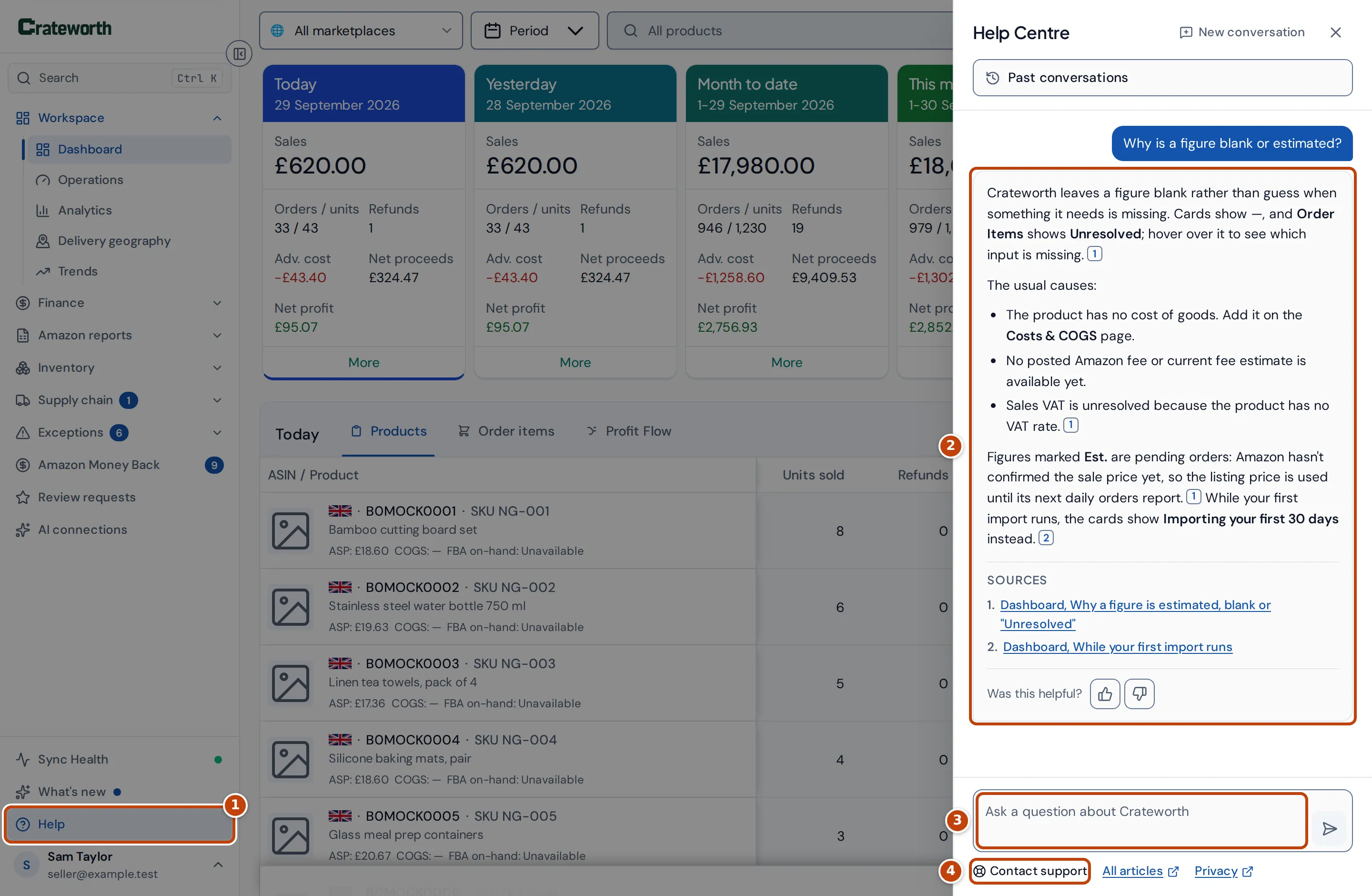
- In the sidebar, near the bottom, select Help marker 1.
- Type your question in the box marker 3, or pick one of the suggested questions, and press Enter. Shift+Enter starts a new line.
- Read the answer marker 2. A small number after a sentence shows which help section it came from, and Sources under the answer links to those sections, so you can check the details and see the screenshots.
The assistant knows which page you’re on, so “What does this page show?” works. You can ask a follow-up, such as “And for Germany?”, and it takes your last few questions into account.
The conversation stays while you move around the app and close and reopen the panel. To start again, select New conversation at the top of the panel. Your earlier conversation is kept under Past conversations. At the bottom, All articles opens the help centre and Privacy opens our privacy notice.
Under each answer, tell us whether it helped with the thumbs up or thumbs down. Answers marked as not helpful are the ones we review first.
When we know about a problem affecting everyone, such as delayed Amazon reports, a Known issue note at the top of the panel says so, and you don’t need to report it.
Your past conversations
Section titled “Your past conversations”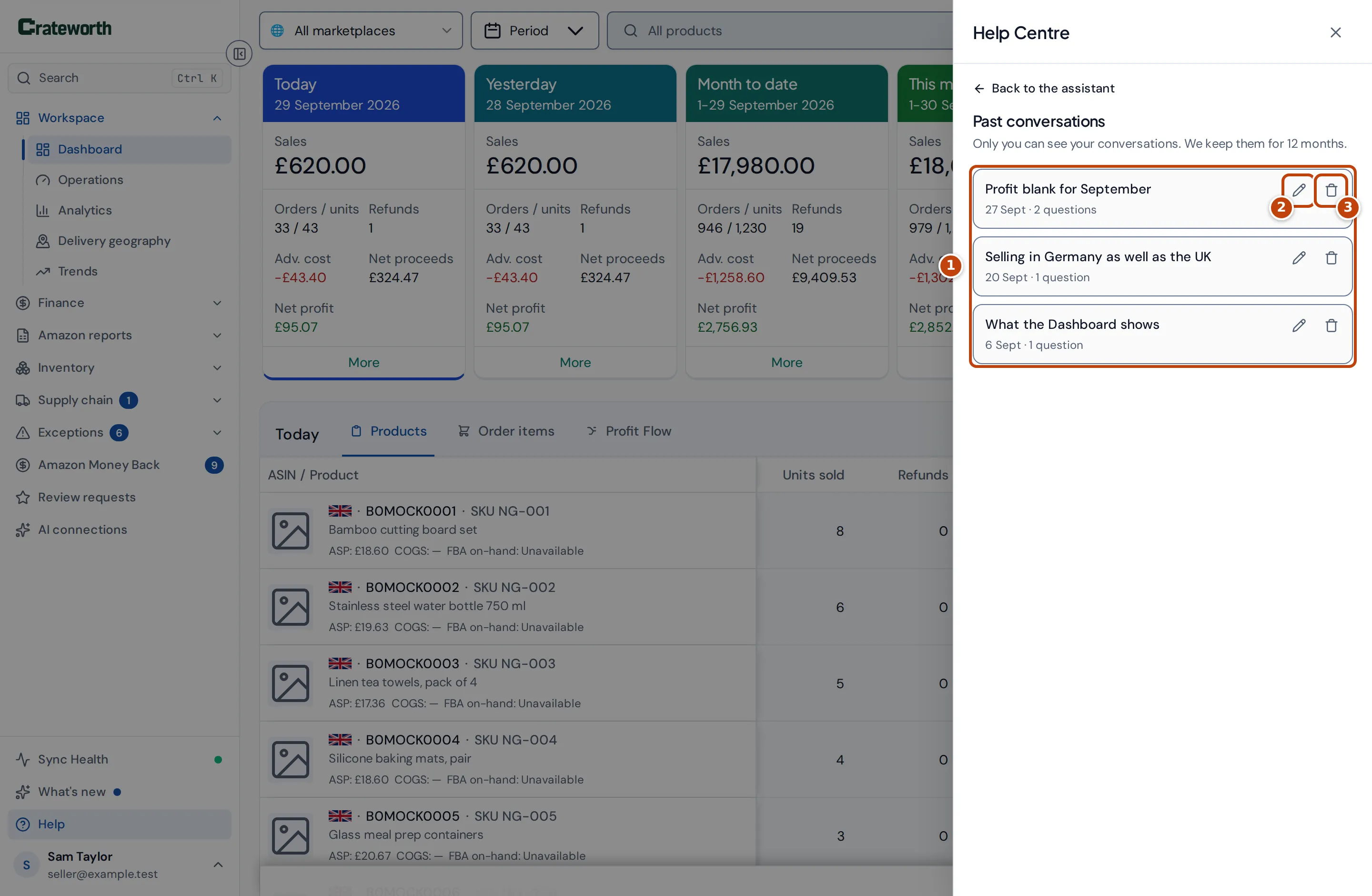
To find a conversation again, open Help and select Past conversations at the top of the panel. It lists your conversations, the most recent first marker 1. Each shows its title, the date you last asked something in it and how many questions it has.
Crateworth gives each conversation a short title from its first question, for example “Profit blank for September”. The title is written by the same AI model that answers, which is told to leave out names, email addresses and order numbers. If a title can’t be written, the start of your first question is used instead.
Only you can see your conversations. Other people in your Crateworth account have their own and can’t see yours.
- Rename a conversation: select the pencil marker 2 beside it, type a new name and press Enter or select Save. Press Escape or select Cancel to keep the old one.
- Delete a conversation: select the bin marker 3 beside it, then Delete conversation. Its questions and answers are deleted too, and this can’t be undone.
Read and continue a conversation
Section titled “Read and continue a conversation”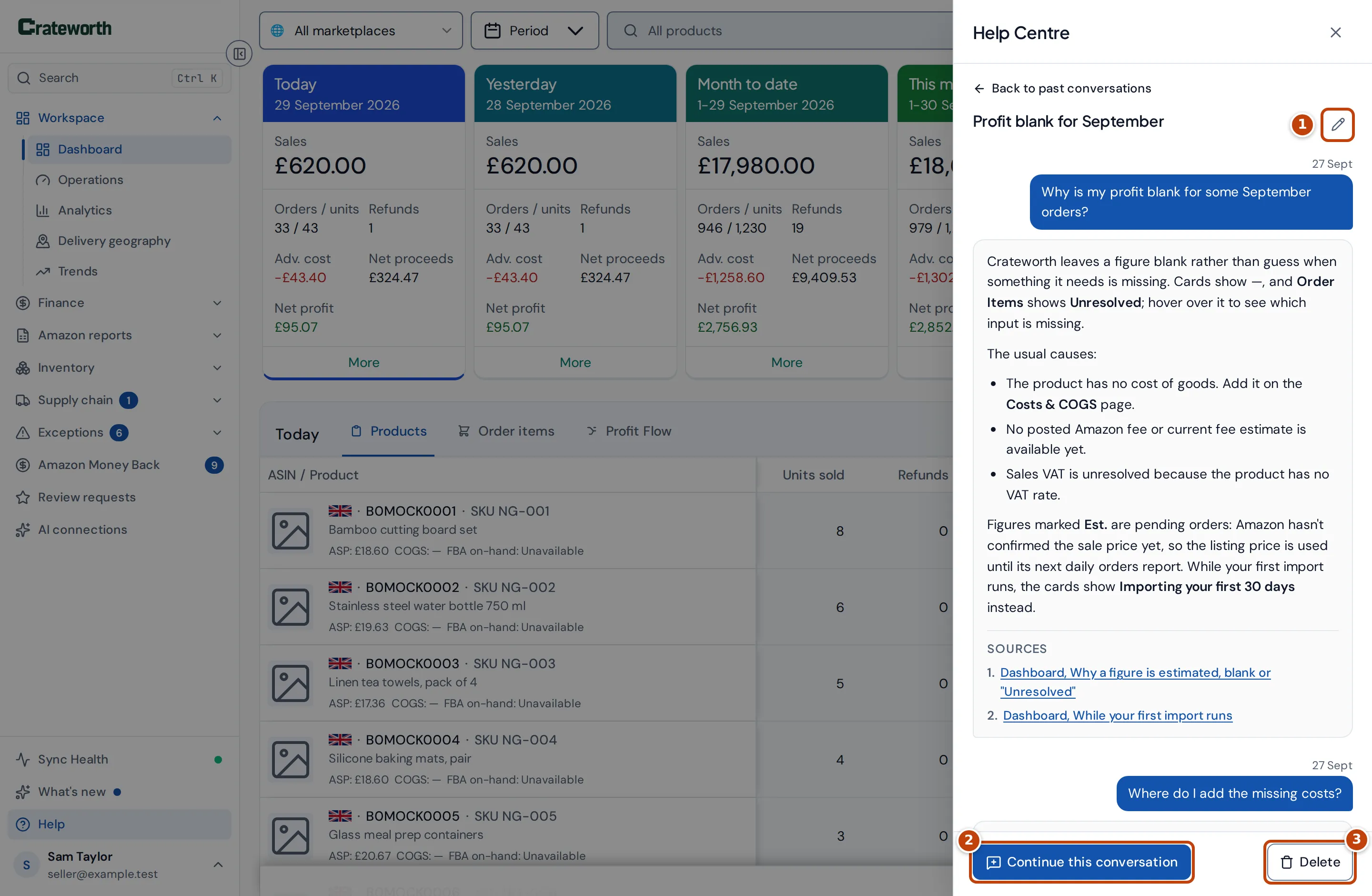
Select a conversation to read it again, with the sources of each answer. Select the pencil marker 1 to rename it.
To ask more, select Continue this conversation marker 2. The conversation opens in the assistant, and your follow-up questions take the earlier ones into account, as they did at the time. New questions are added to the same conversation. Select Delete marker 3 to delete it, then Delete conversation to confirm.
To go back, select Back to past conversations, then Back to the assistant.
What the assistant can and can’t do
Section titled “What the assistant can and can’t do”The assistant explains how Crateworth works: what a page shows, where a figure comes from, how to do something, and why a figure might look wrong or blank. It answers only from the help centre. If the help centre doesn’t cover your question, it says so.
It can’t see your account. It doesn’t know your figures, products, orders or settings, so it can’t tell you why a particular number is what it is. It can tell you where to look and what affects that number. It doesn’t answer general tax, legal or accounting questions.
We keep your questions, the answers and your ratings for 12 months, so we can see where the help centre and Crateworth need improving. They’re deleted after that, when you delete the conversation, and when your account is deleted. See our privacy notice.
Is there a limit?
Section titled “Is there a limit?”The help assistant is free on every plan and during the trial. There’s a monthly fair-use limit for each Crateworth account, across all its businesses, set well above what everyday use needs.
If your account reaches it, the panel shows Monthly limit reached and the date it resets, the first day of next month. The help centre itself is always open at crateworth.com/help, and you can still contact support.
If the assistant can’t answer
Section titled “If the assistant can’t answer”If the panel shows Couldn’t answer that, the assistant isn’t available at the moment. Select Try again after a minute or two. In the meantime, search the help centre.
If you need help the assistant and the help centre can’t give, contact support.
Contact support
Section titled “Contact support”To ask the Crateworth team, select Contact support marker 4 at the bottom of the Help panel. You’ll also find Ask a person under an answer you marked as not helpful, under Couldn’t answer that and under Monthly limit reached. These fill in your question for you. Under an answer you marked as not helpful, the message also includes the assistant’s answer and the help sections it used, so we can see what you’ve already read.
- Write your message, or edit what’s filled in.
- Select Send message.
Your message is sent with the name of the page you’re on, so we can see what you were looking at. So that we can help without having to ask, it also includes your plan (or when your trial ends), your marketplaces, your Sync Health status and the version of Crateworth you’re using. It never includes sales or other money figures, or your products. These details appear under your message in the conversation.
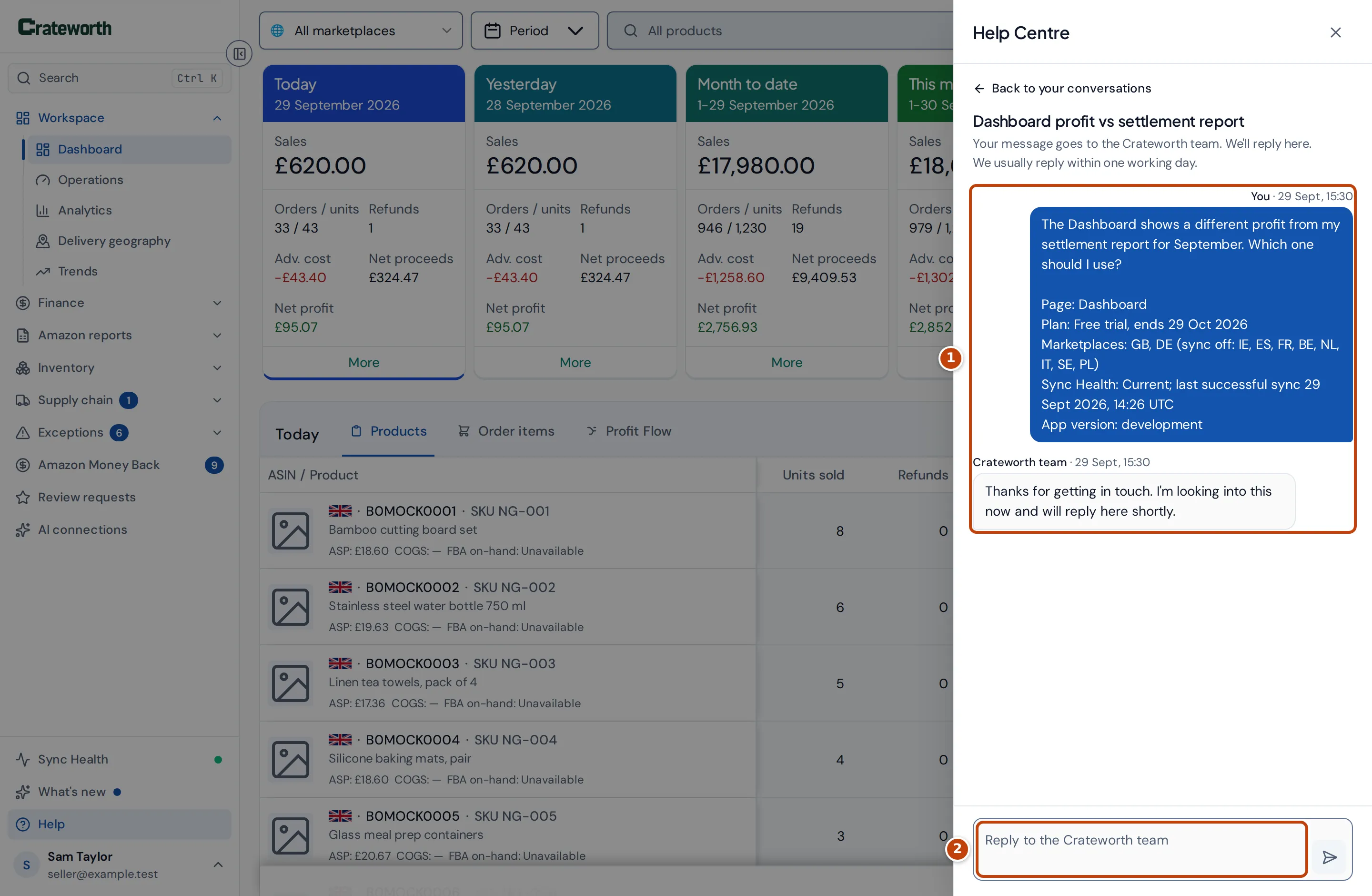
Your message goes to the Crateworth team, and we reply in the same place marker 1. We usually reply within one working day. To answer, type in the reply box marker 2 and press Enter. While the Help panel is open, replies appear in the conversation. When the panel is closed, a dot on Help in the sidebar tells you there’s a reply.
We also email you when the team replies, at most once an hour for each conversation, so you don’t need to keep Crateworth open. The email doesn’t include the reply: its button opens Crateworth with the conversation showing in the Help panel.
Support messages are handled in PostHog, the service we use for product analytics. To title a new conversation, your first message (without the page and account details) is also sent to Anthropic’s AI model. See our privacy notice.
If messages can’t be sent from the app, for example in the demo, the panel offers Email hello@crateworth.com instead. Your message, the page you’re on and your account details are added to the email.
Your conversations with us
Section titled “Your conversations with us”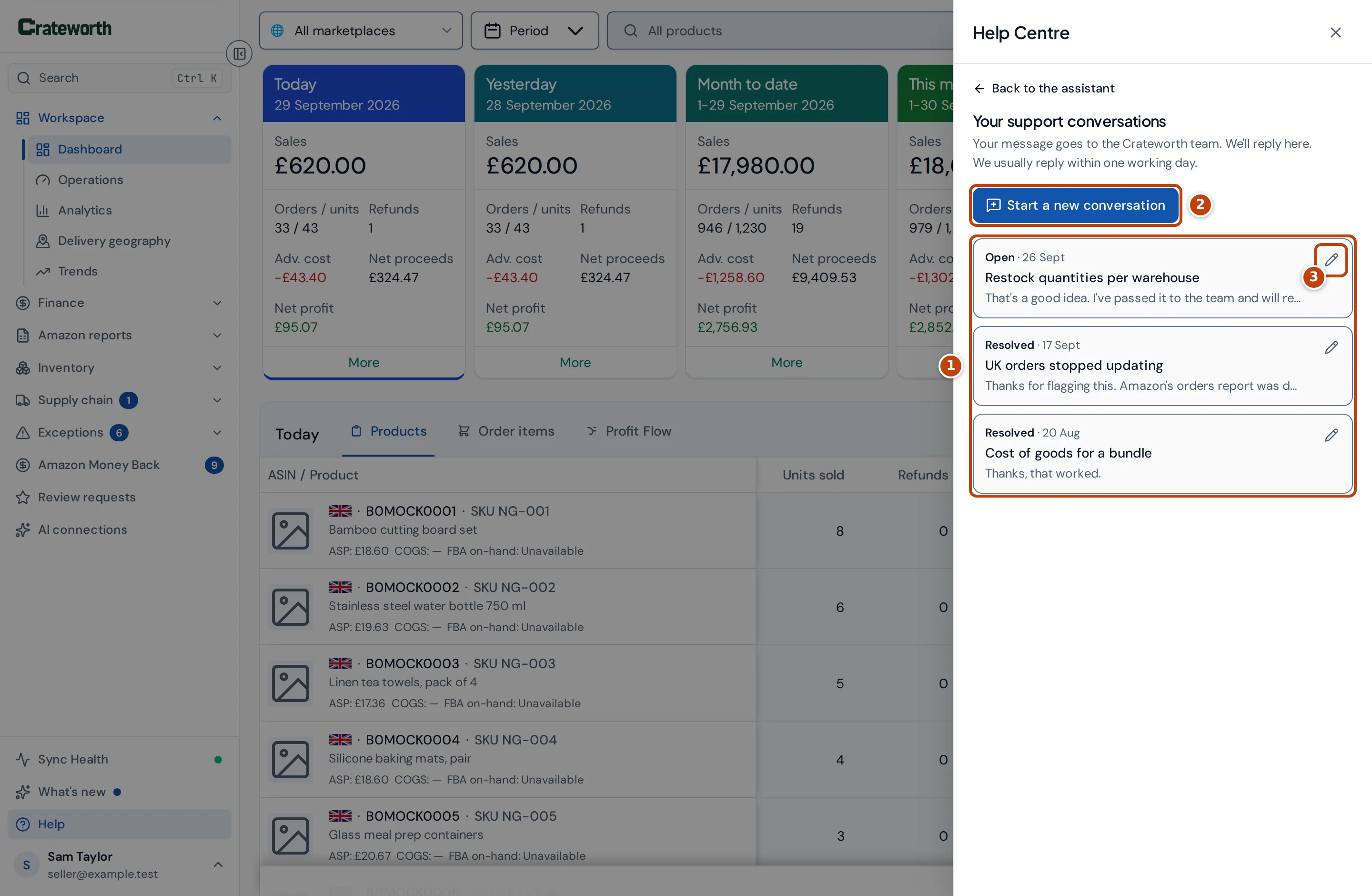
Once you’ve contacted support, open Help and select Your support conversations at the top of the panel. It lists your conversations with us, newest first marker 1. Each shows whether it’s Open or Resolved, the date of its last message, its title and the start of that message. A conversation with replies you haven’t read says how many. Select a conversation to read it.
When you send a new message, Crateworth gives the conversation a short title from what you wrote, such as “UK orders stopped updating”. Only your own words are used for the title, not the page and account details sent with them. To rename a conversation, select the pencil marker 3 beside it, type a new name and press Enter. Only you see these titles; the Crateworth team works from your messages.
You can reply to an open conversation. A resolved conversation can’t take more replies: select Start a new conversation marker 2 instead, or Start a new conversation under the resolved conversation. To go back, select Back to your conversations, then Back to the assistant.