
Team
The Team page lists everyone who can sign in to your Crateworth account and what each person can open. Owners and admins invite people and change their access here. To open it, open the account menu (your name at the bottom of the sidebar) and select Team.
Each person signs in with their own login. Nobody shares a password.
Roles: owner, admin and member
Section titled “Roles: owner, admin and member”Everyone in an account has one role:
- Owner: the person who controls the account. There is one owner. Only the owner can transfer ownership and require an authenticator app for everyone.
- Admin: full access to every business. Manages the team, billing, businesses and Amazon connections.
- Member: opens only the businesses shared with them, as an editor or viewer. Can’t manage the team or billing.
For each business a member can open, you choose:
- Editor: views and edits that business.
- Viewer: views that business but can’t change anything. Use it for read-only access, for example for a bookkeeper or a virtual assistant.
The owner can invite admins and members. Admins can invite members only.
Who’s on the team
Section titled “Who’s on the team”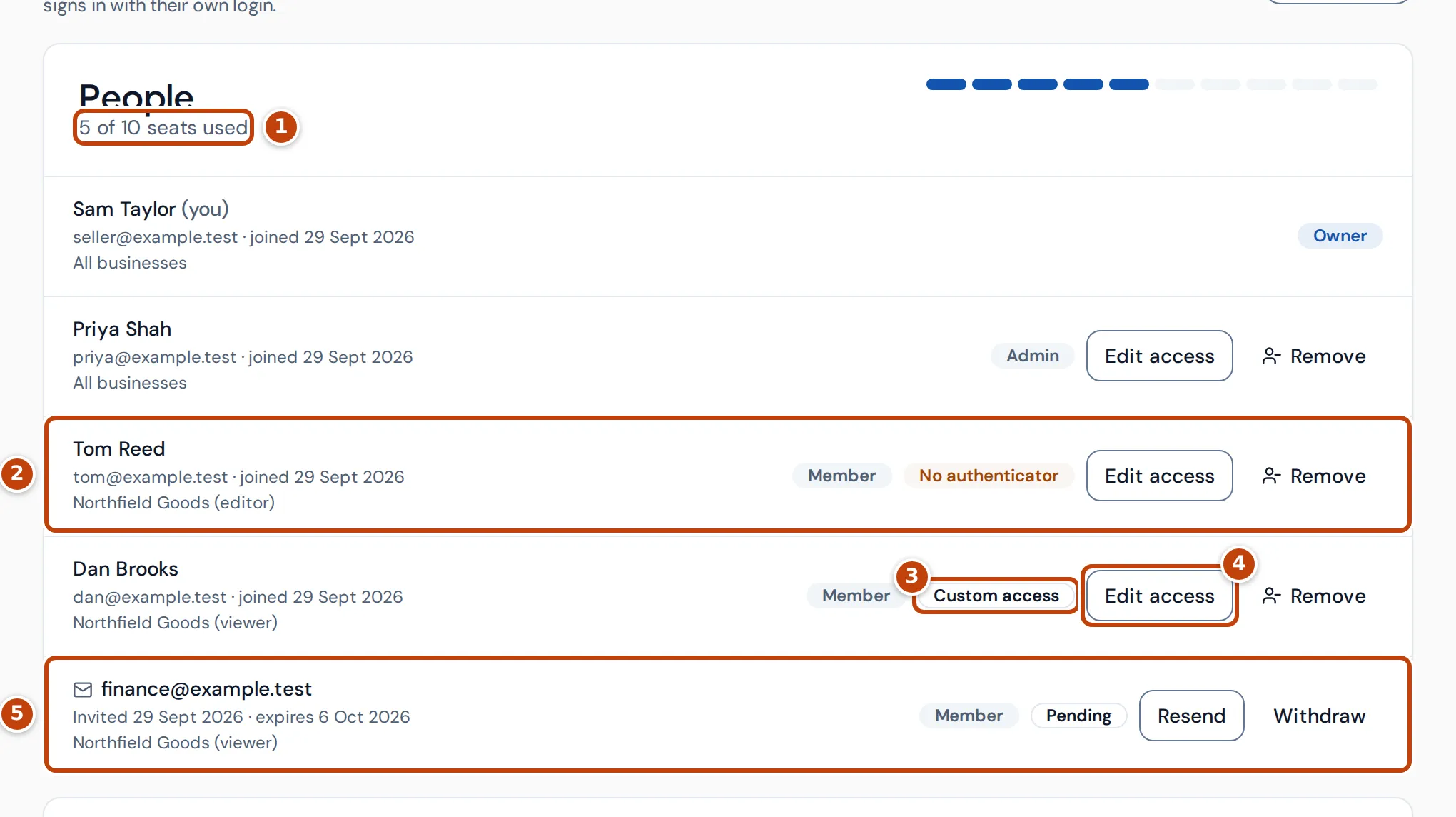
The People card lists each person with their email, the date they joined and which businesses they can open: All businesses for owners and admins, or each shared business with “editor” or “viewer” for members.
- marker 1 The seat count shows how many of your plan’s seats are used. Open invitations take a seat too.
- marker 2 Each row has the person’s role. No authenticator means they sign in with emailed codes rather than an authenticator app.
- marker 3 Custom access means the person’s access to a business differs from their role’s usual access.
- marker 4 Edit access changes a person’s role and businesses. Remove takes them out of the account.
- marker 5 Invitations not yet accepted show Pending with the date they expire, or Expired. Resend sends the email again and Withdraw cancels the invitation.
Owners and admins also see an Activity card: invitations, access changes and people leaving, newest first.
Invite someone
Section titled “Invite someone”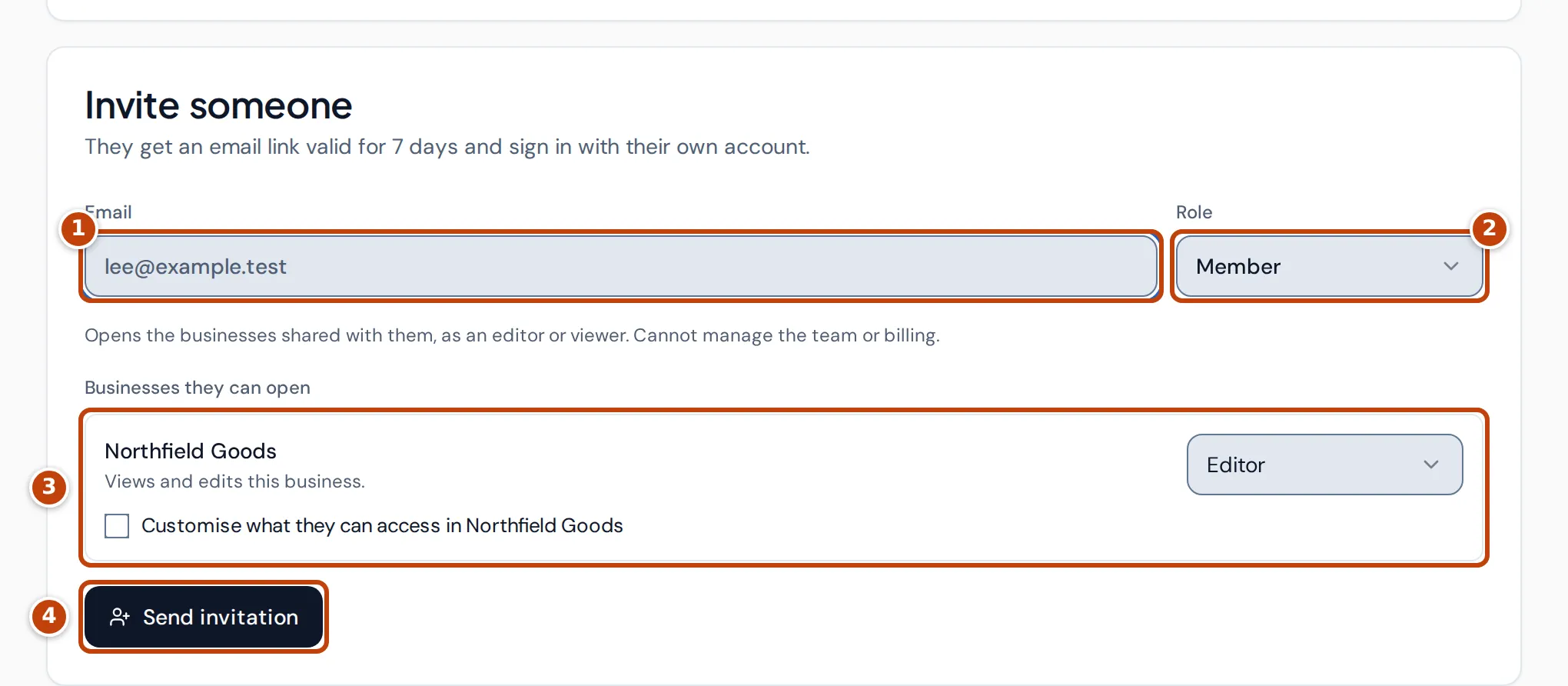
Only owners and admins can invite people.
- On the Team page, under Invite someone, enter the person’s Email marker 1.
- Choose a Role marker 2: Admin or Member.
- For a member, under Businesses they can open marker 3, choose Editor, Viewer or No access for each business. The business you have open starts as Editor.
- Optional: tick Customise what they can access in a business to fine-tune their access. See Limit what someone can see.
- Select Send invitation marker 4.
The person gets an email with a link that works for 7 days. They sign in with their own login, or create one, to accept.
If every seat is used, the invite form is replaced by a message. Remove someone, withdraw an invitation or upgrade the plan on the Billing page to free a seat.
Limit what someone can see
Section titled “Limit what someone can see”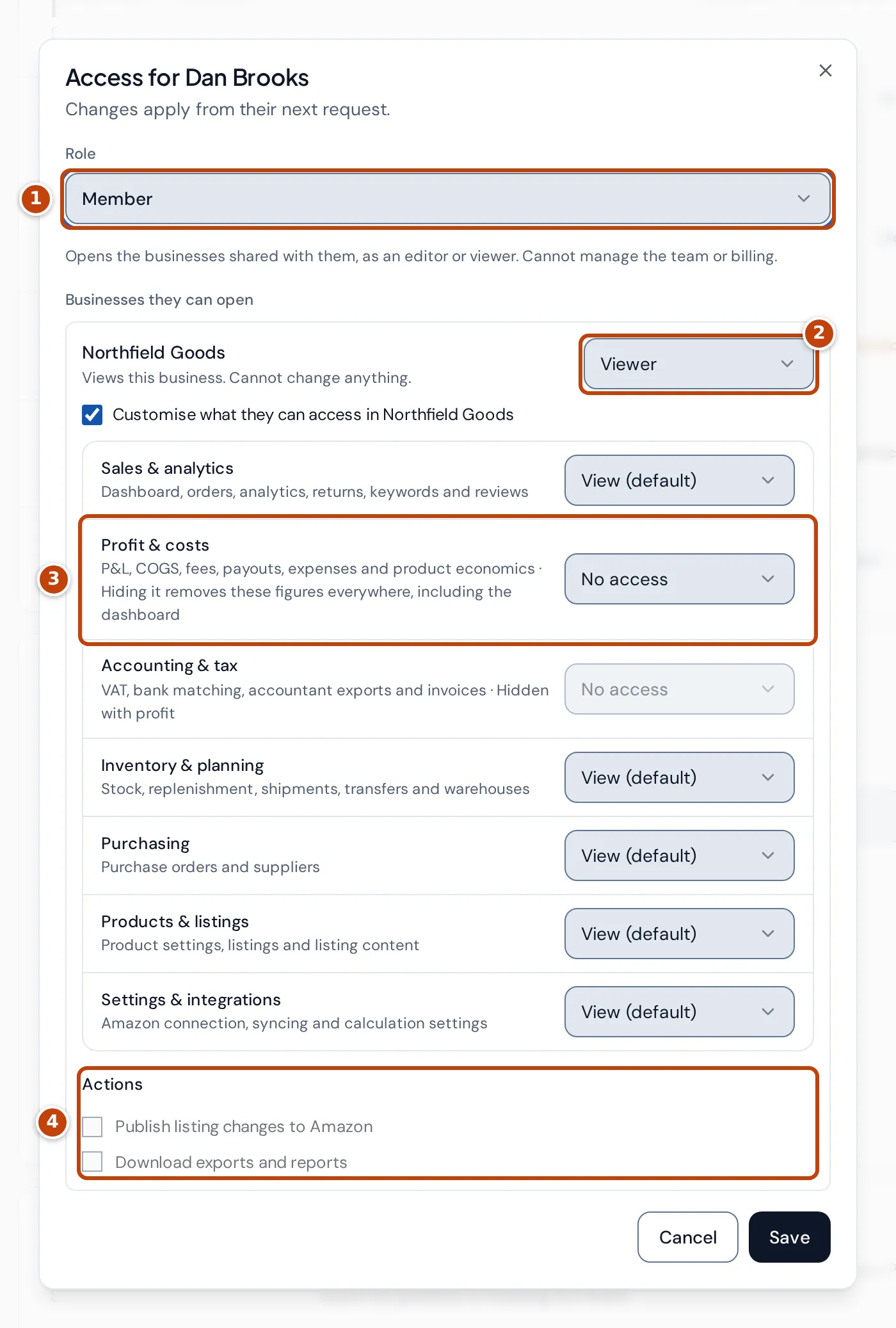
A member’s role marker 1 and access to each business marker 2 set what they can do. To go further, tick Customise what they can access in the business, in the invite form or in Edit access. You then set each area of the business to No access, View or Edit:
- Sales & analytics: dashboard, orders, analytics, returns, keywords and reviews.
- Profit & costs marker 3: P&L, cost of goods, fees, payouts, expenses and product economics.
- Accounting & tax: VAT, bank matching, accountant exports and invoices.
- Inventory & planning: stock, replenishment, shipments, transfers and warehouses.
- Purchasing: purchase orders and suppliers.
- Products & listings: product settings, listings and listing content.
- Settings & integrations: Amazon connection, syncing and calculation settings.
Under Actions marker 4 you choose whether they can Publish listing changes to Amazon and Download exports and reports.
Some combinations follow from others:
- A viewer can be given View at most, never Edit.
- Setting Profit & costs to No access removes profit, cost, fee and margin figures everywhere, including the dashboard. It also sets Accounting & tax to No access, marked “Hidden with profit”, and turns off downloads, because those carry costs and fees.
- Publishing listing changes needs Edit on Products & listings.
The default for each area is marked “(default)”. Changes apply from the person’s next request.
Change or remove someone’s access
Section titled “Change or remove someone’s access”- On the Team page, select Edit access on the person’s row.
- Change their Role or their access to each business.
- Select Save.
To take someone out of the account, select Remove on their row and confirm. They lose access to every business in the account straight away, including any AI tools they connected. Their own login isn’t deleted.
Owners can change anyone except themselves. Admins can change members but not other admins.
Leave an account
Section titled “Leave an account”If you’re an admin or member, your own row has Leave. You lose access to the account and all its businesses straight away, and someone would need to invite you again. The owner can’t leave; transfer ownership first.
Require an authenticator app
Section titled “Require an authenticator app”Everyone confirms sign-in with a code Crateworth emails them. The owner can require an authenticator app instead, in the Authenticator app card on the Team page:
- Set up an authenticator app for your own login first, in Settings.
- Select Require an authenticator app. The card shows Required, and how many people haven’t set one up yet.
- Ask those people to set one up in Settings. See Turn on an authenticator app.
Until people set one up, Crateworth only opens the account pages for them (Settings, Businesses, Team and Billing), and their AI connections stop working. Stop requiring turns the requirement off.
Transfer ownership
Section titled “Transfer ownership”Only the owner can hand the account to someone else, and only to an admin.
- Make the person an admin, if they aren’t one already.
- Under Transfer ownership, choose them as New owner.
- Select Transfer ownership and confirm with Transfer.
You become an admin. The new owner controls the team, billing, businesses and Amazon connections, and only they can transfer it back. For security, you must have signed in within the last 15 minutes.
Accept an invitation
Section titled “Accept an invitation”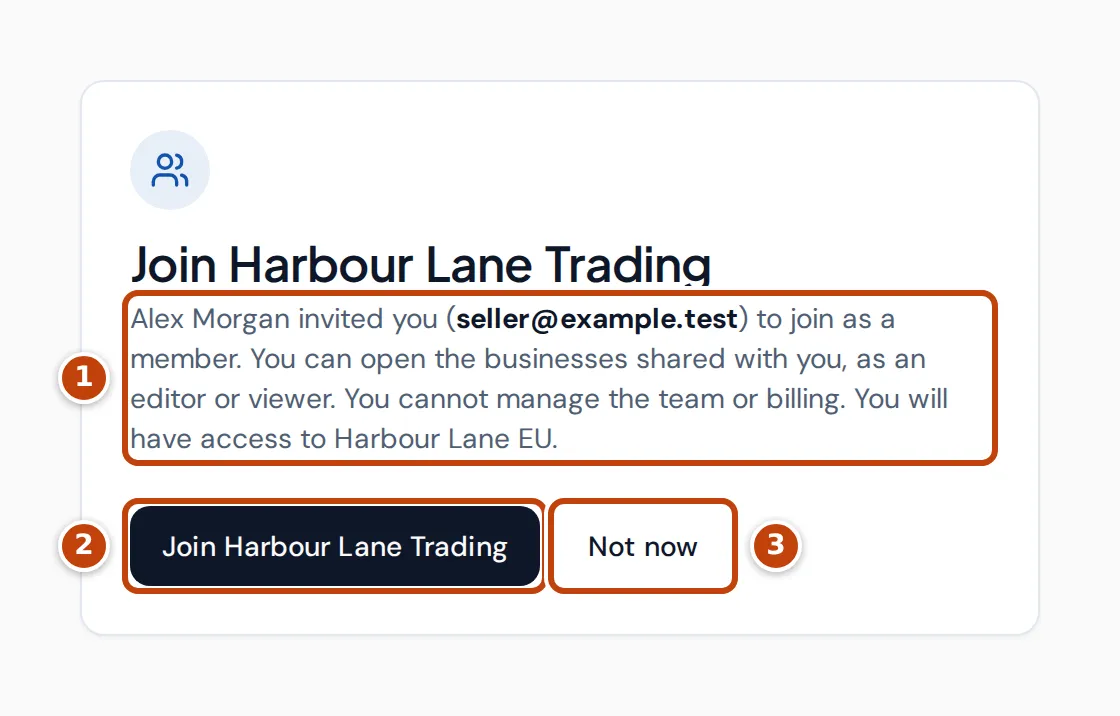
Open the link in your invitation email. The page says marker 1 who invited you, with which email address, as which role, and which businesses you’ll be able to open.
- If you’re not signed in, select Sign in, or Create account if you’re new to Crateworth. Use the email address the invitation was sent to. You come back to the invitation afterwards.
- If you’re signed in with a different email address, select the button to sign in as the invited address, or Not now.
- If you’re signed in with the invited address, select the join button marker 2, which names the account. Crateworth opens the dashboard of the business you were given.
Not now marker 3 leaves the invitation unanswered. The link keeps working until it expires.
Why does my invitation link not work?
Section titled “Why does my invitation link not work?”The invitation page says why:
- “This invitation has already been accepted.”
- “This invitation was withdrawn.” Ask for a new one if you still need access.
- “This invitation has expired.” Invitations last 7 days. Ask for a new one.
I joined but see no businesses
Section titled “I joined but see no businesses”If you joined as a member and nobody has shared a business with you yet, Crateworth shows No businesses shared with you yet. Ask an owner or admin to give you access on their Team page, then select Check again.