
VAT
The VAT page gives a provisional estimate of the VAT you owe, or are owed, for a period, with the transactions, evidence and registrations behind it. It’s for planning and for preparing your return with your accountant: as the page says, it isn’t a VAT return. In the sidebar, under Finance, select VAT.
What’s on the VAT page
Section titled “What’s on the VAT page”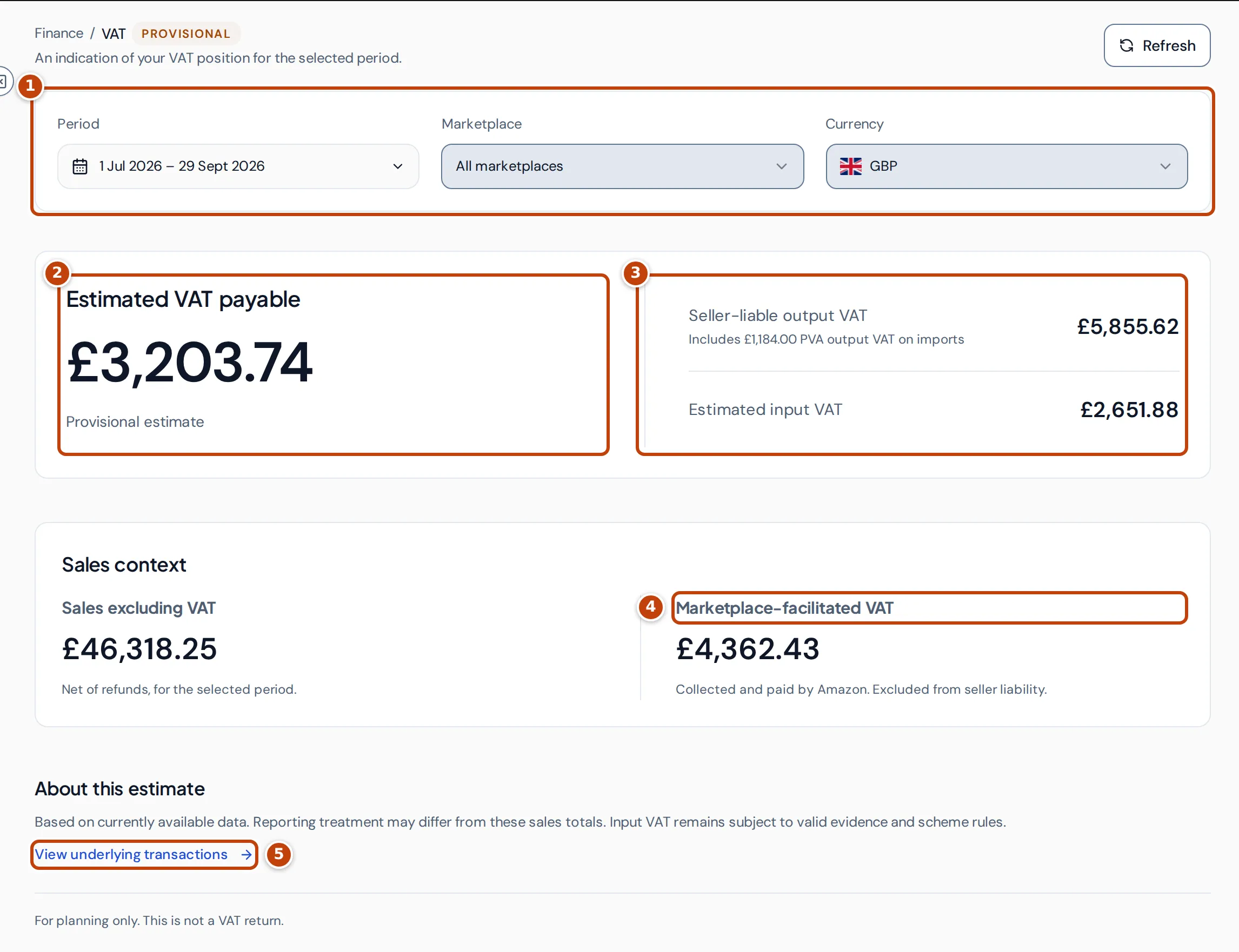
The page opens on the overview:
- marker 1 Period, Marketplace and Currency choose what the estimate covers. The period starts as the current calendar quarter.
- marker 2 The headline is Estimated VAT payable when the estimate is an amount to pay, or Estimated VAT repayment when it’s an amount due back to you.
- marker 3 Seller-liable output VAT and Estimated input VAT are the two sides of that estimate. When you account for import VAT through postponed VAT accounting (PVA), a line under Seller-liable output VAT shows how much of it is PVA output VAT on imports.
- Sales context shows Sales excluding VAT, net of refunds, and marker 4 Marketplace-facilitated VAT, the VAT Amazon collected and pays itself, which is left out of what you owe.
- marker 5 View underlying transactions opens the rest of the page. Tabs then appear for Overview, Transactions, Evidence and Setup.
Refresh, at the top right, reloads the figures.
Choose the period, marketplace and currency
Section titled “Choose the period, marketplace and currency”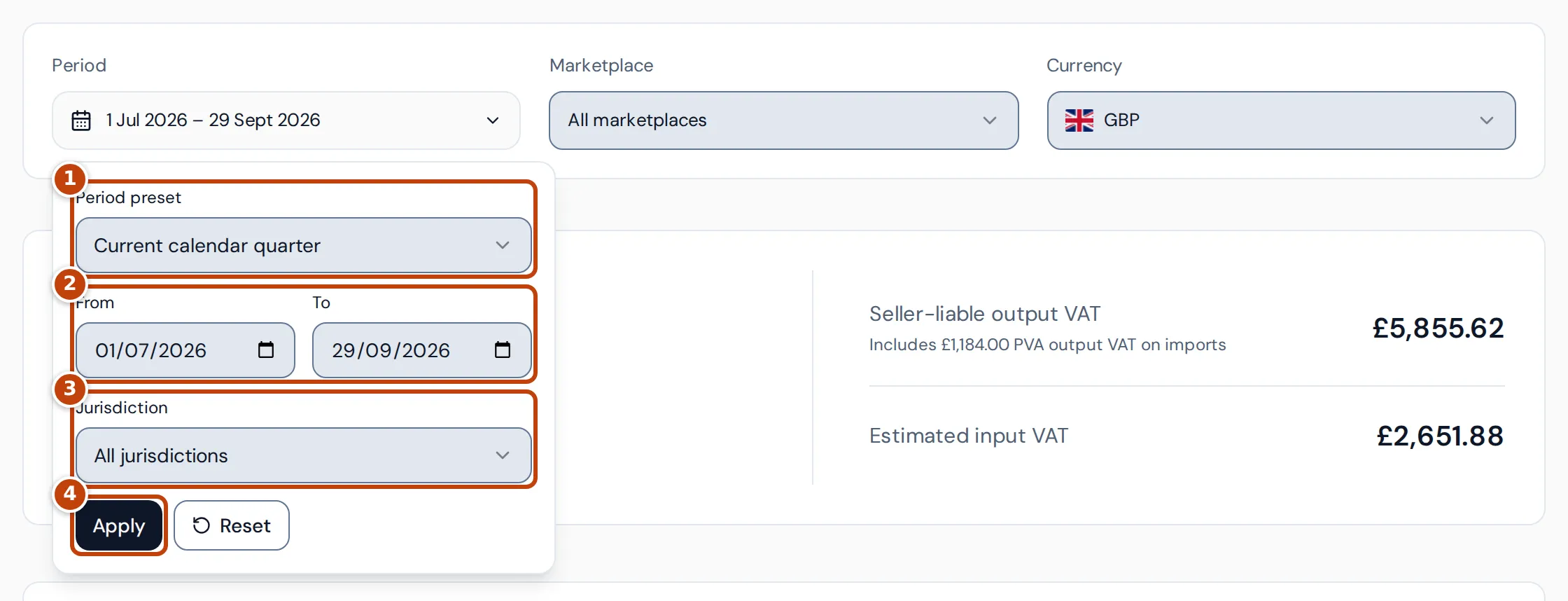
- Select Period. A panel opens.
- Choose a marker 1 Period preset: Current calendar quarter, Previous calendar quarter, Year to date or Custom return period. Or enter your own marker 2 From and To dates, which switches the preset to Custom return period.
- Optional: choose a marker 3 Jurisdiction, the country whose VAT you want to see.
- Select marker 4 Apply. Reset goes back to the current calendar quarter and clears the marketplace and jurisdiction.
Marketplace and Currency apply as soon as you choose them. Currency is the currency the estimate is shown in: amounts in other currencies are converted into it using reference exchange rates. When you haven’t chosen one, the estimate uses your business’s reporting currency if one of your VAT registrations for the period reports in it, otherwise the reporting currency of your VAT registration for the period. Reset goes back to that default.
If you’ve saved return periods on the Setup tab, choosing one there sets the period, jurisdiction and currency to match it.
How the VAT estimate is worked out
Section titled “How the VAT estimate is worked out”The estimate is your output VAT less the input VAT you can expect to reclaim:
- Seller-liable output VAT is the VAT on your sales that you account for, plus any confirmed seller output VAT adjustments, plus the output side of postponed import VAT (PVA).
- Estimated input VAT is the reclaimable VAT on Amazon fees, plus the reclaimable VAT on your recorded expenses, plus import VAT backed by a C79 certificate or PVA statement. Confirmed input adjustments are added to the matching part.
- The headline is output VAT less input VAT.
Reclaimable fee and expense VAT counts in the estimate before you’ve recorded evidence for it; missing evidence is listed as an issue to fix. Import VAT counts only once evidence supports it.
Some VAT is left out of the estimate:
- Marketplace-facilitated VAT, which Amazon collected as a marketplace facilitator or deemed supplier. It’s shown so you can reconcile it, but it isn’t your liability.
- VAT on orders that haven’t shipped yet.
- VAT on expenses that are only a forecast from a recurring expense, until an invoice or evidence is recorded.
- Draft and voided manual adjustments. Only confirmed adjustments count.
Where output VAT comes from
Section titled “Where output VAT comes from”Crateworth uses the VAT Amazon reported on each sale. When Amazon hasn’t reported VAT for a sale that was dispatched and delivered in the same country, and Amazon isn’t liable for the VAT, Crateworth calculates it as VAT included in the price, using the VAT rate in the product’s settings or, if the product has none, the country’s standard rate. The page shows this as a Calculated estimate, and flags it for review, because cross-border and special-scheme sales may need a different treatment. A sale with no rate to calculate from counts as unresolved and isn’t included in the estimate.
A sale’s VAT date is its shipment date from Amazon’s FBA shipment report. Where that report isn’t available, Crateworth uses the date from Amazon’s financial data and flags the date as approximate. A sale with neither is flagged as having no VAT date.
When Amazon fee VAT is reclaimable
Section titled “When Amazon fee VAT is reclaimable”VAT on Amazon fees counts as reclaimable on every day you’re registered for VAT in the marketplace’s country, unless your registration uses the Flat Rate Scheme. On the Flat Rate Scheme, Amazon fee VAT is treated as a cost. Cash accounting doesn’t change this. Any scheme other than standard invoice accounting adds an item for accountant review, because the calculation assumes standard invoice accounting. With partial exemption, fee VAT still counts as reclaimable, but Crateworth doesn’t apportion it and flags it for your accountant to review.
Read the VAT position and reporting detail
Section titled “Read the VAT position and reporting detail”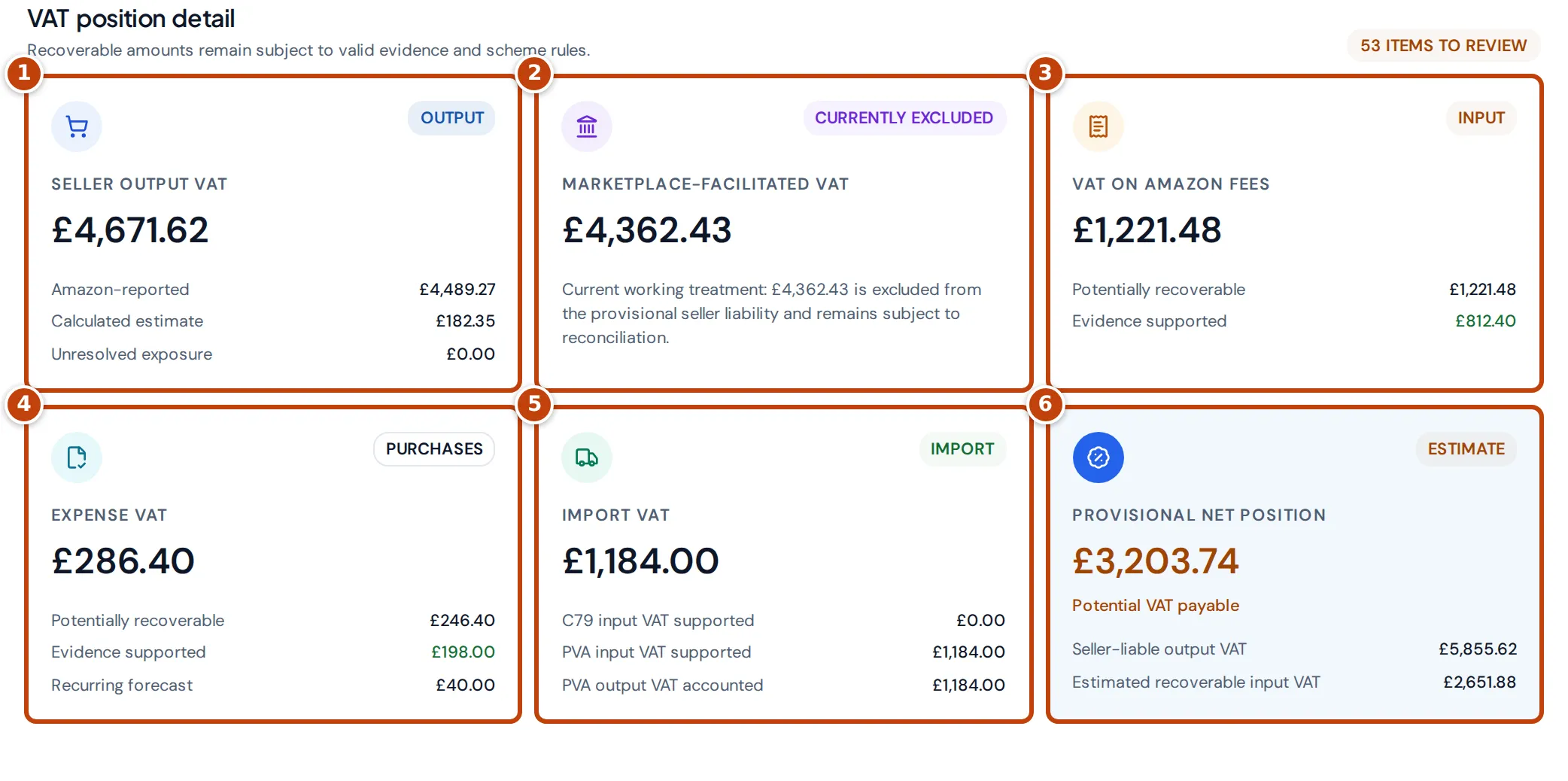
On the Transactions tab, select VAT position and reporting detail to open the full breakdown. VAT position detail has six cards:
- marker 1 Seller output VAT: the VAT on your sales, including confirmed output adjustments, split into Amazon-reported, Calculated estimate, and Unresolved exposure for sales that have no VAT rate to calculate from. Unresolved exposure isn’t included in the estimate. This card leaves out the PVA output VAT, which is shown on the Import VAT card and included in Seller-liable output VAT on the overview and the Provisional net position card.
- marker 2 Marketplace-facilitated VAT: VAT Amazon collected and pays itself. It’s excluded from your liability.
- marker 3 VAT on Amazon fees: all VAT on Amazon’s fees, the Potentially recoverable part, and the part that’s Evidence supported.
- marker 4 Expense VAT: VAT on your recorded expenses, its Potentially recoverable and Evidence supported parts, and the Recurring forecast that isn’t counted yet.
- marker 5 Import VAT: import VAT on your shipments, with C79 input VAT supported, PVA input VAT supported and PVA output VAT accounted.
- marker 6 Provisional net position: Seller-liable output VAT less Estimated recoverable input VAT, labelled Potential VAT payable or Potential VAT repayment.
The label at the top right says how many items need review, or No current review blockers.
Sales and reporting obligations
Section titled “Sales and reporting obligations”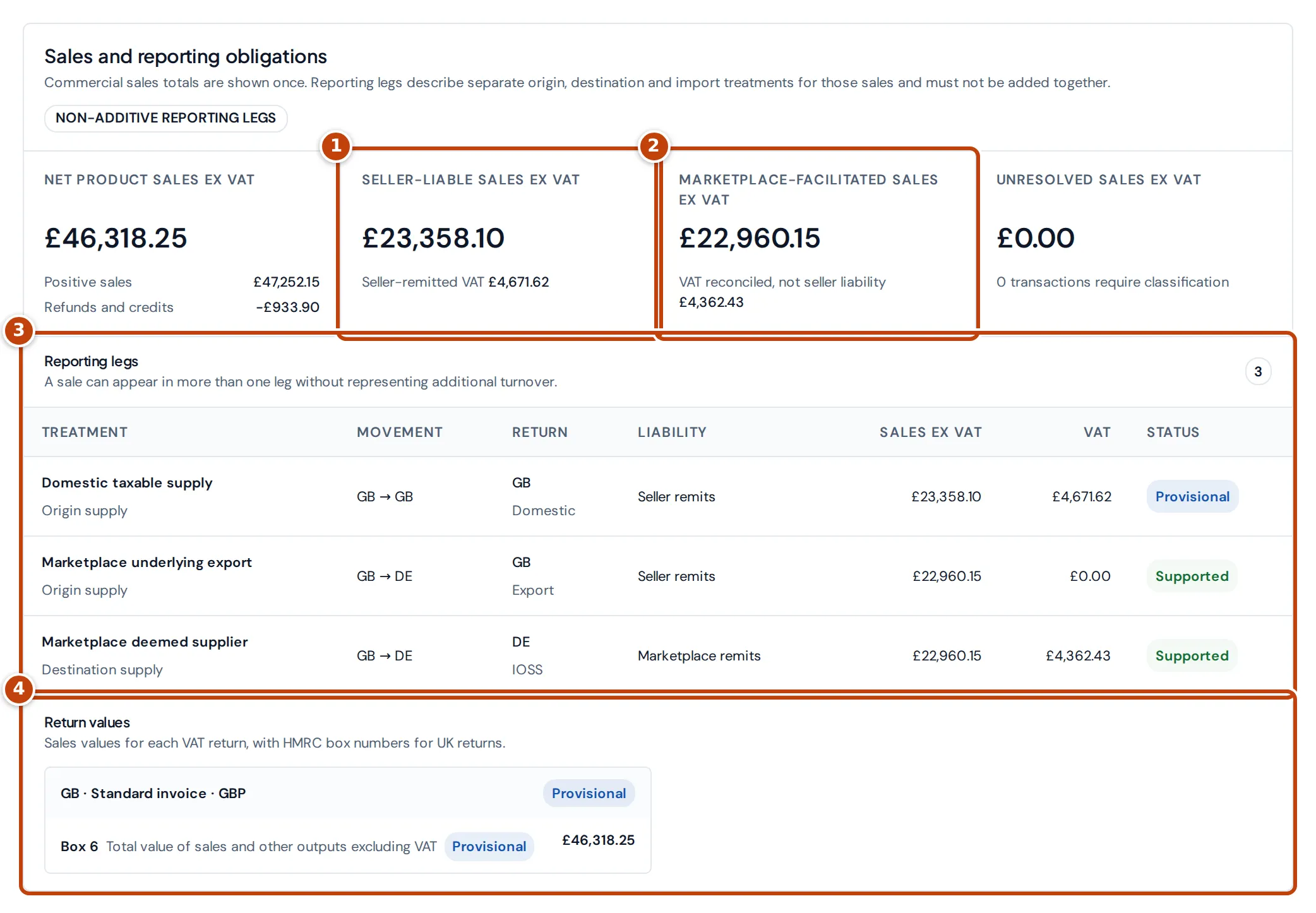
Below the cards, Sales and reporting obligations shows your sales excluding VAT once, then split by who pays the VAT: marker 1 Seller-liable sales ex VAT, marker 2 Marketplace-facilitated sales ex VAT, and Unresolved sales ex VAT for sales that still need classifying.
marker 3 Reporting legs lists how each group of sales is reported: for example a UK sale from UK stock as a domestic supply or, where Amazon is liable for the VAT, a UK-stock sale to a German customer on Amazon.de as an export in the UK and a deemed supply by Amazon in Germany. A sale can appear in more than one leg, so the legs don’t add up to your sales.
marker 4 Return values shows sales values for your returns. For a UK registration it shows Box 6, the total value of sales and other outputs excluding VAT. A value is marked Provisional while any of its sales are provisional or need review, or when you have no matching registration.
Check the transactions behind the estimate
Section titled “Check the transactions behind the estimate”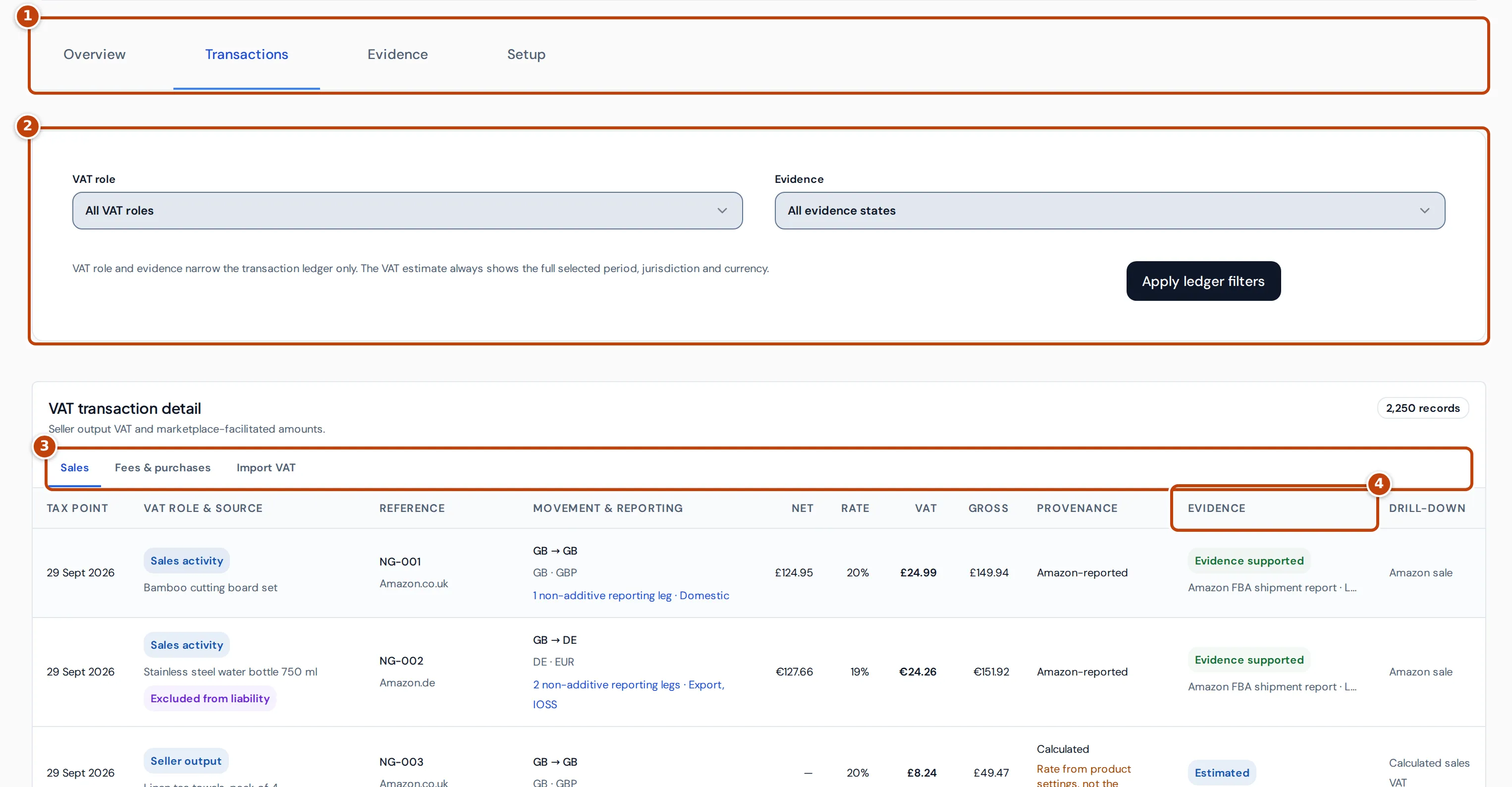
The tabs marker 1 switch between the overview and the rest of the page. The Transactions tab lists every transaction in the estimate, in three sections marker 3: Sales, Fees & purchases and Import VAT.
To narrow the list, choose a VAT role and an Evidence state marker 2, then select Apply ledger filters. These filters change the list only; the estimate always covers the whole period, jurisdiction and currency.
Each row shows its Tax point date, VAT role and source, reference and marketplace, the movement of goods (for example GB → DE), and the Net, Rate, VAT and Gross amounts in the transaction’s own currency. Provenance says where the VAT came from, such as Amazon-reported or Calculated. marker 4 Evidence shows whether the VAT is backed by a document: Evidence supported, Recorded, Estimated, Forecast, Missing evidence, Not required or Needs review.
A row marked Excluded from liability isn’t part of what you owe, usually because Amazon is liable. Treatment review means Crateworth couldn’t settle how the VAT should be treated.
Fix gaps with evidence and adjustments
Section titled “Fix gaps with evidence and adjustments”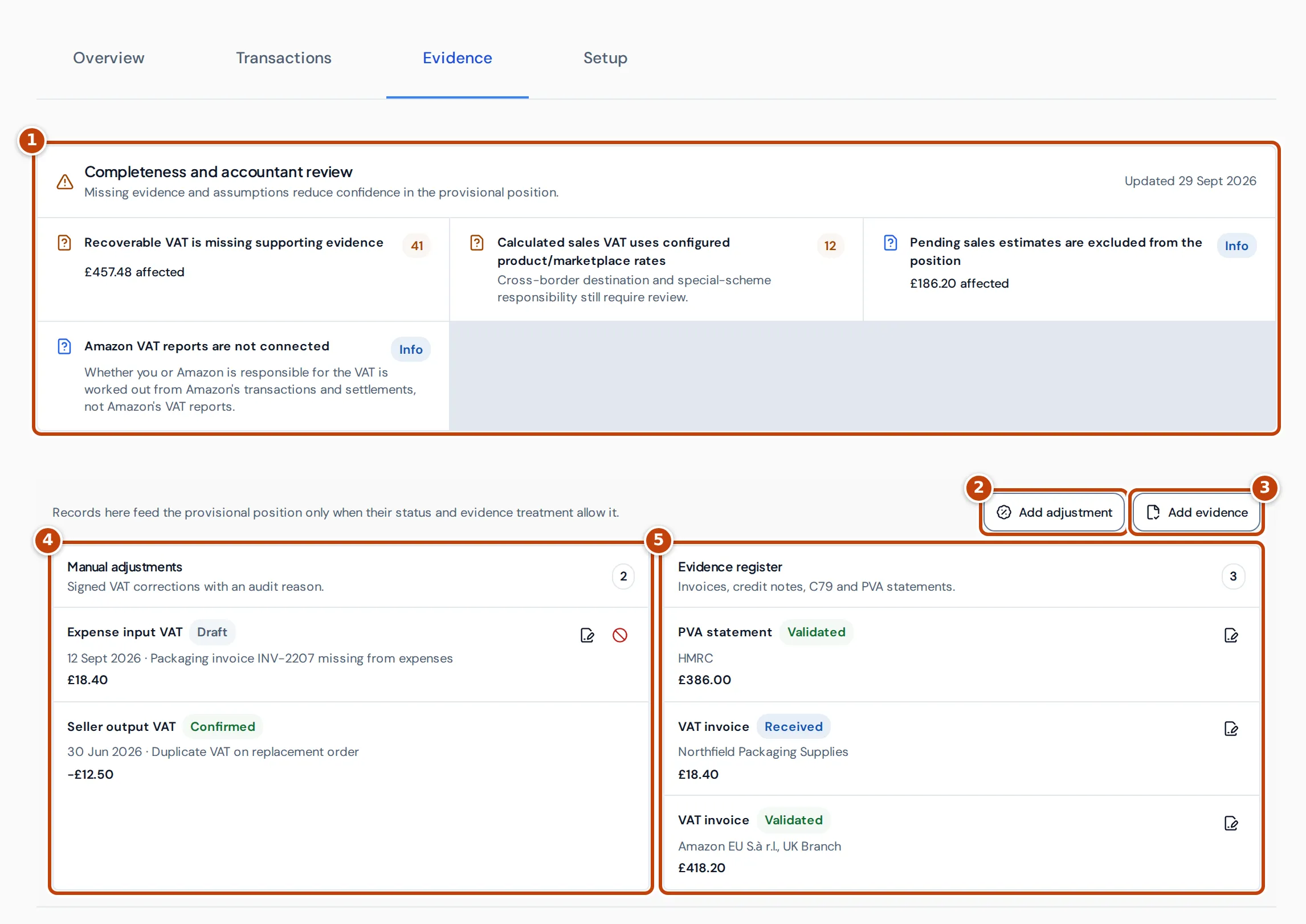
The Evidence tab shows what reduces confidence in the estimate, and where you record documents and corrections.
marker 1 Completeness and accountant review lists each issue, how many transactions it affects and how much VAT. Examples are reclaimable VAT without evidence, sales with no VAT rate, sales without a dispatch or delivery country, and approximate VAT dates. Issues marked Info are notes rather than problems.
Record VAT evidence
Section titled “Record VAT evidence”Input VAT counts as evidence supported only when a document linked to it is recorded with the status Validated or Included in return. For Amazon fees and expenses the document must be a VAT invoice or Credit note. For import VAT it must be a C79 certificate or PVA statement. A PO, pro-forma or commercial invoice alone doesn’t prove import VAT.
The document must also match the transaction: the same currency, and a VAT amount within 0.02 of the transaction’s VAT. If you assign the document to a return period, the transaction must be in that period’s country and its tax point within the period’s dates.
- Select marker 3 Add evidence.
- Choose the Return period, Document type and Evidence status.
- Enter the Document number or an External reference. For Validated or Included in return, you also need an external reference or an uploaded invoice.
- Enter the supplier, tax point, currency and amounts.
- Optional: under Linked source, choose the Amazon fee, expense or other record the document supports.
- Select Record evidence. It appears in the marker 5 Evidence register.
Add a manual adjustment
Section titled “Add a manual adjustment”Use an adjustment to correct VAT that the transactions get wrong, with a reason for the record.
- Select marker 2 Add adjustment.
- Choose the Return period and VAT bucket, such as Seller output VAT or Expense input VAT.
- Choose the Status. A Draft doesn’t change the estimate; a Confirmed adjustment does. A confirmed Import VAT adjustment counts only once evidence supports it.
- Enter the Jurisdiction, Tax date, Posting date, Currency and Signed VAT amount: positive to add VAT, negative to remove it.
- Enter an Audit reason.
- Select Create adjustment.
Adjustments are listed under marker 4 Manual adjustments. You can edit a draft, or void an adjustment, until its return period is locked or filed. Voiding keeps the adjustment’s record.
Set up your VAT registrations
Section titled “Set up your VAT registrations”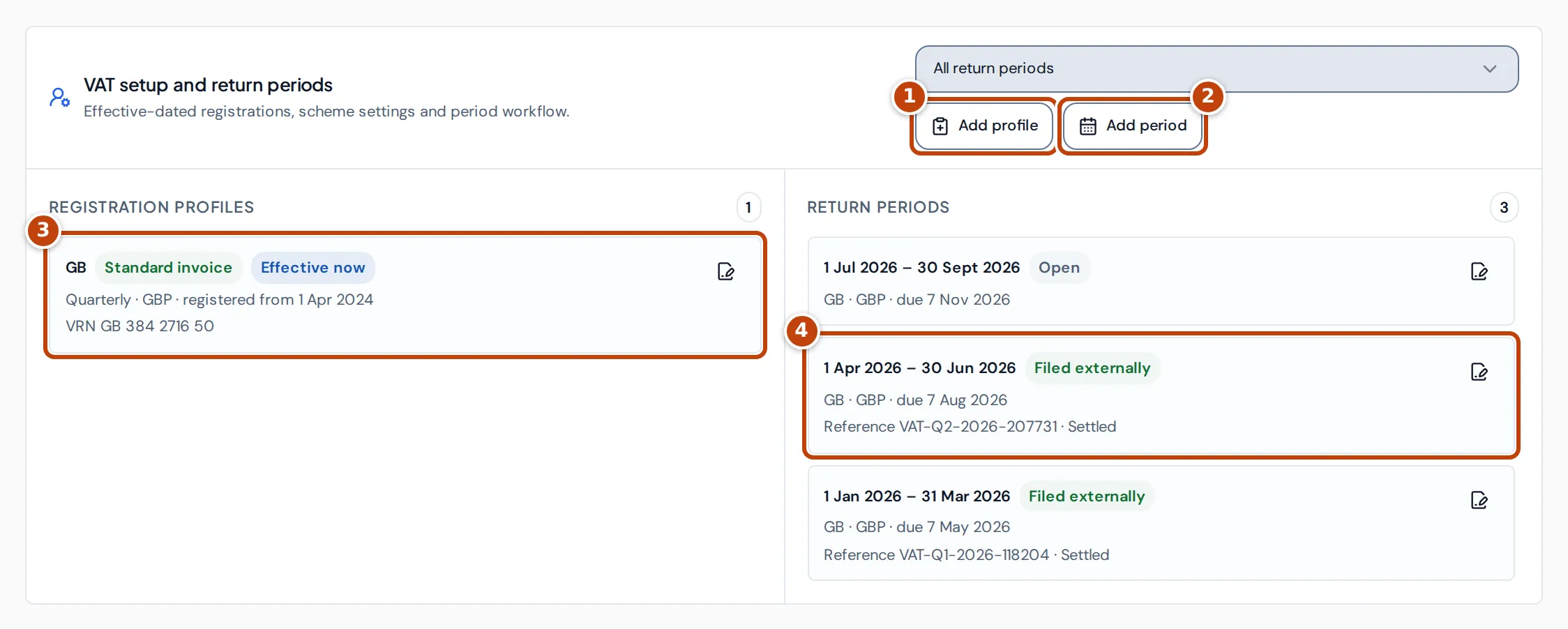
Your VAT registrations live on the Setup tab, under Registration profiles marker 3. They decide more than this page: on every page, a marketplace counts as VAT-registered on the days a profile for its country covers. That decides whether output VAT is taken off your revenue and whether Amazon fee VAT is reclaimable. Changing a registration recalculates the Dashboard and P&L for the affected dates.
- marker 1 Add profile adds a registration.
- marker 2 Add period adds a return period, listed under Return periods marker 4 with its status, due date, filing reference and settlement. See Track return periods.
When no profile covers the period you’re looking at, the estimate shows the issue “VAT profile is not configured”. A GB profile covers Amazon.co.uk. Each country can have only one profile covering any given date. A Union OSS enrolment on a profile doesn’t count as a VAT registration for other EU marketplaces.
Adding or editing a registration needs Edit access to both Accounting & tax and Profit & costs, because it changes profit figures. See Team.
Add or change a VAT registration
Section titled “Add or change a VAT registration”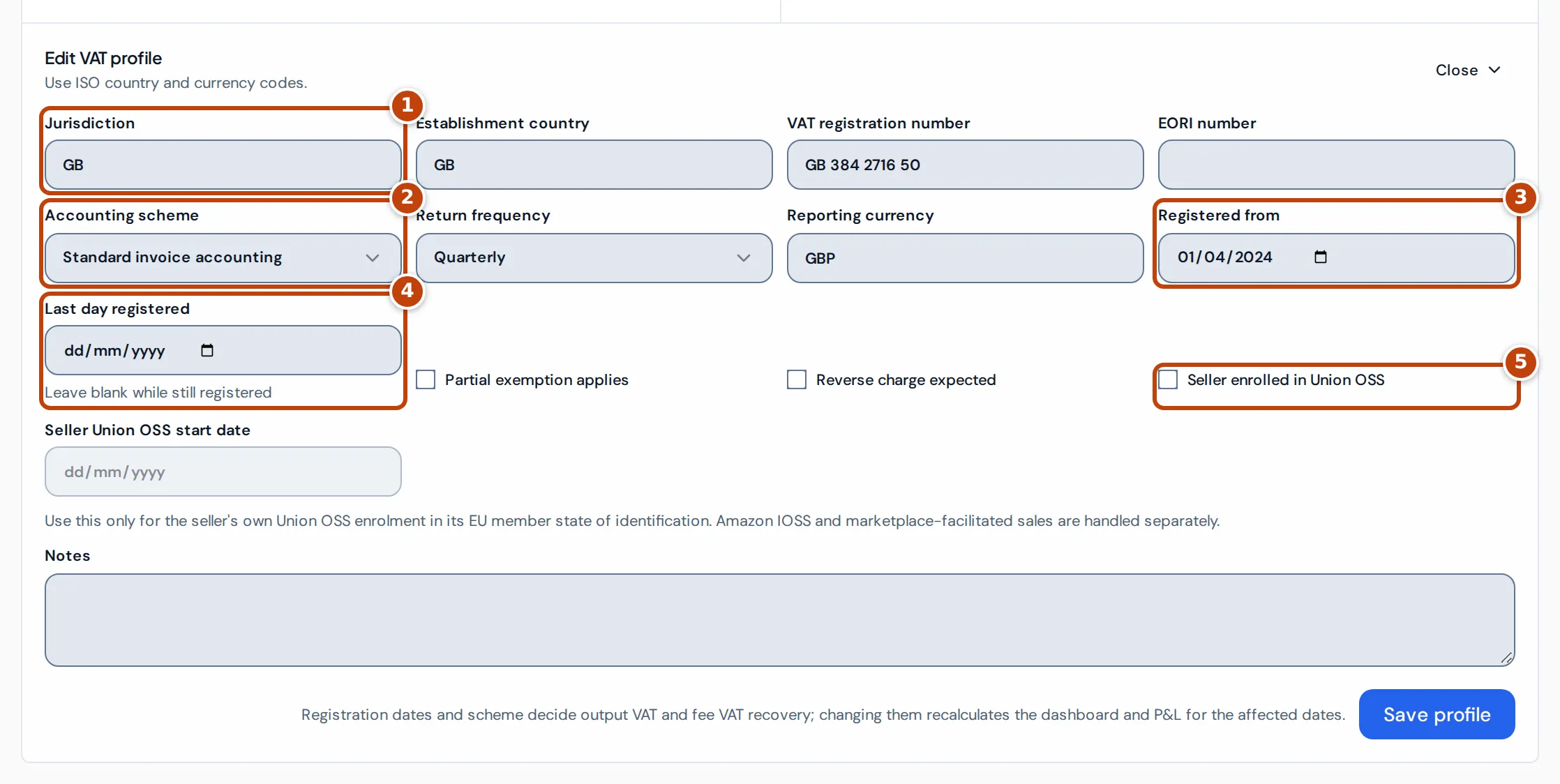
- On the VAT page’s Setup tab, select Add profile, or the edit button on an existing profile.
- Enter the marker 1 Jurisdiction, the country you’re registered in, as a two-letter code such as GB or DE, and your Establishment country.
- Optional: enter the VAT registration number and EORI number.
- Choose the marker 2 Accounting scheme: Standard invoice accounting, Cash accounting or Flat Rate Scheme.
- Choose the Return frequency and enter the Reporting currency, such as GBP.
- Enter the marker 3 Registered from date. Leave marker 4 Last day registered blank while you’re still registered; when you deregister, enter your last registered day.
- Optional: tick Partial exemption applies or Reverse charge expected. Both add an item for accountant review; partial exemption isn’t calculated.
- Optional: tick marker 5 Seller enrolled in Union OSS and enter the Seller Union OSS start date, only for your own Union OSS registration in your EU member state of identification. Amazon’s IOSS and marketplace-liable sales are handled separately.
- Select Create profile, or Save profile for an existing one.
Track return periods
Section titled “Track return periods”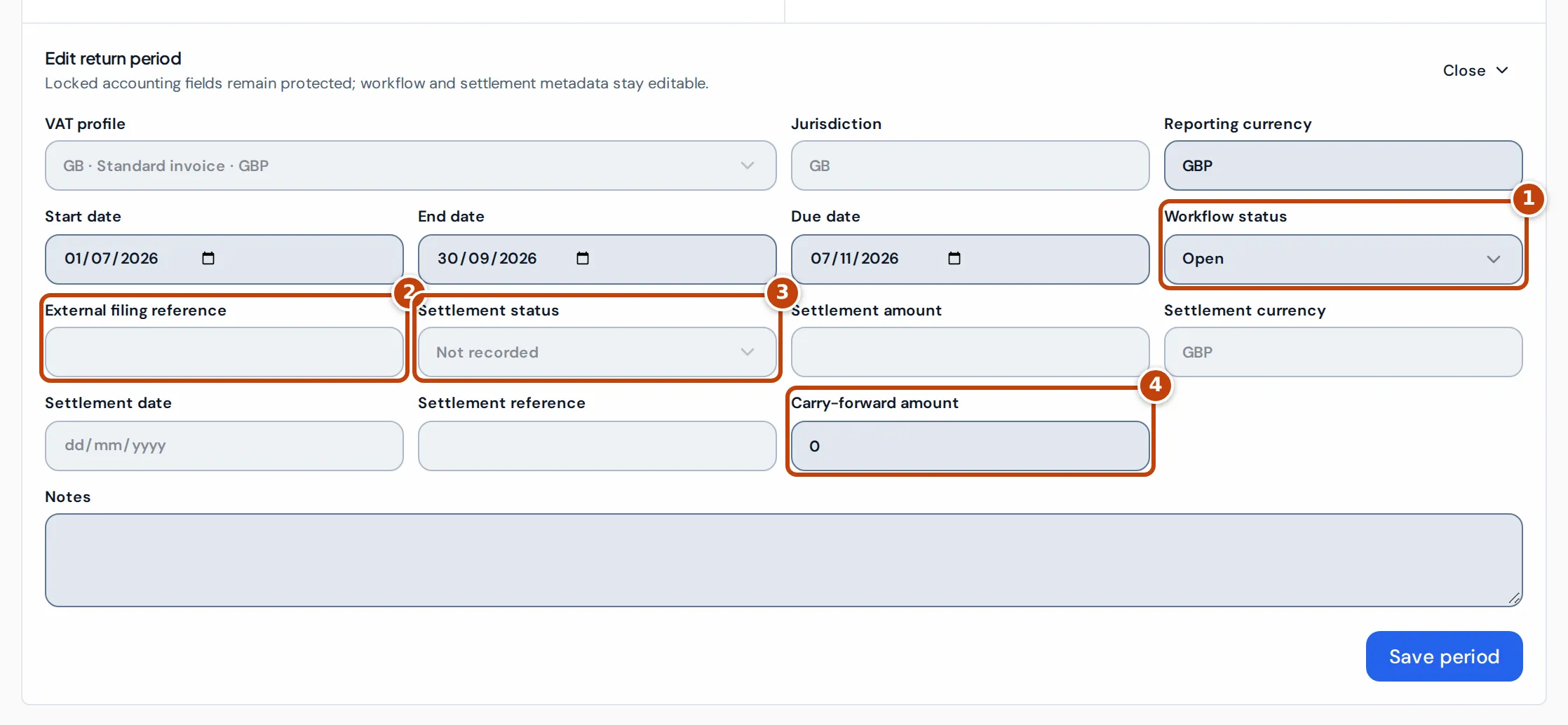
A saved return period groups evidence and adjustments for one return and tracks its progress. The estimate’s date filters work without one.
- On the Setup tab, select Add period. You need a registration profile first.
- Choose the VAT profile. The dates default to the current month, quarter or year, depending on the profile’s return frequency.
- Check the Start date and End date, and optionally enter the Due date.
- Select Create period.
Periods for the same country can’t overlap, and the profile must be in effect during the period.
To move a return through review and filing, select the edit button on the period and change its marker 1 Workflow status:
- Open, then In review while you check it.
- Locked when the figures are agreed. Locking saves a copy of the period’s figures, and its dates, currency, due date, notes and marker 4 Carry-forward amount can no longer change. Adjustments and evidence can’t be added to it, and a locked period can’t be reopened.
- Filed externally after you’ve filed the return yourself, for example with HMRC. A period must be locked first, and needs an marker 2 External filing reference. Once filed, you can record the payment or repayment with marker 3 Settlement status, amount, currency, date and reference.
Why the VAT page looks different from what you expect
Section titled “Why the VAT page looks different from what you expect”“VAT reporting data is being prepared”
Section titled ““VAT reporting data is being prepared””Crateworth is bringing the VAT figures for your period up to date, for example after new Amazon data or a change to a registration. Select Refresh after a short wait.
“Amazon charged VAT on days without a VAT registration”
Section titled ““Amazon charged VAT on days without a VAT registration””Amazon collected VAT from you as the seller for a marketplace whose country has no registration on the VAT page for those dates. Your profit already leaves this VAT out, but the Dashboard’s output VAT line doesn’t show it. Add or correct the registration’s dates on the Setup tab, or check with Amazon why it’s charging VAT.
Why VAT figures differ from the P&L or Dashboard
Section titled “Why VAT figures differ from the P&L or Dashboard”The VAT page dates each transaction by its VAT tax point, while the P&L uses shipment, posting and incurred dates and the Dashboard uses order dates. The VAT page also uses your chosen currency and period rather than your reference currency and calendar months. So a month’s VAT can differ between the pages.
Why is the estimate marked provisional?
Section titled “Why is the estimate marked provisional?”Every figure on the VAT page is an estimate from the data available so far, and reclaimable VAT still depends on valid evidence and your scheme’s rules. Work through the issues on the Evidence tab and agree the figures with your accountant before you file.
Related pages
Section titled “Related pages”- Profit and loss: how output VAT and fee VAT show in monthly profit.
- Dashboard: the Output VAT breakdown for a period.
- Why figures differ from Seller Central