
FBA inbound
FBA inbound lists your shipments into Amazon’s fulfilment centres, as Amazon reports them: what you sent, where it’s going, and how much Amazon has received. It also moves the cost of shipped units from your warehouse stock and shows units Amazon lost. To open it, in the sidebar, under Supply chain, select FBA inbound.
The page has two tabs: FBA inbound, for your shipments, and FC transfers, for stock Amazon moves between its own fulfilment centres.
What’s on the FBA inbound page
Section titled “What’s on the FBA inbound page”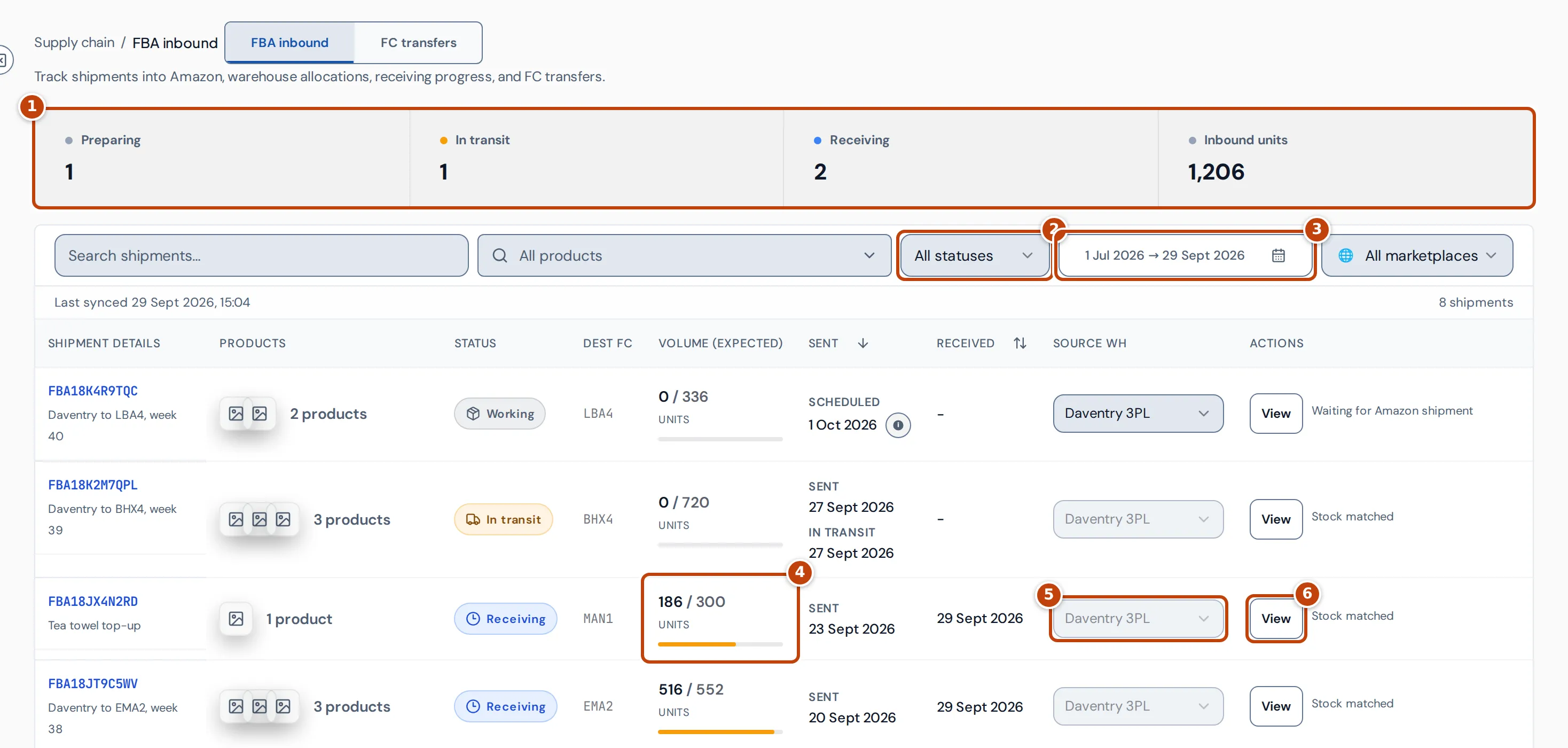
The summary cards marker 1 count shipments by stage:
- Preparing: Amazon shows the shipment as working, ready to ship or unconfirmed.
- In transit: shipped or in transit.
- Receiving: delivered, checked in or being received.
- Inbound units: the units on open shipments that Amazon hasn’t received yet.
Filter the list by status marker 2 (Preparing, In transit, Receiving, Closed, Cancelled or Other), by product or marketplace, or search by shipment ID, name or tracking ID. The date range marker 3 shows shipments with activity, such as dispatch or receipts, in those dates. An open shipment that’s only dated by a future ship-by date counts as today, so it shows in any range that includes today. It starts at the last 90 days; Reset to 90 days goes back to that.
Each row shows:
- Shipment details: the FBA shipment ID and the shipment’s name. Point at the ID to see Amazon’s internal reference for the shipment, which Seller Support may ask for; the shipment’s details also show it as Support reference, under Shipment details and history.
- Status: Amazon’s status for the shipment.
- Dest FC: the fulfilment centre it’s going to.
- Volume (expected) marker 4: units received out of units expected. The bar turns amber at half received and green at 95%.
- Sent: the date it left, and when it went into transit. A shipment not collected yet shows Scheduled and its ship-by date. Amazon doesn’t say when a shipment left if it was already at Amazon when Crateworth first saw it; once Amazon receives some of it, this shows Shipped by the date of that first receipt.
- Received: the date of Amazon’s latest receipt.
- Source WH marker 5: the warehouse the stock left from.
- Actions marker 6: View opens the shipment’s details. The stock matching status is next to it.
Last synced, above the table, shows when Crateworth last read your shipments from Amazon.
Follow a shipment’s progress
Section titled “Follow a shipment’s progress”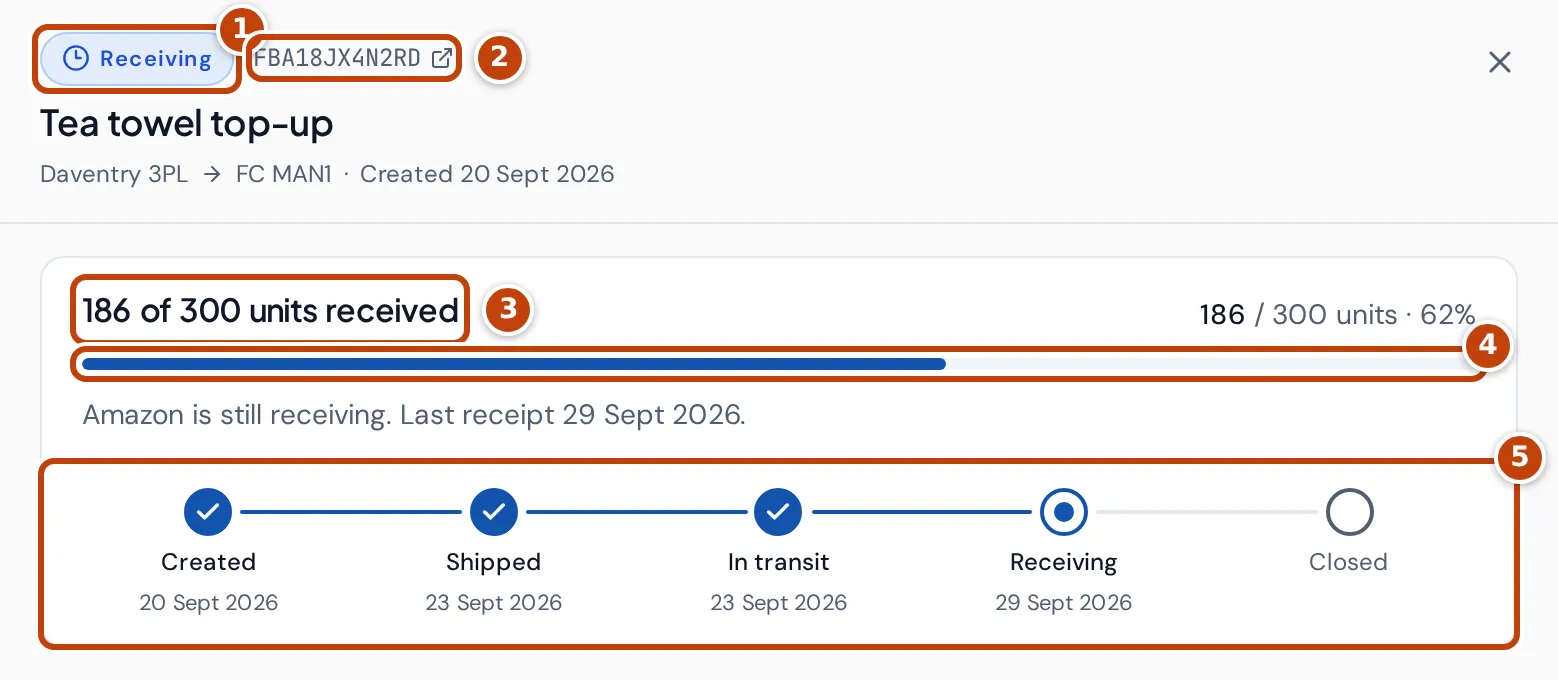
To open a shipment’s details, on FBA inbound, on the shipment’s row, select View. The top of the details shows:
- Amazon’s status for the shipment marker 1, and its FBA shipment ID marker 2. The ID opens the shipment in Seller Central.
- The shipment’s name, the warehouse it left from, the fulfilment centre it’s going to, and the date it was created.
- A summary of where the shipment is marker 3:
- Before it ships: “Not shipped yet”, with its ship-by date.
- On its way: the date it’s expected at the fulfilment centre, from the planning estimate. Without one, it asks you to add one.
- Once Amazon has it (delivered, checked in, receiving or closed): the units received out of units expected, and a bar marker 4 that fills as they arrive.
- The steps a shipment goes through marker 5: Created, Shipped, In transit, Receiving and Closed. A tick marks the steps done and a dot marks the current one. Each step reached shows its date, or “Date pending” if Amazon hasn’t given it yet; “Not recorded” means the date isn’t available for an older shipment.
- Units missing or damaged, in red, when there are any. Damaged units show as soon as Amazon reports them. Missing units show only once Amazon closes the shipment, because until then the units not yet received may still arrive.
A cancelled, abandoned or deleted shipment, or one Amazon reports an error or more than one status for, shows a note saying so instead of the steps.
A shipment can say “All 300 units received” (or its own count) and still be Receiving. Amazon closes a shipment some time after its last receipt, usually within a few weeks, and nothing is needed from you until then.
Shipment details and history
Section titled “Shipment details and history”At the end of a shipment’s details on FBA inbound, Shipment details and history is folded away until you select it. It shows the source warehouse, destination fulfilment centre, ship-by date, carrier, tracking ID, shipping mode and Support reference, when they’re known. The support reference is Amazon’s internal ID for the shipment, which Seller Support may ask for. Below them, it lists each change of the shipment’s status with its date.
Stock matching: moving stock from your warehouse to Amazon
Section titled “Stock matching: moving stock from your warehouse to Amazon”When you send stock to Amazon from your own warehouse or a 3PL, Crateworth takes the shipped units out of that warehouse’s stock, oldest stock first, and carries their cost with them to Amazon. This is called stock matching.
Only stock that was in the warehouse when the shipment left is used. When Amazon doesn’t give a departure date and Crateworth uses the first receipt instead, stock that reached the warehouse while the shipment was on its way can be used too. Oldest stock is still used first, so this only matters when the older stock has run out.
- In Source WH, choose the warehouse the shipment left from. If you’ve set a default warehouse for Amazon shipments, or have only one warehouse, it’s chosen for you.
- Crateworth matches the units automatically once Amazon shows the shipment as shipped. The status next to View changes to Stock matched.
The source warehouse can’t be changed once units are matched. Other statuses tell you what’s needed, for example:
- Assign a source warehouse: choose one in Source WH.
- Waiting for Amazon shipment: Amazon still shows the shipment as working, ready to ship or unconfirmed.
- Waiting for Amazon departure date: Amazon shows the shipment as shipped but hasn’t given its departure date yet. For a shipment that was already at Amazon when Crateworth first saw it, matching starts once Amazon records its first receipt.
- Not enough stock in source warehouse: the warehouse has fewer units in stock than the shipment needs.
- Direct to Amazon; no 3PL deduction: the stock went straight from the supplier to Amazon, so nothing comes out of a warehouse.
- Historical shipment; review before matching: a shipment that was already closed when Crateworth first saw it isn’t matched automatically. Select Match stock now if its units should come out of the warehouse.
- Later shipments used this stock; re-match in departure order: a later shipment took stock this one needed. Open View and use Preview re-match, then Re-match in departure order.
To give back matched units that Amazon hasn’t received yet, open View and select Undo stock matching. The units go back to the warehouse and automatic matching pauses for that shipment, so you can change the source warehouse.
Choosing a source warehouse and these actions need edit access to inventory. Team members with view-only access see each shipment’s stock matching status, but not the buttons.
Set an arrival estimate for planning
Section titled “Set an arrival estimate for planning”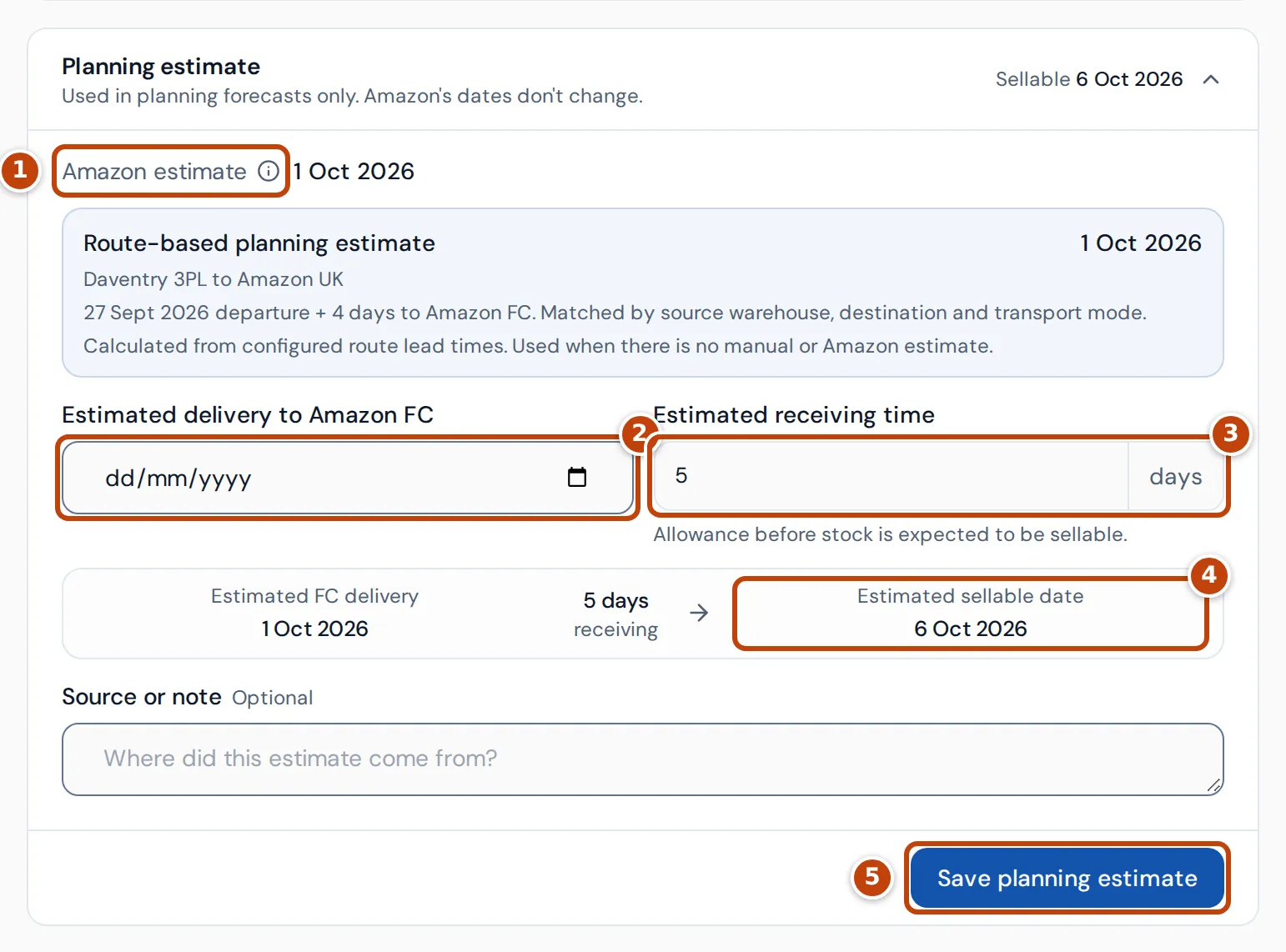
Replenishment planning counts inbound units as available from the date they’re expected to be sellable. Each shipment’s details have a Planning estimate for this. It doesn’t change Amazon’s shipment dates.
The section is open until the shipment reaches the fulfilment centre: once Amazon shows it as delivered, checked in, receiving or closed, or has received any units. After that the delivery date no longer affects planning, so the section is folded away. Its heading shows the estimated sellable date, or “Not set” if there isn’t one. Select the heading to open it.
- On FBA inbound, on the shipment’s row, select View.
- Under Planning estimate, check the Amazon estimate marker 1. Crateworth may also show an estimate from your planning routes. It’s used only when there’s no Amazon date or date of your own.
- Optional: enter your own date in Estimated delivery to Amazon FC marker 2. It takes priority over Amazon’s estimate and the route estimate.
- Set the Estimated receiving time marker 3: the days Amazon usually takes to make stock sellable after delivery.
- Check the Estimated sellable date marker 4, which is the delivery date plus the receiving time.
- Select Save planning estimate marker 5.
Clear manual FC estimate removes your own date. If a shipment has no estimate at all, its units aren’t counted in planning until you add one. When an estimate has passed and units are still outstanding, the details say the estimate is overdue.
Received, missing and damaged units
Section titled “Received, missing and damaged units”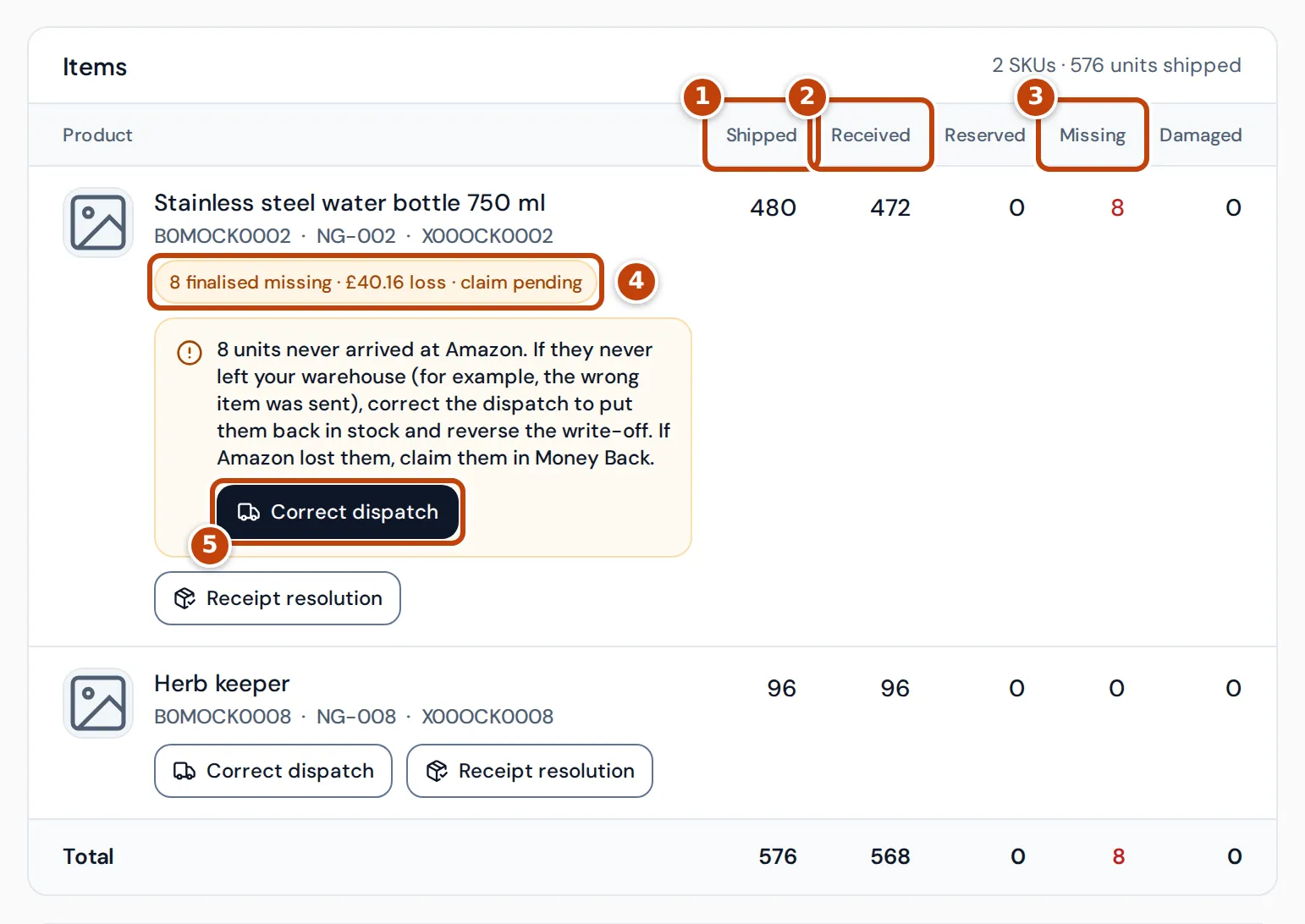
The Items table in the shipment’s details lists each product with its ASIN, SKU and FNSKU, and these columns:
- Shipped marker 1: units you sent.
- Received marker 2: units Amazon has received.
- Reserved: units Amazon reports as reserved.
- Missing marker 3: units shipped but neither received nor damaged, shown in red. It stays at 0 until Amazon closes the shipment, because until then the units may still arrive.
- Damaged: units Amazon reports as damaged, shown in red.
A Total row adds up the columns when the shipment has more than one product.
Under each product’s name, Correct dispatch marker 5 records a different shipped quantity if Amazon’s figure is wrong, and Receipt resolution deals with units Amazon received beyond what you shipped. When a product has missing units, or extra units you haven’t accounted for, an amber note above the buttons says what happened and puts the matching fix in it, so you don’t have to work out which one applies. A wrong-item mix-up shows both: the product you meant to send is missing (Correct dispatch to 0 puts it back in stock and reverses its write-off), and the one you sent by mistake is over-received (Resolve receipt records where it came from). Both actions need edit access to inventory.
When a shipment closes with units missing, Crateworth finalises the loss: the missing units come out of your stock at their cost. The label marker 4 shows the units, the loss and the claim status, and links to Amazon Money Back, where you can claim the units from Amazon. Eligible closed shipments are finalised automatically. For other closed shipments, select Finalise inbound on the row.
If the details show Inbound finalisation needs review, some items need more evidence first, such as a dated purchase order for the stock. If they show Receipt correction needs review, Amazon has lowered a received quantity after it was recorded, and finalising waits until that’s resolved.
Confirm when a shipment closed
Section titled “Confirm when a shipment closed”Sometimes Amazon closes a shipment without giving a closure date or any receipt date. Its details then say “Closed: date unavailable”, and Crateworth can’t book the missing units as a loss, because it doesn’t know the date of the loss. If you know when Amazon closed the shipment, for example from Seller Central:
- In the shipment’s details, enter the date under Closure date.
- Under Evidence, say where the date comes from.
- Select Confirm closure date.
The missing units are then booked as a loss on that date once their cost evidence is complete. If something is still missing, the message lists what’s still in review. The closed date then reads “confirmed manually”.
The date can’t be in the future or before the shipment’s first recorded date. You can correct a date you confirmed while its loss is still in review, but not once a loss has been booked from it. A shipment that Amazon’s data already dates can’t be given a different date.
FC transfers
Section titled “FC transfers”The FC transfers tab shows stock Amazon has moved between its fulfilment centres in the last 30 days, worked out from Amazon’s inventory ledger. Each row shows the product, the source and destination centres, units sent, received and still in transit, the status and the transit time. Statuses are In Transit, Completed, Awaiting Ledger, Receipt Unconfirmed, Lost and Investigating.
Awaiting Ledger means Amazon’s stock snapshot is newer than its detailed ledger. Receipt Unconfirmed appears only once the ledger has caught up without showing a matching receipt.
Why does a shipment look wrong?
Section titled “Why does a shipment look wrong?”- A shipment is missing: shipments come from Amazon’s data on a schedule. Check the date range, or clear the filters. A new shipment appears after the next sync.
- An Attention needed box appears above the list: the last sync of your shipments failed, is running long, or hasn’t completed recently, or some shipments are missing dates from Amazon.
- Sent says “Timestamp pending”: Amazon shows the shipment as shipped but hasn’t given the date yet. “N/A” means the date isn’t available for an older shipment. “by DATE (first receipt)” means Amazon never gave the departure date, so Crateworth uses the date Amazon first received units from it.
- The closed date says it’s estimated from Amazon’s last receipt: the shipment was already closed when Crateworth first saw it, so it uses the date of Amazon’s latest receipt.
- The closed date says “date unavailable”: Amazon gave neither a closure date nor a receipt date. If you know the date, confirm it.
- Received units are fewer than shipped on an open shipment: Amazon is still receiving it.
- Every unit is received but the shipment is still Receiving: Amazon hasn’t closed it yet. That usually happens within a few weeks of the last receipt. See Follow a shipment’s progress.
Related pages
Section titled “Related pages”- Supply pipeline for freight from your supplier, including freight sent straight to Amazon.
- FBA shipment planner to plan what to send to Amazon.
- Amazon Money Back for claims on lost units.