
Product settings
Product settings holds the settings that belong to each physical product: tags, unsellable recovery, non-FBA shipping cost, carton size, velocity weighting and VAT. It also shows an estimated profit per unit from Amazon’s current fees. To open it, in the sidebar, under Inventory, select Product settings.
You set each product once, on its base product. Listings Amazon generates from it, such as G&R (Grade and Resell), Amazon Found and virtual multipacks, inherit its settings and don’t appear here as separate rows.
What’s on the Product settings page
Section titled “What’s on the Product settings page”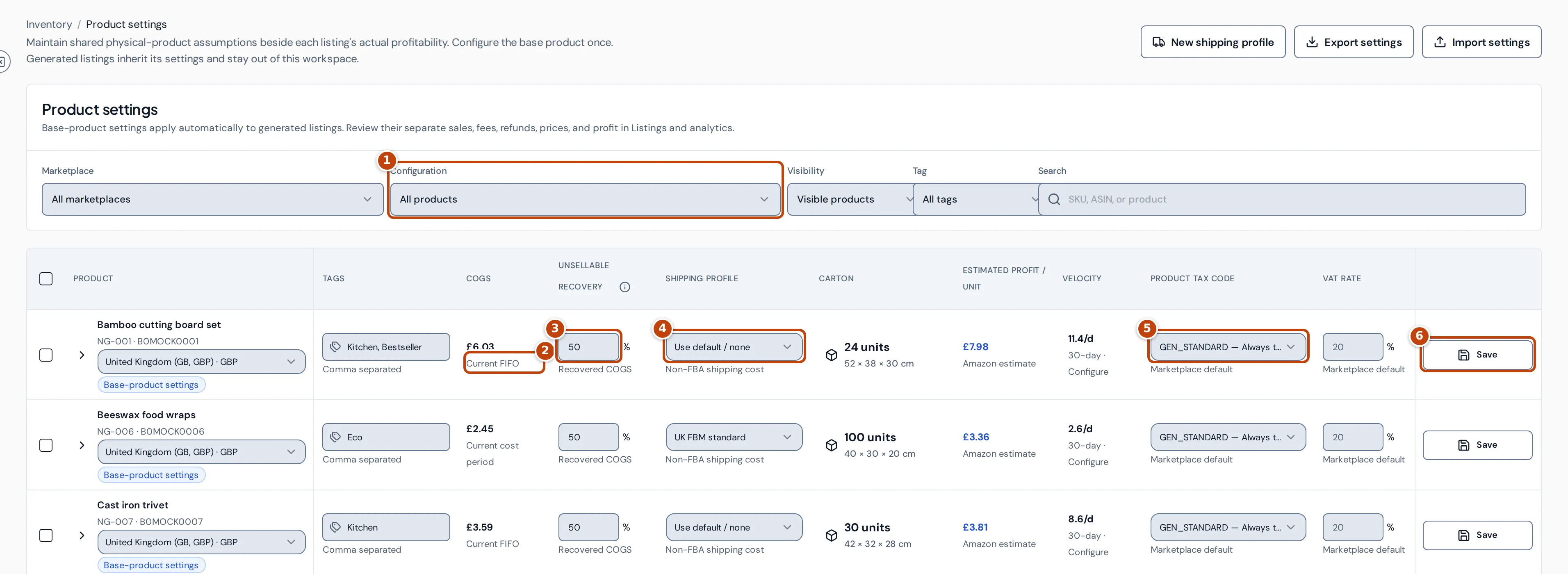
Above the table are filters for Marketplace, Configuration marker 1, Visibility, Tag and a search box. Configuration finds products with something to set up: Missing tax settings, Missing recovery value, Missing shipping profile, Missing carton configuration or Existing listing overrides.
Each row is one product. If it sells in several marketplaces, choose the marketplace under its name to see that marketplace’s figures.
On most screens the table is wider than the page, so it scrolls sideways. The product and its Save button stay in place while you scroll.
| Column | What it shows |
|---|---|
| Tags | Your own labels, separated by commas. Use Tag to filter by them. |
| COGS marker 2 | The cost per unit used for the profit estimate, and where it comes from: Current FIFO, Current cost period, Default cost or Product cost. Costs are managed on Costs & COGS. |
| Unsellable recovery marker 3 | The percentage of a unit’s cost you recover when unsellable stock is removed or disposed of. |
| Shipping profile marker 4 | The shipping-cost rule for orders you fulfil yourself or sell elsewhere. |
| Carton | Units per master carton and its size. |
| Estimated profit / unit | Amazon’s current fee estimate applied to the product’s price and cost. |
| Velocity | Units sold per day over 30 days. Select it to change how velocity is weighted. |
| Product tax code marker 5 | Amazon’s tax code for the product. |
| VAT rate | The VAT rate used when Amazon doesn’t report the VAT on a sale. |
Change a product’s settings
Section titled “Change a product’s settings”- Find the product in the table.
- Change the fields you need: tags, unsellable recovery, shipping profile, product tax code or VAT rate.
- Select Save marker 6 on the row. Changes aren’t kept until you save.
The settings apply to the product’s generated listings too. A generated listing that has its own settings shows Listing override; select Use base settings to make it follow the base product again.
Change several products at once
Section titled “Change several products at once”- Tick the products. A bar appears showing how many you selected.
- Enter a recovery percentage, choose a shipping profile or tax code, or enter a VAT percentage. Fields you leave empty or unchanged aren’t changed. To set tags, enter them and tick Replace tags: the products’ tags are replaced with the ones you enter.
- Select Apply settings.
Hide and Show in the same bar change whether the products are hidden from reporting. Hidden products show Hidden from reporting; choose Hidden products under Visibility to find them.
How the VAT rate is chosen
Section titled “How the VAT rate is chosen”When Amazon’s data doesn’t include the VAT on a completed sale, Crateworth works out the VAT included in the price as price − price ÷ (1 + rate). This only applies to sales in a marketplace where you’re VAT-registered on that date (see VAT). Crateworth chooses the rate in this order:
- The VAT rate you entered for the product, if any.
- Otherwise, the Product tax code: a product outside the scope of VAT gets 0%; a product taxable at the standard rate, or with no tax code, gets the marketplace’s standard rate.
- Any other tax code, such as a reduced-rate food or book code, has no rate of its own. Enter a VAT rate for those products, otherwise their sales VAT stays unresolved and profit that depends on it stays blank.
When the VAT rate field is empty, the label under it shows Marketplace default. Other labels show where a value comes from: Family default or Family rate for the base product’s setting and Listing override for a listing’s own.
See the estimated profit per unit
Section titled “See the estimated profit per unit”Select the estimated profit figure, or the arrow next to the product name, to see how it’s worked out.
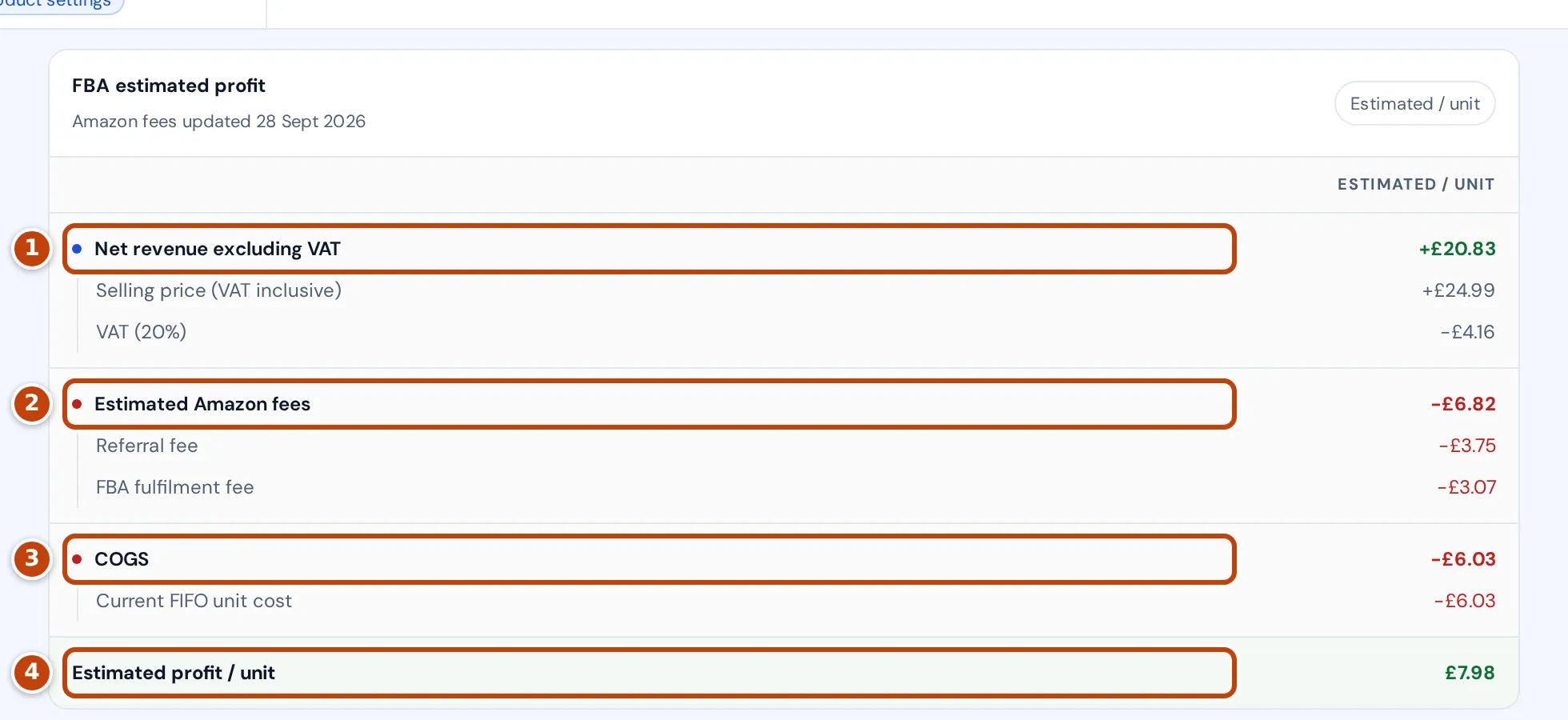
The breakdown starts from the selling price including VAT and takes off:
- the VAT in the price, giving marker 1 Net revenue excluding VAT. No VAT is taken off in a marketplace where you aren’t VAT-registered today;
- marker 2 Estimated Amazon fees: the referral fee, FBA fulfilment fee and any other fees in Amazon’s current fee estimate, not fees Amazon has charged;
- marker 3 COGS: the product’s current cost per unit.
What’s left is marker 4 Estimated profit / unit, in green when it’s a profit and in red with a minus sign when it’s a loss. The date under FBA estimated profit shows when Amazon’s fee estimate was last updated.
When something is missing, the figure shows Estimate unavailable and the breakdown names what’s missing: the price, Amazon’s FBA fee estimate, COGS or the VAT rate.
Create a shipping profile
Section titled “Create a shipping profile”A shipping profile is a reusable rule for what it costs you to ship orders you fulfil yourself (FBM) or sell on another channel. It doesn’t change Amazon’s FBA fees.
- Select New shipping profile, or choose + Create shipping profile… in a product’s Shipping profile menu.
- Enter a Profile name and choose the Channel and Currency.
- Choose a Calculation method: Use the customer shipping charge, No shipping cost, Based on order value, Based on units or Based on weight, and enter the costs it asks for.
- Optional: under Optional price bands, select Add band to set a fixed cost for orders up to a value. A matching band replaces the calculated cost.
- Optional: set Effective from and Effective to.
- Optional: tick Default for this channel so products without a profile of their own use this one.
- Select Create profile.
Set a product’s carton size
Section titled “Set a product’s carton size”Pallet and container planning need each product’s master-carton size. Products without one show Not configured.
- Select the product’s Carton cell. Carton configuration opens.
- Enter the Units per carton, Length, Width and Height, and choose the Dimension unit.
- Enter the Carton weight and choose the Weight unit.
- Select Save carton.
Change how velocity is weighted
Section titled “Change how velocity is weighted”Select a product’s Velocity figure to open Velocity settings, set each period’s share (the weights must total 100%), and select Save settings. The weighting drives velocity and days of cover on the Inventory overview.
Export and import settings
Section titled “Export and import settings”Select Export settings to download every product’s settings as a CSV file. To change many products at once, edit the file and select Import settings. The file must keep the product_id column, so start from an export.
Related pages
Section titled “Related pages”- Costs & COGS: the costs behind the COGS column.
- VAT: VAT registrations and returns.
- Inventory overview: velocity and days of cover.
- Pallet visualiser: uses carton sizes.