
AI connections
AI connections lets you connect an AI tool, such as Claude, ChatGPT, Cursor or VS Code, to your Crateworth data, so you can ask it questions about your business: which products made the most profit last month, what stock you have, how your search terms perform. The tool reads your data through Crateworth’s MCP server (the Model Context Protocol, a standard way for AI tools to use other apps). Access is read-only: the tool can’t change anything in Crateworth or on Amazon.
To open the page, in the sidebar, select AI connections.
What’s on the AI connections page
Section titled “What’s on the AI connections page”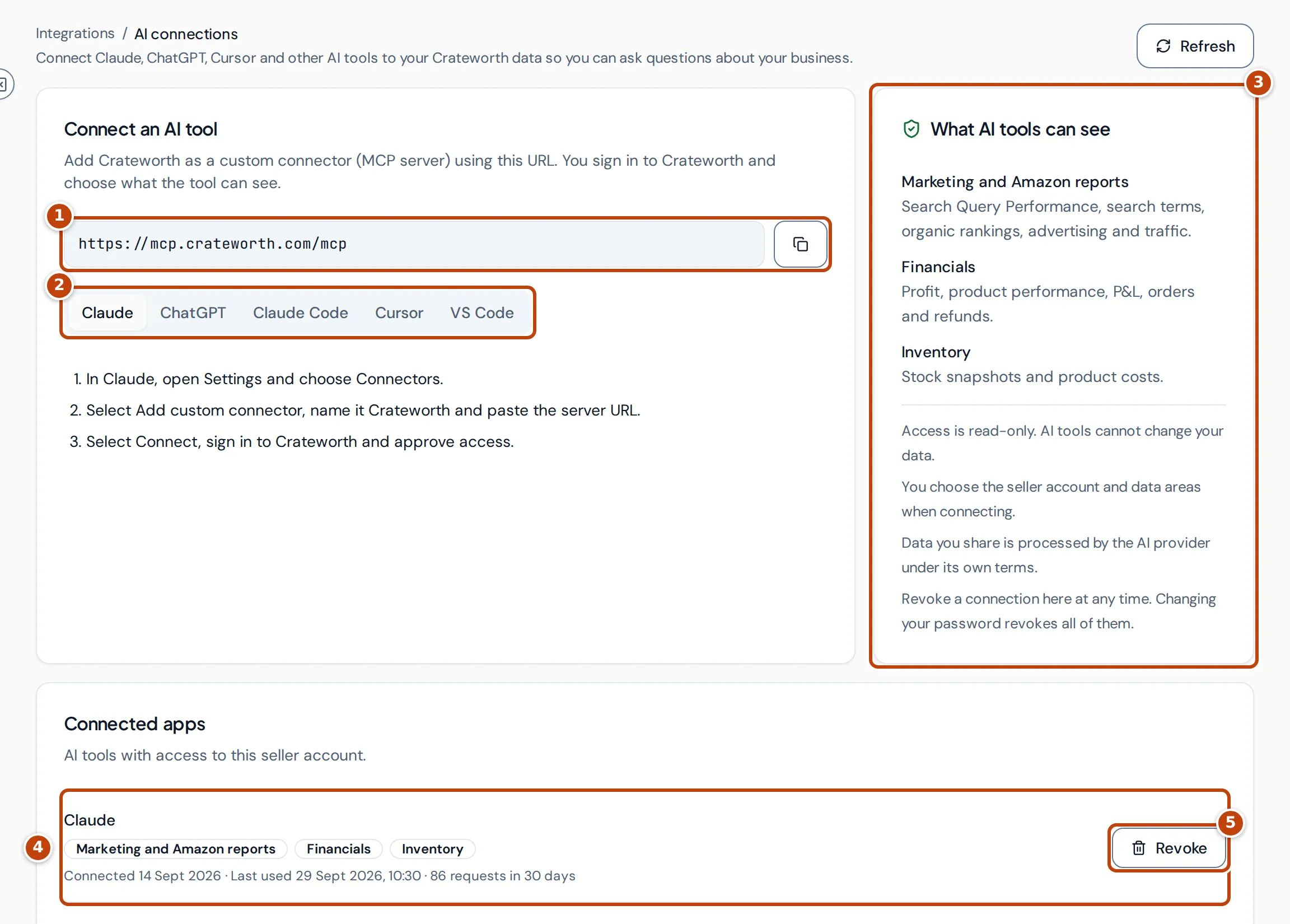
- marker 1 The server URL is the address you give your AI tool. The button next to it copies it.
- marker 2 The tabs show how to add the server in each tool.
- marker 3 What AI tools can see lists the data areas a tool can be given and the rules that apply.
- marker 4 Connected apps lists the AI tools you’ve connected to this seller account, the data areas each can read, when you connected it, when it was last used and how many requests it made in the last 30 days.
- marker 5 Revoke removes a tool’s access.
What an AI tool can see
Section titled “What an AI tool can see”When you connect a tool, you choose which of three data areas it can read:
| Data area | What it covers |
|---|---|
| Marketing and Amazon reports | Search Query Performance, search terms, organic rankings, advertising and traffic |
| Financials | Profit, product performance, P&L, orders and refunds |
| Inventory | Stock snapshots and product costs |
A tool only sees the one seller account you pick when you connect it. It can read a data area only while your team access lets you view the matching parts of Crateworth: Sales & analytics for marketing and Amazon reports, Sales & analytics and Profit & costs for financials, and Inventory & planning for inventory. Data the tool reads is sent to the AI provider and handled under the provider’s own terms.
Connect an AI tool
Section titled “Connect an AI tool”- On the AI connections page, select the copy button next to the server URL marker 1.
- Select your tool’s tab marker 2 and follow its steps. For example, in Claude: open Settings, choose Connectors, select Add custom connector, name it Crateworth and paste the server URL. For Claude Code, Cursor and VS Code, the tab shows a command or configuration with the URL already in it, which you can copy.
- Start the connection from your tool. It opens Crateworth in your browser. Sign in if you’re asked to.
- Under Choose a seller account, choose the one the tool can read, then select Continue. If you have only one seller account, it’s already chosen. An account you can’t connect shows Not enabled: see Why can’t I connect an AI tool?.
- Choose what the tool can see and select Allow access, as described in Approve the connection.
The tool then appears under Connected apps. Select Refresh if it doesn’t show yet.
Approve the connection
Section titled “Approve the connection”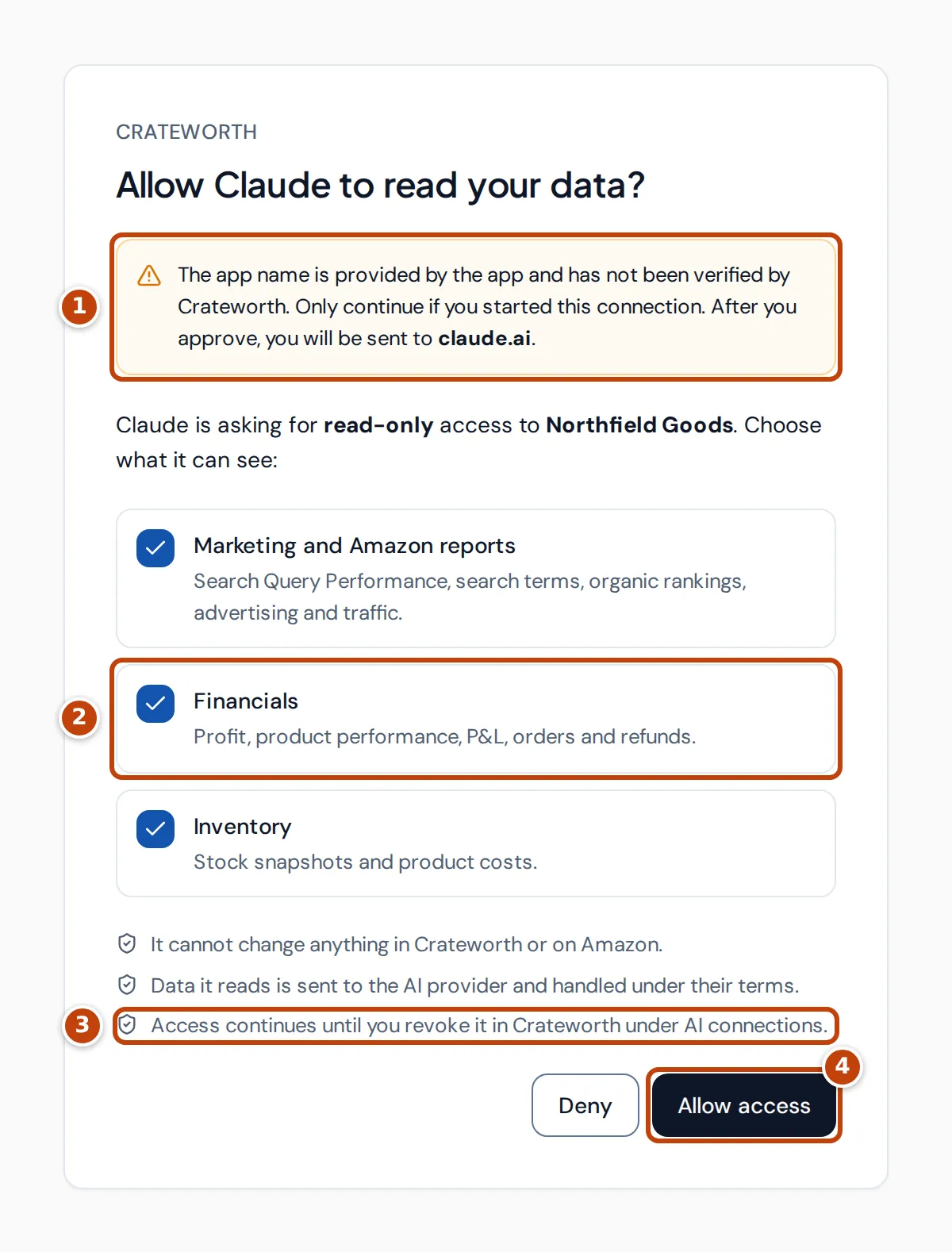
The approval page names the tool and the seller account it’s asking to read.
- marker 1 The tool supplies its own name, so Crateworth can’t verify it. The notice shows the website you’ll be sent to after you approve. Only continue if you started the connection yourself.
- marker 2 Every data area the tool asked for is ticked. Untick any it shouldn’t see. You must leave at least one ticked.
- marker 3 If the tool asked to stay connected, access continues until you revoke it. Otherwise the tool has to connect again after about an hour.
- marker 4 Select Allow access to connect, or Deny to refuse.
If the page says the request is invalid or has expired, start the connection again from your AI tool.
Revoke an AI tool’s access
Section titled “Revoke an AI tool’s access”- On the AI connections page, under Connected apps, find the tool.
- Select Revoke marker 5. The button changes to Confirm revoke.
- Select Confirm revoke.
The tool loses access straight away, because Crateworth checks the connection on every request. Changing your Crateworth password also revokes all your AI connections.
Why can’t I connect an AI tool?
Section titled “Why can’t I connect an AI tool?”When you connect, a seller account you can’t use shows Not enabled. That happens for any of these reasons:
- AI connections aren’t enabled for the seller account. The AI connections page says they’re available on paid plans; contact support to get access.
- Your team access to the seller account is limited. AI connections need access that includes exporting data, because the tool takes your data out of Crateworth. Ask an owner or admin of the business.
- The seller account requires an authenticator app for sign-in and you haven’t set one up. Set one up for your login, then connect again.
- You’re using the public demo, where AI connections are turned off.