
Keywords
The Keywords page tracks where your products appear in Amazon’s organic search results for the keywords you choose, day by day. To open it, in the sidebar, under Amazon reports, select Keywords.
What’s on the Keywords page
Section titled “What’s on the Keywords page”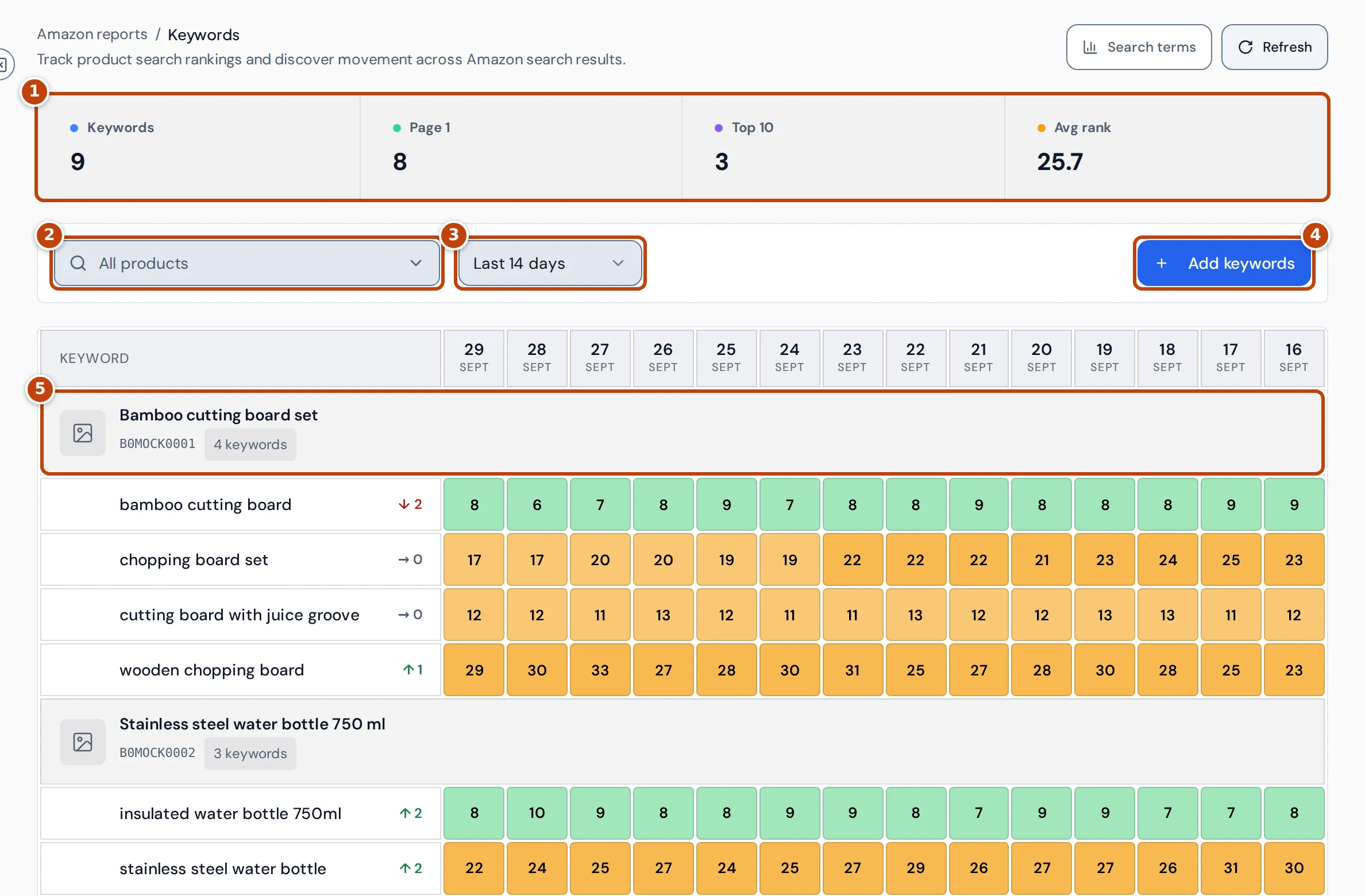
- marker 1 The summary, for keywords you’re tracking (paused keywords aren’t counted):
- Keywords: how many keywords you track.
- Page 1: keywords whose latest rank is 48 or better.
- Top 10: keywords whose latest rank is 10 or better.
- Avg rank: the average of the keywords’ latest ranks.
- marker 2 All products narrows the table to one product. It lists only products with tracked keywords that aren’t paused.
- marker 3 Last 7 days, Last 14 days or Last 30 days sets how many days the table shows.
- marker 4 Add keywords starts adding keywords. See Add keywords.
- marker 5 Each product has a heading row with its ASIN and keyword count, and its keywords underneath.
Search terms, at the top right, opens Search term performance.
Read the rankings table
Section titled “Read the rankings table”Each keyword row has a cell per day, newest on the left. The number is your product’s organic rank in Amazon search results for that keyword that day: 1 is the first organic result. Sponsored results don’t count.
Cells are coloured by rank: 1-10, 11-20, 21-50 and 51+, as the key under the table shows. Other values:
96+(or another number with +): the product wasn’t in the organic results checked that day. Hover over the cell to see how many results were checked.Not found: the product wasn’t found in the results checked.--: the keyword wasn’t checked that day, for example before you added it or while it was paused.
Next to each keyword, an arrow and a number show how many places it moved between the two latest days checked in the period shown: ↑ for a better rank, ↓ for a worse one, → for no change. There’s no arrow when either day has no rank.
A keyword you’ve just added is checked straight away: its cell for today shows a spinner until the first result arrives, and the table updates by itself.
Add keywords
Section titled “Add keywords”You add keywords for one product at a time. You can pick them from Amazon Brand Analytics suggestions or type your own.
- On the Keywords page, select Add keywords. A list of your products opens.
- Select the product. Its Add keywords page opens.
To add keywords to a product that’s already in the table, you can also select the + button in its heading row.
Pick from Brand Analytics suggestions
Section titled “Pick from Brand Analytics suggestions”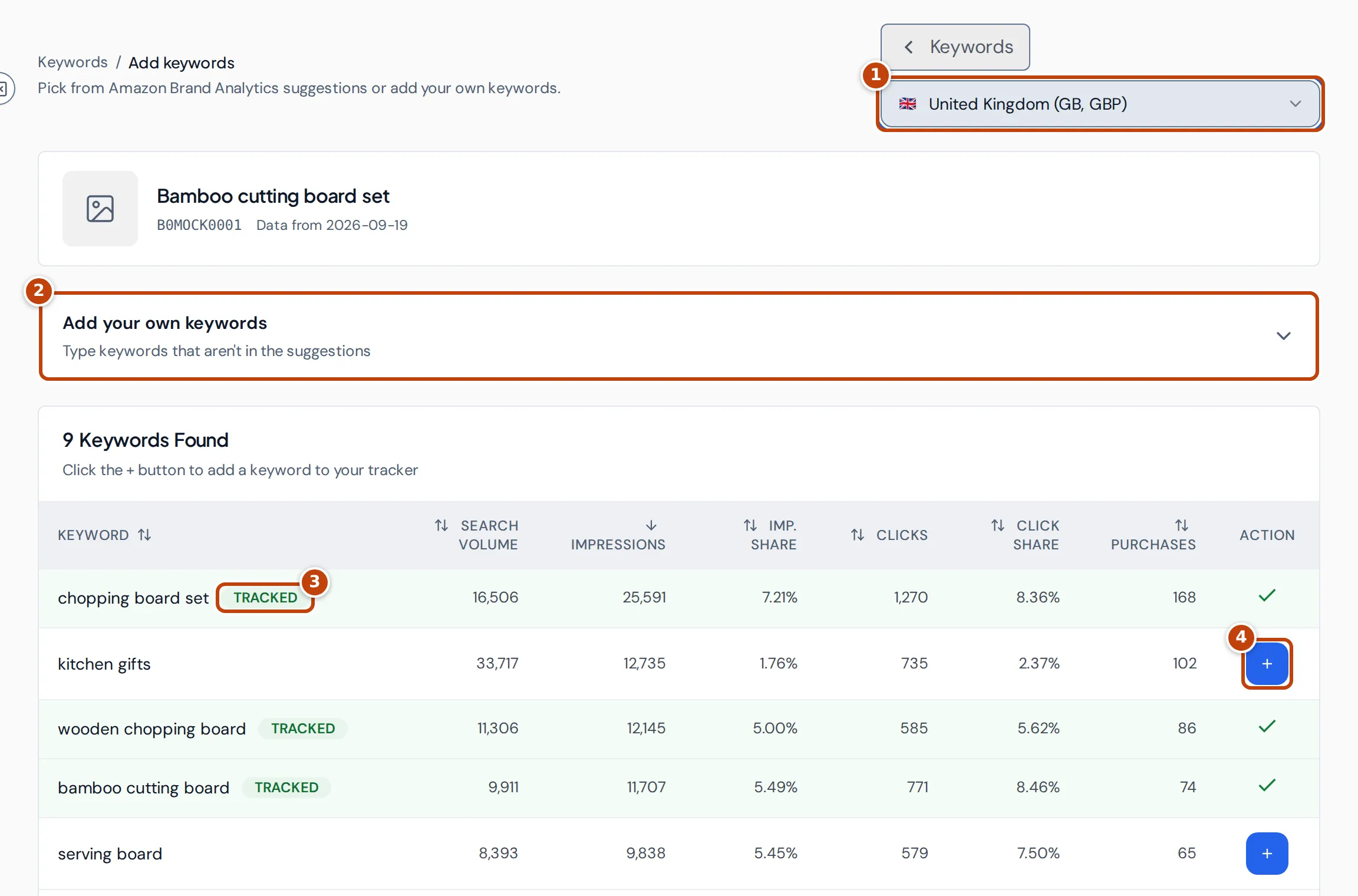
The Add keywords page lists the search terms that led shoppers to the product in the latest Amazon Brand Analytics report Crateworth holds for it (the date shows next to the ASIN), up to 200 of the most-searched terms. For each, it shows how often shoppers made the search (Search volume) and your product’s Impressions, Imp. Share, Clicks, Click share and Purchases from it. The list starts sorted by impressions; select a column heading to sort by it.
- Optional: marker 1 choose a marketplace. With All marketplaces, a search term shows once per marketplace, with the marketplace’s flag.
- marker 4 Select + next to a search term. It’s added and marked marker 3 Tracked.
Amazon provides Brand Analytics only to brand owners enrolled in Brand Registry. If there are no suggestions for the product, the page says No Brand Analytics suggestions (or No Brand Analytics suggestions yet when the product already has tracked keywords) and, if you can edit keywords, opens the form to add your own.
Keyword ranking works in the United States, United Kingdom, Germany, France, Italy and Spain. With All marketplaces, suggestions from other marketplaces still show +, but they can’t be tracked.
Add your own keywords
Section titled “Add your own keywords”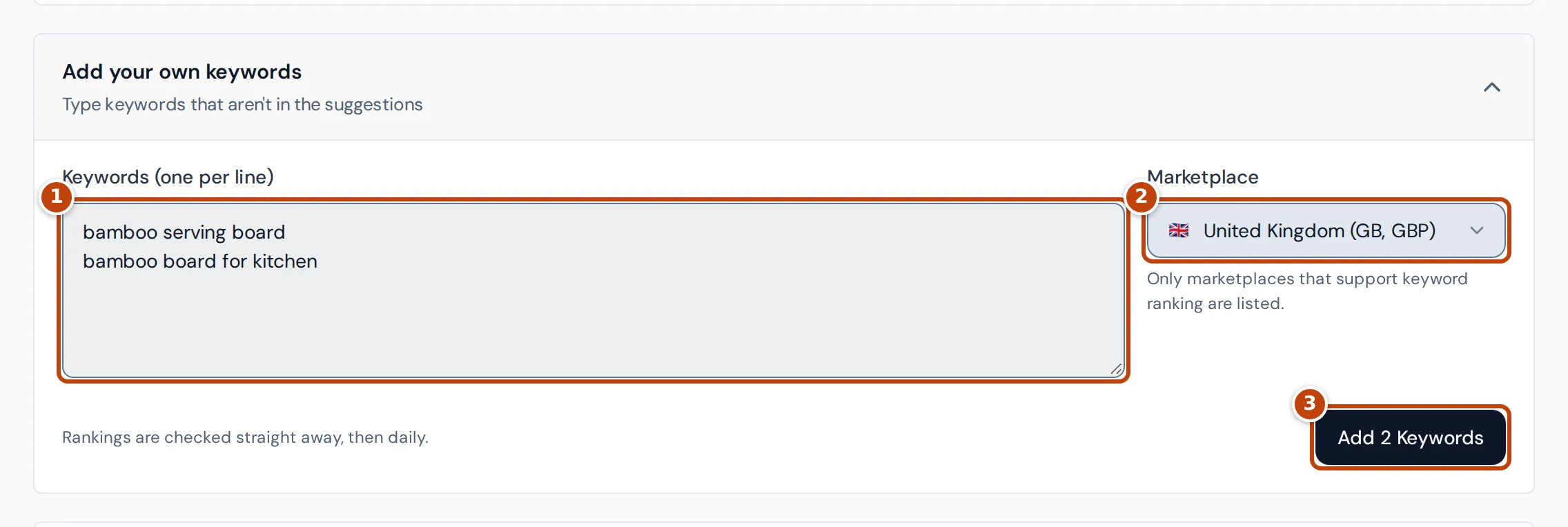
- On the product’s Add keywords page, select Add your own keywords.
- Enter the keywords in marker 1 Keywords (one per line).
- Choose the marker 2 Marketplace to track them in. Only marketplaces that support keyword ranking are listed.
- Select marker 3 Add 2 Keywords (the button shows how many you’ve entered). Rankings are checked straight away, then daily.
Keywords are saved in lower case. A keyword the product already tracks in that marketplace is ignored.
To go back to your rankings, select Keywords at the top of the page.
See a keyword’s history and change how often it’s checked
Section titled “See a keyword’s history and change how often it’s checked”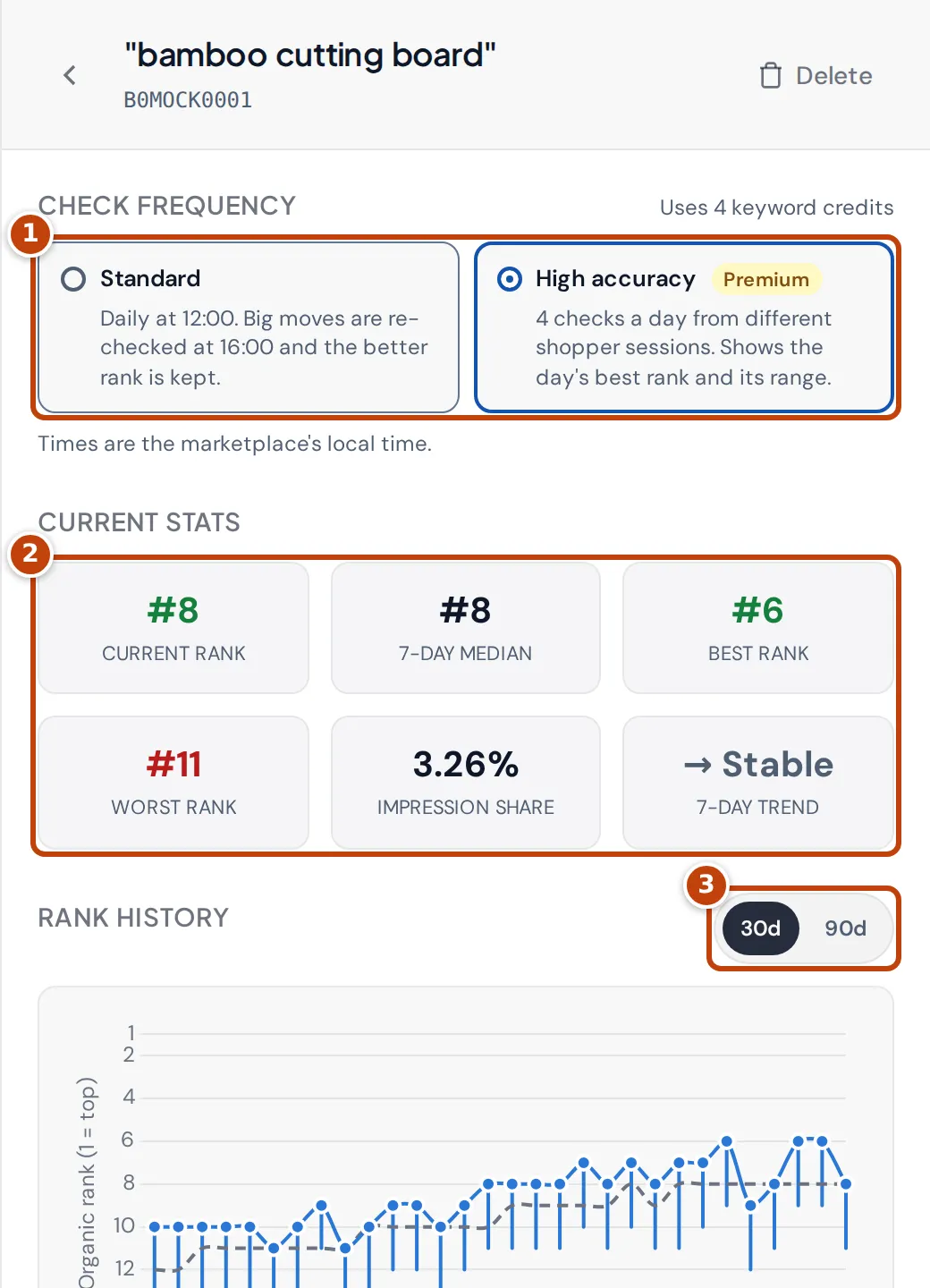
Select a keyword in the table to open its details.
marker 1 Check frequency sets how often Crateworth checks the keyword:
- Standard: daily at 12:00, marketplace local time. Big moves are re-checked at 16:00 and the better rank is kept. Uses 1 keyword credit.
- High accuracy: 4 checks a day from different shopper sessions. The day’s rank is the best of the checks, and the chart shows the range. Uses 4 keyword credits.
marker 2 Current stats shows the Current rank, 7-day median, Best rank, Worst rank, Impression share and 7-day trend (improving, declining or stable, comparing the 7-day median with a week earlier). Best rank and Worst rank cover the keyword’s whole history.
marker 3 30d and 90d set the period of the Rank history chart. The chart shows the daily rank and the 7-day median.
When Brand Analytics has data for the keyword, Amazon impression share shows your product’s weekly share of all impressions for that search. A steady share means a daily rank change is probably noise. Recent rankings lists the 14 most recent days checked in the chosen period.
Pause or delete a keyword
Section titled “Pause or delete a keyword”Hover over a keyword in the table to show its pause and delete buttons.
- Pause stops checking the keyword and keeps its history. The row shows Paused. Select the play button to resume.
- Delete stops tracking the keyword and deletes its ranking history. Confirm with Delete. Pause instead if you want to keep the history.
You can also select Delete in the keyword’s details, then Confirm delete.
Why can’t I add more keywords?
Section titled “Why can’t I add more keywords?”Your plan sets how many keyword credits your account can use. A keyword on Standard uses 1 credit and one on High accuracy uses 4; paused keywords use none. When you reach the limit, the Add your own keywords form, and resuming a paused keyword, show a message with the credits the account uses out of its limit. The + button on a suggestion shows only Failed to add this keyword. Switching a keyword to High accuracy without enough credits left also shows a message. Pause or delete keywords, switch some to Standard, or change your plan.
Your plan can also limit how many keywords you add in each billing period. When you’ve used them, the form says so.
If you see Keyword ideas instead of Add keywords, your team access lets you view keywords but not change them. You can still browse the suggestions. Ask the account owner for edit access.
Why does a keyword show no ranking?
Section titled “Why does a keyword show no ranking?”- A keyword with no checks in the period shows
--in every cell. A keyword you’ve just added shows a spinner until its first check arrives. - A paused keyword isn’t checked, so its cells show
--from the day it was paused. - No keywords tracked yet: you haven’t added any keywords. Select Add your first keywords.
- No ranking data for this product: the product chosen in All products has no tracked keywords any more, for example after you deleted its last one. Select Show all products to see the rest.
Related pages
Section titled “Related pages”- Search term performance shows Brand Analytics data for every search term, week by week, and uses your tracked keywords’ organic rank.