
Inventory health
The Inventory health page shows how healthy your stock at Amazon is: which products are running low, which have more stock than they sell, how long units have been in Amazon’s warehouses, and the long-term storage fees (LTSF) aged stock may be charged. To open it, in the sidebar, under Amazon reports, select Inventory health.
The figures come from Amazon’s FBA inventory planning report. Crateworth keeps each report it reads and shows the latest one.
The summary
Section titled “The summary”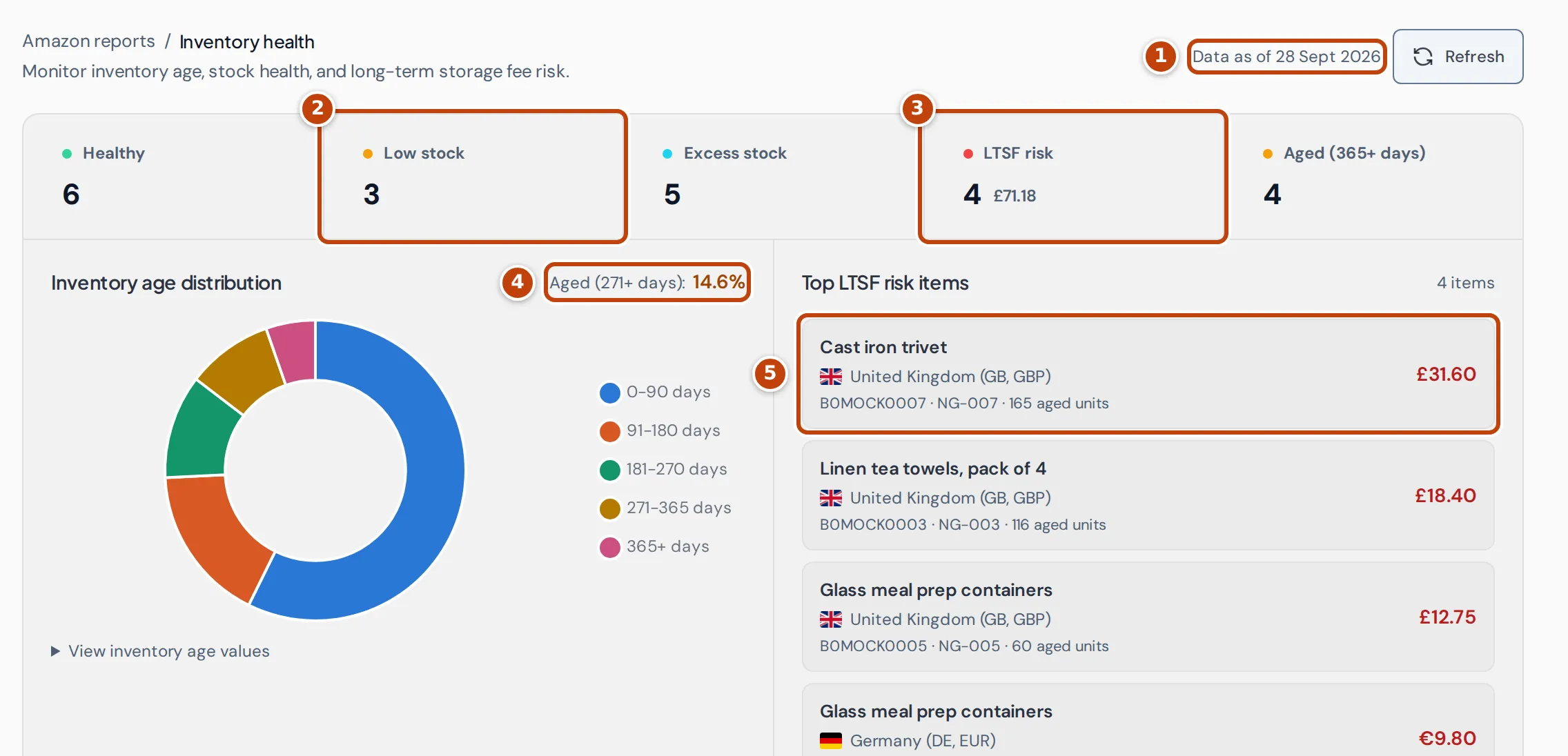
marker 1 Data as of gives the date of the Amazon report the page shows. Refresh reloads the page.
The five figures count products per marketplace, so a product in the UK and Germany counts twice:
| Figure | What it counts |
|---|---|
| Healthy | Products Amazon rates as healthy. |
| Low stock marker 2 | Products Amazon rates as low, which usually need restocking. |
| Excess stock | Products Amazon rates as having more stock than they sell. |
| LTSF risk marker 3 | Products with an estimated long-term storage fee at Amazon’s next charge. The amount beside the count is the total of those fees, in your reference currency. |
| Aged (365+ days) | Products with units that have been in Amazon’s warehouses for over a year. |
Inventory age distribution splits your units by how long they’ve been at Amazon: 0–90, 91–180, 181–270, 271–365 and 365+ days. marker 4 Aged (271+ days) is the share of units older than 270 days. To read the exact units, select View inventory age values.
Top LTSF risk items lists the products with the largest estimated long-term storage fee at the next charge marker 5, up to five, with the product name, marketplace, ASIN, SKU, aged units (units older than 270 days) and the fee in the marketplace’s currency. A product sold in two marketplaces can appear once for each. Select an item to open that product’s inventory page for its marketplace.
The product table
Section titled “The product table”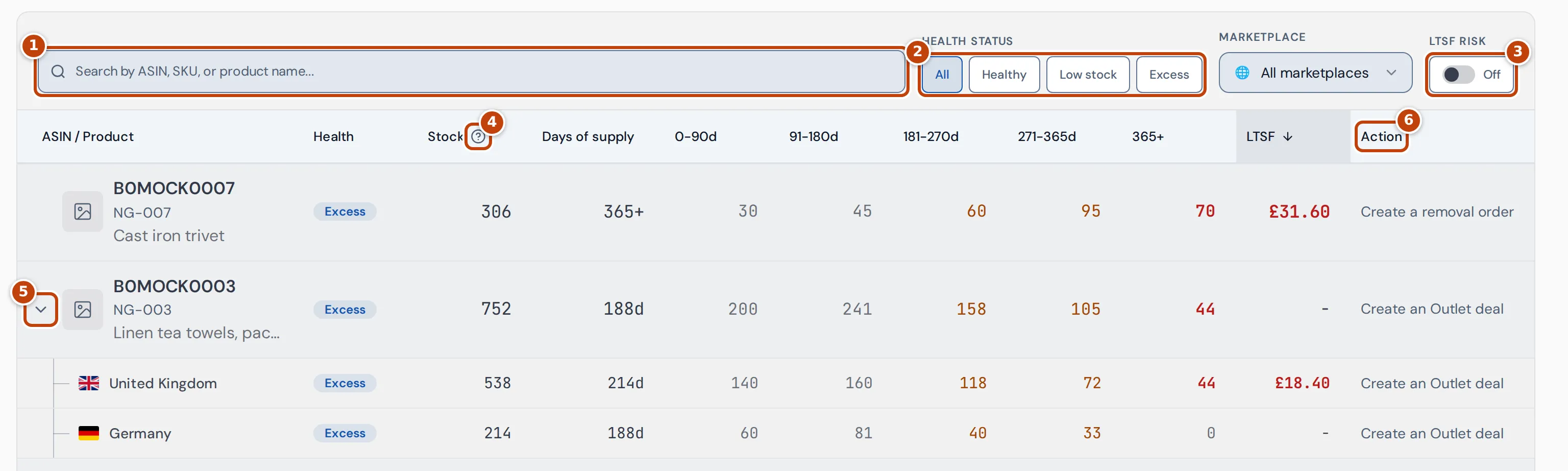
The filters above the table:
- marker 1 Search by ASIN, SKU or product name.
- marker 2 Health status: All, Healthy, Low stock or Excess.
- Marketplace chooses one marketplace. Changing it updates the summary as well as the table.
- marker 3 LTSF risk: turn it on to show only products with an estimated long-term storage fee.
- Clear filters removes all of them.
The columns:
| Column | What it shows |
|---|---|
| ASIN / Product | The product’s ASIN, SKU and name. |
| Health | Amazon’s rating: Healthy, Low or Excess. |
| Stock marker 4 | Units physically in Amazon’s fulfilment centres: fulfillable, reserved and unfulfillable together. Hover over a figure to see the split. |
| Days of supply | Amazon’s estimate of how many days the stock will last. Above 365 days it shows 365+. |
| 0-90d to 365+ | Units by how long they’ve been at Amazon. Older buckets are highlighted. |
| LTSF | Amazon’s estimated long-term storage fee at the next charge, in the marketplace’s currency. |
| Action marker 6 | Amazon’s recommended action for the product. If one runs past two lines, hover over it to read it in full. |
With all marketplaces shown, each product has one row that adds up its marketplaces. When a product is in more than one marketplace, marker 5 select the arrow beside it to see one row per marketplace. On the product row, Days of supply is the lowest of its marketplaces, and Health shows Mixed when the marketplaces’ ratings differ. When the marketplaces use different currencies, the LTSF is shown on each marketplace row only. When their recommended actions differ, Action shows Review markets.
Select Health, Stock, Days of supply, 365+ or LTSF to sort by it; the table starts sorted by LTSF, highest first. Drag a heading to reorder the columns. Select a row to open the product’s inventory page.
Find products that need action
Section titled “Find products that need action”- To find products to restock, select Low stock under Health status. Sort by Days of supply to see the most urgent first.
- To find stock that may be charged long-term storage fees, turn on LTSF risk. The table is sorted by the fee, highest first.
- To find slow sellers, select Excess and read the Action column.
Where the figures come from
Section titled “Where the figures come from”- Ratings, days of supply, stock ages, estimated fees and recommended actions are Amazon’s, from its inventory planning report. When Amazon gives no rating, Crateworth works one out from the recommended action, for example a restock recommendation counts as Low.
- Only stock physically held in each marketplace’s own fulfilment centres counts. A marketplace that sells stock held in another country, for example through Amazon’s Remote Fulfilment, has no row of its own, so the same units aren’t counted twice. Where a marketplace has both kinds of stock, its row shows the stock but no rating or ages.
- The LTSF risk total is converted into your reference currency. Fees in the table and the Top LTSF risk items list stay in each marketplace’s currency.
Why the page is empty or shows dashes
Section titled “Why the page is empty or shows dashes”“No inventory health snapshots yet”
Section titled ““No inventory health snapshots yet””Crateworth hasn’t received Amazon’s inventory planning report yet. The page fills in after the first report is read.
“No inventory health items match these filters”
Section titled ““No inventory health items match these filters””No product matches the search and filters. Select Clear filters.
“No inventory health items for this snapshot”
Section titled ““No inventory health items for this snapshot””You chose an earlier date on the Inventory overview page, and Amazon’s report for that date has no rows. Select Return to latest snapshot.
A row shows dashes for health and ages
Section titled “A row shows dashes for health and ages”The marketplace sells both its own stock and stock held in another country, or Amazon didn’t supply enough data to count the stock there. Crateworth shows no rating or ages rather than repeat another country’s figures.
Related pages
Section titled “Related pages”- Storage utilisation shows whether you may be charged Amazon’s storage utilisation surcharge.
- Removals lists removal orders you’ve created for excess or aged stock.
- Replenishment planning helps you plan orders for products running low.