
Suppliers
Suppliers is your list of the manufacturers and wholesalers you buy from. A supplier’s currency and payment terms are what a new purchase order starts from, and its origin port is used for freight estimates. To open it, in the sidebar, under Supply chain, select Suppliers.
What’s on the Suppliers page
Section titled “What’s on the Suppliers page”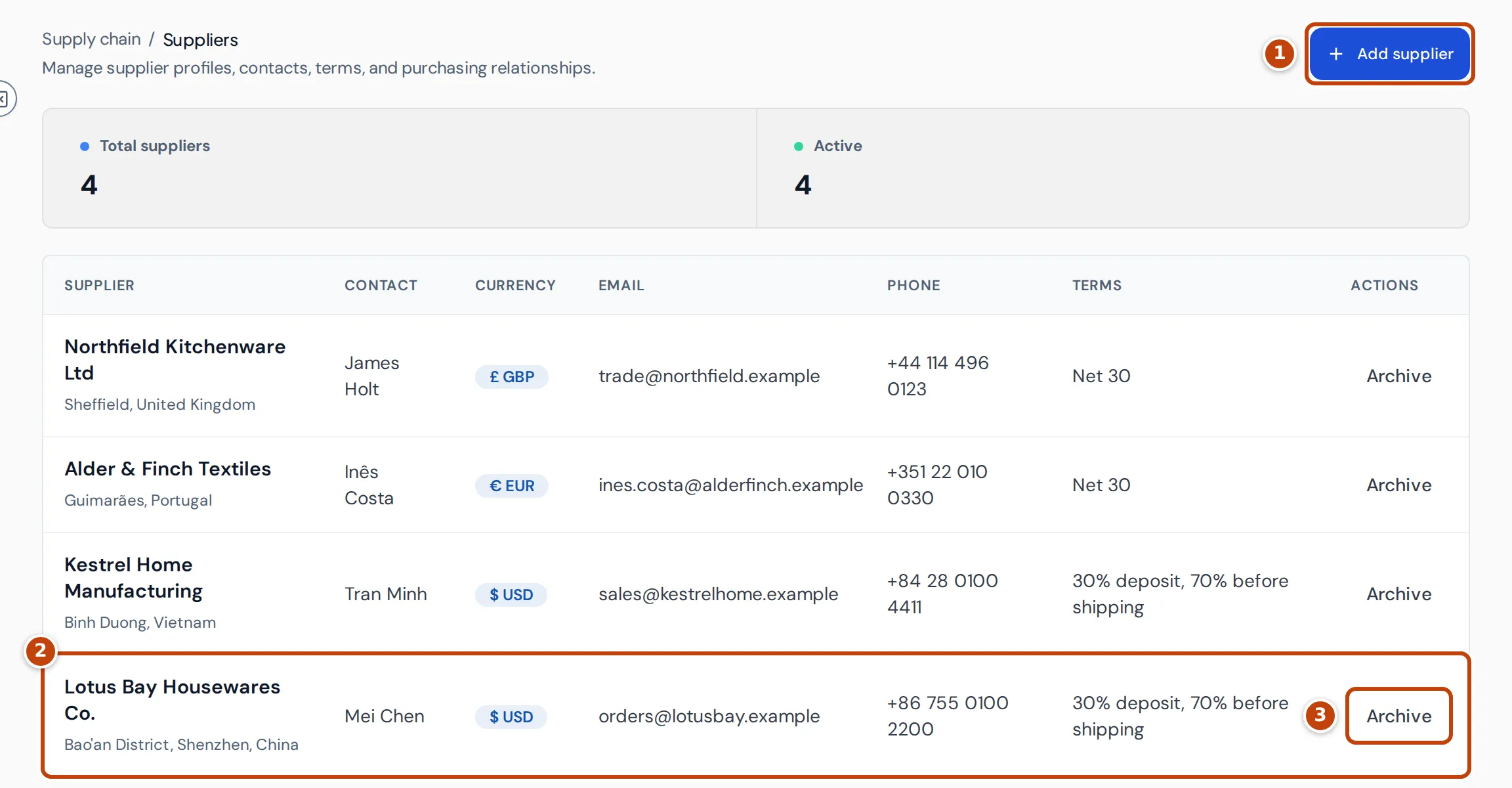
The page lists your active suppliers, newest first; archived suppliers aren’t shown, so the Total suppliers and Active cards both count active suppliers. The columns are:
- Supplier: the name, with the address underneath.
- Contact, Email and Phone: who you deal with.
- Currency: the currency the supplier invoices in.
- Terms: the supplier’s default payment terms.
marker 1 Add supplier adds a supplier. Select a row marker 2 to edit it. marker 3 Archive hides a supplier you no longer use.
Add a supplier
Section titled “Add a supplier”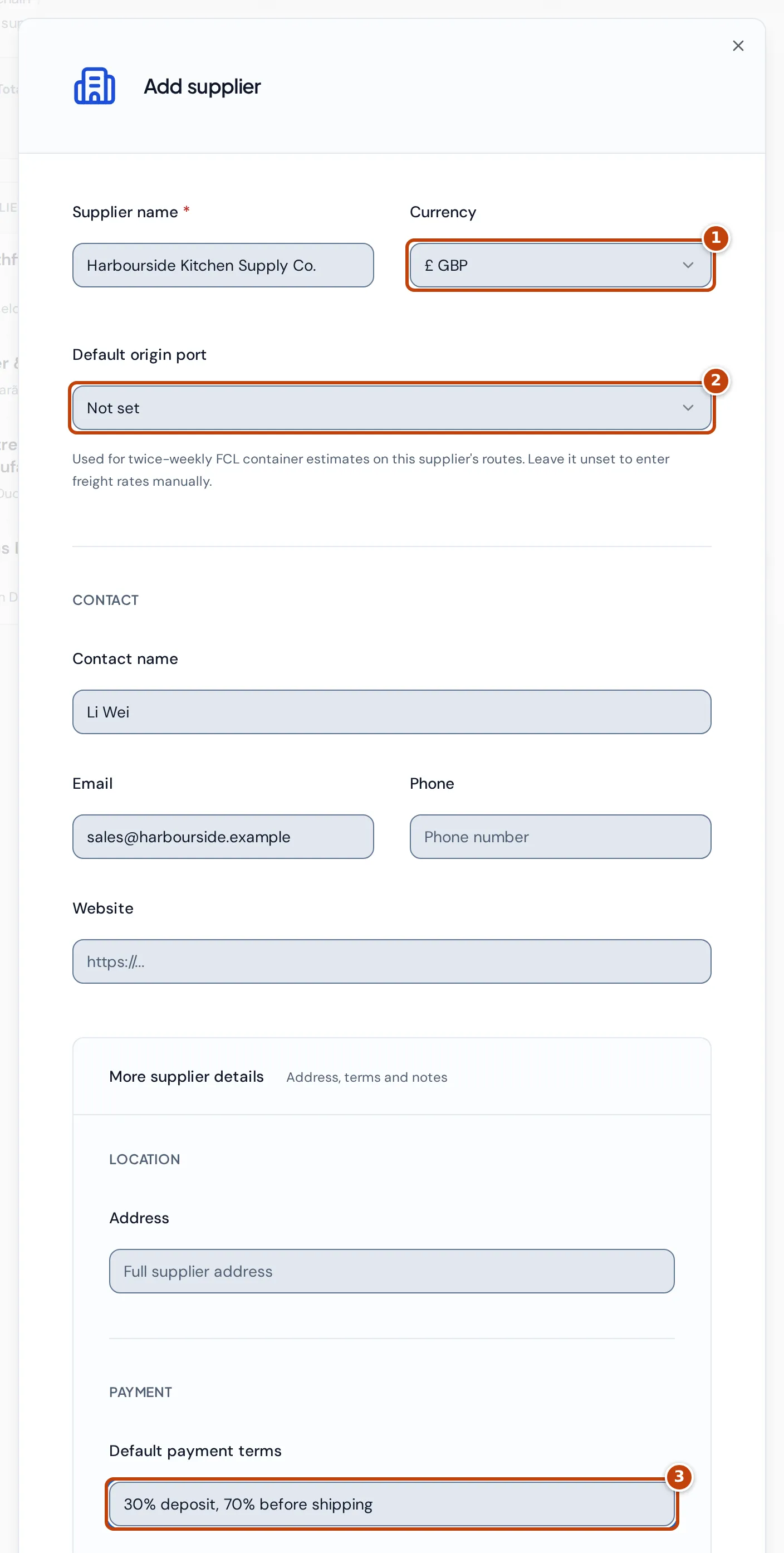
- On the Suppliers page, select Add supplier.
- Enter the Supplier name. It’s the only required field.
- Choose the Currency marker 1 the supplier invoices in. It starts as your reference currency.
- Optional: choose a Default origin port marker 2, the port in China the supplier ships from. Crateworth uses it for its twice-weekly full-container (FCL) freight estimates on this supplier’s routes. Leave it as Not set to enter freight rates yourself.
- Optional: under Contact, enter the Contact name, Email, Phone and Website.
- Optional: open More supplier details to add the Address and the Default payment terms marker 3, for example “30% deposit, 70% before shipping” or “Net 30”, and a Comment.
- Select Add supplier at the bottom of the form.
You can also add a supplier while creating a purchase order, with Add supplier on its first step. The new supplier is then chosen for the order.
How a supplier’s details are used
Section titled “How a supplier’s details are used”- When you choose the supplier on a new purchase order, the order’s currency changes to the supplier’s Currency, and its Default payment terms are copied into the order’s supplier payment notes. You can change both on the order.
- The Default origin port places the supplier’s freight on its sea route and is used for container freight estimates in Freight rates.
- The search on Purchase orders matches the supplier’s name and contact name.
Edit a supplier
Section titled “Edit a supplier”- On the Suppliers page, select the supplier’s row. The Edit supplier form opens.
- Change the details.
- Select Update supplier.
Archive a supplier
Section titled “Archive a supplier”- On the Suppliers page, select Archive on the supplier’s row.
- Select Archive supplier to confirm.
An archived supplier is hidden from new purchase orders and disappears from this page. Its existing products and purchase orders keep their history. There’s no button to restore an archived supplier on this page.
Why is a supplier missing?
Section titled “Why is a supplier missing?”- From Suppliers or the supplier list on a new purchase order: it has been archived. Only active suppliers are listed.
- From the Supplier filter on Purchase orders: the filter lists active suppliers only.
Related pages
Section titled “Related pages”- Purchase orders
- Supplier quality compares suppliers by the refund rate of the stock they delivered.
- Freight rates